License overview
The license portal provides a comprehensive view of all licenses, their types, versions, and activation status. This overview makes it easier to manage your OPC Router installations and license inventory.

Explanation of the license overview
| Column | Explanation |
|---|---|
| OPC Router ID | Each license is uniquely identified by an OPC Router ID. |
| License Type | The license type indicates whether it is a subscription, perpetual, educational, or other type of license. |
| Version | The Version column indicates the OPC Router version for which the license is valid. |
| Available Activations | Shows how many activations are still available. In exceptional cases, more activations than were purchased are allowed with a corresponding warning and notification to the distributor. Overprovisioning is indicated by a negative value. |
| Subscription/Maintenance Period | For a perpetual license, the number of days of support remaining is displayed. |
| Created | Date the license was created |
| Valid until | Date on which the license expires |
| License activation | An exclamation mark indicates that manual license activation is required. This is the case for offline systems or if license information has changed in the portal, for example due to maintenance renewal or the purchase of additional plug-ins. |
Further information
The lines can be expanded to display further information. After expanding, the license overview displays the licensed modules and the systems on which the license is active.
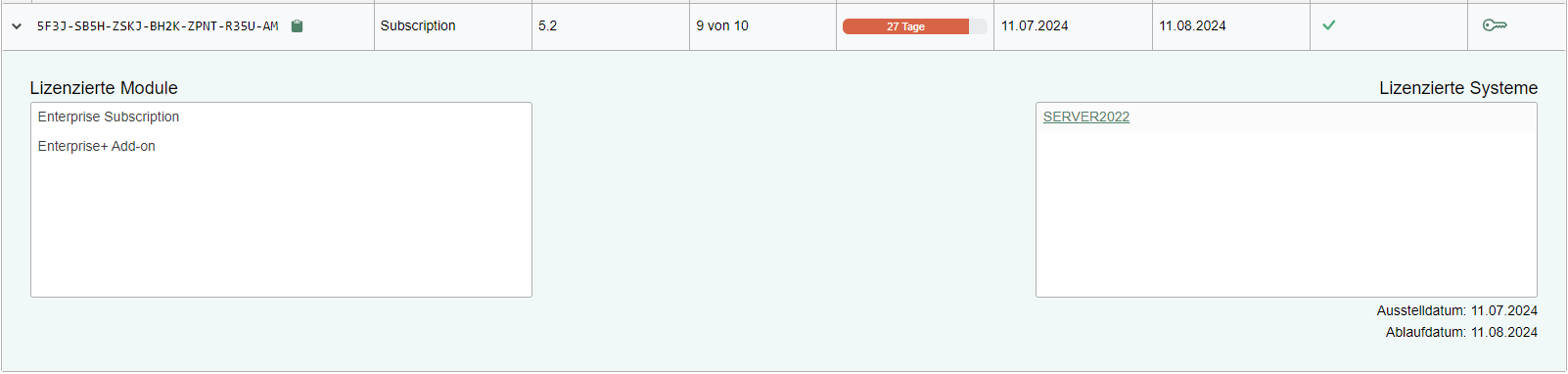
Activate license (offline licensing)
For systems without a direct internet connection, the license portal offers an option for offline licensing. This is enabled by the key button in the "Activate" column. Clicking this button initiates the necessary steps to activate a license without online access. The process is described in more detail on the [licensing.md](../../settings/licensing.md "mention") page. This procedure is particularly useful for secure network environments that do not allow direct internet access for security reasons.
The rows can be expanded to display further information about the license. After expanding, you will see an overview of the licensed modules and the systems on which the license has been activated.
Adding a license to the portal
You can add a license to the license portal if you have received a license key from your supplier. To add a license to the license portal, please follow these steps.
- Click on the "Add license key" button.
- Enter or paste your license key and click "OK."
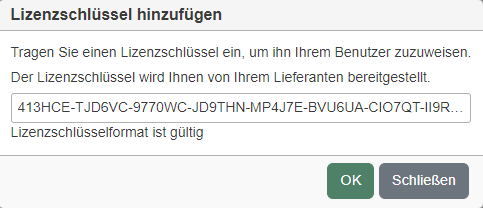
After adding it, the license will be displayed in the license overview.
Removing a license from a system
In the license portal, you can use the "Delease system" button to delease a system yourself. The exact procedure is described on the delizenzierung.md page.