Connection Settings
The following settings specify which Snowflake account the OPC Router connects to and how it authenticates. They are located on the first tab of the “Snowflake AI Data Cloud” plug-in configuration.
Dialog Overview
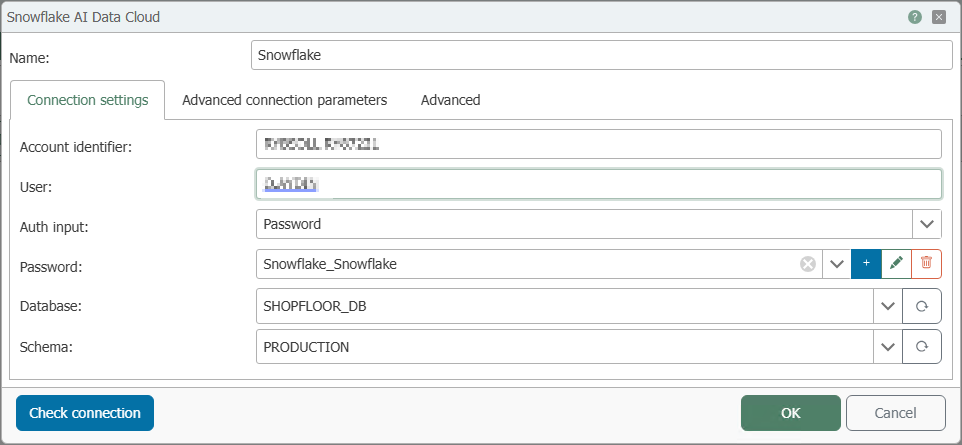
Configuration
| Input Field | Description |
|---|---|
| Name | Assign a unique name to the Snowflake connection. This name will later be used to select the connection in transfer objects and triggers. |
| Account identifier | Unique identifier for your Snowflake account (e.g., in the form ORGNAME-ACCOUNTNAME), as displayed in the Snowflake AI Data Cloud. It forms the basis of the connection address. |
| User | Username for logging in to the Snowflake AI Data Cloud. |
| Auth Method | Authentication method: Password or Private Key Pair (authentication via a key pair). Depending on your selection, the corresponding fields will be displayed. The key pair method is considered the more secure option. |
| Password | Only for Password: the Snowflake password. It is saved as login credentials and managed using the buttons next to it (Add via the plus icon, Edit via the pencil icon, Remove via the trash can icon). |
| Private Key | Only for Private Key Pair: Select the user’s private key file. |
| Private Key Password | Only for Private Key Pair: Password for the private key file—required only if the key is encrypted. |
| Database | The database to which the plug-in connects by default. Select an existing database or manually enter a future database. |
| Schema | Optional selection of a schema within the selected database. A schema groups related tables and views and defines the default context for queries. |
tip
Where can I find this information? You can find the Account Identifier and username directly in the Snowflake AI Data Cloud: Click on your profile and then on “Connect a tool to Snowflake.” Your account’s connection details are listed there.
Use the “Test Connection” button to verify the connection details you entered before saving the connection by clicking “OK.”