MQTT Plug-in
You can set the following properties in the configuration of the MQTT plug-in:
Router settings:
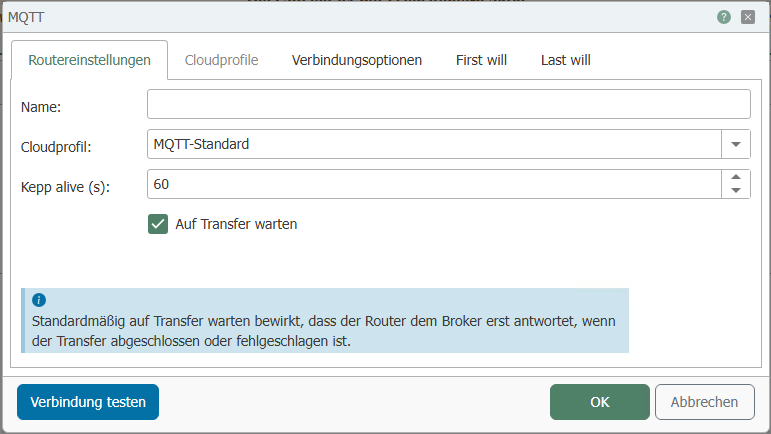
| Property | Description |
|---|---|
| Name | Assign a unique name to the MQTT connection. |
| Cloud profile | Choose between MQTT Standard, AWS, Azure IoT, or Wago Cloud. |
| Keep alive (s) | The ping interval at which the OPC Router sends a ping to the server. If no data arrives during the interval, the router will cancel the wait. |
| Wait for transfer | Wait for transfer causes the router to respond to the broker only when the transfer is complete or has failed. |
Cloud profile:
For more information on using MQTT and cloud profiles, please refer to our Knowledge Base:
You can switch between different cloud profiles, each with different properties:
AWS:
 (1)-13eab9c975ffe1161bd629ac3ae29312.png)
| Feature | Description |
|---|---|
| API endpoint address | Enter the address for the connection in the AWS Cloud here. |
| Import new certificate | Select this option if you want to integrate a new certificate. |
| Certificate | Select the certificate from the AWS IoT Cloud here. |
| Private key file | Select the file from the AWS IoT Cloud here. You can download this file beforehand. For more information, see our Knowledge Base. |
| Select existing certificate | Select this option if you want to select a certificate from the OPC Router certificate management or create a new certificate. |
| Client certificate | Select a certificate from the OPC Router certificate management or create a new certificate. |
Azure IoT:
-a647b4017f8357140ea9b11228589900.png)
For instructions on creating a connection in the Azure IoT Cloud, please refer to our Knowledge Base.
| Property | Description |
|---|---|
| Hostname | The name of the connection in the Azure IoT Cloud. |
| Shared access key name | The name of the policy in the Azure IoT Cloud. |
| Shared access key | Enter the key to establish a secure connection. |
| Enter connection string | Open the pop-up to enter the connection string. |
| DeviceID | Enter the device ID for the device here. |
| Time to live (days) | Here you specify the validity period for the token generated from the access key. When the period has expired, a new token is generated from the access key. Important: The shared access key does not need to be replaced. It remains the same. |
| Primary Device Key | Select here whether it should be a primary device. |
| Secondary Device Key | Select here whether it should be a secondary device. |
Wago Cloud:
-63f8a9a931ec59e8a136f9bf21051c64.png)
| Property | Description |
|---|---|
| Endpoint | The destination to which the data is sent from the field level. |
| DeviceID | Enter your DeviceID. You can find this in your Wago Cloud account. |
| Activation Key | Enter your Activation Key. You can find the Activation Key in your Wago Cloud account. |
Connection Options:
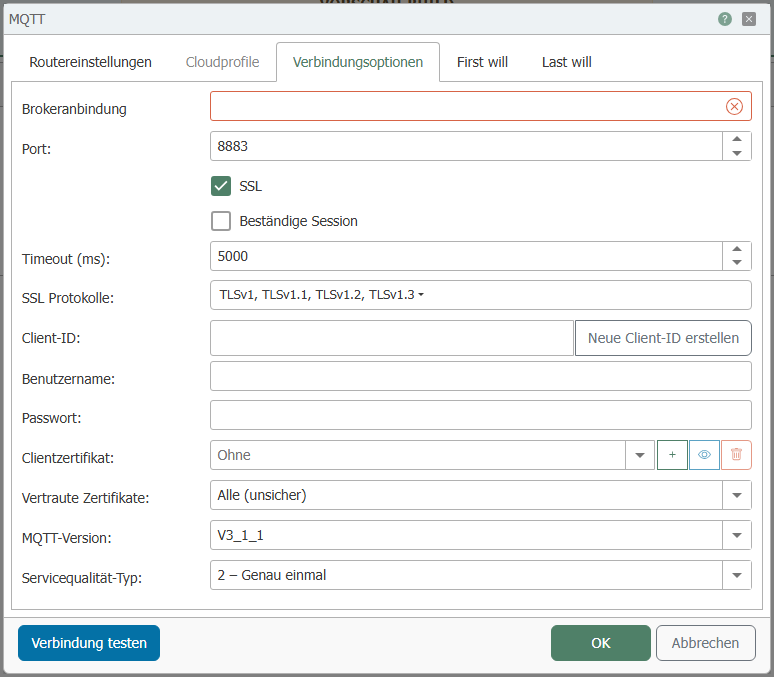
| Property | Description |
|---|---|
| Broker connection | Enter the broker address. |
| Port | Port on the server used for the MQTT connection. |
| SSL | Uses SSL encryption. The server must support this, and the corresponding port must be set. |
| Persistent session | Activate if a persistent connection is desired. Missed messages are sent later. |
| Timeout (ms) | Duration during which the system waits to see if a connection can be reestablished. |
| SSL protocols | Select the algorithms that may be used. Note: Some MQTT brokers reject connections if outdated protocols are used. |
| Client ID | Enter a unique client ID. |
| Create new client ID | Creates a new unique client ID, which is displayed in the Client ID field. |
| Username | Username for logging in to the server. |
| Password | Password for logging in to the server. |
| Client Certificate | Select a client certificate from the drop-down list, which the OPC Router sends along with the request. |
| Trusted Certificates | Select which certificates should be accepted. For example, all certificates, only Windows certificates, or only router certificates. |
| MQTT Version | Select the MQTT protocol version from the drop-down menu. |
| Quality of Service Type | Select the default quality of service:
|
The client ID must be unique and independent. There can only be one client ID per server, otherwise errors may occur in the plug-in.
Tab: First Will
-a027fe23c7fd30f01230268cc3fe6bf2.png)
| Property | Description |
|---|---|
| Activate First Will | Activate the checkbox to activate "First Will." Activity when establishing a connection. |
| Topic | Specify which topic First Will should write to. |
| Payload | Specify which user data should be transmitted during communication. |
| Service quality | Select the service quality:
|
| Retain First Will | Activate if the broker should retain the data. The data will be sent again after the connection is terminated. |
Tab: Last Will
-d3c979780dd0b91361c8350b3e847f3e.png)
| Property | Description |
|---|---|
| Activate Last Will | Activate the checkbox to activate "Last Will." Sent when the connection is established, executed only when the connection is terminated. |
| Topic | Specify the topic to which Last Will should write. |
| Payload | Specify which user data should be transmitted during communication. |
| Service Quality | Select the service quality:
|
| Retain Last Will | Activate if the broker is to retain the data. The data is sent again after the connection is terminated. |
| Send Last Will when connection is terminated | Activate if the Last Will is also to be sent when the connection is closed. |