MQTT Plug-in Configuration
This page describes how to configure the MQTT broker connection. The actual message processing is then handled by the MQTT transfer object, MQTT Subscribe, or the MQTT Storage Read Transfer Object.
The MQTT plug-in establishes the connection to the broker. If you want to receive MQTT messages and use them to trigger flows, you must also use MQTT Subscribe. To publish messages, use the MQTT Transfer Object.
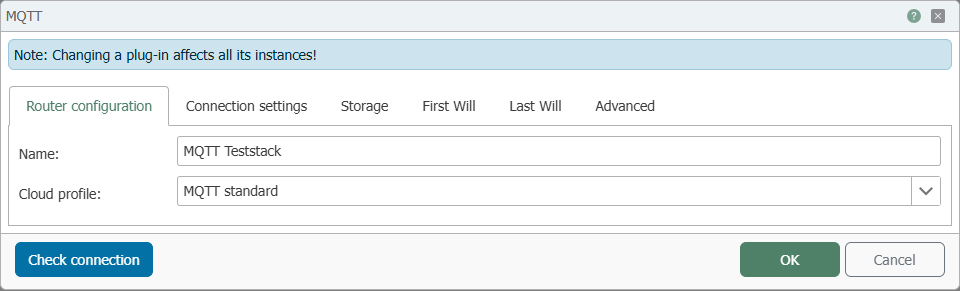
Router Settings
| Field | Description |
|---|---|
| Name | Assign a unique name to the MQTT connection. |
| Cloud Profile | Select the desired profile: MQTT Standard, AWS, Azure IoT, Wago Cloud. |
You can use Test Connection to verify the current connection.
Cloud Profiles
The cloud profiles extend the standard configuration with additional tabs:
For more information on using MQTT and the cloud profiles, see our knowledge base:
Connection Options
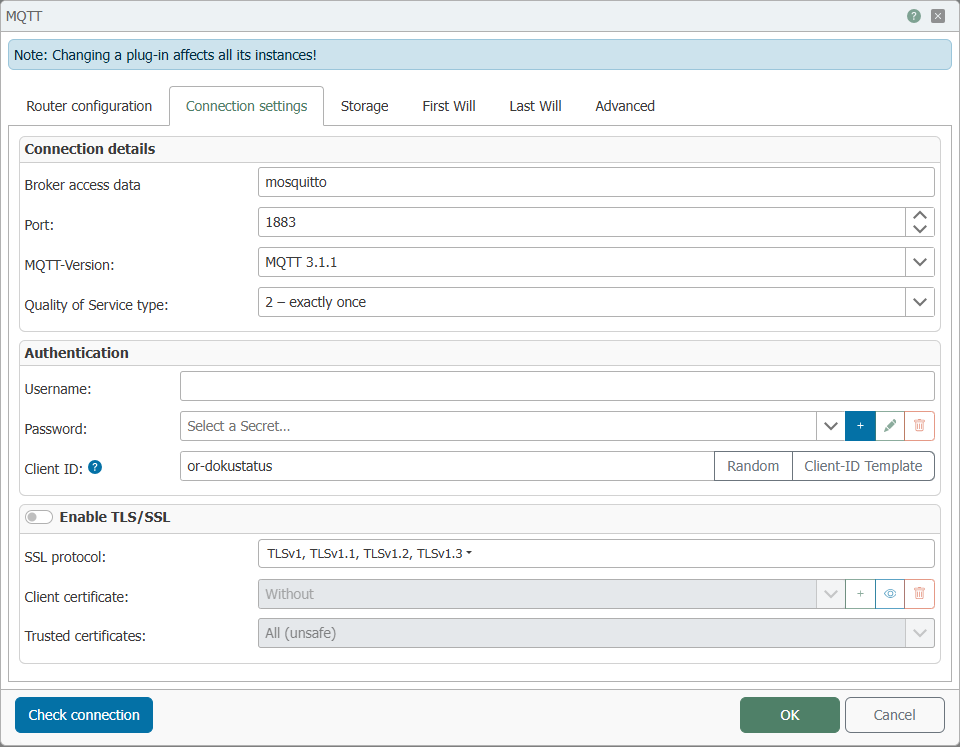
Connection Details
| Field | Description |
|---|---|
| Broker Connection | Enter the address of the MQTT broker. In the screenshot, mosquitto is entered as an example. |
| Port | The broker’s TCP port. When Enable TLS/SSL is enabled, 8883 is typically preset; without TLS/SSL, 1883 is generally used. |
| MQTT Version | Select the protocol version. In the screenshot, MQTT 3.1.1 is selected as an example. |
| Quality of Service Type | Selection of the standard QoS: 0—at most once, 1—at least once, or 2—exactly once. |
For details on latency, network round trips (RTT), and internal synchronization during publish operations, see MQTT Performance.
Authentication
| Field | Description |
|---|---|
| Username | Username for logging in to the broker. |
| Password | Select a secret. Use the buttons to create, edit, or delete a secret. |
| Client ID | Unique client ID. Supports the placeholders ${hostname}, ${hostname:lower}, #[INSTANCE], #[INSTANCE:<numeric value>], and #[RAND:<numeric value>]. This allows you to automatically generate different IDs per instance during connection pooling or project synchronization. A preview of the generated client ID is displayed below the input field. |
| Buttons | Random generates a random ID. Client ID Template inserts the default template into the input field. |
Enable TLS/SSL
| Field | Description |
|---|---|
| Enable TLS/SSL | Enables an encrypted connection to the broker. The TLS/SSL settings below can only be edited when this option is enabled. |
| SSL Protocols | Selection of supported protocols, such as TLSv1, TLSv1.1, TLSv1.2, or TLSv1.3. Multiple protocols can be enabled. |
| Client Certificate | Selection of a client certificate for logging in to the broker. Use the buttons to remove, add, view, or delete certificates. |
| Trusted Certificates | Specify which certificates are accepted, such as Router, Windows, or All (unsafe). |
Storage
| Field | Description |
|---|---|
| Enable MQTT Data Storage | When enabled, the last received MQTT message for each topic is saved to disk. This feature is required to use the MQTT Storage Read Transfer Object. |
| Pattern | A subscription is created for each added topic pattern. Supports the wildcards + and #. |
| Note | Free-form text describing the purpose or origin of a topic. |
When the MQTT Data Storage feature is enabled, the OPC Router creates automatic subscriptions for all entered topics. The received messages are stored persistently, but only the latest message per topic is retained. Older values are overwritten.
These stored values can be retrieved specifically using the MQTT Storage Read transfer object.
First Will
| Field | Description |
|---|---|
| Enable First Will | Enables the sending of a First Will when establishing a connection. |
| Retain First Will | Broker stores the message for later delivery. |
| Topic | Target topic for the First Will. |
| Payload | Content of the First Will message. |
| Quality of Service | Quality of service (0, 1, or 2). |
Last Will
| Field | Description |
|---|---|
| Enable Last Will | Enables sending a message if the connection is lost. |
| Retain Last Will | The broker stores the message for later delivery. |
| Send Last Will on Connection Disconnection | Sends Last Will even when the connection is manually terminated. |
| Topic | Target topic for the Last Will. |
| Payload | Content of the Last Will message. |
| Quality of Service | Service quality (0, 1, or 2). |
Advanced
Connection Pool
| Field | Description |
|---|---|
| Enable Connection Pool | When enabled, a single connection is used for subscriptions and multiple connections for publish operations. Useful for high message volumes. |
| Min. Connections | Minimum number of connections. |
| Max. Connections | Maximum number of connections. |
| Timeout Limit | Time in minutes after which inactive connections are closed. |
Flow Control
| Field | Description |
|---|---|
| Enable Flow Control | Enables the send quota for brokers that do not report their own limit (Receive Maximum, starting with MQTT 5). A limit reported by the broker is always honored, even if this option is disabled. |
| Send Quota | Maximum number of concurrent unacknowledged send operations (QoS 1 and 2) per connection. Values that are too low limit throughput with slow or remote brokers; values that are too high may cause the broker to throttle or terminate the connection. When connection pooling is enabled, this value applies per connection. Default: 10. |
Subscription / Trigger
| Field | Description |
|---|---|
| Wait for Transfer | The router responds to the broker only after the transfer has completed or failed. |
| Enable Message Duplicate Detection | Discards an incoming message whose topic, content, quality of service, and retain flag have already been received within the time window before a trigger sees it. Applies per broker connection: If the same topic is subscribed to via two connections, the block does not apply. Since the content is included in the comparison, it also discards genuine duplicates with identical content; therefore, it is disabled by default. |
| Time Window for Deduplication | The time span within which an identical message is discarded. Default setting: 3 seconds. Set it short enough so that two messages with different subjects but identical content are not included. |
Session Options
| Field | Description |
|---|---|
| CleanSession | Starts a new session without saved messages (disable for persistent sessions). |
| Keep alive (s) | Ping interval in seconds. |
| Timeout (ms) | Wait time in milliseconds for reconnection. |
Use the MQTT Performance page if you want to optimize QoS, RTT, or connection pooling for throughput and latency.
Up to version 5.4, the MQTT implementation could be selected under Expert Settings → Implementation: Legacy Automatic, Legacy Strider Mqtt, Legacy MQTTnet, and the then-recommended MQTTnet. Starting with version 5.5, the OPC Router displays a migration notice for such legacy configurations, recommending a switch to MQTT .NET V2. As of version 5.6, only MQTT .NET V2 is available; the selection option is therefore no longer available.