SAP® Plug-in
Note: If you want to use load balancing, you need an Enterprise license.
You can set the following properties in the SAP® plug-in configuration:
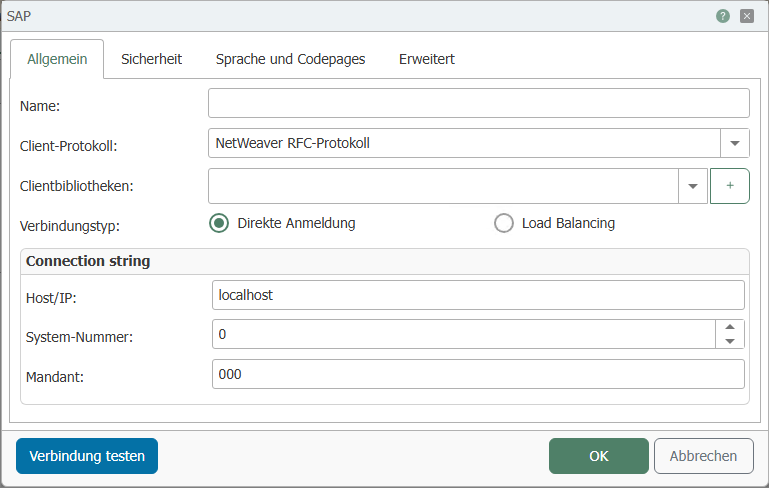
"General" tab
| Property | Description |
|---|---|
| Name | Any name under which this SAP® system appears in the connection project. |
| Client Protocol | SAP® driver used by the OPC Router for communication. Select the client protocol from the drop-down menu:
|
| Client Libraries | Add the *.dll files for Windows and the *.so files for Docker here. |
| Connection Type | Select the desired login method:
|
Direct login:

| Property | Description |
|---|---|
| Host/IP | Server (name or IP) with the SAP® application system. Explicit logon to a system is required (no load balancing procedure). |
| System number | Number of the SAP® system. |
| Client | Client (company code for the SAP® user). |
Load balancing:
!
| Property | Description |
|---|---|
| Message Server | Name or IP of the SAP® message server. |
| Logon group | Logon group of the SAP® system. |
| System number | Number of the SAP® system. |
| Client | Client (company code for the SAP® user). |
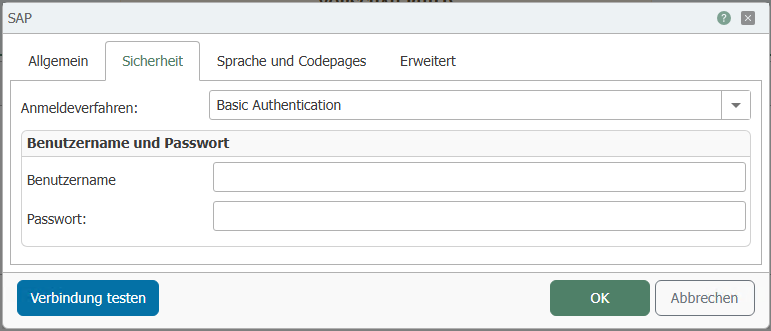
"Security" tab
| Property | Description |
|---|---|
| Login method |
|
Basic Authentication:
| Property | Description |
|---|---|
| User name | User name for logging on to the SAP® system. |
| Password | Password for logging on to the SAP® system. |
Secure Network Communications (SNC):
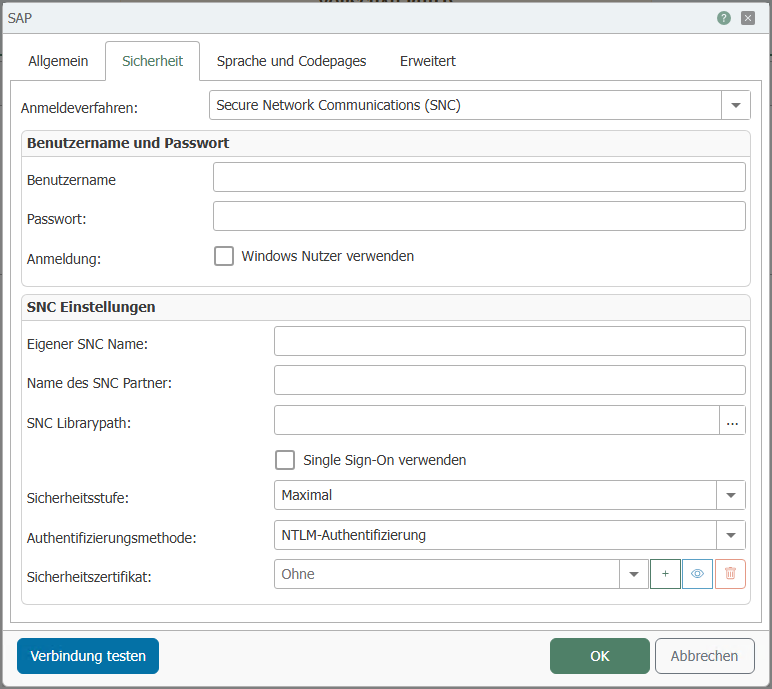
Please contact Support if you want to use sapcrypto.dll.
The sapcrypto.dll file is not provided by inray.
| Property | Description |
|---|---|
| User name | User name for logging on to the SAP® system. |
| Password | Password for logging on to the SAP® system. |
| Logon | Use your Windows user to log on to the SAP® system. |
| Property | Description |
|---|---|
| Own SNC Name | Name in the format p:CN=... as it appears in the issued certificate. |
| Name of SNC Partner | Entry of the SNC partner in the format: p:CN=... |
| SNC library path | The SNC library path can be configured here. It can be selected in a dialog box after clicking the '...' button. |
| Use single sign-on | Full access to all systems with a single login |
| Security level | Select the security level from the drop-down menu, e.g., Maximum or Standard. |
| Authentication method | Choose between NTLM authentication or Kerberos5 authentication. |
| Security certificate | Select a security certificate from the drop-down list. Use the plus sign to add another certificate and the minus sign to remove one. Another button allows you to display the properties of an existing certificate. |
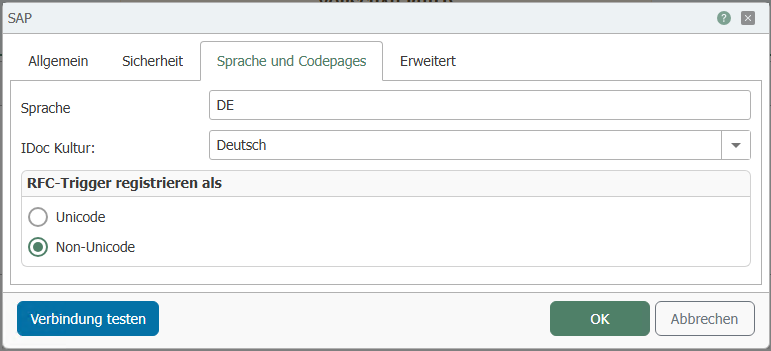
"Language and Code Pages" tab
| Property | Description |
|---|---|
| Language | Enter the language you want to use here. For example, "de" stands for German, "en" for English, etc. The language you want to use must be available on the SAP system. |
| IDoc culture | Select the IDoc language (culture) German or English to prevent a crash if an instance in the SAP® plugin contains an invalid IDoc culture. The date format is different, for example: February 1 in German is 01.02.2018, in English it is 02.01.2018 |
Register RFC triggers as
| Property | Description |
|---|---|
| Unicode | Register RFC triggers as Unicode |
| Non-Unicode | Register RFC triggers as non-Unicode |
If you use SAP Netweaver, the Unicode setting must always be activated. If you use the RFC protocol, the encoding depends on the librfc32 file. This exists once without Unicode (librfc32) and once with Unicode (librfc32u).
The target in SAP transaction SM59 must also be set to Unicode/No Unicode, depending on what has been set in the router and which library is used.
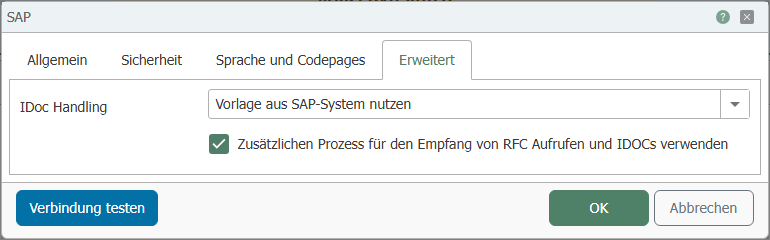
"Advanced" tab
!
| Property | Description |
|---|---|
| IDocHandling |
|
| Use additional process for receiving RFC calls and IDocs | If this checkbox is selected, the OPC Router will not stop in the event of an error in the SAP trigger (RFC or IDoc) and will continue to operate. |
You can use the "Test" button to check whether your connection is successful.
Note: In order to use the preferred settings of the SAP user, the OPC Router requires read access to the SAP table USR01
Adjusting the port used
By default, the OPC Router uses port "33_<system-nummer>_" to communicate with the SAP system, e.g., "3301" if the system number = 01 is set. If the SAP® system uses a different port and the SAP® GUI is not installed, the port must be adjusted:
- Create a backup copy of the file C:\Windows\System32\drivers\etc\services.
- Open the file C:\Windows\System32\drivers\etc\services with a text editor (not the copy).
- Change or add to the entry "sapgw00", specifying the port number in the format "XX00", e.g., "3600".
sapgw00 <portnummer>/tcp
- Save the file.
The OPC Router will then use the specified number.