Windows Installation
Important: Before installation, check that all system requirements are met. Familiarize yourself with the security recommendations and follow the steps below in particular.
The OPC router setup installs all necessary components and configures the following by default:
- The Windows service with the start type "Automatic," i.e., the runtime component responsible for data transfers is started automatically each time the computer is started. Immediately after installation, the router service does not run because no project configuration has been performed yet. After project configuration (and after each update), start the service manually once using the button in the router configuration.
Note: Manual installation of certificates if there is no Internet connection
If the server on which OPC Router is installed does not have an Internet connection, installation may occasionally be interrupted due to CAB or certificate errors. In such situations, it may be necessary to install the required certificates manually in order to complete the installation successfully. Please contact your product support for assistance.
Installation
- Perform a backup of the system.
- Since the OPC Router setup may update or install Windows system components, please close all open programs before starting the setup.
- Check that all system requirements are met.
- Run the setup.exe file from your installation source.
The installation file can be started by double-clicking on it.
Note on installation: Administrator rights required
It is not absolutely necessary for you to be logged in as an administrator to start the installation of the OPC Router. However, please note that administrator rights are required during the installation process. These rights will be requested at the appropriate time during the installation process.
Please ensure that you have access to an administrator account or can obtain the necessary permissions before proceeding with the installation. This will ensure that the installation runs smoothly and that all necessary components can be installed and configured correctly.
If you encounter access restrictions during installation, please contact your system administrator or support to obtain the necessary rights.
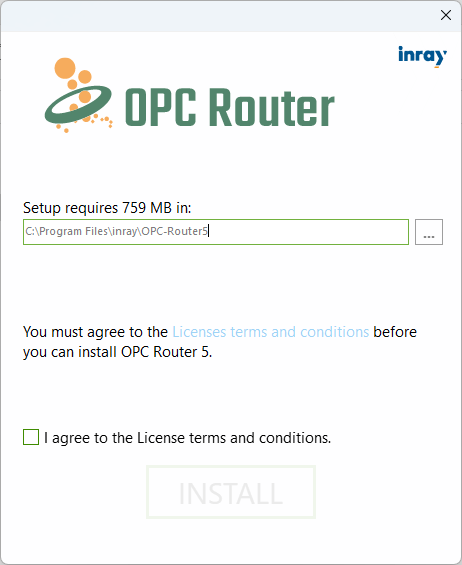 You can now specify the desired installation path. To install the application, you must agree to the license terms. Clicking the "Install" button will take you to another configuration screen.
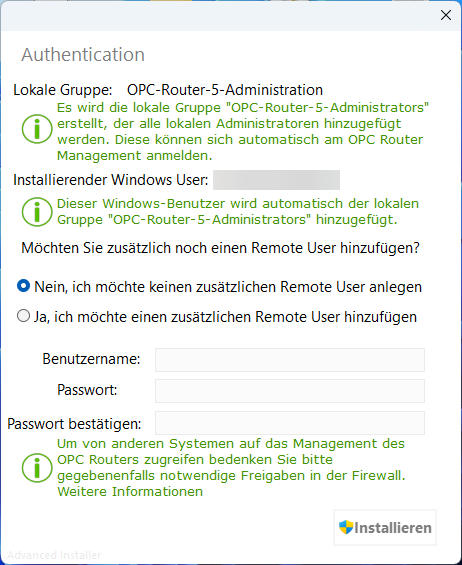 Here you can create a remote user if necessary. A remote user is a normal user who is created in Web Management and allows you to log in there without Windows authentication, for example, to access Web Management from a remote system. Clicking the "Install" button will automatically perform the installation.
The remote user is equivalent to the initial user when installing via Docker. It is an internal user with the role Admin (see User Roles), which is always restored after restarting the Management Service.
After successful installation, a shortcut should have been created on the desktop, which you can use to conveniently open Web Management.
Windows users of the local group "OPC-Router-5-Administrators" have the role Admin (see User roles) when logging into Web Management.
Configuration of antivirus programs
The database files for MongoDB are compressed. Scanning these files with a virus scanner can have a noticeable negative effect on performance. Therefore, an exception should be set up in the antivirus program for the installation directory of the OPC Router so that it is not scanned.
Creating a backup
You can create a backup of the OPCRouterConfiguration database via the "File - Create backup" menu. A folder named "Backup" is created in the installation directory for the backups. The name of the backup also includes the date and time: 20210130_153047_OPCRouterConfiguration.bak
Update
For software updates and maintenance, please refer to the relevant section in this manual.