Windows Installation
Before installation, verify that all system requirements are met. Familiarize yourself with the security recommendations and, in particular, follow the steps below.
The OPC router setup installs all necessary components and configures the following by default:
- The Windows service with the start type "Automatic," i.e., the runtime component responsible for data transfers is started automatically each time the computer is started. Immediately after installation, the router service does not run because no project configuration has been performed yet. After project configuration (and after each update), start the service manually once using the button in the router configuration.
Manual Installation of Certificates When No Internet Connection Is Available
If the server on which the OPC Router is being installed does not have an Internet connection, installation may in rare cases be interrupted due to CAB or certificate errors. In such situations, it may be necessary to manually install the required certificates to successfully complete the installation. Please contact your product support team for assistance.
Installation
- Perform a backup of the system.
- Since the OPC Router setup may update or install Windows system components, please close all open programs before starting the setup.
- Check that all system requirements are met.
- Run the setup.exe file from your installation source.
You can launch the installation file by double-clicking it.
Installation: Administrator rights required
You do not need to be logged in as an administrator to start the OPC Router installation. However, please note that administrator rights will be required during the installation process. You will be queried for these rights at the appropriate time during the installation.
Please ensure that you have access to an administrator account or can obtain the necessary permissions before proceeding with the installation. This ensures that the installation proceeds smoothly and that all necessary components can be installed and configured correctly.
If you encounter access restrictions during installation, please contact your system administrator or support to obtain the necessary permissions.
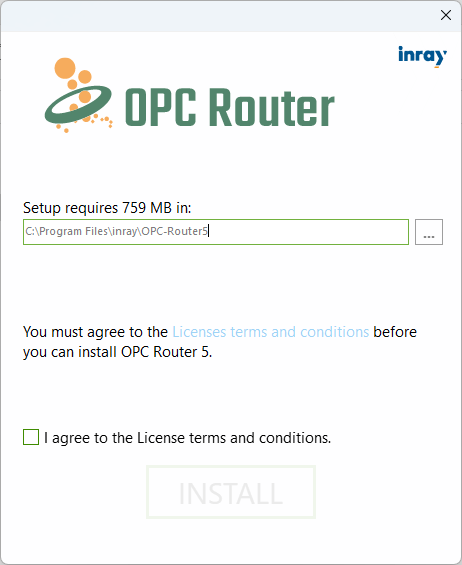
You can now specify the desired installation path. To install the application, you must agree to the license terms. Clicking the "Install" button will take you to another configuration screen.
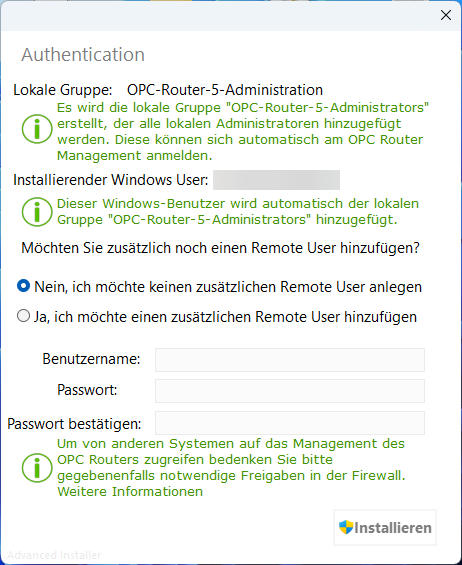
Here you can create a remote user if necessary. A remote user is a normal user who is created in Web Management and allows you to log in there without Windows authentication, for example, to access Web Management from a remote system. Clicking the "Install" button will automatically perform the installation.
The remote user is equivalent to the initial user during installation via Docker. It is an internal user with the Admin role (see User Roles), who is always restored after the management service is restarted. What happens without this user and what other login methods are available is described under First Login and Initial User.
After successful installation, a shortcut should have been created on the desktop, which you can use to conveniently open Web Management.
Starting with Version 5.7 MR 01, the setup also links .rpe files to the OPC Router: Double-clicking an exported project file opens the import page of the Web Management interface with the file. Uninstalling the program removes this shortcut.
Windows users in the local group "OPC-Router-5-Administrators" are assigned the Admin role when they log in to Web Management (see User Roles).
Check installation
Go to Web Management at http://localhost:5000 and then query the runtime’s health endpoint. Both steps and their responses are listed under Check Installation.
Configuration of antivirus programs
The database files for MongoDB are compressed. Scanning these files with a virus scanner can have a noticeable negative effect on performance. Therefore, an exception should be set up in the antivirus program for the installation directory of the OPC Router so that it is not scanned.
Creating a backup
You can create a backup of the OPCRouterConfiguration database via the "File - Create backup" menu. A folder named "Backup" is created in the installation directory for the backups. The name of the backup also includes the date and time: 20210130_153047_OPCRouterConfiguration.bak
If you are not backing up the entire computer (VM or hard drive backup), you should also back up the router’s program directory, where the database files are located.
Update
For software updates and maintenance, please refer to the relevant section in this manual.