Windows User Account for Services
If the OPC Router is to access third-party systems using Windows authentication, the relevant Windows service must run under a user account that is authorized to access the target system. This applies in particular to scenarios involving Windows authentication, integrated security, or DCOM, such as distributed OPC Classic connections or database access using a Windows account.
We recommend using a dedicated domain account with the minimum required permissions. For configuration in the management interface, it may also be useful for this account to have sufficient local permissions.
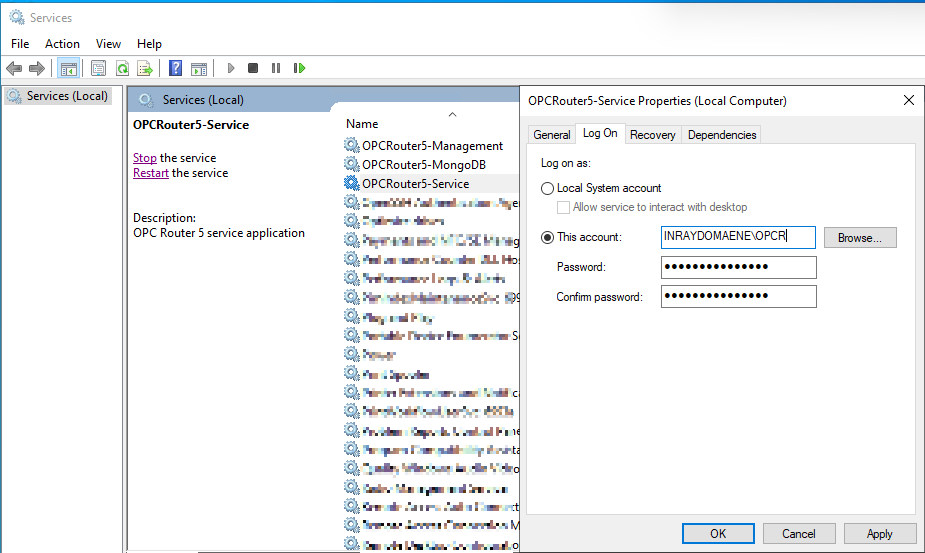
You should generally change this Windows user account for the runtime service OPCRouter5-Service. OPCRouter5-Management is also relevant if the management itself needs to access Windows resources under a specific user context. You typically do not change the local MongoDB service for this requirement.
Procedure in the Services Manager
- Open the Windows Services Manager.
- Open the desired service by double-clicking it.
For runtime access, this is usually
OPCRouter5-Service. For management functions, this isOPCRouter5-Managementif required. - Switch to the “Log On” tab and select “This account.”
- Select the desired user via “Browse.” Important: Under "Paths," select your Windows domain and not the local computer.
- Confirm the user selection with "OK" and then enter the account's password.
- First, confirm with "Apply." Windows will check whether the specified account can be used for service login.
- If the login fails, change the user’s name from <benutzername>@<domäne> to <domäne>_<benutzername>_ and try again.
- Confirm by clicking “OK.”
- Restart the modified service.
Practical Notes
- If possible, use a separate Windows user account instead of a personal user account.
- The account used requires the necessary permissions for both Windows service login and on the connected target system.
- For Windows authentication in database plug-ins, note that access at runtime occurs under the
OPCRouter5-Serviceaccount. - A connection test during configuration may run under a different user context than the subsequent runtime.
Dialog Overview
See Also
- Program Structure for the classification of management and runtime services.
- Distributed OPC Servers (DCOM) for typical domain and user requirements.
- Microsoft SQL Server Authentication for using Windows authentication with SQL Server.
- Microsoft SQL Server Configuration with instructions on configuring Windows user accounts for the OPC Router when Windows authentication is enabled.