User Roles via Entra ID
Starting with version 5.2.0, OPC Router 5 supports user authorization via user roles (see User Roles). By default, users from Microsoft Entra ID are automatically created or updated upon login. Their local roles are synchronized from the transferred role claims during each login. If no matching role claims are transferred, the Admin role is currently set automatically.
You can disable automatic creation upon first login by setting AZURE_AD_DISABLE_AUTO_PROVISION=true. In this case, users must already exist as external users in OPC Router.
Creating OPC Router 5 User Roles in Entra ID
The following steps require a Microsoft Entra ID (formerly Azure AD) connection (see Connect Microsoft Entra ID).
Open your Microsoft Entra ID tenant via the Microsoft Entra Admin Center.
You can also create user roles via the Microsoft Azure Portal, but assigning roles is only possible in the Microsoft Entra Admin Center.
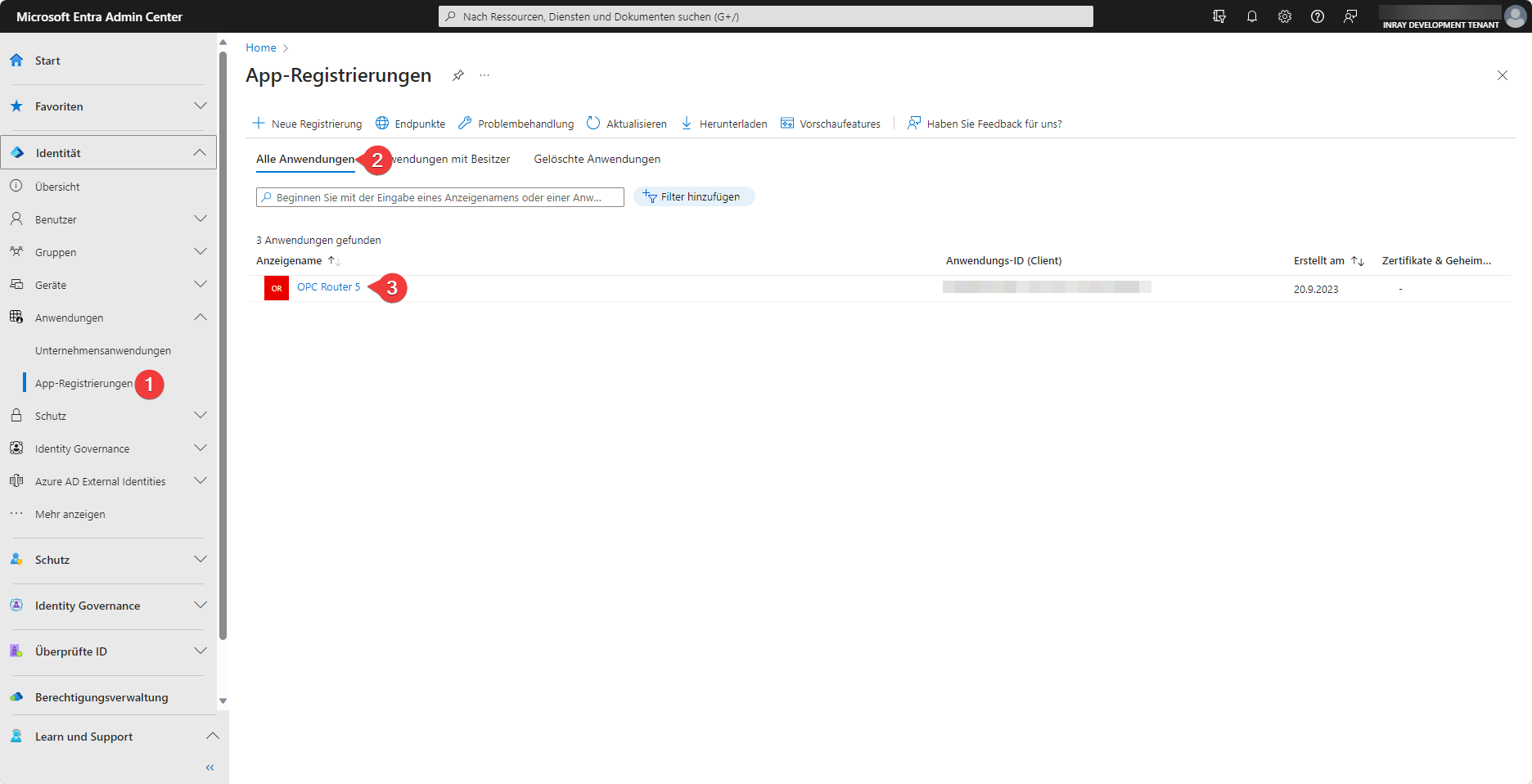
Now, under the App Registrations (1) tab, navigate to the All Applications (2) section and locate your application registration (3).
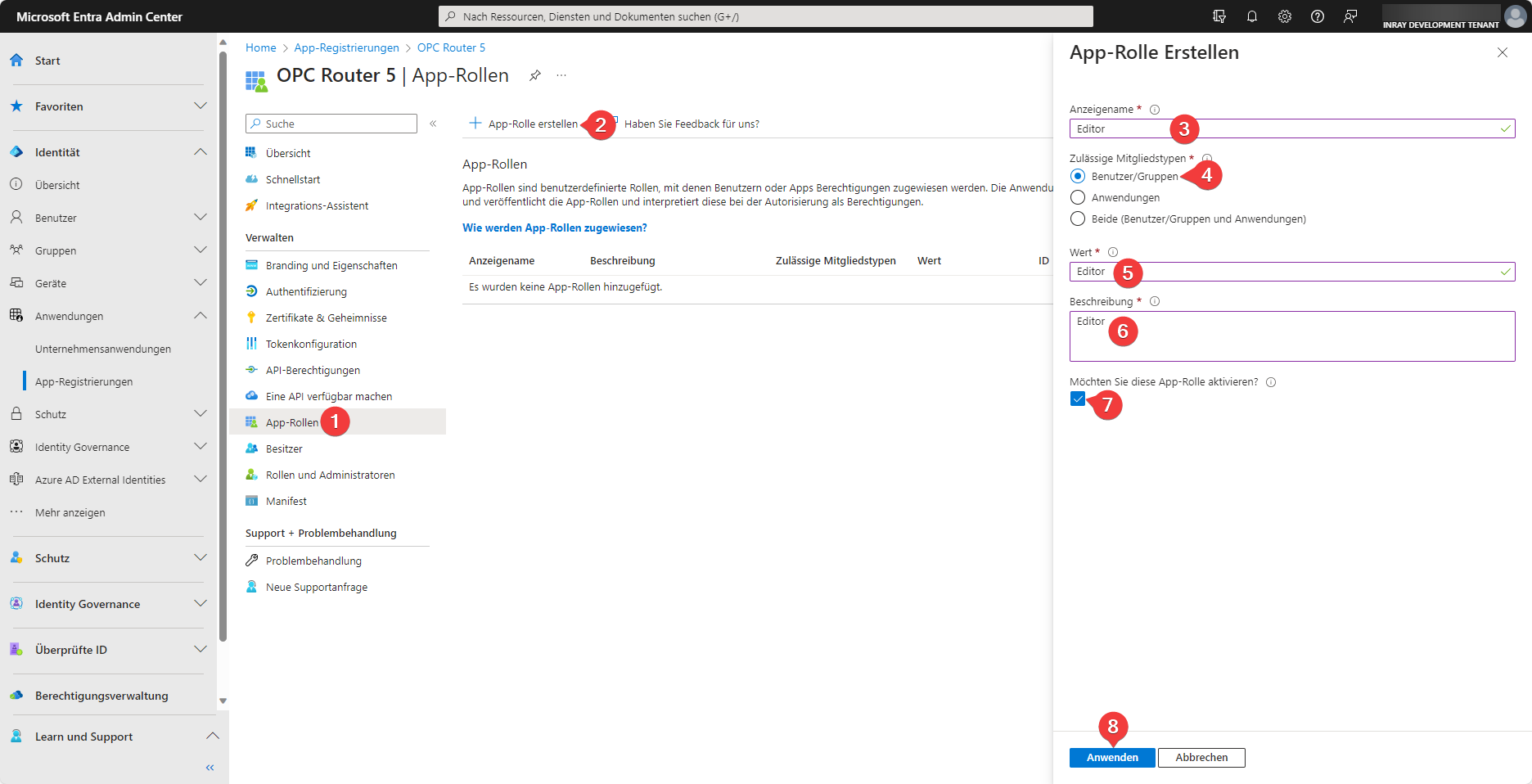
To add an app role, navigate to the App Roles (1) tab and select Create App Role (2). Select a display name (3) and Users/Groups (4) as the allowed member types. Under Value (5), enter the role that corresponds to the role in OPC Router 5.
Currently, only Admin, Editor, and Observer are permitted as values (5) for roles (see User Roles); while any other values do not trigger errors, they also do not have any permissions.
Next, you must enter a Description (6) and ensure that the app role is enabled (7); the role can then be created by clicking Apply (8).
Create three roles in this manner with the values Admin, Editor, and Observer.
Assign App Roles to Users
The following steps assume that user roles for Admin, Editor, and Observer have been created.
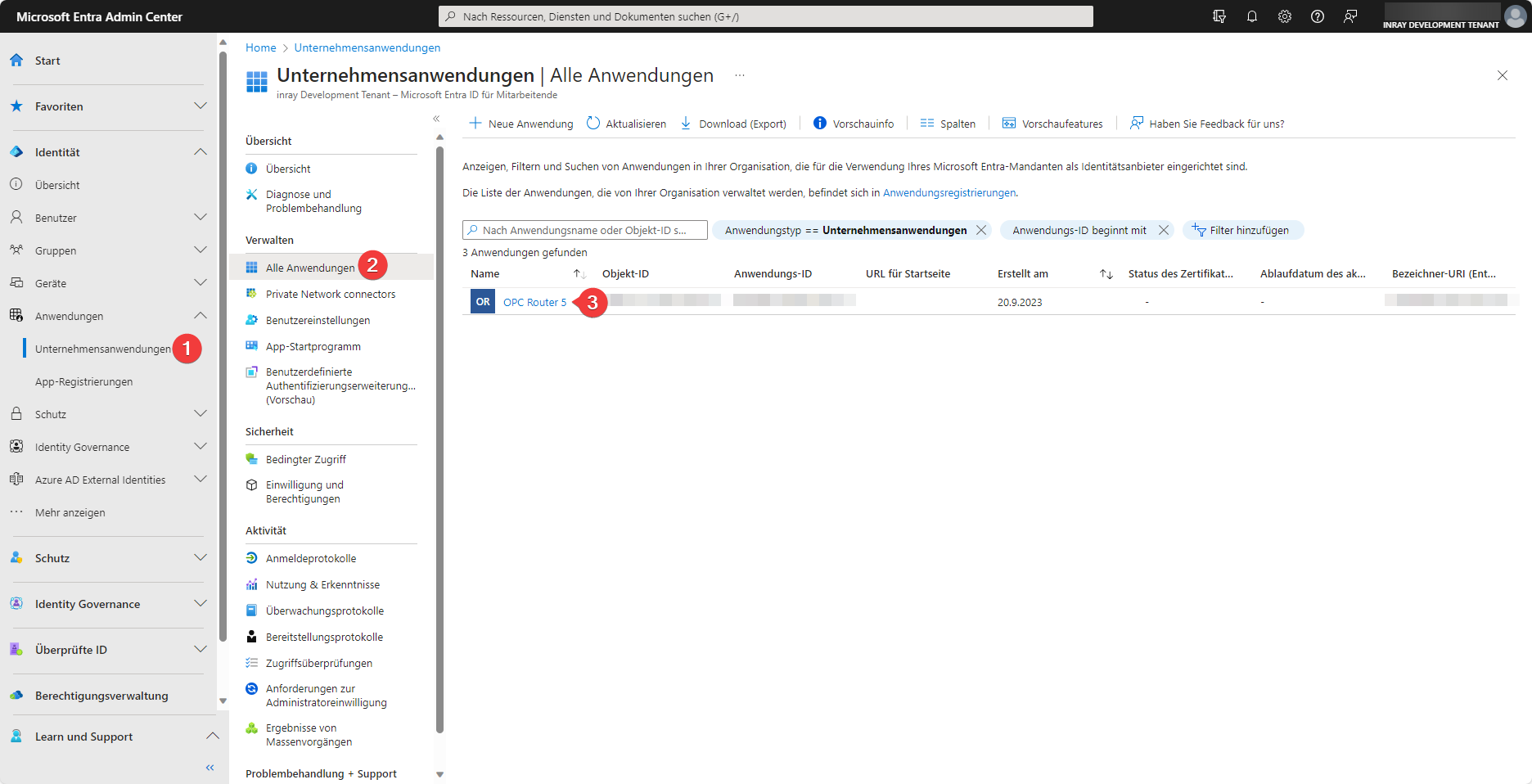
In the Microsoft Entra Admin Center, navigate to your application (3) under the Enterprise Applications (1) tab and the All Applications (2) section.
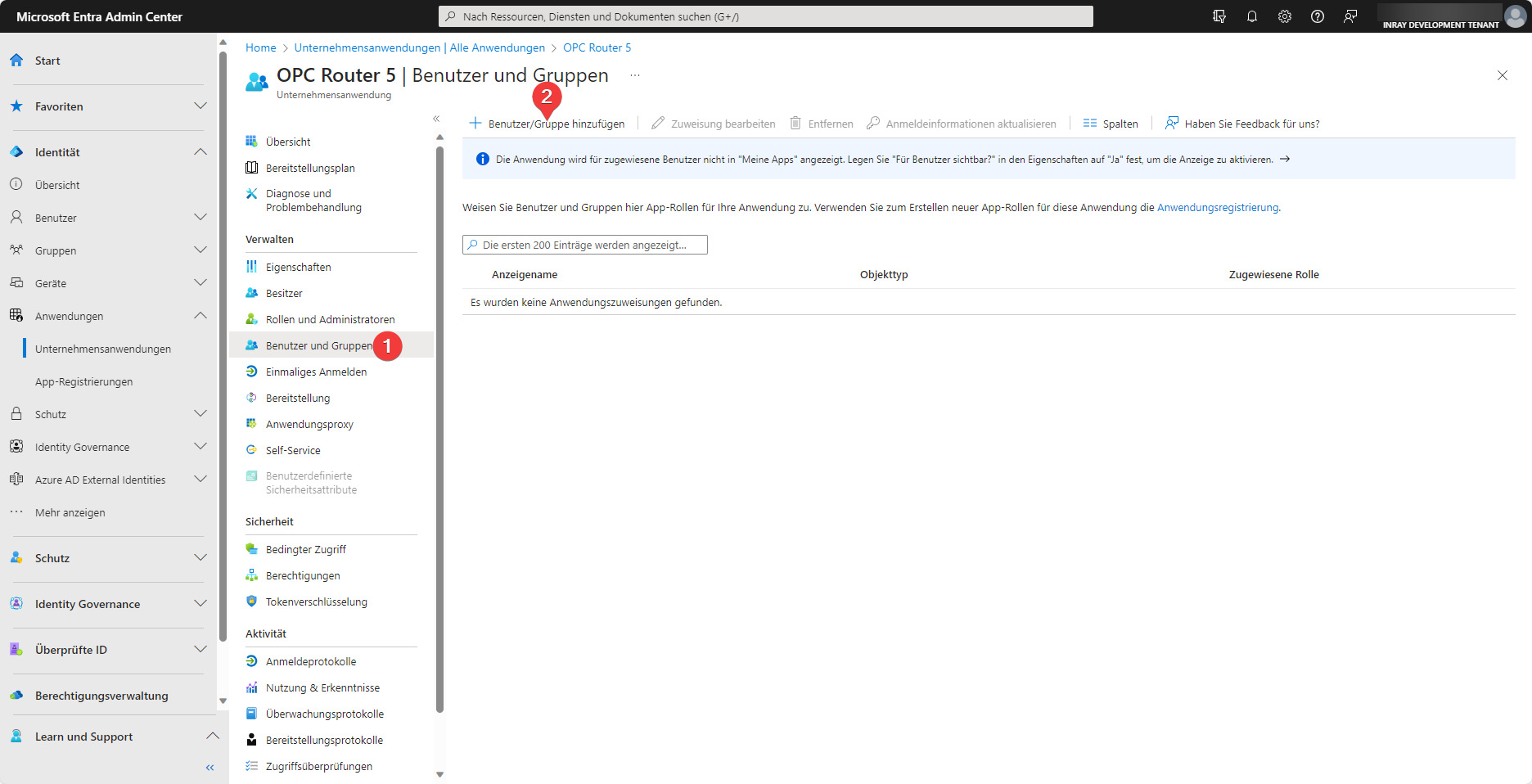
Under the Users and Groups (1) tab, you can then assign roles to users (2).
Users without assigned roles will continue to act as Admin.
Changes to user roles are not immediate. Existing saved login tokens (stored in browser cookies) remain valid with the previously assigned roles until they are either deleted or revalidated. This occurs upon logging out and then logging back in.
Assigning multiple roles to a single user is technically possible here. This does not cause errors but currently serves no purpose. Since permissions are additive and the current roles are structured in a strict hierarchy, assigning multiple roles is equivalent to assigning only the highest of those assigned roles.