Integrating Microsoft Entra ID/Azure AD
Microsoft Entra ID, formerly Azure Active Directory, is a cloud-based service for identity and access management for applications hosted in Microsoft Azure, as well as applications running in other clouds or on-premises environments. Entra ID offers features such as single sign-on, multi-factor authentication, self-service password reset, conditional access policies, and identity protection. With Entra ID, organizations can centrally manage their users, groups, and devices and control access to their resources.
The OPC Router 5 web management interface enables user management and authentication via Entra ID by integrating with Entra ID.
This guide assumes you have an existing Microsoft Entra ID tenant.
In order for the OPC Router to use Entra ID, a new registration must be added to the application registrations of your Microsoft Entra ID tenant.
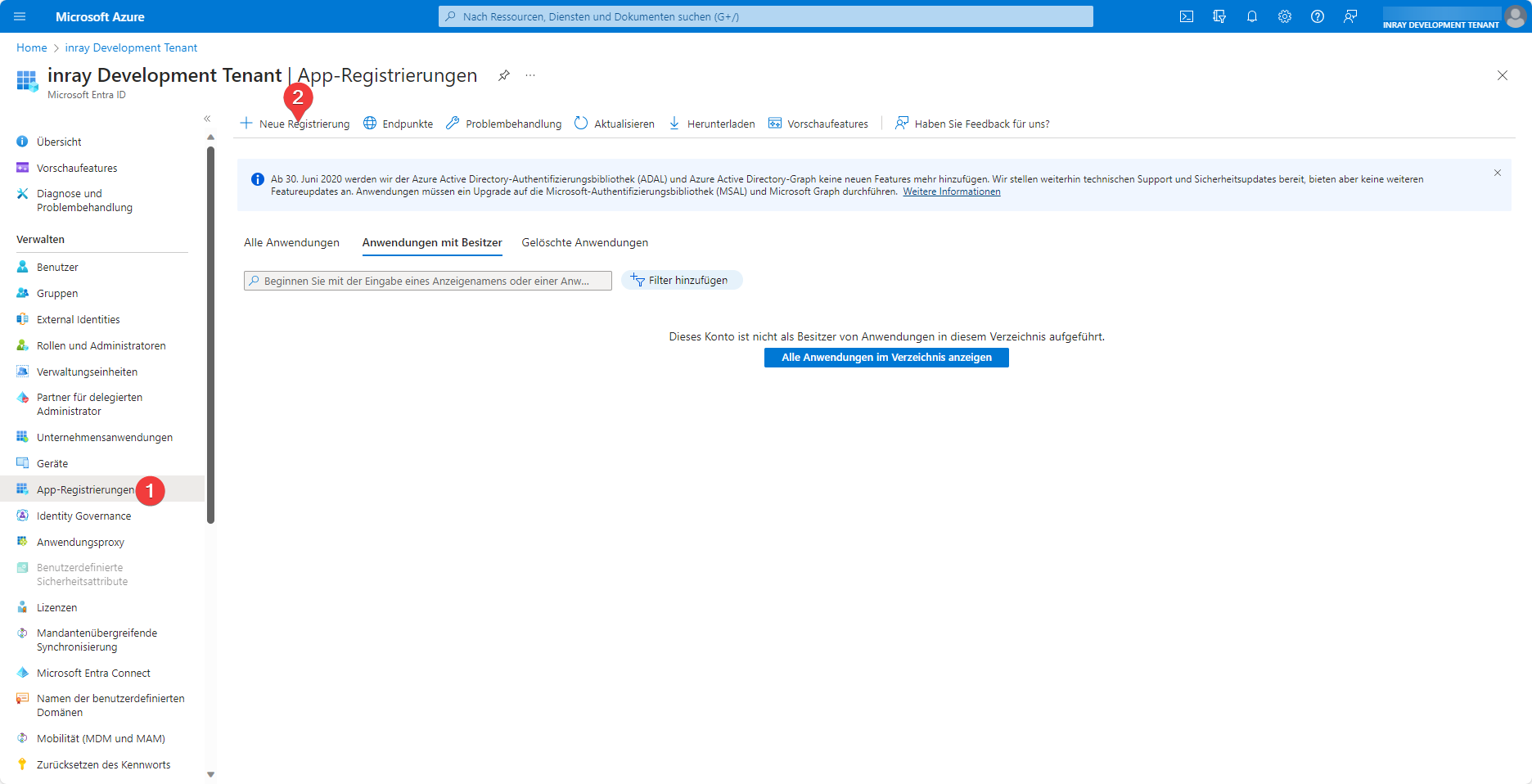
On the App Registrations (1) tab of your Microsoft Entra ID tenant, you can create a new application by clicking New Registration (2).
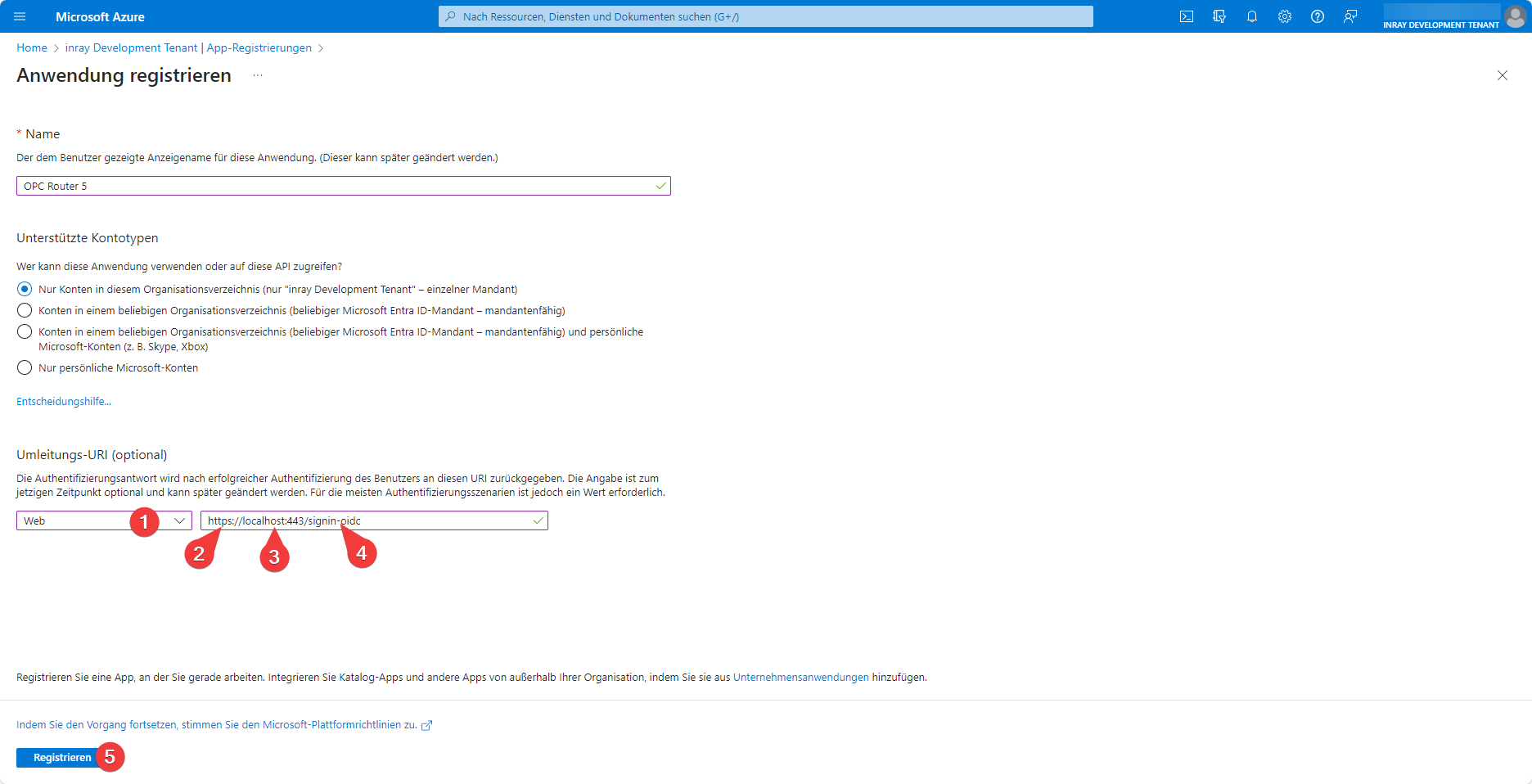
It is important to configure the application’s redirect URI. In the drop-down list (1), Web must be selected. The Address (3) must be set to the address where Web Management is accessible. This must be the valid https (2) address of Web Management; otherwise, this is not permitted. The SSL certificate does not need to be issued by a certification authority; self-signed certificates are also permitted. You can find out how to set up HTTPS for your OPC Router Web Management here:
The configured login request path must also be passed as the endpoint (4). By default, this is /signin-oidc, but it can also be overridden by the environment variable AZURE_AD_CALLBACK_PATH if necessary.
The newly created application must still be configured so that authentication via Microsoft Entra ID can be performed successfully.
.webp)
To do this, select the application (3) you just created in the App Registrations (1) tab under the All Applications (2) group.
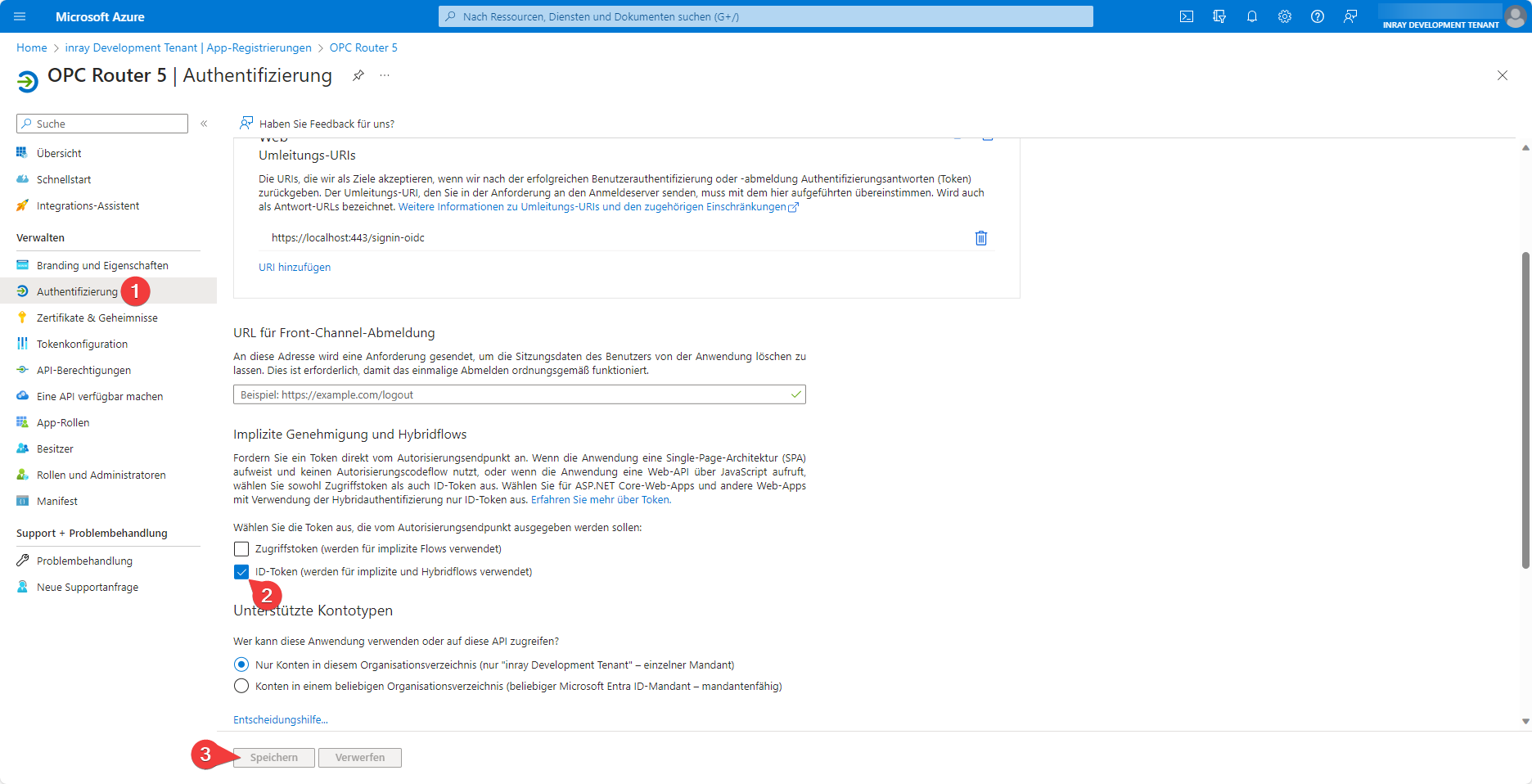
On the Authentication (1) tab, you will find the ID Token (2) checkbox, which must be enabled for Web Management user administration via Microsoft Entra ID to function. Save (3) this setting change.
In your Entra ID tenant, you can now navigate to your newly configured application via the Enterprise Applications tab and use the Users and Groups tab for user management.
Create an OPC Router 5 container with a connection to Entra ID
To connect the OPC Router to Entra ID, three pieces of information must be available from the tenant: the application ID, the directory ID, and a domain under which the Entra ID configuration is accessible.
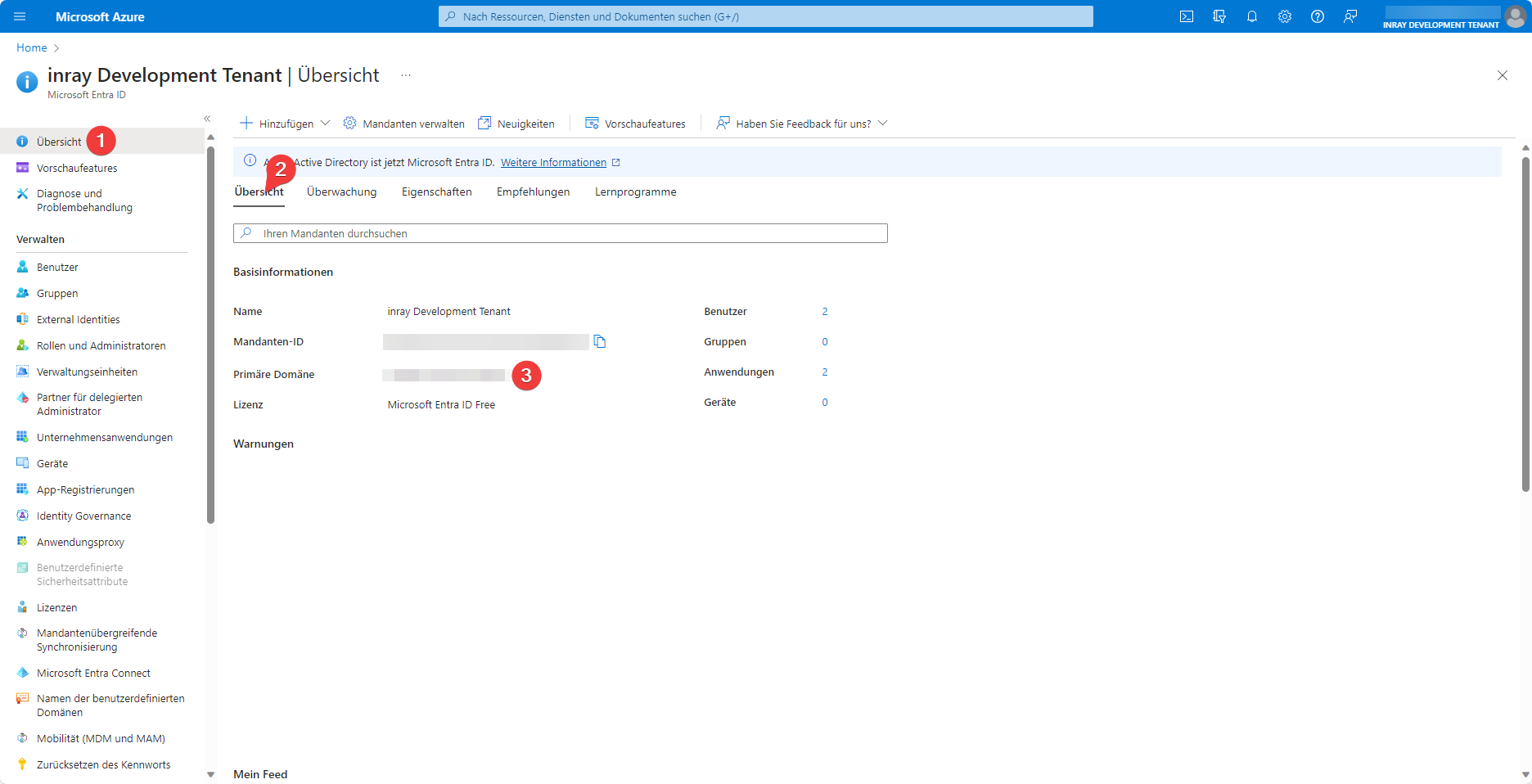
You can find the Primary Domain (3) on the Overview (1) tab under the Overview (2) section of your Entra ID tenant.
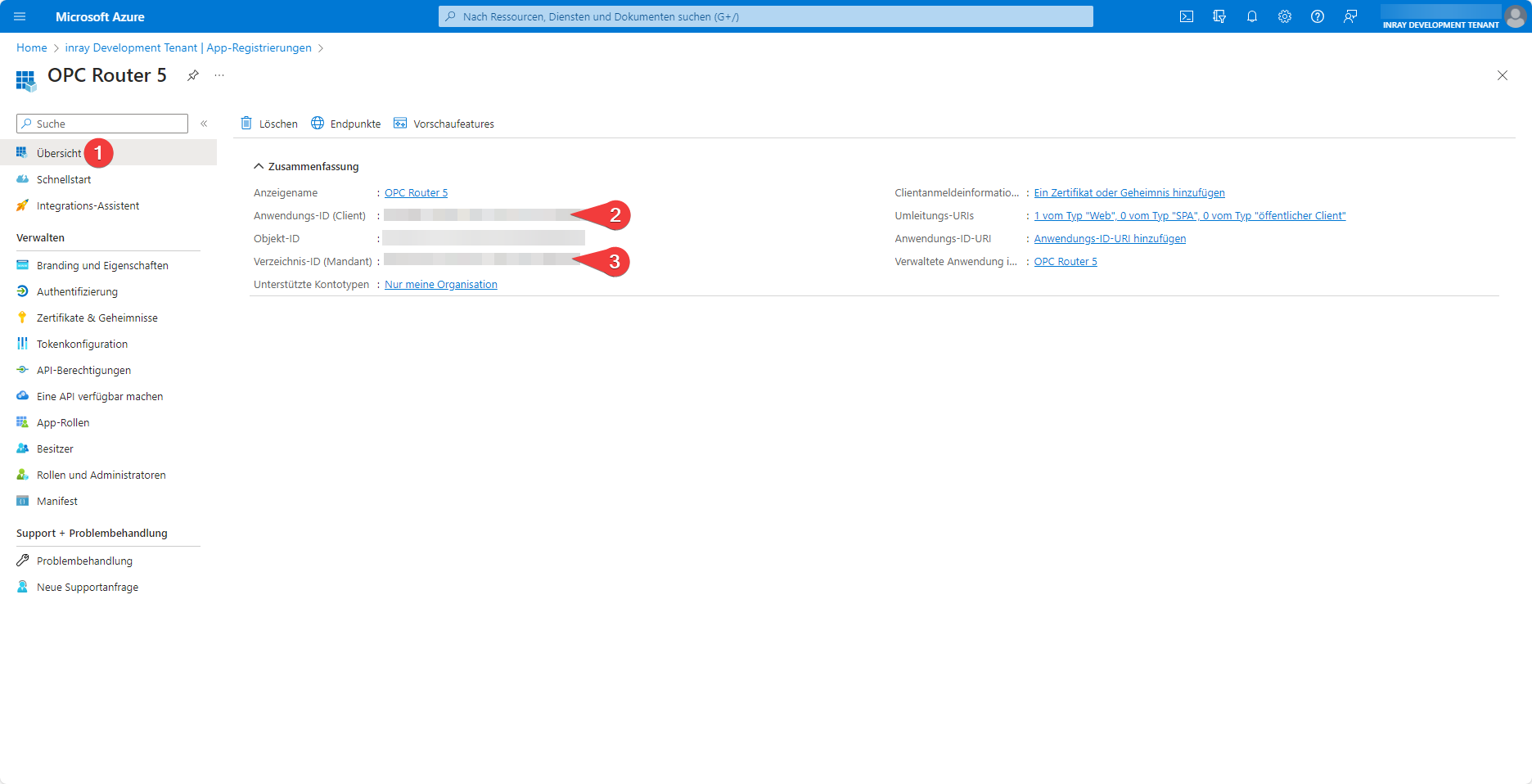
The Application ID (2) and Directory ID (3) are displayed on the Overview (1) tab of the created application registration.
With this information, you can now run a Docker run command that creates an OPC Router container connected to Entra ID:
docker run -d \
    -e OR_I_ACCEPT_EULA=true \
    -e AZURE_AD_DOMAIN=domain.onmicrosoft.com \
    -e AZURE_AD_TENANT_ID=1111111-1111-1111-1111-1111111 \
    -e AZURE_AD_CLIENT_ID=1111111-1111-1111-1111-1111111 \
    --name opcrouterentra \
    opcrouter/runtime
By executing this command, you agree to the End User License Agreement by setting the environment variable OR_I_ACCEPT_EULA to true.
Enter your (primary) domain in the AZURE_AD_DOMAIN environment variable, your tenant ID in the AZURE_AD_TENANT_ID environment variable, and your client ID in the AZURE_AD_CLIENT_ID environment variable.
Optionally, you can pre-provision users as external users when the container starts using OR_EXTERNAL_USER_ADMIN_EMAILS, OR_EXTERNAL_USER_EDITOR_EMAILS, and OR_EXTERNAL_USER_OBSERVER_EMAILS. These appear in user management with the External flag and do not require a local password.
If AZURE_AD_DISABLE_AUTO_PROVISION=true is set, only such existing external users can log in. New Entra ID users are then no longer automatically created upon their first login.
If AZURE_AD_DISABLE_AUTO_PROVISION is not set or is set to false, users will continue to be automatically created or updated during Entra ID login. The roles are synchronized from the transferred role claims during each login. If no role claims are available, the OPC Router currently automatically sets the local role Admin.
If only Microsoft Entra ID is to be used for login, INITIAL_USERNAME and INITIAL_PASSWORD can be omitted.
For authentication via Entra ID to work, HTTPS must be configured on the container. The necessary settings have been omitted here for demonstration purposes. The unmodified command is therefore not executable.
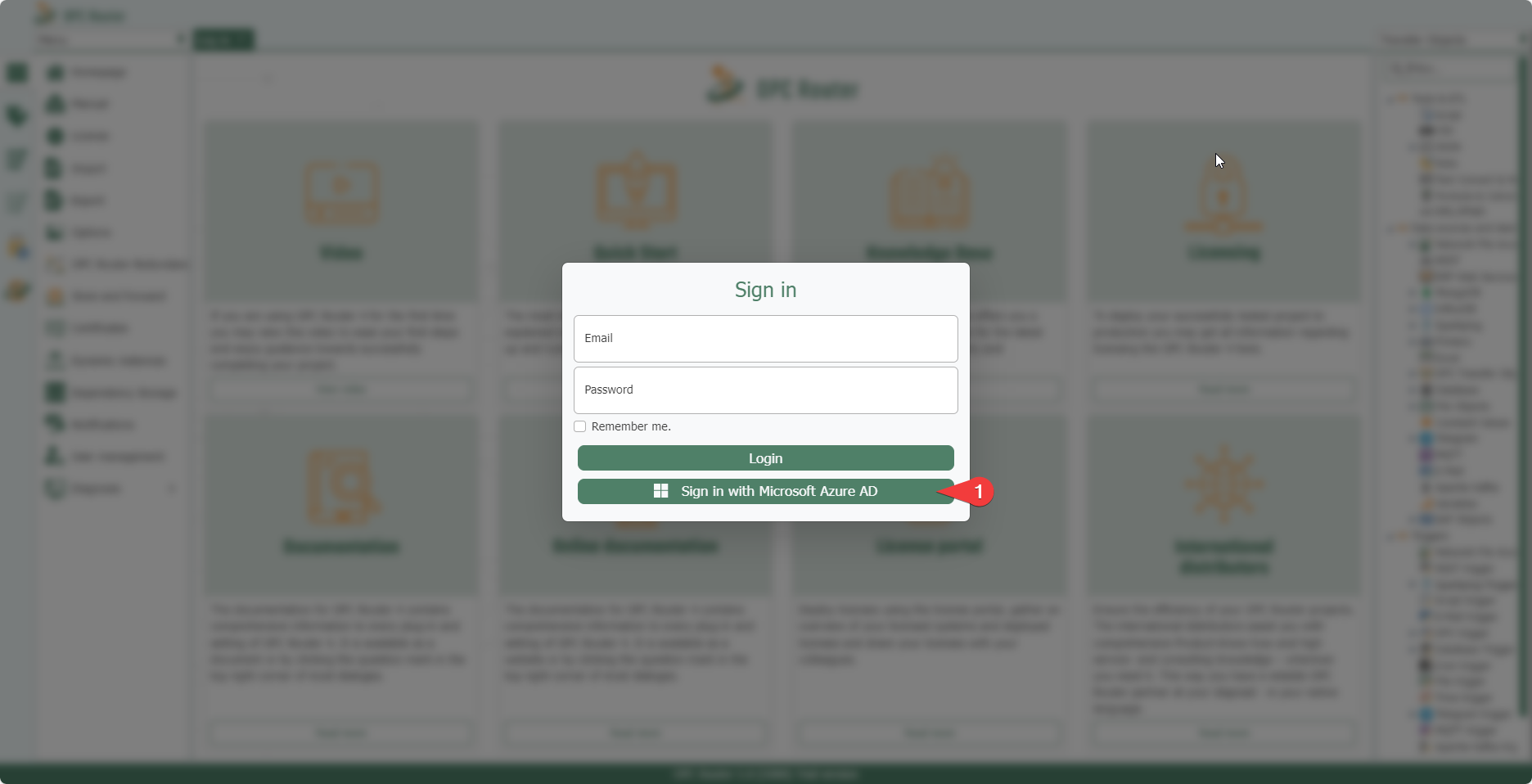
After successful setup, a button for logging in via Azure AD/Entra ID (1) should appear below the login button. Users who have been added via the Entra ID tenant can log in using this button.