MQTT Cloud Profile: Wago Cloud
This chapter describes the additional "Wago Cloud Profile" tab in the MQTT plug-in. All general MQTT settings (default profile) can be found under MQTT Plug-in Configuration.
Principle: The Wago Cloud Profile supplements the standard configuration with the information required to authenticate a device already registered in the Wago Cloud. The remaining tabs, such as Connection settings, Storage, First Will, Last Will, and Advanced, are configured as in the standard profile.
Wago Cloud
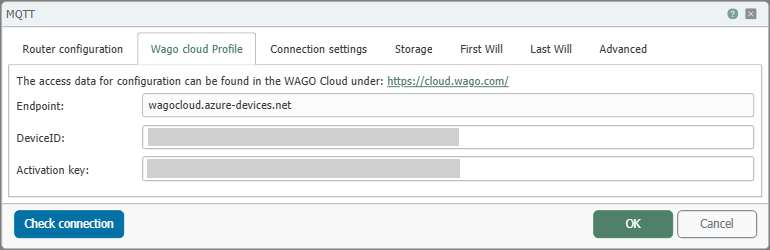
| Field | Description |
|---|---|
| Endpoint | Address of the Wago Cloud endpoint through which the MQTT connection is established. Use the endpoint specified in the Wago Cloud for your device or tenant. |
| DeviceID | Unique identifier of the device in the Wago Cloud. The value must match the device ID of the selected device registered in the Wago Cloud. |
| Activation Key | Activation key of the device. The key is used for authentication with the Wago Cloud and must correspond exactly to the specified DeviceID. Copy the value exactly from the corresponding device entry in the Wago Cloud. |
Prerequisites in the Wago Cloud
- Register the desired device in the Wago Cloud or check whether the device entry already exists.
- Open the device entry in the Wago Cloud and enter the values provided for the MQTT connection for Endpoint, DeviceID, and Activation Key into the OPC Router dialog.
- Ensure that all three values come from the same device entry and are not mixed with data from another device or tenant.
Configuration in the MQTT Plug-in (Wago Cloud tab)
-
Open Plug-ins → MQTT and create or edit a connection.
-
Router Settings: Assign a name and select Cloud Profile: Wago Cloud.
-
Wago Cloud Profile:
- Enter the Endpoint, DeviceID, and Activation Key from the corresponding device entry in the Wago Cloud.
- Run Test Connection.
-
Configure Connection settings / Storage / First Will / Last Will / Advanced as needed, following the standard profile.
-
Save with OK.
Typical Settings / Notes
- For Endpoint, DeviceID, and Activation Key, use only the values from the corresponding device entry in the Wago Cloud. Be careful not to insert any extra spaces.
- If you want to receive and process MQTT messages, combine the connection with MQTT-Subscribe.
- If you want to publish messages to the Wago Cloud, use the MQTT-Transfer object.
- If received messages are to be cached and read later on demand, enable MQTT Data Storage and use the MQTT Storage Read Transfer Object.
Troubleshooting
| Symptom | Cause / Solution |
|---|---|
| Unable to establish connection | Check whether the Endpoint has been entered completely and correctly. |
| Authentication failed | Check whether the DeviceID and Activation Key match and have been entered without additional spaces. |
| Wrong device addressed | Compare the entered DeviceID with the device entry used in the Wago Cloud and ensure that the Endpoint and Activation Key come from the same entry. |
See also
- Main configuration: MQTT Plug-in Configuration
- Receiving MQTT messages: MQTT Subscribe
- Publishing MQTT Messages: MQTT Transfer Object
- Reading from Storage: MQTT Storage Read Transfer Object