SAP® Plug-in
In the SAP® plug-in configuration, you specify which SAP® system the OPC Router connects to and how the login is handled. The settings are spread across several tabs: General, Security, Language and Code Pages, and Advanced.
If you want to use load balancing, you need an Enterprise license.
General
On the “General” tab, you specify the connection name, the client protocol, and the authentication method.
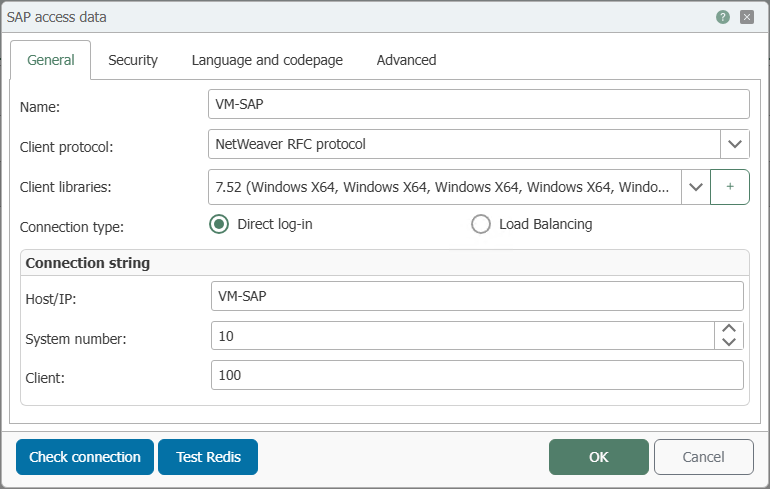
| Property | Description |
|---|---|
| Name | Any name under which this SAP® system appears in the connection configuration. Choose a name that uniquely describes the connection. |
| Client Protocol | SAP® driver used by the OPC Router for communication. You can choose between the RFC protocol and the NetWeaver RFC protocol. |
| Client Libraries | Add the required libraries here: *.dll files on Windows, *.so files in Docker. |
| Connection Type | Select the desired authentication method: Direct Authentication or Load Balancing. |
The classic RFC protocol (library librfc32) has been deprecated by SAP and has not been supported since March 31, 2016. For new connections, select the NetWeaver RFC protocol; the classic RFC protocol is now available only for compatibility reasons.
Direct Login
With direct login, the OPC Router explicitly connects to a single SAP® application system.

| Property | Description |
|---|---|
| Host/IP | Name or IP address of the server hosting the SAP® application system. An explicit login to a single system takes place (no load balancing). |
| System Number | Number of the SAP® system. |
| Client | Client (company code) for the SAP® user. |
Load Balancing
With load balancing, the login is performed via a message server that distributes the load across multiple application servers.
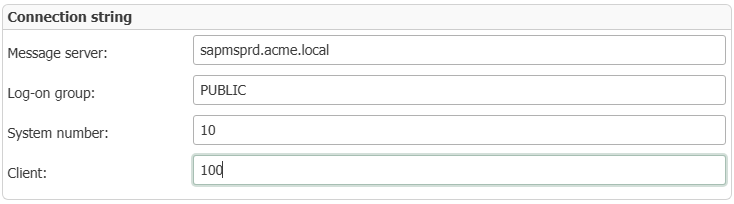
| Property | Description |
|---|---|
| Message Server | Name or IP address of the SAP® message server. |
| Log-on Group | Log-on group of the SAP® system. |
| System Number | Number of the SAP® system. |
| Client | Client (company code) for the SAP® user. |
Security
On the “Security” tab, select the login method and configure the corresponding access data.
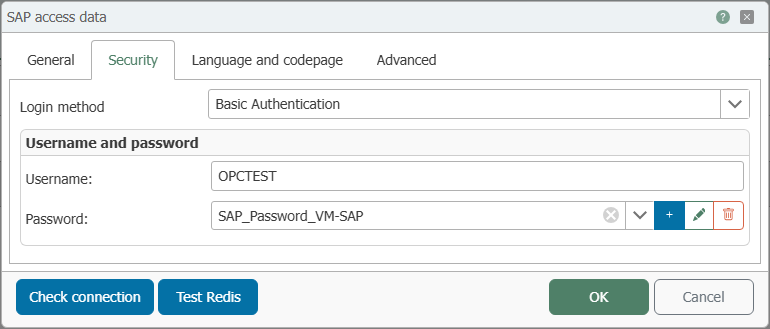
| Property | Description |
|---|---|
| Login Method | Choose between Basic Authentication and Secure Network Communications (SNC). |
Basic Authentication
| Property | Description |
|---|---|
| User Name | User name for logging in to the SAP® system. |
| Password | Password for logging in to the SAP® system. |
Secure Network Communications (SNC)
With SNC (Secure Network Communications), communication with the SAP® system is encrypted. Encryption is handled by an external SAP® cryptography library.
Prerequisites for SNC
The following prerequisites must be met for an SNC-secured connection:
- Cryptographic library: An SAP® cryptographic library (
sapcrypto.dll) must be installed. It is not provided by inray—contact support if you wish to use it. - PSE file: A PSE (Personal Security Environment) file provides the keys and certificates used for SNC. All users must have access to the PSE file.
SECUDIRenvironment variable: TheSECUDIRenvironment variable must point to the directory containing the SAP® crypto files, for example,C:\sapcrypto\nt-x86_64\sec.
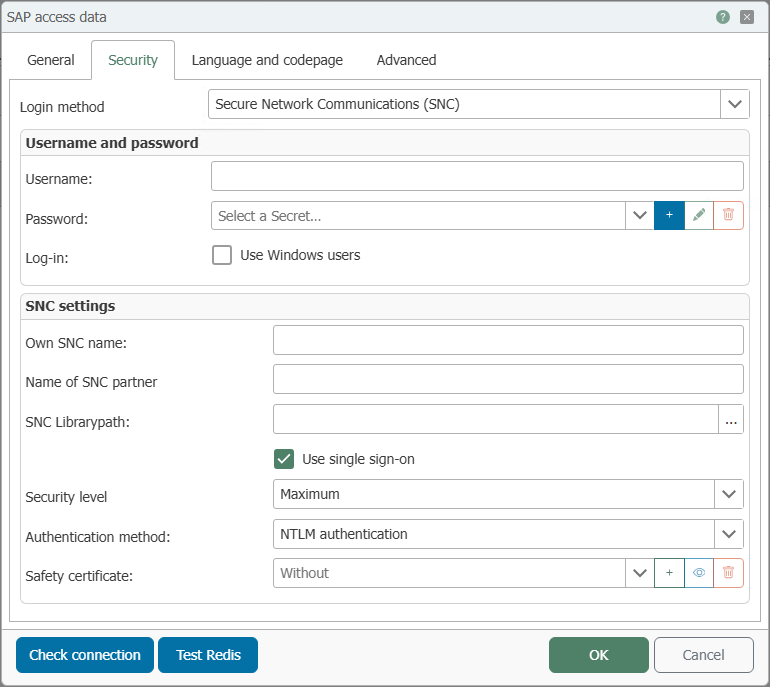
| Property | Description | Example (without Single Sign-On) |
|---|---|---|
| Username | Username of the SAP® user with which the OPC Router logs in. | RFCUSER |
| Password | Password of the SAP® user. It is stored as a secret via Secret Management and selected here. | Secret SAP-PROD-RFCUSER |
| Login | Option Use Windows User: Log in with the currently logged-in Windows user (for Single Sign-On). | disabled |
| Own SNC Name | SNC name of the OPC Router in the format p:CN=..., as specified in the issued certificate. | p:CN=OPCROUTER, O=INRAY, C=DE |
| Name of the SNC Partner | SNC name of the SAP® system (partner) in the format p:CN=.... | p:CN=SAPPROD, O=INRAY, C=DE |
| SNC library path | Path to the SNC/crypto library (sapcrypto.dll). Can be selected using the “…” button. | C:\sapcryptolib\sapcrypto.dll |
| Use Single Sign-On | Logs in to the SAP® system via Windows login without explicitly entering credentials. Without Single Sign-On, the username and password are used instead. | Disabled |
| Security Level | Security level of the SNC connection, for example Maximum or Standard. | Maximum |
| Authentication Method | Windows authentication method; relevant only when Single Sign-On is enabled: NTLM or Kerberos5. | — |
| Security Certificate | Certificate for the SNC identity. Click + to add, the eye icon to view, or the trash can icon to remove. | None |
Configuration on the SAP Side
For an SNC connection to be established, the SAP® system must also be configured for SNC. These tasks are usually performed by SAP Basis Administration—in some cases, in collaboration with the team responsible for certificates and PKI—and not in the OPC Router. Typically, this includes:
- Enable SNC on the SAP® system: Set the SNC profile parameters (for example,
snc/enable,snc/identity/as,snc/gssapi_lib) and provision an SNC identity for the server. - Exchanging certificates: Establish mutual trust between the OPC Router and the SAP® system by importing the certificates into the respective certificate lists or PSEs (on the SAP side via transaction
STRUST). - Enable and assign SNC names: Make the OPC Router’s SNC name known in the SAP® system and grant it authorization, for example, via the access control list in transaction
SNC0. For SNC-based single sign-on, the SNC name is also assigned to the SAP® user (transactionSU01, “SNC” tab).
The exact procedure depends on the SAP® system landscape and the security products used. For more information, refer to the SAP® documentation and consult your SAP Basis administration team.
Language and Code Pages
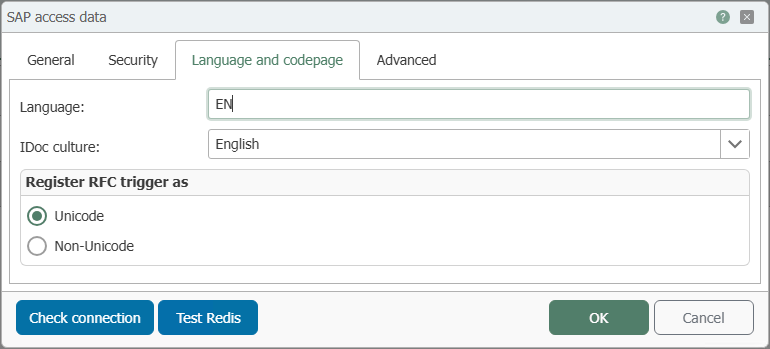
On the “Language and Code Pages” tab, you specify the login language and the character encoding for the RFC triggers.
| Property | Description |
|---|---|
| Language | Language you want to use, for example, de for German or en for English. The selected language must be available on the SAP® system. |
| IDoc Culture | Selection of the IDoc culture (German or English). Selecting the correct culture prevents errors, such as those caused by different date formats (February 1, 2018: 01.02.2018 in German, 02.01.2018 in English). |
Register RFC Trigger as
| Property | Description |
|---|---|
| Unicode | Registers RFC triggers as Unicode. |
| Non-Unicode | Registers RFC triggers as non-Unicode. |
When using SAP® NetWeaver, Unicode must always be enabled. For the classic RFC protocol, the encoding depends on the library used: librfc32 (without Unicode) or librfc32u (with Unicode). The target in the SAP® transaction SM59 must be set to Unicode or Non-Unicode accordingly—depending on the setting in the OPC Router and the library used.
Advanced
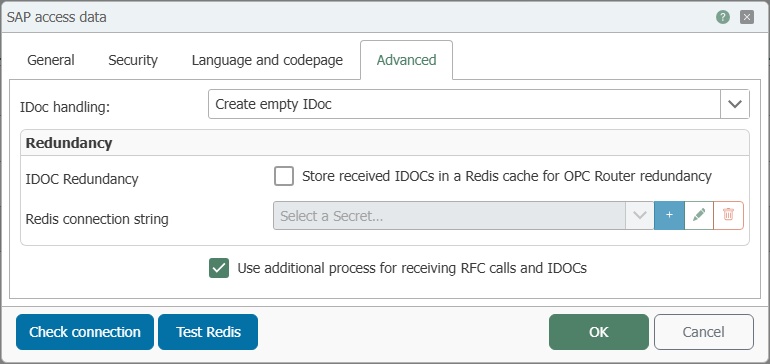
On the “Advanced” tab, you can control IDoc handling and the behavior for incoming RFC calls and IDocs.
| Property | Description |
|---|---|
| IDoc Handling | Determines how IDocs are processed: Selecting Use Template from the SAP® System adopts the default values from the segments stored in the SAP® system. If you select Create Empty IDoc, only the empty segments are adopted. |
| IDoc Redundancy | When enabled, received IDocs are temporarily stored in a Redis cache. This enables redundant operation of the OPC Router, so that received IDocs can continue to be processed even after a failure. |
| Redis Connection String | Connection details for the Redis cache, which are used when IDoc Redundancy is enabled. They are stored via secret management. You can test the connection using the “Test Redis” button. |
| Use an additional process for receiving RFC calls and IDocs | If this option is enabled, the OPC Router will not stop in the event of an error in the SAP trigger (RFC or IDoc) and will continue to operate. |
Use the “Test” button to verify that the connection can be established successfully.
To use the preferred settings of the SAP® user, the OPC Router requires read access to the SAP® table USR01.
Adjust the Port Used
By default, the OPC Router uses port 33<system-nummer> to communicate with the SAP® system—for example, 3301 for system number 01. If the SAP® system uses a different port and the SAP® GUI is not installed, the port must be adjusted:
-
Create a backup copy of the file
C:\Windows\System32\drivers\etc\services. -
Open the file
C:\Windows\System32\drivers\etc\serviceswith a text editor (not the backup copy). -
Modify or add to the entry
sapgw00. The port number is specified in the formatXX00, for example,3600.sapgw00 <port>/tcp -
Save the file.
The OPC Router will then use the specified port number.