Spelling Conventions in the Manual
This documentation uses the following notations:
| Notation | Explanation |
|---|---|
C:\ProgramData\inray\OPC Router 5\config\versioned | File names and paths |
| http://localhost:5000 | URLs |
| data source | Names of parameters and object properties—in the running text without any special formatting. |
| <Datenquelle> | Placeholders that must be replaced by the project engineer with the appropriate content (delete the angle brackets < and >!). |
... Dim TextHandle TextHandle.SetCoord 10,10 ... | Source code examples and templates |
| “Enable” | Names of controls, tabs, and buttons. They are highlighted in the running text and appear in the language of the user interface for the respective version. |
| “Settings > Dynamic Instances” | Menu path; the levels have a connection using a greater-than sign. |
The glossary explains the terms used consistently throughout the documentation and the user interface.
Illustrations
In some screenshots, you will find several numbered mouse pointers (numbers in circles). The numbering refers to the step-by-step instructions to which the illustration belongs. If individual steps are not documented in the illustration, the numbering is not consecutive. For example, the following figure summarizes steps 3 through 7.
Please also note that the figures show various dialog boxes side by side that only open as you follow the step-by-step instructions. In the following figure, the “OPC Transfer Object” dialog box opens after step 4, and the Tag Browser opens after step 6.b.
-ec29a4ce94b6dd8d32dac6b78ad3a9b4.jpg)
Sequence Diagrams
The trigger pages contain two types of diagrams that answer different questions. The timing diagram in the “Trigger Behavior” section shows when a trigger fires and the timing relationships between the transfers. The sequence diagram in the “Interaction with …” section shows who communicates with whom, in what order, and at what point in the flow a setting takes effect. Most trigger pages have only one of these two sections.
A sequence diagram is read from top to bottom: what appears further down happens later. Each participant has a vertical line along which time progresses; their name appears at the top and bottom of the diagram. Some diagram elements have English labels that cannot be translated within the diagram.
| Diagram Element | Meaning |
|---|---|
| Vertical Line Below a Name | A participant and its timeline. In trigger diagrams, these are the trigger and the transfer in the router, as well as the external system—depending on the page, this could be a broker, a calling client, a mailbox, a database, or an SAP system. If two counterparties are involved in the flow, both are listed individually by name outside the frame. |
| Frame labeled “OPC Router” | Groups together the participants that belong to the router. What lies outside the frame is the counterparty with which the router communicates. |
| Solid arrow | A step from the sender to the receiver: a request, a message, a command. If the arrow points back to the same participant, it is a step that this participant performs on its own, such as a check. |
| Dotted arrow | The response to a previous step: a reply, an acknowledgment, a transfer result. |
| Narrow bar on a line | The participant is busy processing the task during this time period. The top and bottom edges of the bar mark the start and end of processing. |
| Box with “alt” in the upper-left corner | A case distinction (English: alternative). Exactly one of the cases occurs; which one is determined at runtime. |
| Horizontal dashed line in an “alt” box | Separates the cases from one another. Each case has its own condition and runs until the next separator. |
| Block with “opt” in the upper-left corner | A section that runs only under a specific condition (optional). If the condition is not met, nothing happens at this point. |
| Box with “loop” in the upper-left corner | A loop. The content flows multiple times, as often or as long as the condition specifies. |
| Text in square brackets at the top edge of a frame or on a divider line | The condition under which the content of the frame or the content of the respective case applies. |
| A rectangle with a filled area above one or more lines | A note. It explains the flow of events and is not a step itself; it often specifies what is not happening at this point. |
The following figure shows all the elements of the table in a single image. The labels name the element and do not describe an actual flow of events.
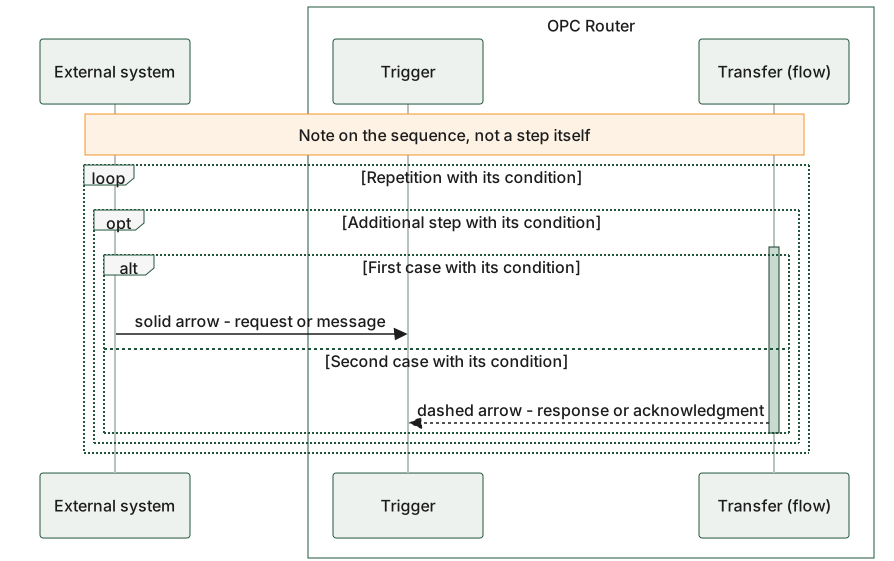
The narrow bar on the “Transfer (Flow)” line is the only element without its own label.