Publish & Operate
Changes to the configuration—including plug-ins, flows, templates, or options—do not take effect immediately. They are queued and only become active at runtime after publication. Until then, the runtime continues to operate unchanged using the most recently published version.
This chapter describes the publishing process and subsequent operation: how to determine the status of the running system, how to manage the services, what needs to be backed up, and how to troubleshoot errors.
The “Publish” view in the top navigation bar displays all pending changes as a tree, grouped by source: OPC Router, Options, Notification Groups, Notification Senders, OPC UA GDS Applications, plug-ins, and Flows.
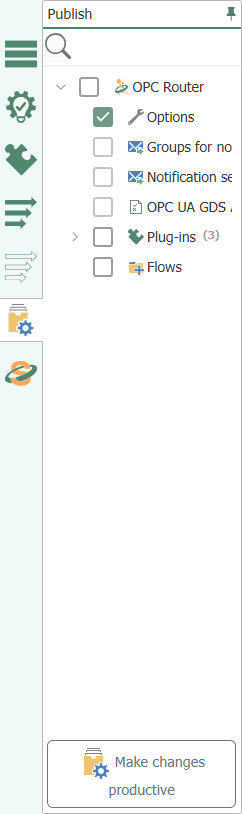
Where pending changes come from
Not every pending change originates in the project planning area:
- A modified option also takes effect only after publishing; Web Management displays a banner indicating that settings have been changed.
- A snapshot ](settings/versionierung/verwendung-der-versionierung.md) restored via [ from version control initially consists only of the loaded configuration and therefore appears here as a pending change.
- The same applies to a configuration state that was restored to the configuration store from an external source and loaded after a restart; see Backup and Restore .
Deploy changes to production
- Use the checkboxes to select which changes should be deployed to production. Changes that are not checked will remain as pending changes.
- Click “Make changes productive”.”
The runtime applies the selected changes. You can see whether the affected flows and connections are running afterward in the status display at.
Immediately after going live, a plug-in instance may briefly be reported as not yet ready (Plug in is not ready) because the instances start up sequentially. This status disappears on its own as soon as the instance is running; if it persists, investigate it using the status indicator and the troubleshooting guide .
With each release, the OPC Router automatically creates a snapshot of the project. You can view and restore previous versions using versioning .
Subflows—branches and functions (FX)—are internal components of their caller and behave differently than normal flows during publishing. Details: Publishing and Status of Subflows .
The pages in this chapter
- status display – the status tree with dashboards for services, plug-ins, and flows: where you can see what’s currently running and what isn’t.
Ongoing Operation
-
Service Operation – the three Windows services, including their startup order, service account, and restart behavior within the container.
-
Enabling and Disabling Plug-in Instances – the startup modes “Always On,” “Auto,” and “Disabled,” and their impact on the flows.
-
Backup and Recovery – what to back up to ensure nothing is missing, and how to restore a backed-up state to production.
-
Troubleshooting – the common pitfalls with OPC and database connections, empty queries, and the diagnostic report; tools available here include log files, the event log, and the diagnostic report.