User roles via Entra ID
Since version 5.2.0, OPC Router 5 has provided user authorization via user roles (see User roles). Microsoft Entra ID users are automatically assigned the Admin role unless roles have been defined for them in the Microsoft Entra Admin Center.
Creating OPC Router 5 user roles in Entra ID
The following steps require a Microsoft Entra ID (formerly Azure AD) connection (see Connecting Microsoft Entra ID).
Open your Microsoft Entra ID tenant via the Microsoft Entra Admin Center.
User roles can also be created via the Microsoft Azure Portal, but roles can only be assigned in the Microsoft Entra Admin Center.
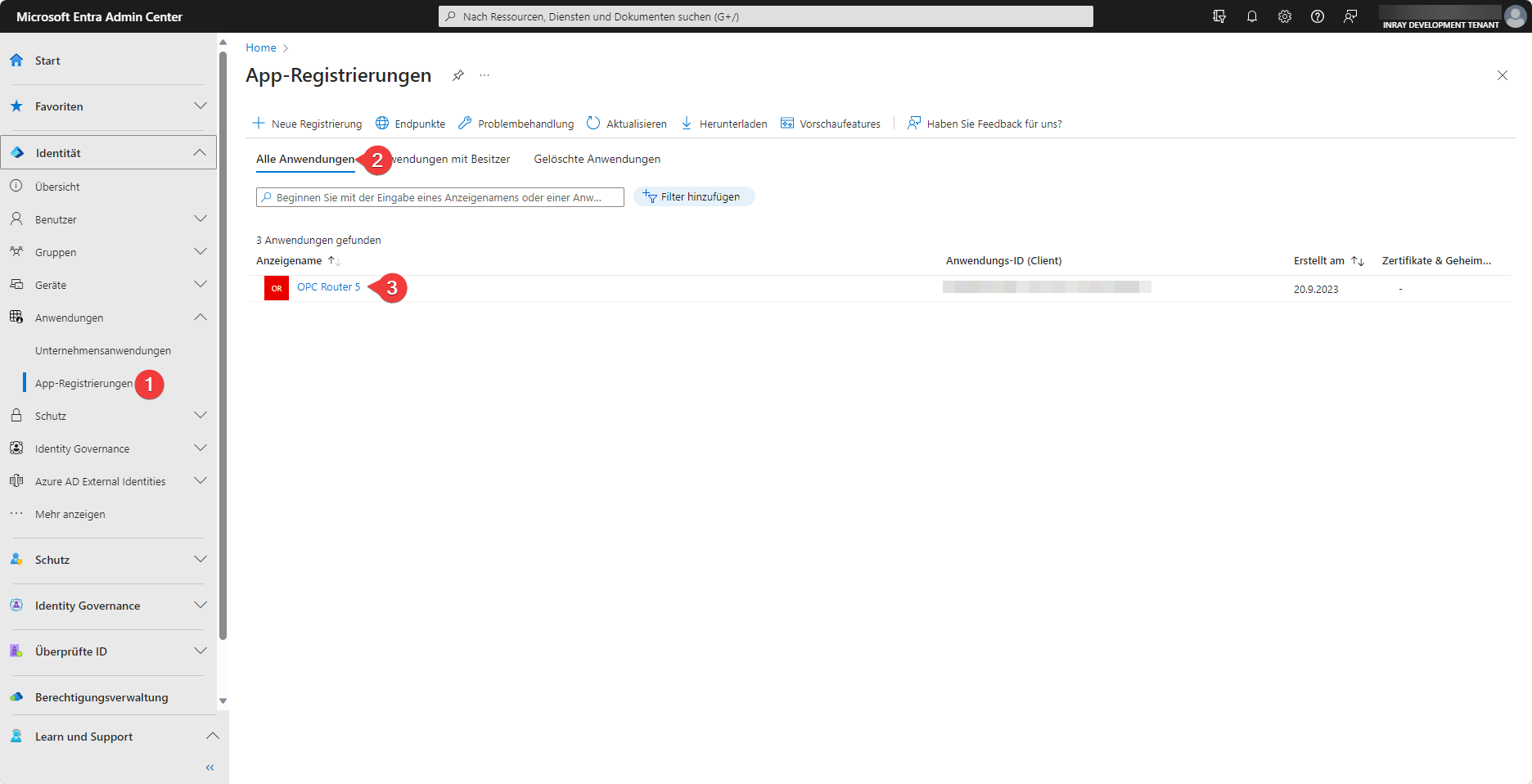 Now navigate to your application registration (3) under the All applications (2) tab in the App registrations (1) tab.
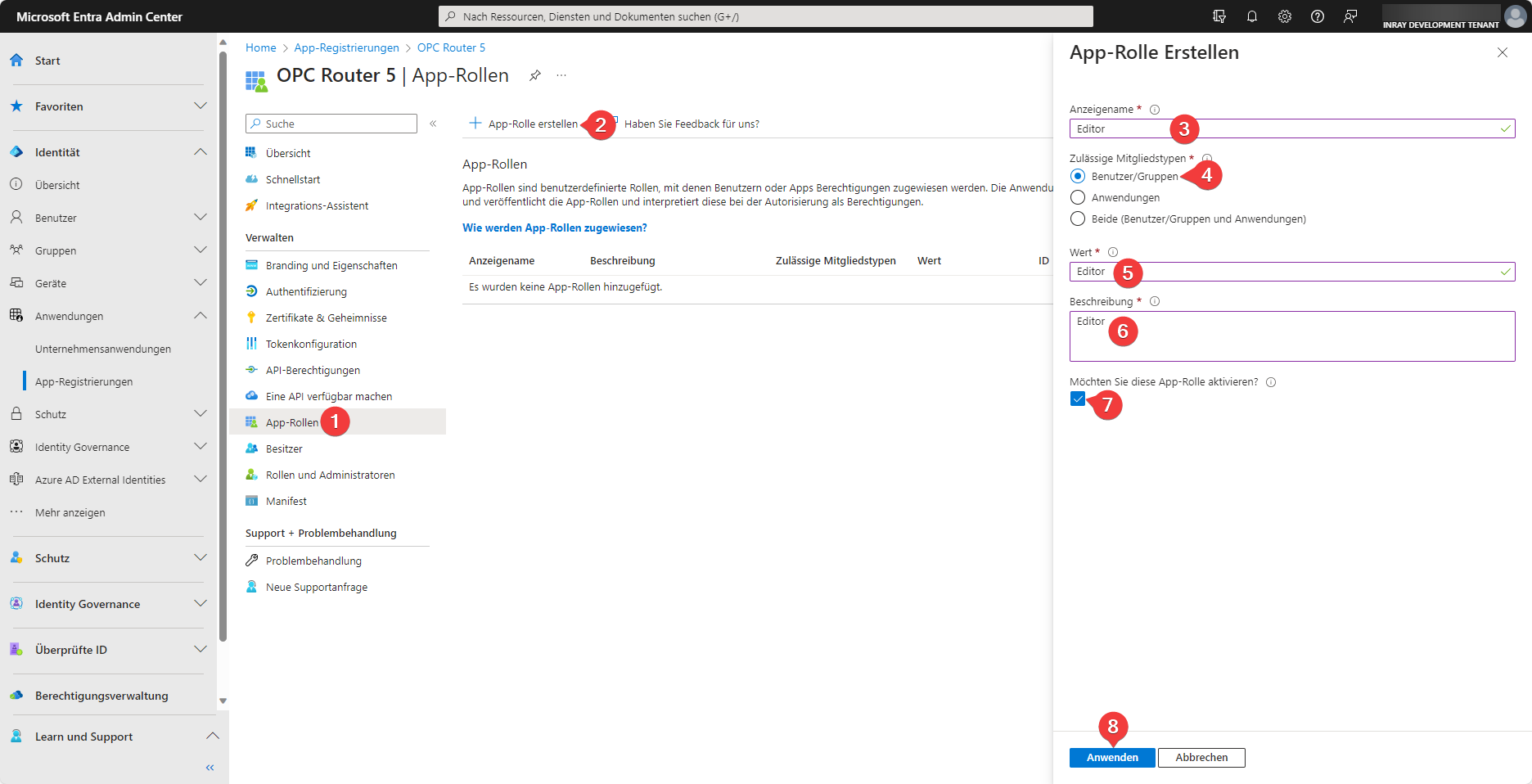 To add an app role, navigate to the App roles (1) tab and select Create app role (2). Select a display name (3) and users/groups (4) as the allowed member types. Under Value (5), enter the role that corresponds to the role in OPC Router 5.
Currently, only Admin, Editor, and Observer are allowed as values (5) for roles (see User Roles). Any other values will not trigger errors, but they will also not have any permissions.
Then a description (6) must be entered and it must be ensured that the app role is activated (7). The role can then be created by clicking on Apply (8).
Create three roles with the values Admin, Editor, and Observer in this way.
Assign app roles to users
The following steps assume that user roles for Admin, Editor, and Observer have been created.
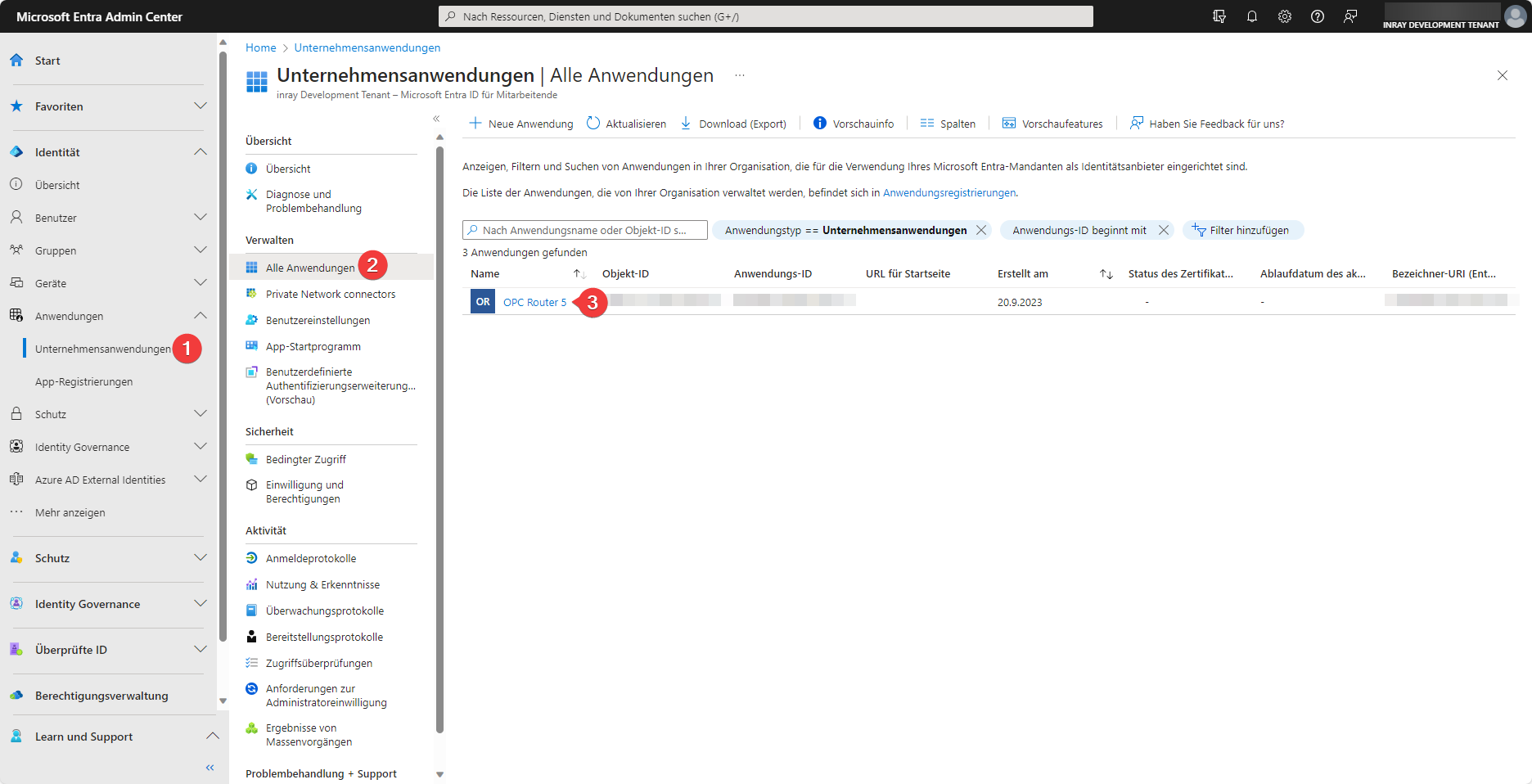 In the Microsoft Entra Admin Center, navigate to your application (3) under the Enterprise applications (1) tab and then the All applications (2) tab.
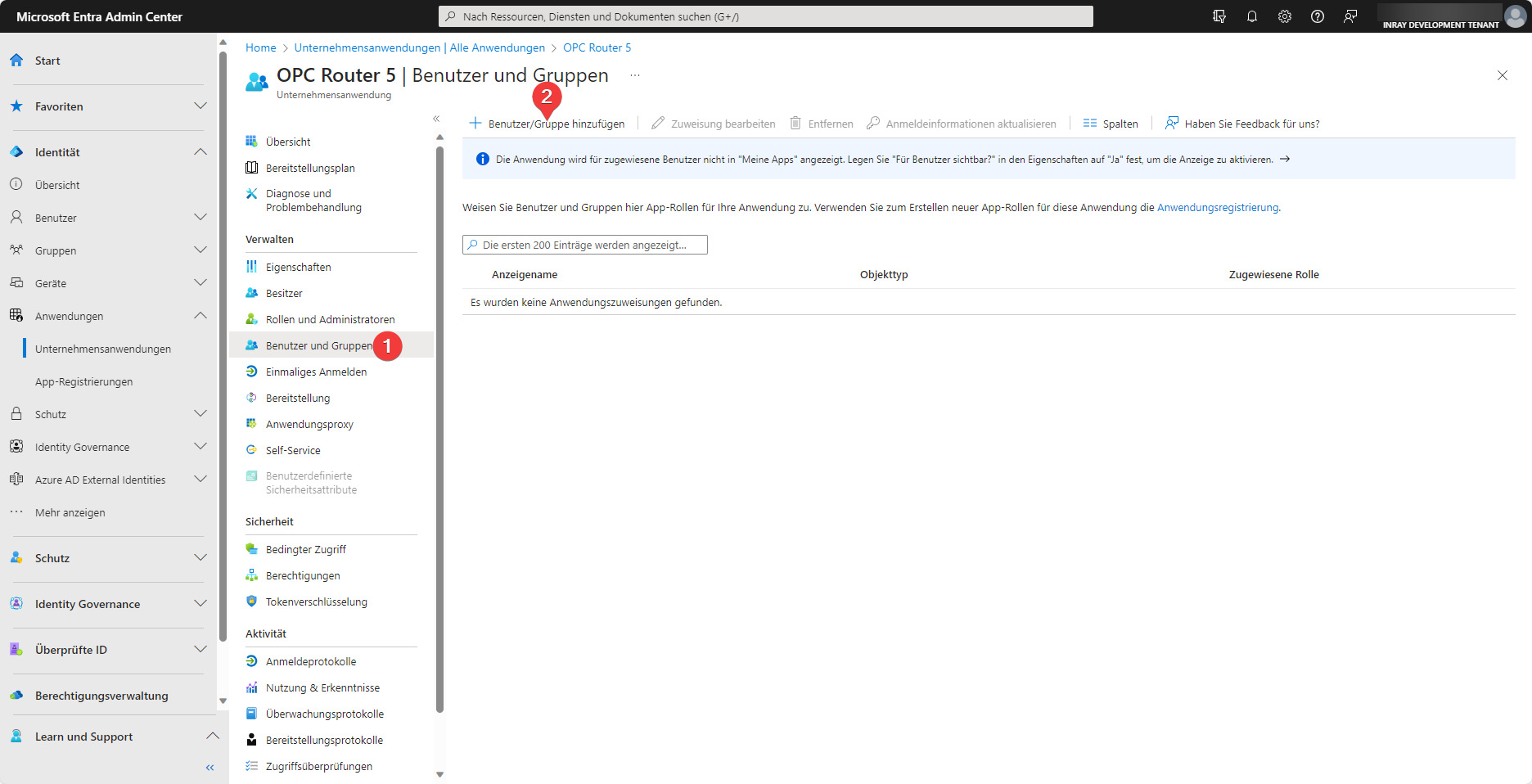 Under the Users and Groups (1) tab, you can then assign roles to users (2).
Users without assigned roles will continue to act as Admin.
Changes to user roles are not immediate. Existing stored login tokens (stored in browser cookies) remain valid with the previously assigned roles until they are either deleted or revalidated. This is done by logging out and then logging in again.
It is potentially possible to assign multiple roles to a user. This does not cause any errors, but currently serves no purpose. Since permissions are additive and the current roles are strictly hierarchical, assigning multiple roles is equivalent to assigning only the highest of these assigned roles.