Connect Microsoft Entra ID/Azure AD
Microsoft Entra ID, formerly Azure Active Directory, is a cloud-based service for identity and access management for applications hosted in Microsoft Azure, as well as applications running in other clouds or on-premises environments. Entra ID offers features such as single sign-on, multi-factor authentication, self-service password reset, conditional access policies, and identity protection. With Entra ID, organizations can centrally manage their users, groups, and devices and control access to their resources.
The web management of OPC Router 5 enables user management and authentication via Entra ID by connecting Entra ID.
This guide assumes that you have an existing Microsoft Entra ID tenant.
In order for OPC Router to use Entra ID, a new registration must be added to the application registrations of your Microsoft Entra ID tenant.
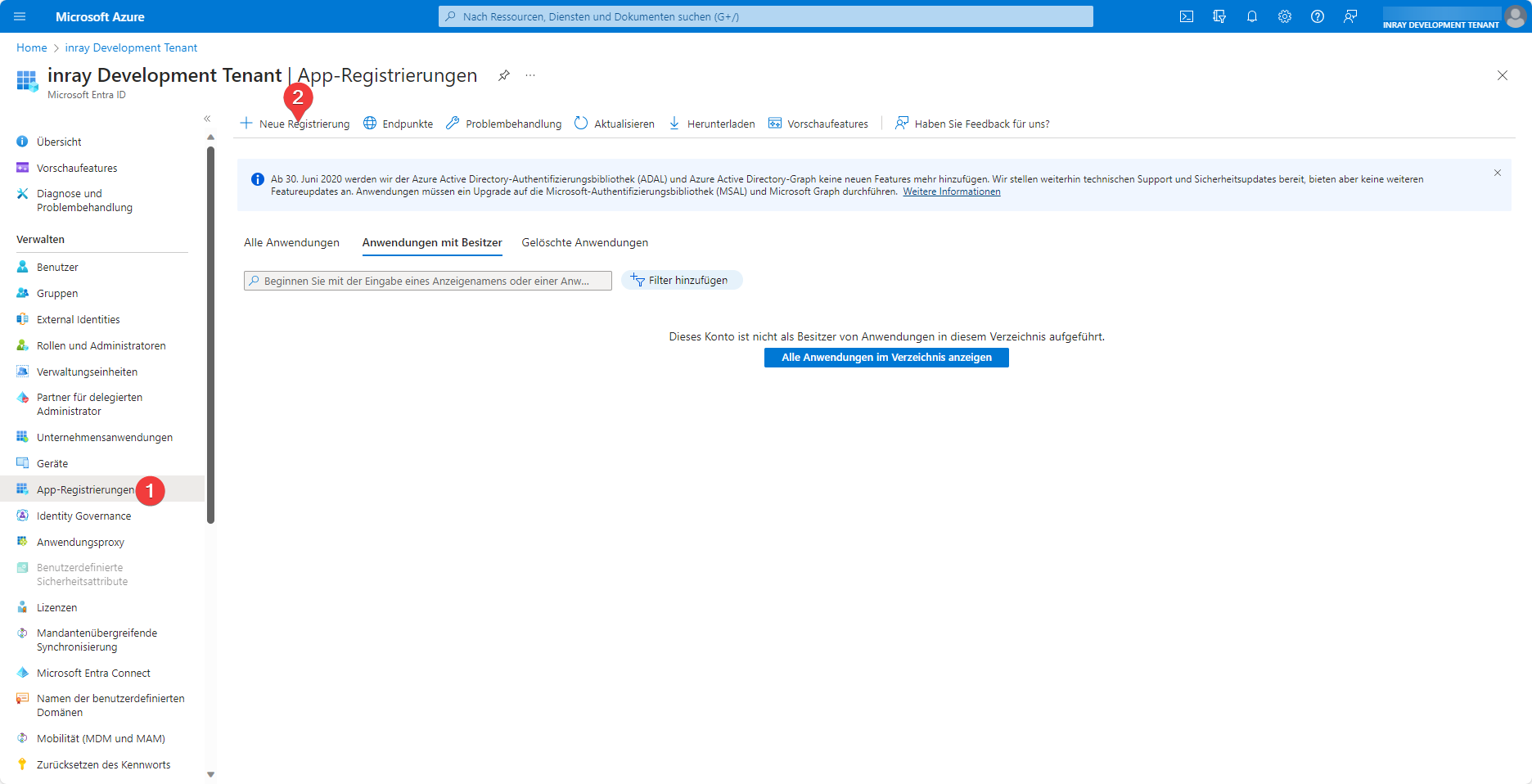 On the App Registrations (1) tab of your Microsoft Entra ID tenant, you can create a new application by clicking New Registration (2).
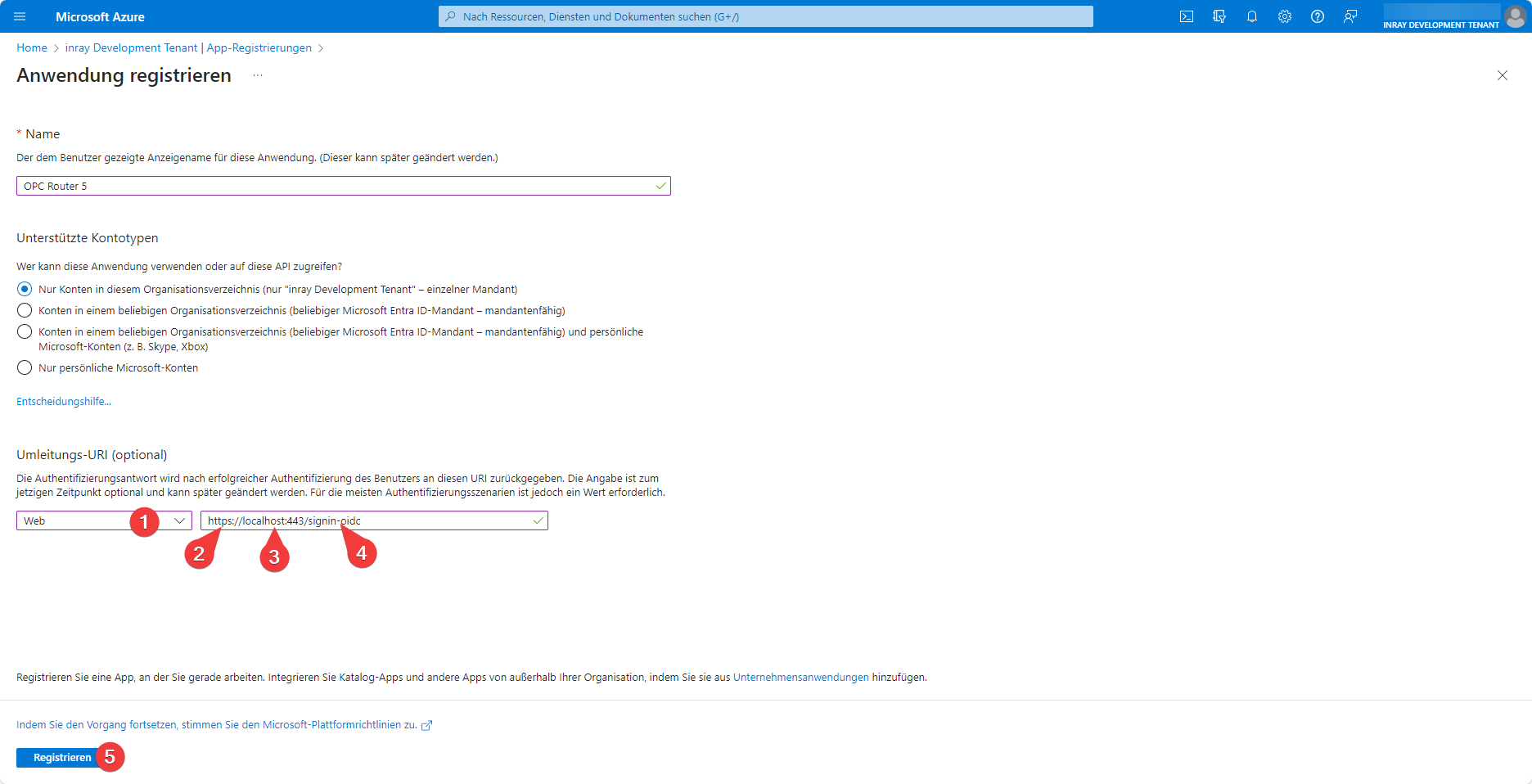 It is important that the redirect URI of the application is customized. In the drop-down list (1),
 Web must be selected. The address (3) must be configured as the address at which Web Management can be accessed. This must be the valid https (2) address of Web Management, otherwise it will not be permitted. The SSL certificate does not have to be issued by a certification authority; self-signed certificates are also permitted. You can find out how to set up Https for your OPC Router Web Management here:
The set login request path must also be transferred as the endpoint (4). By default, this is /signin-oidc, but it can also be overwritten by the environment variable AZURE_AD_CALLBACK_PATH if necessary.
The newly created application must still be configured so that authentication via Microsoft Entra ID can be carried out successfully.
.webp)To do this, select the application you just created in the App registrations (1) tab under the All applications (2) group.
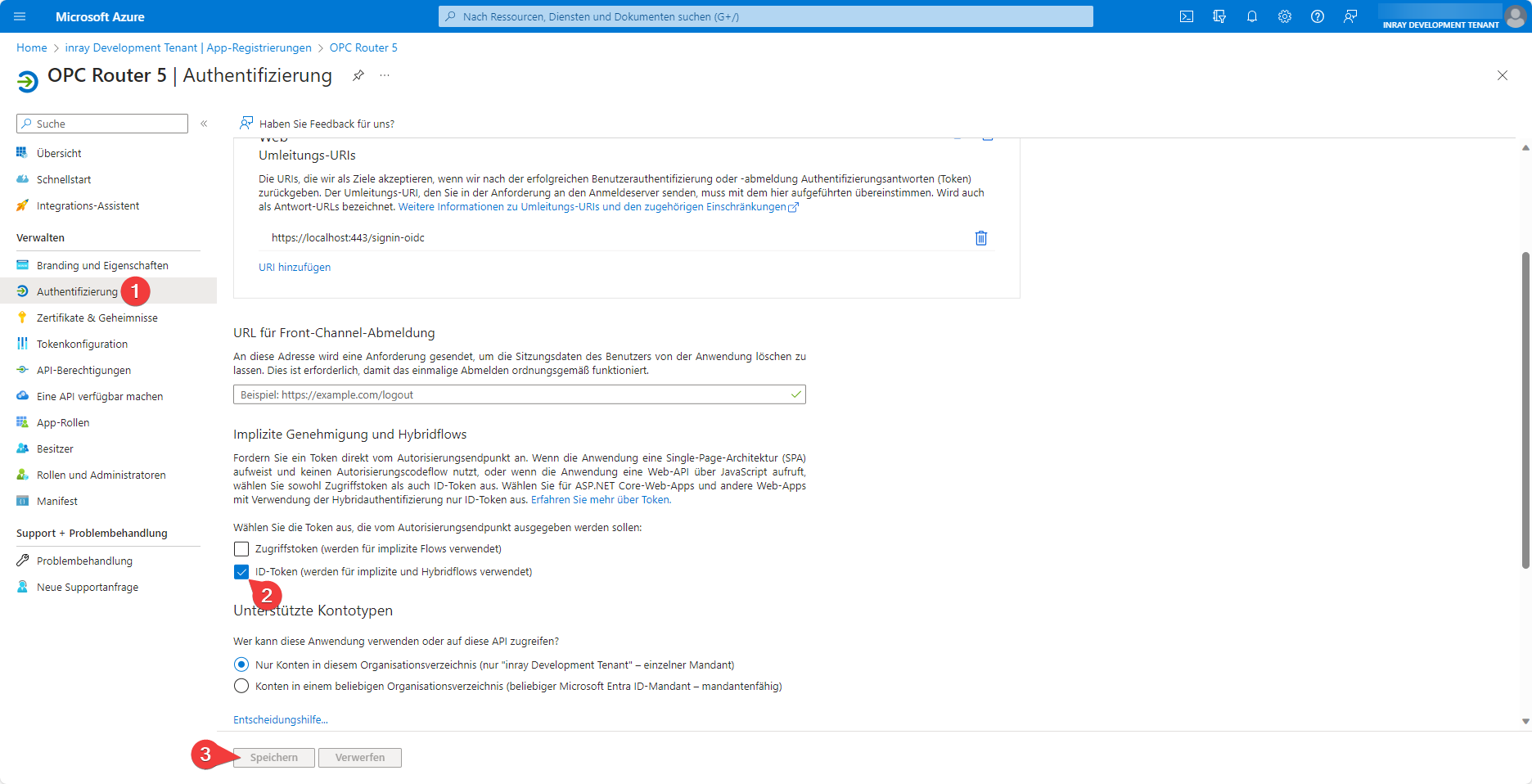 On the Authentication (1) tab, you will find the ID token (2) checkbox, which must be enabled for Web Management user management to work via Microsoft Entra ID. Save (3) this setting change.
In your Entra ID tenant, you can now navigate to your newly configured application via the Enterprise Applications tab and use the Users and Groups tab for user management.
Create OPC Router 5 container with connection to Entra ID
In order for the OPC Router to connect to Entra ID, three pieces of information must be available from the tenant: the application ID, the directory ID, and a domain under which the Entra ID configuration is accessible.
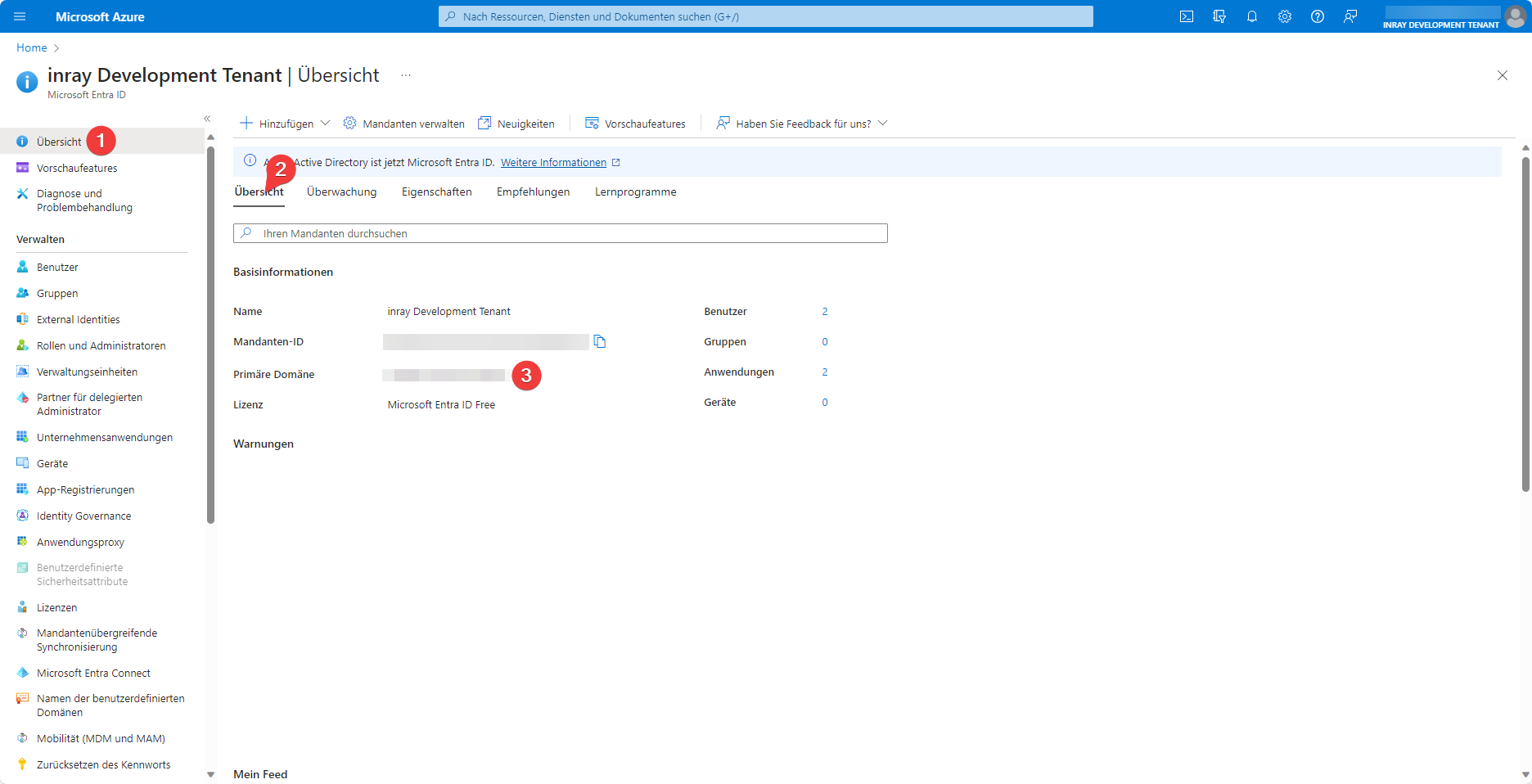 The Primary Domain (3) can be found in the Overview (1) tab under the Overview (2) tab of your Entra ID tenant.
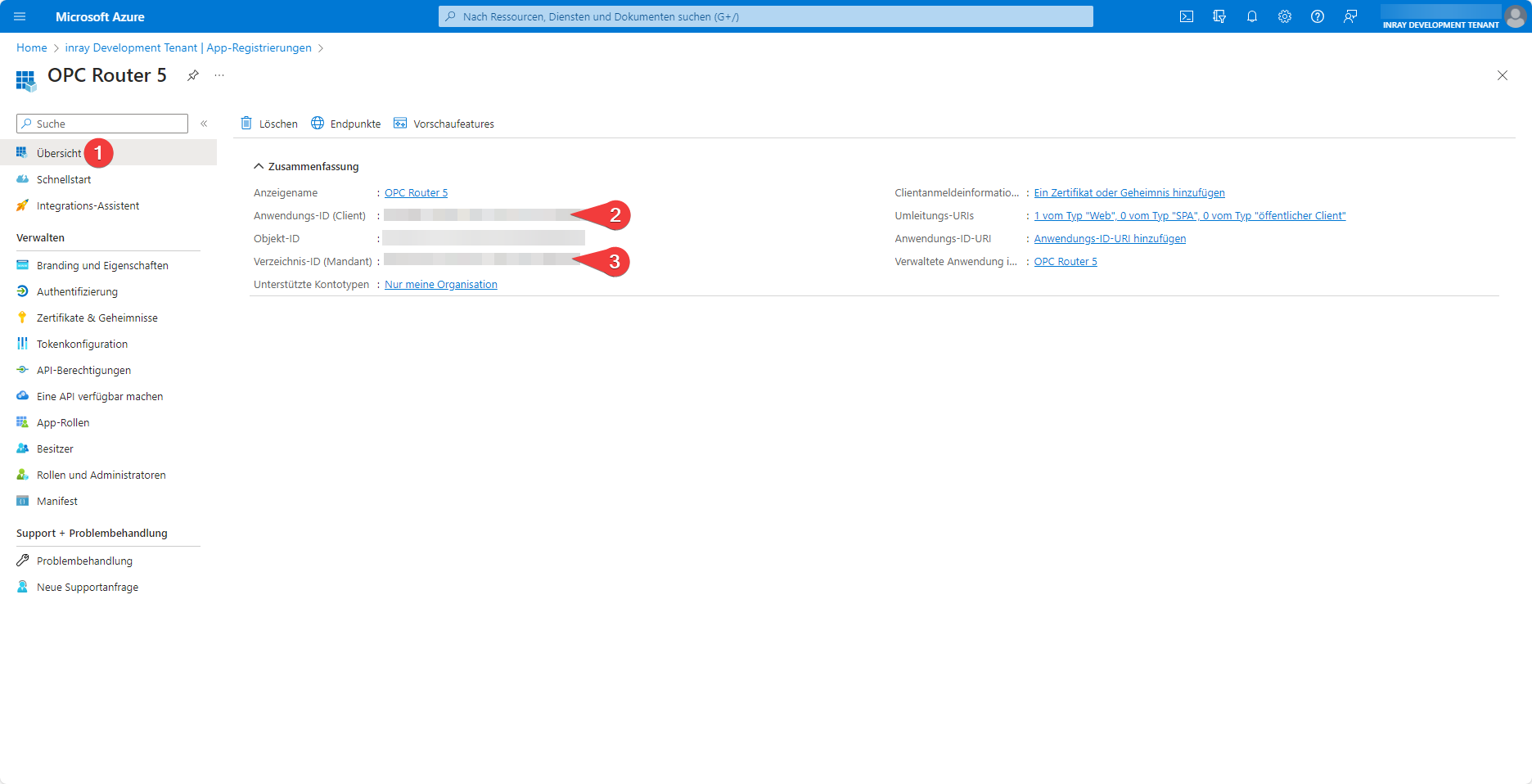 The Application ID (2) and Directory ID (3) are displayed on the Overview (1) tab of the created application registration.
With this information, you can now execute a Docker run command that creates an OPC Router container with a connection to Entra ID:
docker run -d \
    -e OR_I_ACCEPT_EULA=true \
    -e AZURE_AD_DOMAIN=domain.onmicrosoft.com \
    -e AZURE_AD_TENNANT_ID=1111111-1111-1111-1111-1111111 \
    -e AZURE_AD_CLIENT_ID=1111111-1111-1111-1111-1111111 \
    --name opcrouterentra \
    opcrouter/runtime
By executing this command, you agree to the End User License Agreement by setting the environment variable OR_I_ACCEPT_EULA to true.
Enter your (primary) domain in the environment variable AZURE_AD_DOMAIN, your directory ID in the environment variable AZURE_AD_TENNANT, and your application ID in the environment variable AZURE_AD_CLIENT_ID.
For authentication via Entra ID to work, HTTPS must be set up on the container. The necessary settings have been omitted here for demonstration purposes. The unmodified command is therefore not executable.
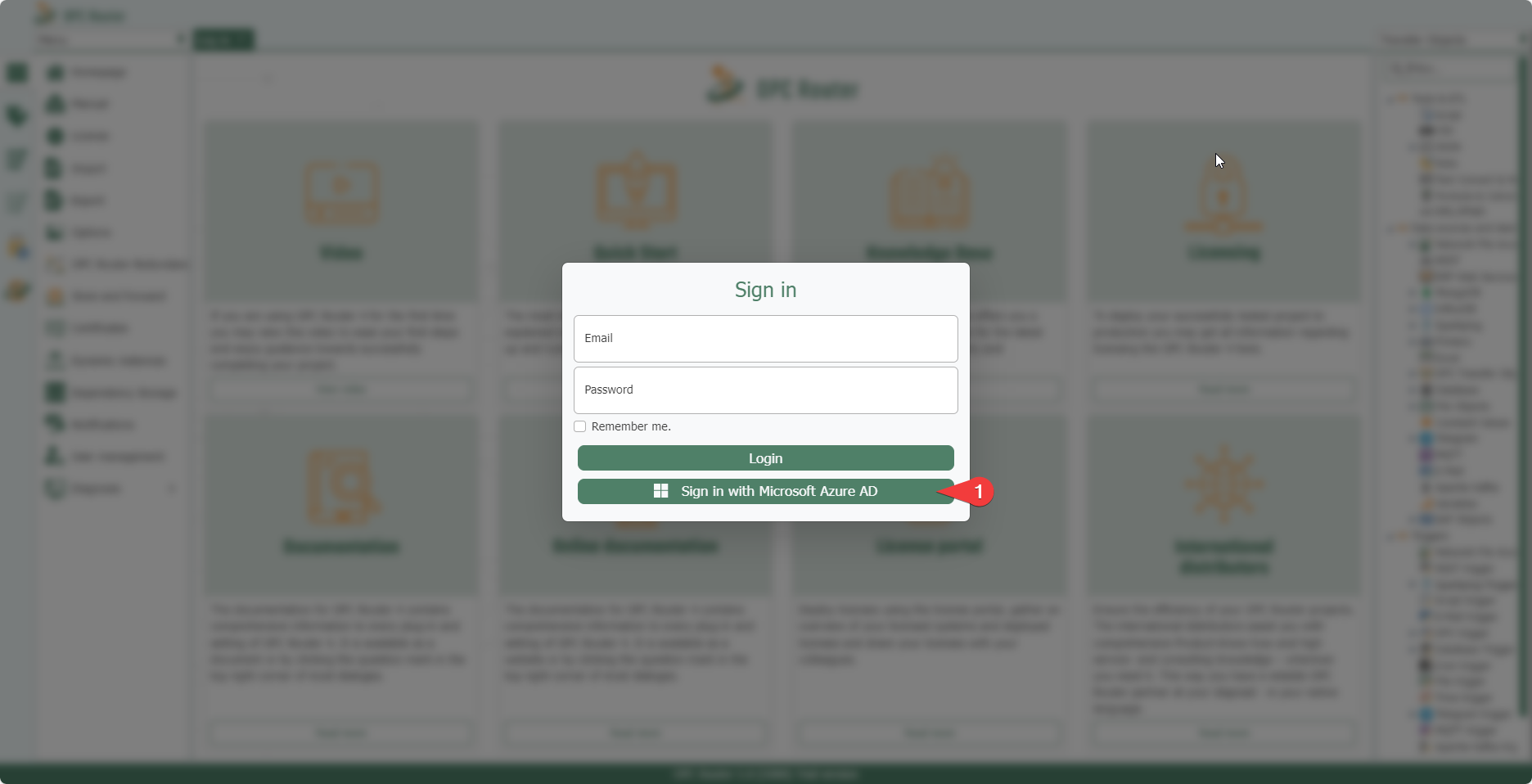 After successful setup, a button for logging in via Azure AD/Entra ID (1) should appear under the login button. Users who have been added via the Entra ID tenant can log in using this button.