Azure Blob Storage
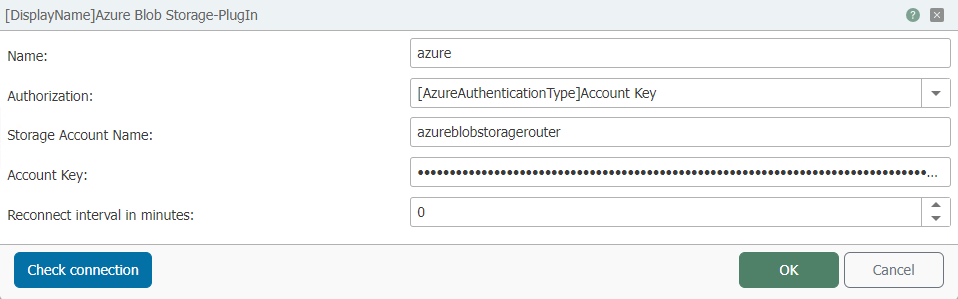 You can set the following properties in the configuration of the Azure Blob Storage plug-in:
| Option | Description |
|---|---|
| Name | Any name under which this Azure Blob Storage appears in the connection project. Choose a name that is unique to you during the connection project. |
| Authorization | Select the connection type to Azure Blob Storage. Here you can find more information about the different types. |
| Reconnect attempts | Number of reconnection attempts. If the number of attempts is reached, an error is returned. |
Use the "Check connection" button to check whether your connection is successful.
Authorization
There are three ways to connect to Azure Blob Storage in the Cloud File Access plug-in:
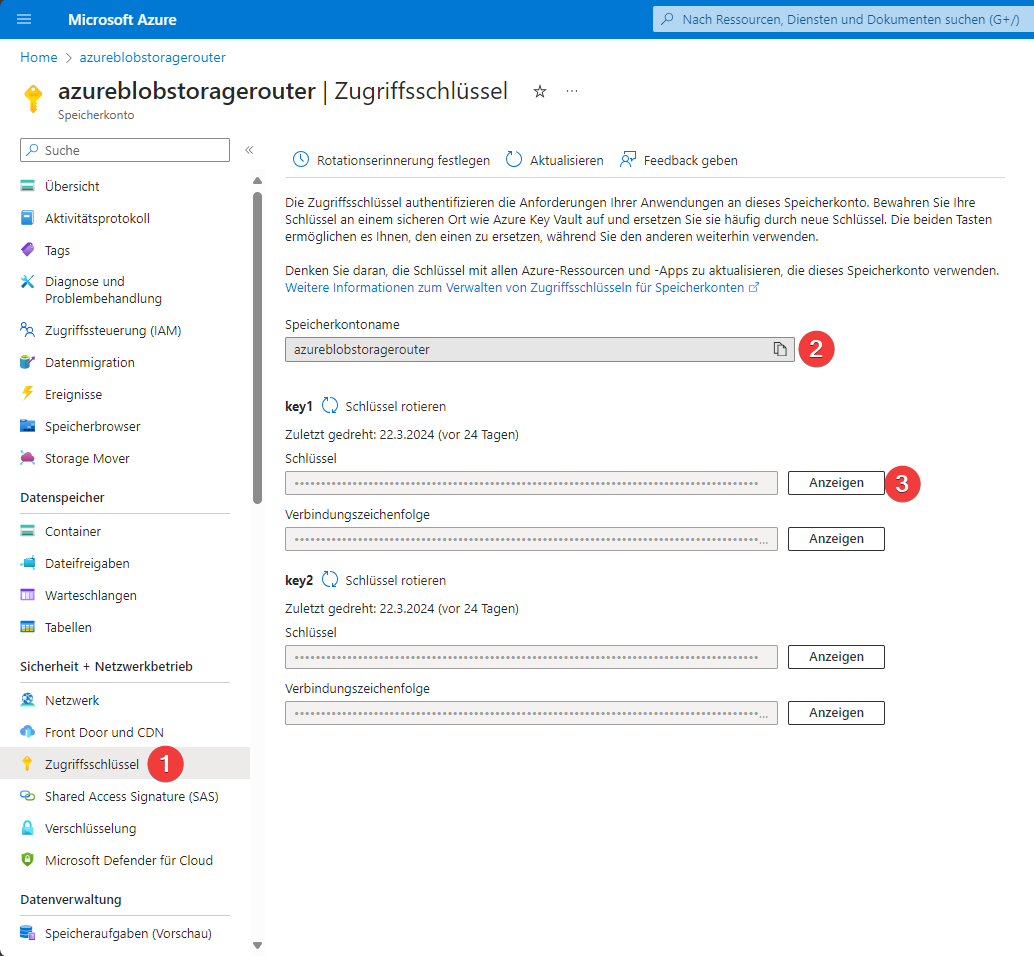
- Account Key: To connect with the account key, you must specify the name of your storage account and the key. You can find the key in the Azure Portal under 'Access Keys' (step 1). The name can be found in step 2 and the key in step 3. Copy this and paste it into the OPC Router. The following image shows where to find the information.
 * Connection string: To establish a connection, simply copy the connection string from the Azure Portal under 'Access keys' and paste it into the OPC Router.
- SAS token: Generate a SAS token in the Azure Portal under 'Shared Access Signature (SAS)' and enter it together with the storage account name in the OPC Router.