Printers
You can use the respective printer plug-in to define document templates/print templates with label fields in OPC Router. The content of the label fields can be transferred dynamically at runtime.
In addition to the Windows printer plug-in, the following printer plug-ins are available:
- Domino printer plug-in
- Plug-in for generic printers
- Cloud printer
- Zebra printer plug-in
- Videojet printer
The following steps are necessary:
- Create the document template in the plug-in configuration
- Select the printer and fill the template variables with values in the connection project
Creating the document template
- Open the appropriate printer plug-in (Domino, Zebra, generic printer) in the "Print Templates" area under the "Plug-ins" menu
- Select "Add New Label" or double-click on an existing entry to change a template.
- Assign a name to the print template and enter a comment if necessary. For a Wolke printer label template, you must also enter the label name.
- Specify the data for the print template.
- Confirm your entries with "OK."
The document template is now available for projecting a connection.
Domino and Zebra printer plug-in: The fields replace the corresponding character strings in before the label is sent to the printer. Either the default value from the table is specified or a connection is read out, e.g., via a script.
Generic printer plug-in: During project planning, either the default value from the table is specified or a connection is read out, e.g., via a script.
Videojet printer plug-in: No print template is defined here, only the default values for various labels that can be sent to the print template available in the printer. In the "Videojet Update Printer" transfer object, you can select a label from the drop-down menu in the "Label" field.
Define printer templates
Template variables are filled dynamically or statically at runtime with values, e.g., from the control or batch and order data from the database. At this point, you define the required placeholders and assign default values if desired.
- Assign names to the label fields in the table. To do this, simply click in the next free row. To delete fields, go to the corresponding row and right-click to select "Delete row."
- If necessary, assign a default value to your label fields.
- Define your label printing under the fields in the print template. Here you have the option of dragging and dropping individual fields into the print template. You can also select the fields by right-clicking and selecting "Add to label," or you can select the field, place your cursor in the correct position in your print template, and click the "Insert field" button.
- Confirm your entry with "OK."
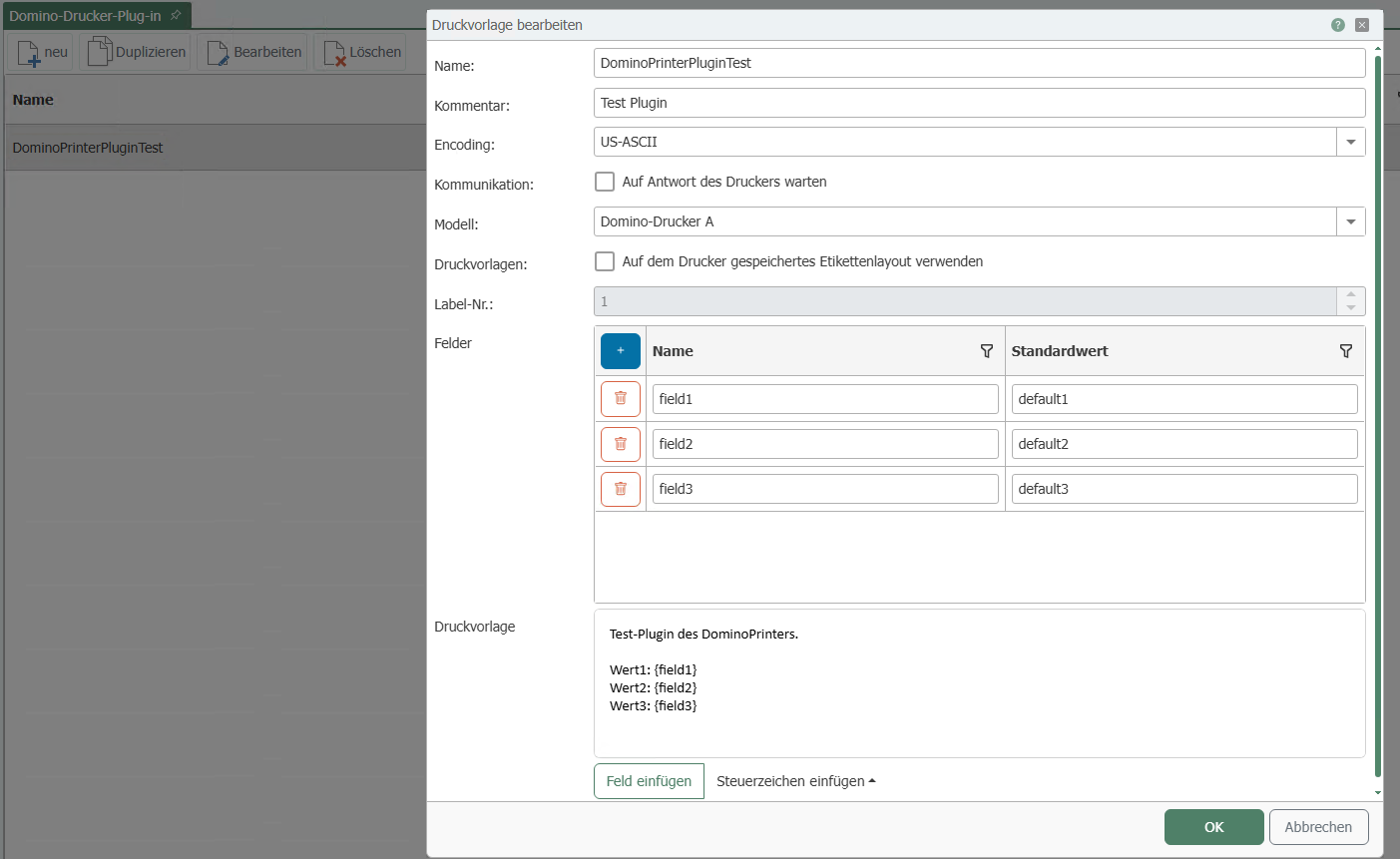 To delete a print template, select it from the list and click on the "Delete label" button at the top.
To rename an existing print template, select it from the list and click on the "Rename label" button at the top.
You can also insert control characters in the label description for Domino, Zebra, and generic printers using the "Insert control character" button. The control characters are highlighted in black.