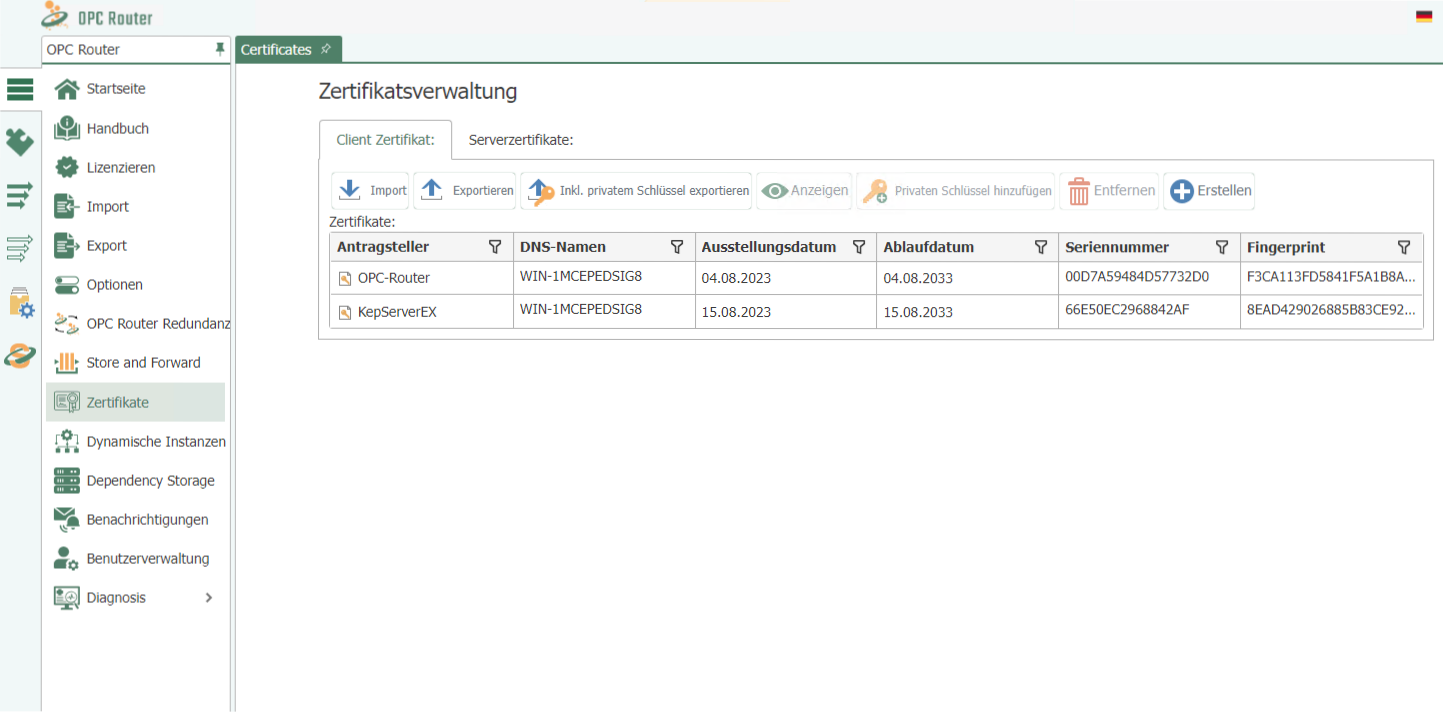
Certificate Management
Under the Tools–Settings menu item, you will find the Certificate Management area under the button for basic settings. In this area, you can import certificates, create your own certificates, or view existing certificates.
The following buttons are available:
Import: This button allows you to import certificates from your PC into the OPC Router certificate management. They will then be available later in the drop-down menus of the individual applications.
View: Select a certificate from the list and click on the "View" button to display the details and path for the certificate.
Add Private Key: The private key is the secret key that will later be used to sign the encrypted connection. The private key is created by you at this point and should not be made publicly available. A private key can only be added for OPC Router certificates and not for trusted certificates.
Remove: Select a certificate and click the Remove button to delete this certificate from the list.
Create: You can use this button to create your own certificates. To do this, enter the relevant properties and confirm your entries with "Create." You can only create OPC Router certificates and not trusted certificates.
Revoke: You can invalidate trusted certificates using the Revoke button. You can then only re-import it to use it again as a valid trusted certificate.