User Management
In User Management, you can view, create, delete, and manage the roles of internal and external users. External users include, for example, Windows Authentication users in Windows deployments, Microsoft Entra ID users, or other SSO or ForwardAuth users. External users are marked with the External flag in the table.
Once an initial user has been created, they will also be listed here. While this user can be deleted or modified, they will be restored with the Admin role after restarting the Management Service to prevent users from locking themselves out of management entirely.
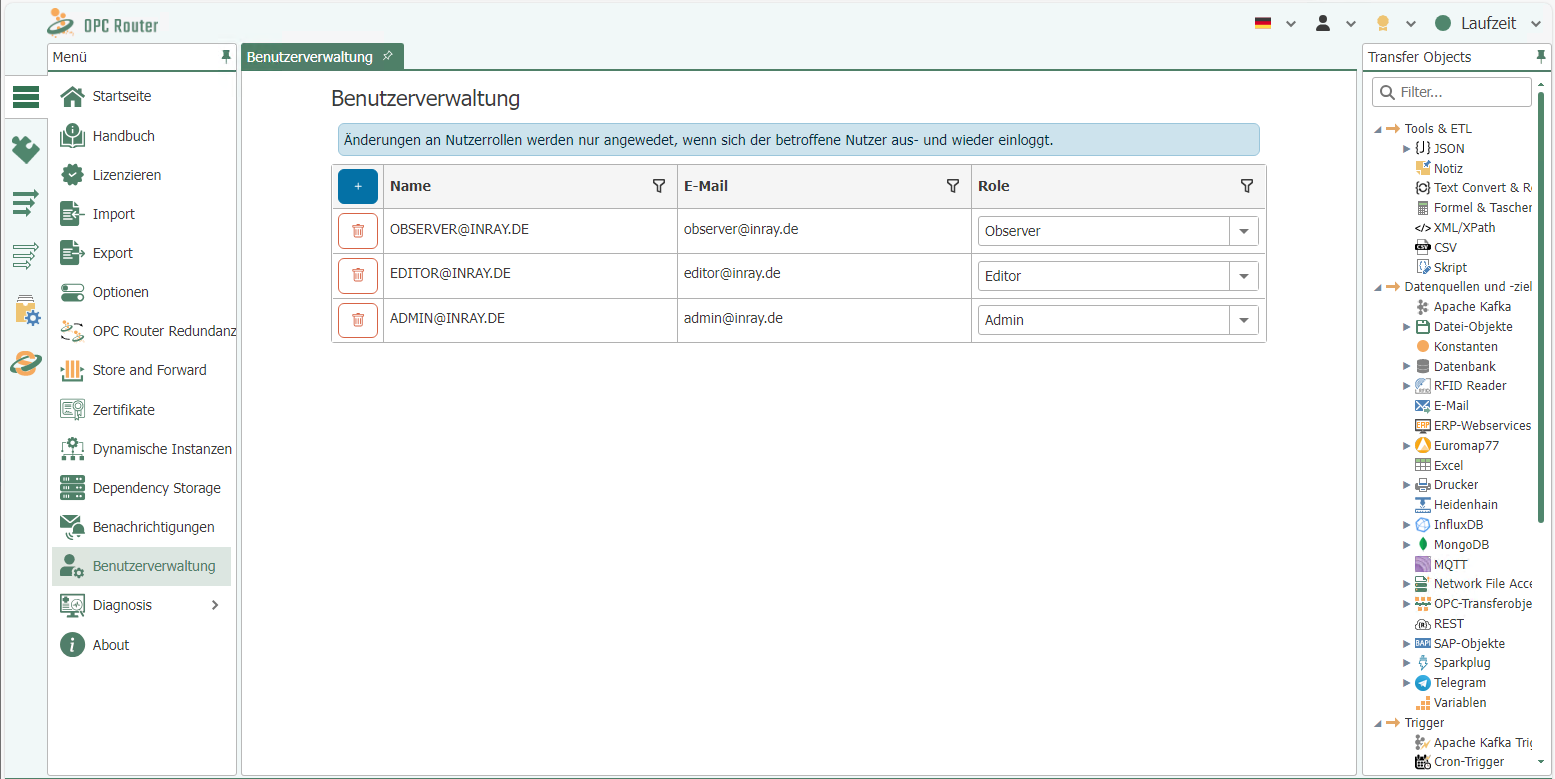
New users can be created by clicking the plus sign in the upper-left corner of the table, which opens a new dialog.
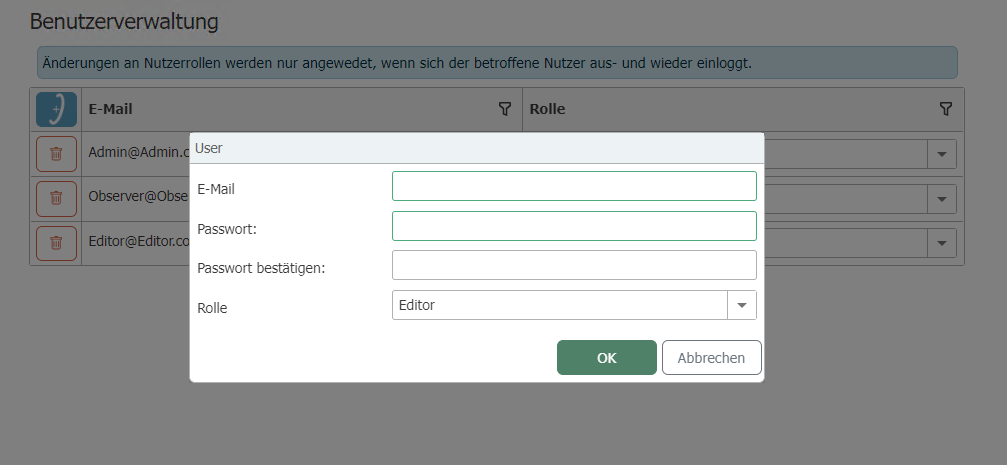
Here, you must specify the email address and user role; only one user per email address is allowed. Additionally, you can specify whether the user is an external user.
A password must be specified for internal users. No local password is stored for external users. External users are suitable, for example, for pre-provisioning for Microsoft Entra ID or pronubes Remote Management with Auth Forward. Once the dialog is confirmed by clicking OK and all entered data is valid, the new user should be visible in the table.
The role of users can be changed via the dropdown in the table, and users can be removed using the Delete button. No local password change is provided for external users.
Changes to user roles are not immediate. Existing saved login tokens (stored in browser cookies) remain valid with the old role until they are either deleted or revalidated. This occurs upon logging out and then logging back in.
Login Options
- Email Address and Password: The classic login option using an email address and a personal password is a widely used and familiar method. Users must enter their email address and the corresponding password to gain access to the OPC Router. This method offers a simple and direct form of authentication.
- Windows User Integration: For seamless integration into existing Windows environments, the OPC Router supports logging in with Windows user accounts via Windows Negotiate/NTLM for Windows deployments. This option is not available for Docker or Linux deployments and is primarily intended for local access to the Web Management interface from the system on which the OPC Router is installed.
- Azure AD / Entra ID: For organizations using cloud-based identity services, the OPC Router offers the option to log in via Azure Active Directory (Azure AD) or Entra ID. This option requires prior configuration during the OPC Router installation phase and enables secure and centralized management of user identities and access rights within a cloud infrastructure.
With Microsoft Entra ID, external users are automatically created or updated by default upon their first successful login. This behavior can be disabled with AZURE_AD_DISABLE_AUTO_PROVISION=true. In that case, only existing external users can log in.
Security Notes:
-
When accessing the OPC Router from another PC, we strongly recommend enabling HTTPS to encrypt data transmission and ensure secure communication. Details on enabling HTTPS can be found in the OPC Router installation guide. This measure is particularly important when sensitive data is being transmitted or when accessing the system via unsecured networks, such as the Internet.
-
After a user is deleted, it may take up to 30 minutes for that user to be logged out on all devices.