Status Display
The button for the status area is located in the snap-in bar.
After clicking the button and following a flow, the status window opens:
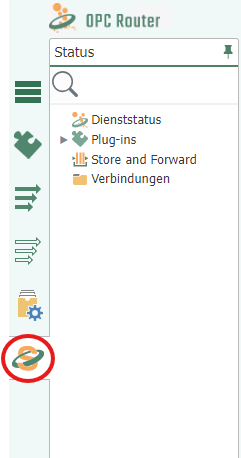
On the left is the status tree with four root nodes: “OPC Router Service status”, Plug-ins, Store and Forward, and Flows. Clicking on a node opens the corresponding dashboard on the right.
The three dashboards
- Service Status – provides an overview of how the system is performing as a whole: the System Information, System Load, and Average Cycle Time cards, along with performance, timing, and resource metrics, as well as the event log, each for a selectable time window.
- Plugin Status – shows how a single plug-in instance is performing: usage and time metrics, monthly statistics, flow state distributions, and the instance’s event log.
- Flow Status – provides information on what a flow is currently doing: a status chart with colored transfer points, live execution status, and the escalation levels of the status log.
Colors in the status tree
Each flow and plug-in node has a colored dot that indicates its most recently reported state.
| Color | State |
|---|---|
| Green | OK |
| Yellow | Warning; also “Aborted,” “Initialization,” “Start,” and a disabled plug-in |
| Red | Error—in the plug-in, during trigger verification, in the trigger status, or in the trigger configuration—as well as a missing or invalid license |
| Blue | Standby (the system is operating as the secondary system in a redundancy configuration) |
| Gray | Shut down, stopped, pending transfers in the queue, lost heartbeat, and any state the router cannot identify |
A plug-in that has not yet been initialized does not display a dot at all. If a transfer is currently in progress, the flow’s dot pulses in the color of the active transfer.
The “Store and Forward” node does not change color based on the status of the entries: it counts the pending entries for each plug-in. The status of the individual entries—“No Status,” “OK,” “Aborted,” “Error,” “Pending,” “Forwarded,” “Discarded”—is shown in the “Status” column of the Store-and-Forward management; “Queued” and “Repeat” in the “Priorität” column describe the forwarding order, not a status.
The Gantt status bar below the status chart follows its own classification and does not always match the tree: There, “Shut Down” and a deactivated plug-in appear red, while “Start” and “Check” appear orange. In the tree, the same states are gray or yellow, respectively.