Import OPC Router 4 Project
Open the "Import OPC Router 4 Project" function in the menu bar under "File."
 (13) (1) (25)-c18c222d00d73d150a29f1cc9670c0cb.png)
 (13) (1) (18)-c18c222d00d73d150a29f1cc9670c0cb.png)
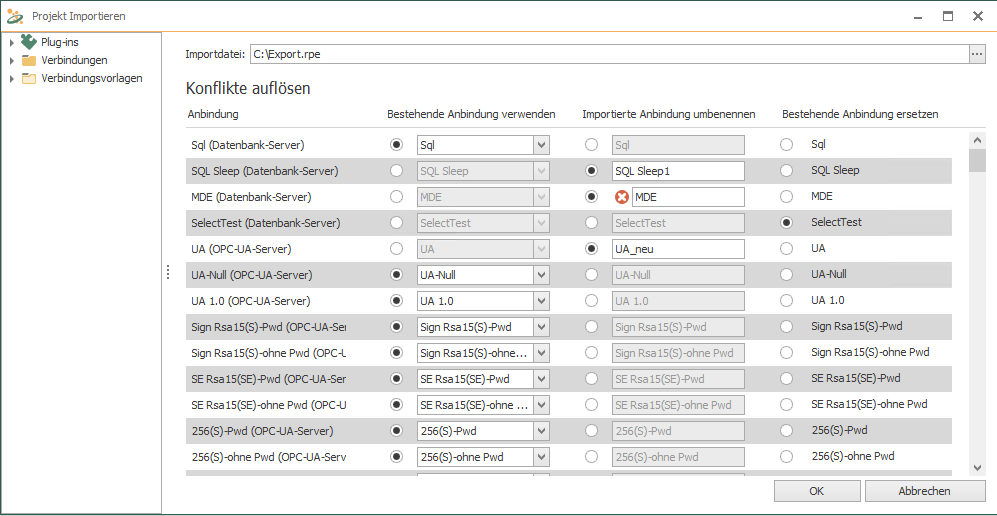
Select a file to import and resolve any connection conflicts in the window that opens. Only connections in the conflict list are displayed; connections are automatically renamed and given a sequential number. To resolve conflicts, you can select the option to resolve all conflicts at once in the window that opens. Depending on which button you select, the corresponding selection will be made for all conflicts. You can still make individual decisions for individual connections; the respective button will then "overwrite" any previously selected option:
- Select "Use existing connection" if you want to use the application you are currently using.
- Select "Rename imported connection" if you want to keep your existing connection and receive the imported connection in parallel. To do this, select a name until the red circle with the cross disappears.
- Select "Replace existing connection" if you want your existing connection to be replaced by the imported connection.
Confirm your selection with "OK."
If connections cannot be made properly during the import, you will receive a message "Customize Import Project" with the message "The project import can only be performed with the current import settings if the following changes are made to the import project." If you accept the suggested changes, confirm with the "Import with changes" button.