Projecting
Connections require at least three transfer objects: a data source, a data destination, and a trigger that initiates the transfer. You can write any number of sources and destinations into the connection, which can also be controlled in several steps. It is also possible to define multiple triggers. The triggers can be linked with AND or OR, meaning they trigger the transfer when either one condition or all conditions are met.
The required transfer objects ("sources and destinations," "triggers") can be found in the tool palette on the right-hand side of the window.
Within the project planning area, you can edit, rename, and delete transfer objects using the context menu (right-click).
Note: To define the connection, all required plug-ins must be configured.
- Create a new connection.
- Give your connection a suitable name.
- In the "Transfer Objects" tool palette, select the type of your source (e.g., "OPC UA/DA" if you want to read data from an OPC server).
- Place the source in the project area using drag and drop.
- Open the source by double-clicking.
- Enter the necessary properties. The properties of the individual transfer objects are explained in the following sections.
- Select the OPC connection
- Alternatively: Enter the data points or open the tag browser
- Transfer the data points to the transfer object by double-clicking.
- Confirm with OK.
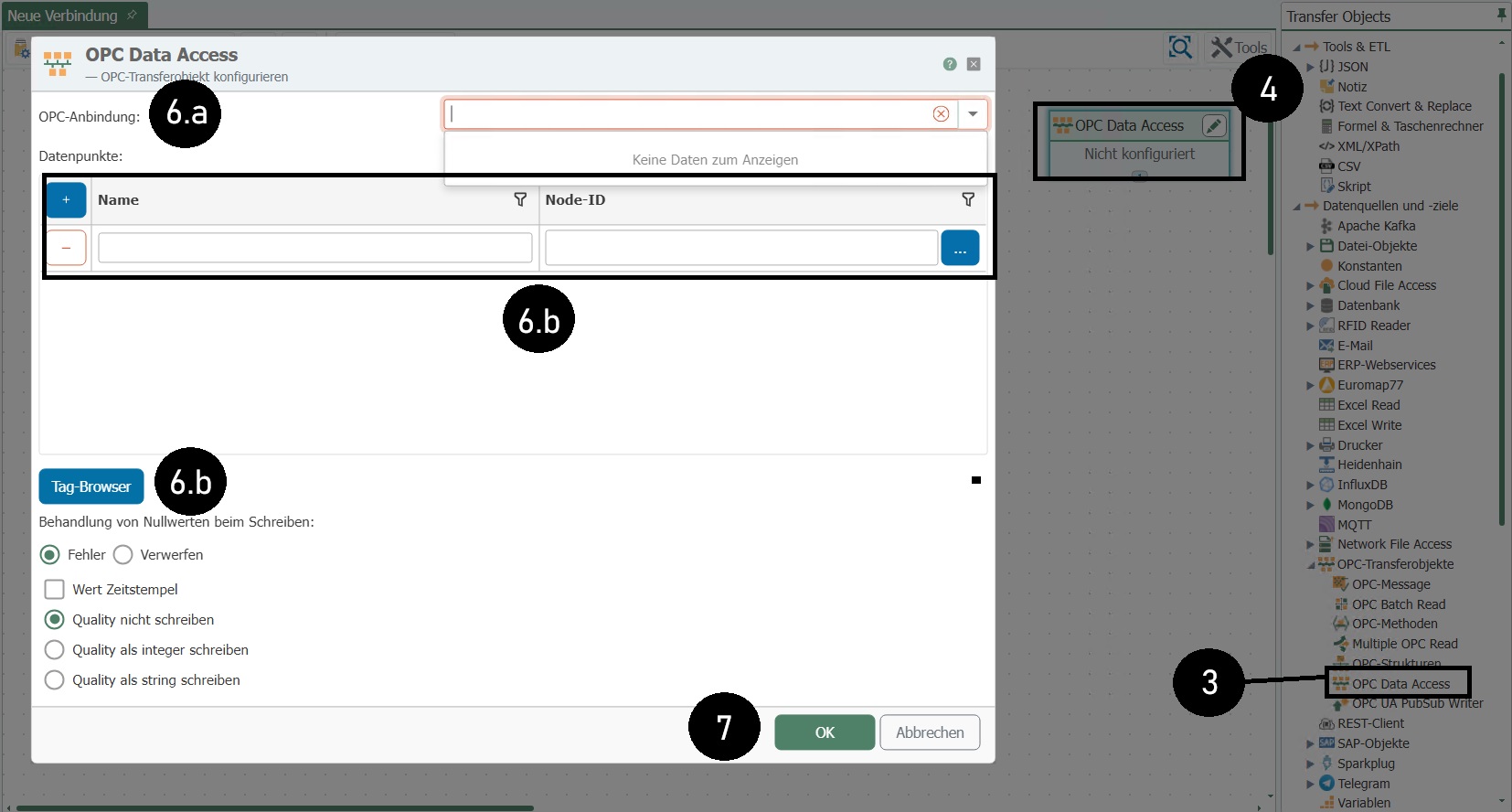 1. Create a data destination (e.g., a database) and define its properties (detailed instructions).
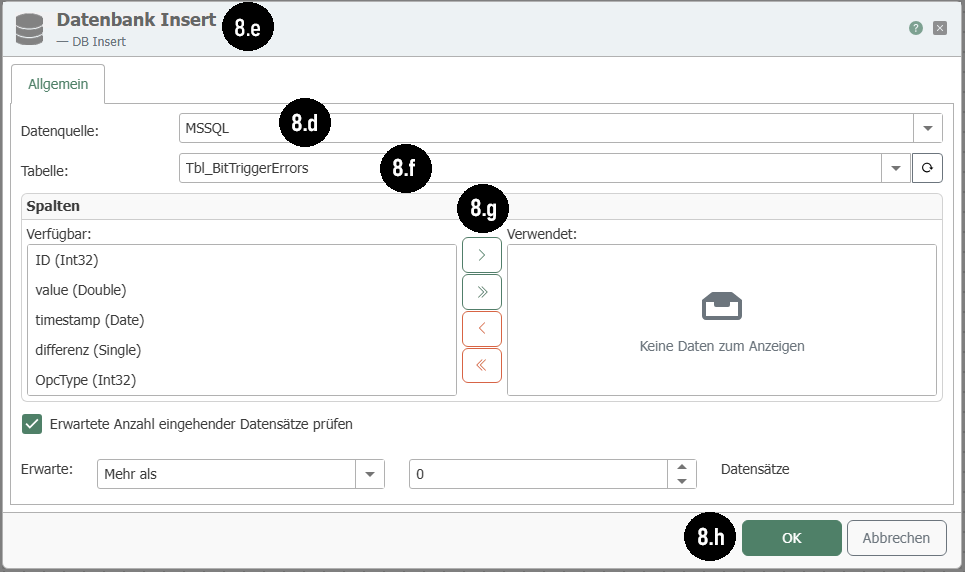
- Select the DB object in the "Transfer Objects" tool palette.
- Place it in the configuration area.
- Open the transfer object by double-clicking on it.
- Select the database connection.
- Select the type of transfer object. Since the database serves as the transfer target here, select either "Insert" or "Update" (of an existing data record). Now: Insert. 6. Select the table you want to write to.
- Select the columns you want to write to. Sort using "Up" and "Down" to keep track of the project.
- Confirm with "OK."
Tip: Copy/paste is possible in the projection of the transfer objects.
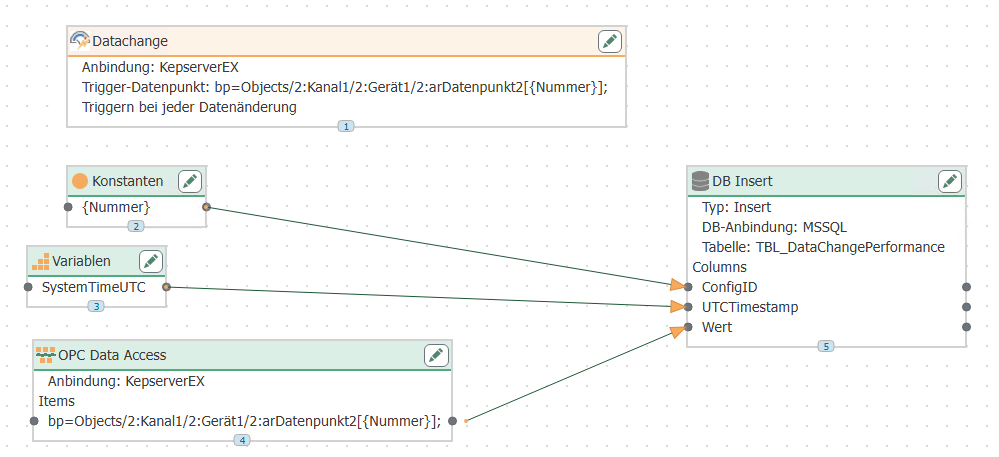
 1. Now simply drag connection arrows between the entries in the source and those in the target. To do this, click on the entry in the source, hold down the mouse button, and move the cursor over the target entry. Then release the mouse button (drag & drop) (top image). Done (bottom image).
 1. You can delete a connection arrow by right-clicking on the arrow and selecting "Delete." At this point, you also have the option of deleting several connection arrows at once. To do this, go to the "Delete multiple" entry and select an option.
2.
1. You can delete a connection arrow by right-clicking on the arrow and selecting "Delete." At this point, you also have the option of deleting several connection arrows at once. To do this, go to the "Delete multiple" entry and select an option.
2.
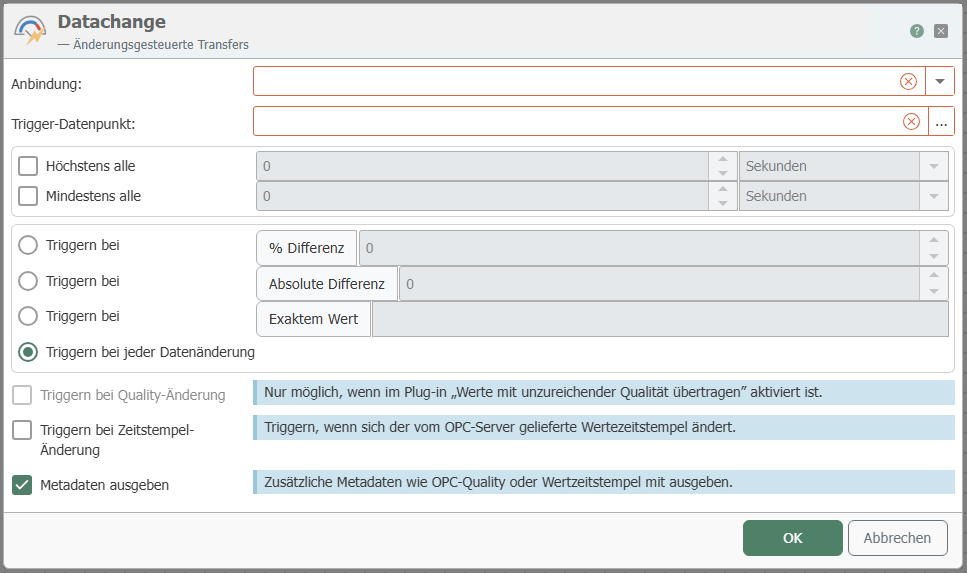
- Select a trigger from the "Transfer Objects" tool palette.
- Place the trigger in the project area.
- Open the trigger by double-clicking on it.
- Configure the trigger.
 :::note
Tip: Press Shift to drag all columns from one transfer object to a column in another transfer object.
:::
:::note
Tip: Press Shift to drag all columns from one transfer object to a column in another transfer object.
:::