Creating a connection
To create a connection, go to the snap-in area and select the Connections snap-in.
- Click on the "New Connection" button at the top under Connections.
- Enter a name. The name must be unique within the project.
- Confirm with Enter.
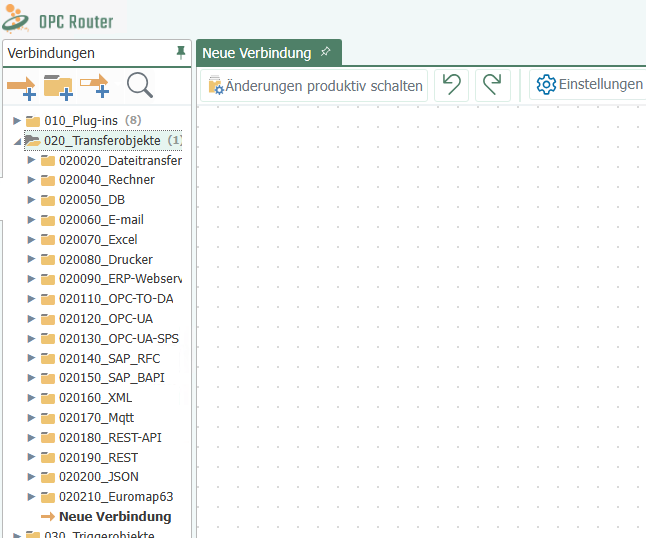 The connection is now created and opened in the main window. You can open existing connections by double-clicking on them in the directory tree. The currently selected item is displayed in bold in the directory tree.
Note: Right-clicking on Local Service also takes you to the settings area.
Creating connection groups
A connection group combines several connections. Connection groups can be nested as desired, similar to folders in Windows Explorer. Activating/deactivating a connection group activates/deactivates all contained subgroups and connections. You can also deactivate a connection group and reactivate individual connections it contains (see below).
To create a connection group, go to the Connections snap-in.
- Click the "New Folder" button at the top under Connections.
- Enter a name. The name must be unique within the project.
- Confirm with Enter.
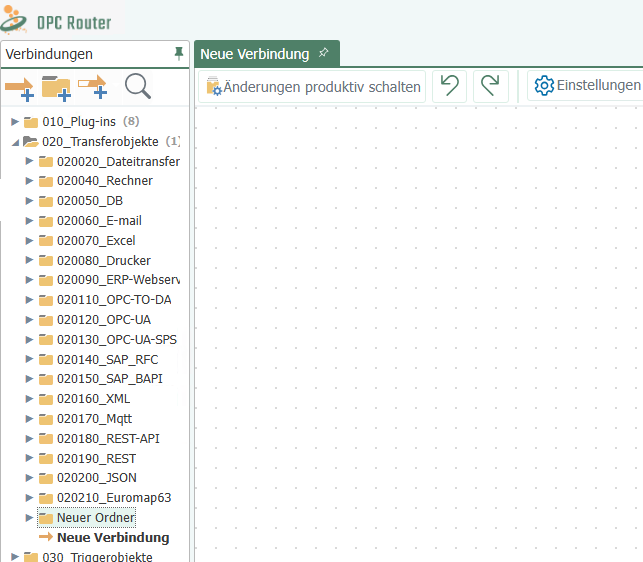 ## Managing connections and connection groups
You can copy, delete, rename, and move connections and connection groups—again, much like files in Windows Explorer, but only one object at a time. Multiple selections are not possible here.
- Select the desired connection (group).
- Select the desired action
- from the "Connections" menu
- from the context menu (right-click) of the corresponding connection (group)
- The following actions are possible:
- Copy: You can copy connection groups, connections, template instances, and templates by right-clicking "Copy" and "Paste."
- Delete: Right-click on the connection, select the "Delete" action, and confirm with "Enter."
- Rename: Right-click on the connection, select the "Rename" action, and assign a new name. Confirm your entry with "Enter."
- Move: You can easily move individual connections to another folder using drag and drop. Entire connection groups can also be moved to other folders. Within a structure, the folders are sorted alphabetically.
If you right-click on a parent folder in the tree structure and select the "Show All" or "Hide All" option from the menu, all subfolders and their connections will be displayed or hidden.
Pop-up menu
Above the connections area, you will find another pop-up menu:
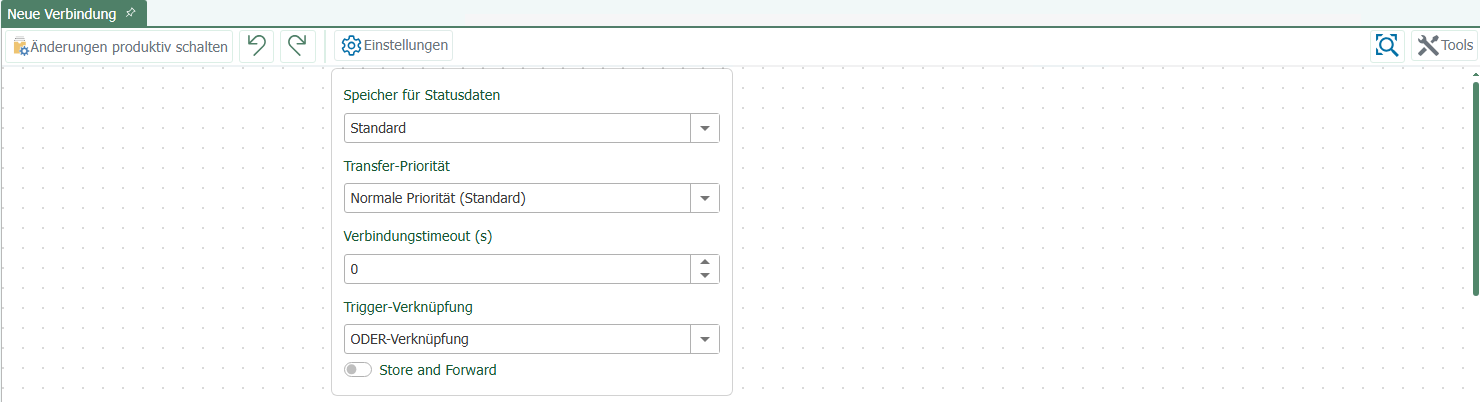 * The "Activate connection" button activates the selected connection.
- The "Trigger link" button allows you to select whether the links in your connection should be AND or OR links.
- The "Connection properties" button allows you to select the format in which the transferred values are to be recorded. You can also define a timeout: the time (in ms) that the connection can take to establish before a connection error is returned.
- Use the "Zoom" button to enlarge or reduce the size of your connection.
- Use the "Export view" button to export your connection as an image file or copy it to the clipboard as an image or XML. The images can be saved in bitmap, PNG, JPEG, or GIF format.
- Use the "Draw connection arrows" button to create single or multiple connection arrows. Arrows are used to connect the source and target objects. If multiple arrows are to be created at the same time, an attempt is made to connect all data points of the target and source objects in a meaningful way based on their data point names. The icon changes depending on which mode you have selected.
- "Create single connection": This is the default selection. Here, you draw only a single connection arrow. If you hold down the "Ctrl" key in this mode and draw a connection arrow, several connection arrows are created at once.
- "Create multiple connection arrows": In this mode, multiple connection arrows are drawn. While drawing an arrow, only one arrow is displayed. As soon as the arrowhead is placed on a transfer object, the other arrows are created automatically. If the arrowhead points to an input transfer object item and either the source transfer object item or the destination transfer object item does not receive an automatic arrow, this arrow is also added, even if the objects do not actually match. This can be prevented by dragging the arrow to the header area of a transfer object.
- "Create multiple connection arrows at once": Behaves like the "Create multiple connection arrows" mode. After an arrow has been drawn, the mode switches back to "Create single connection."
- With the "Item sorting" button, you can activate automatic sorting of the connection arrows. This causes the system to attempt to arrange the connection arrows so that they do not overlap as much as possible. This is only a display option. The items are not "actually" moved, but only displayed in a different position. The option can therefore be activated and deactivated without hesitation. This option has no effect on how the connection is processed.