Siemens Industrial Edge
Siemens Industrial Edge offers an open and flexible platform for integrating IT applications directly into industrial automation systems. For OPC Router customers, this means a simplified way to collect, process, and securely exchange data directly at the source—i.e., at the machine or plant. The platform enables the native integration of IT into automation without interrupting the production process. By supporting industrial protocols such as PROFINET, OPC UA, and Ethernet/IP, OPC Router customers can efficiently collect and process their data in real time, which is particularly useful when it comes to implementing AI services.
This edge computing solution expands the possibilities of industrial automation by providing a secure runtime environment for edge applications based on high-level languages and the Docker IT standard. This enables powerful local data processing and analysis directly at the automation level, resulting in optimized operations, reduced costs, and increased plant availability.
Siemens and its partners offer a wide range of hardware components that comply with industry standards and are specifically designed for use in industrial environments. These hardware solutions include SIMATIC controllers, HMI devices with integrated edge functionality, industrial PCs, and virtualized systems. In addition, certified edge devices from partners in the Siemens Industrial Edge Ecosystem are available.
For OPC Router customers, this offers the advantage that the OPC Router can be installed and managed via the central management platform of Siemens Industrial Edge. This makes it easy to deploy and manage the OPC Router on individual systems, resulting in more efficient use of resources and improved scalability. Centralized management also facilitates the updating and maintenance of OPC Router installations by allowing software changes to be made centrally and distributed to the various systems.
Preparation and requirements
To install the OPC Router with Siemens Industrial Edge, you need access to a Siemens Industrial Edge Hub, an instance of Industrial Edge Management, and at least one device (x86_64) assigned to it.
Currently, the OPC Router application is only available for devices with x84_64 architecture.
In order to install the OPC Router via Siemens Industrial Edge, you must also purchase the demo version or a license from the Siemens Industrial Edge Marketplace. The OPC Router application should then be displayed in your application library in the Industrial Edge Hub.
Installing the OPC Router on Siemens Industrial Edge
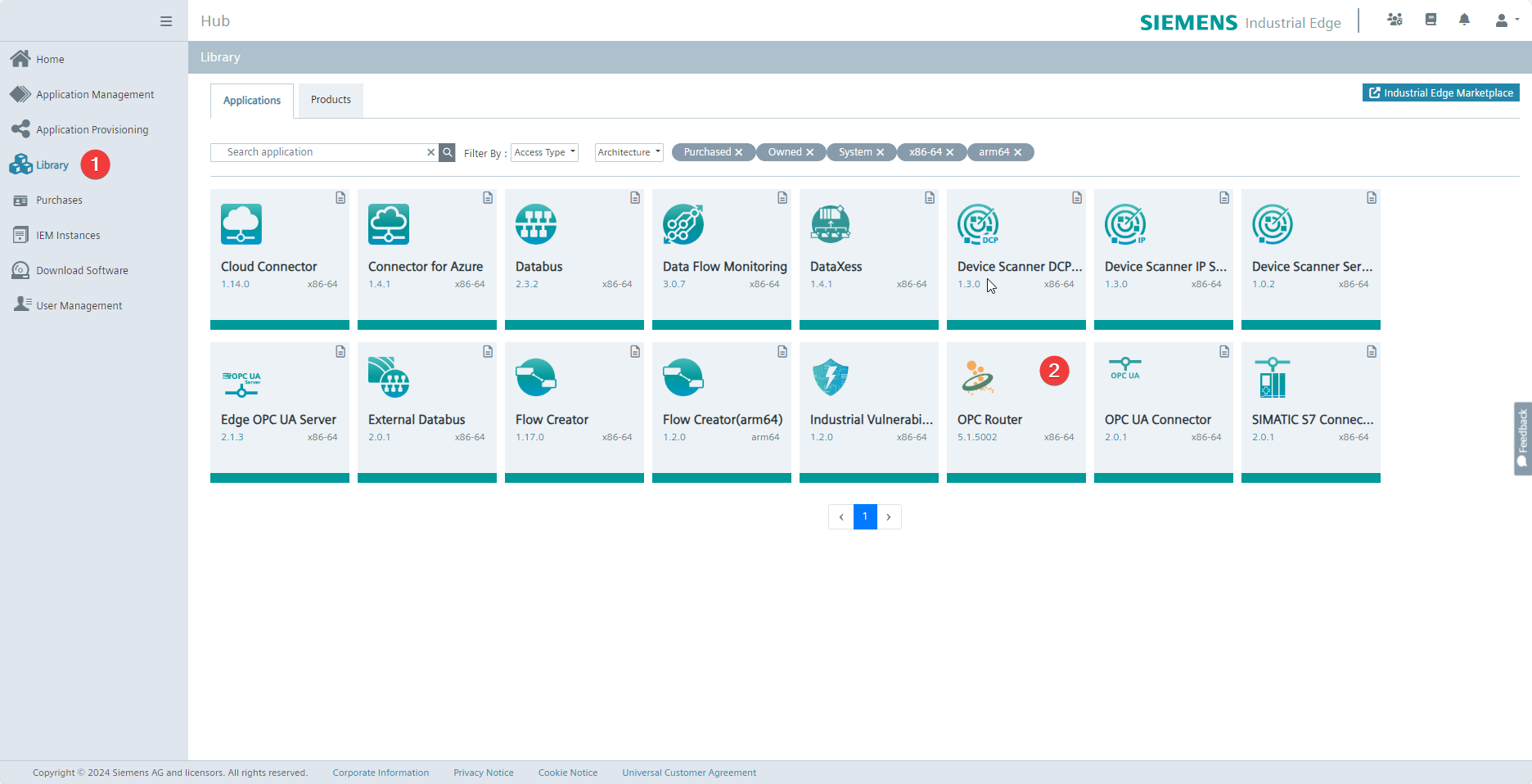 Navigate to the Library (1) in the Industrial Edge Hub and select OPC Router (2).
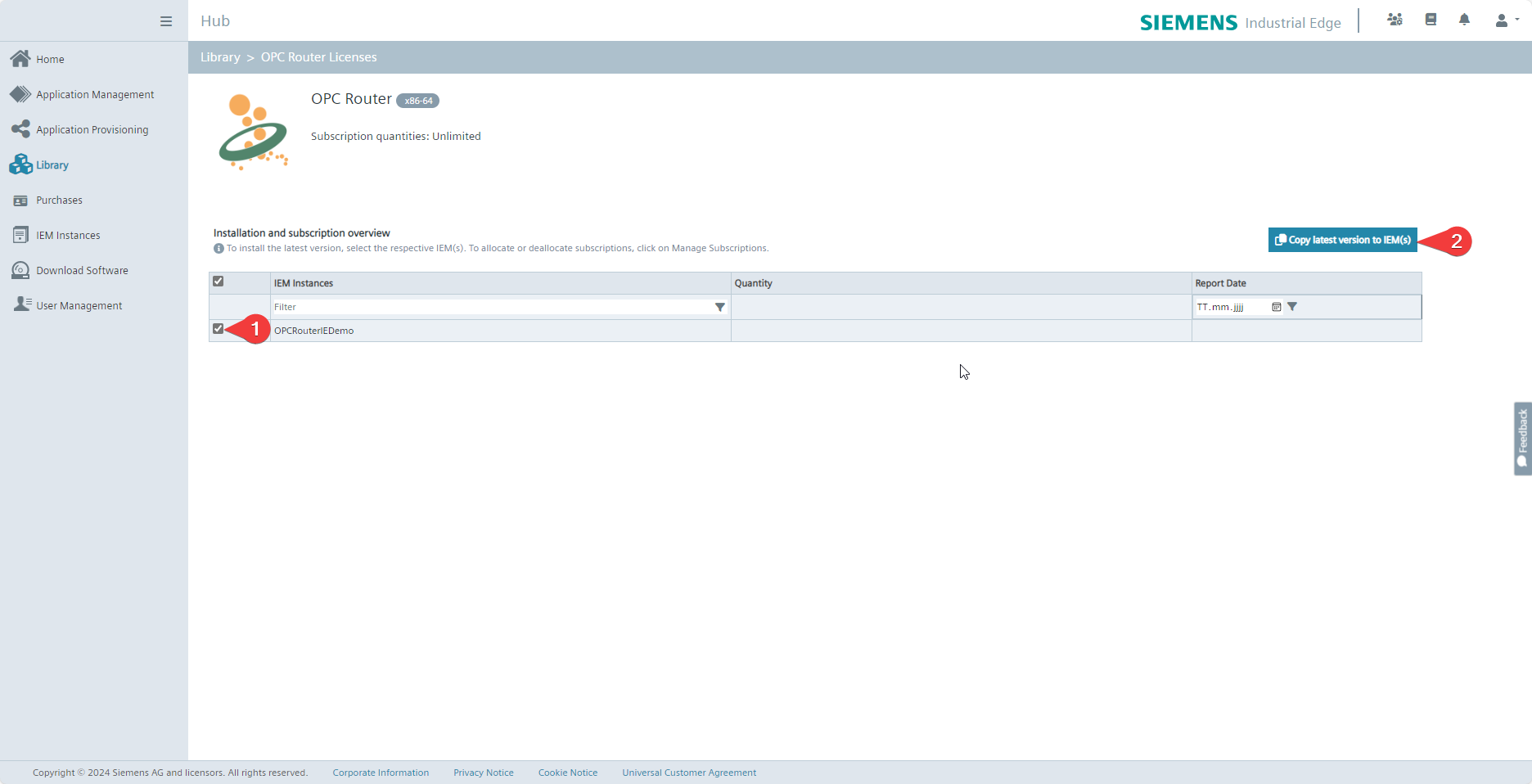 There, select the Siemens Industrial Edge Management instances (1) on which you want to make the OPC Router application available. By pressing Copy latest version to IEM(s) (2), the management instances are instructed to copy the OPC Router application from the Industrial Edge Hub. This process may take several minutes (15-30 minutes).
The next step requires a user with rights to install applications on devices for Industrial Edge Management.
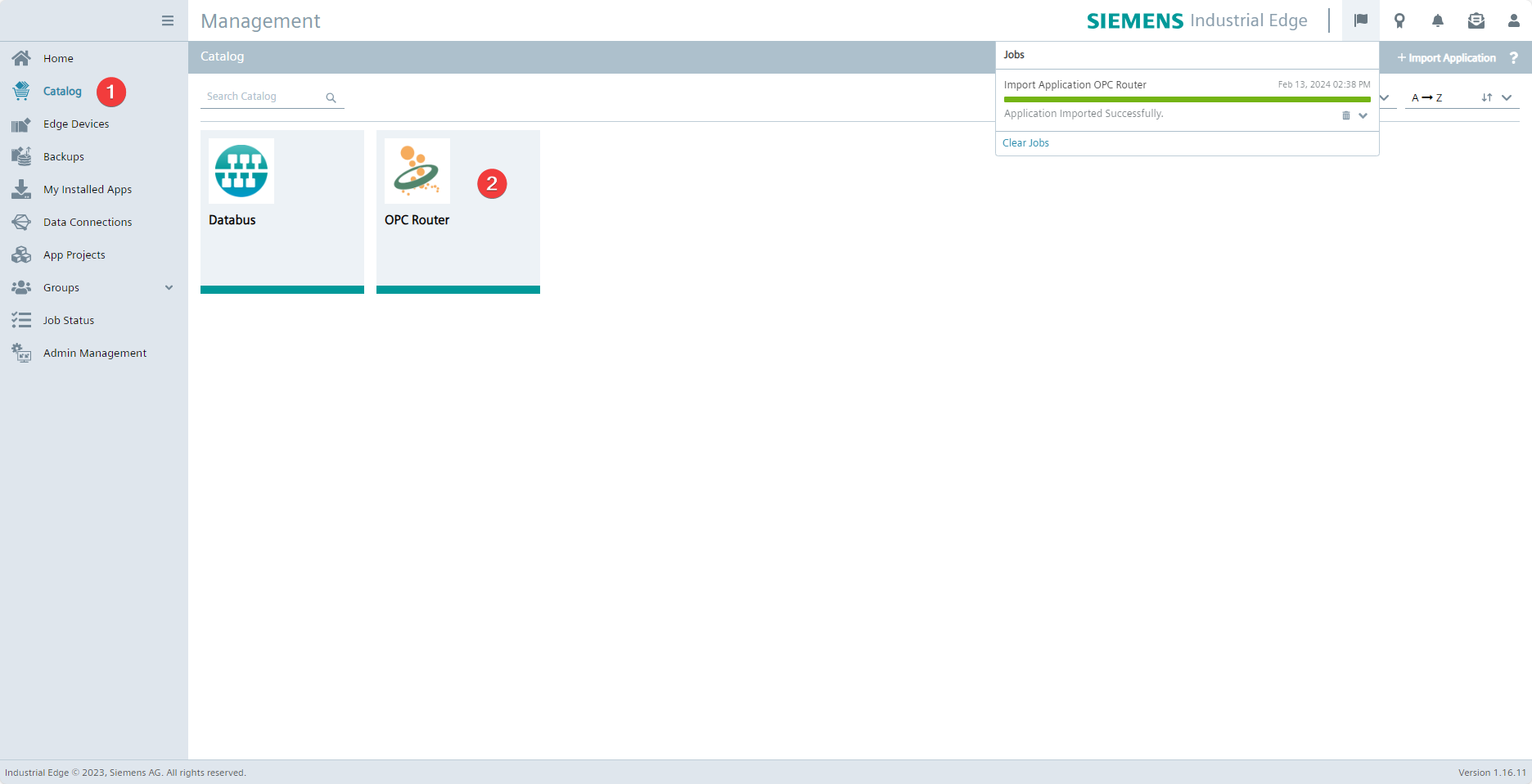 Switch to your Siemens Industrial Edge Management instance. Once the import process to your Industrial Edge Management instance is complete, you can find the OPC Router (2) under Catalog (1) and select it to install it on a device connected to the instance.
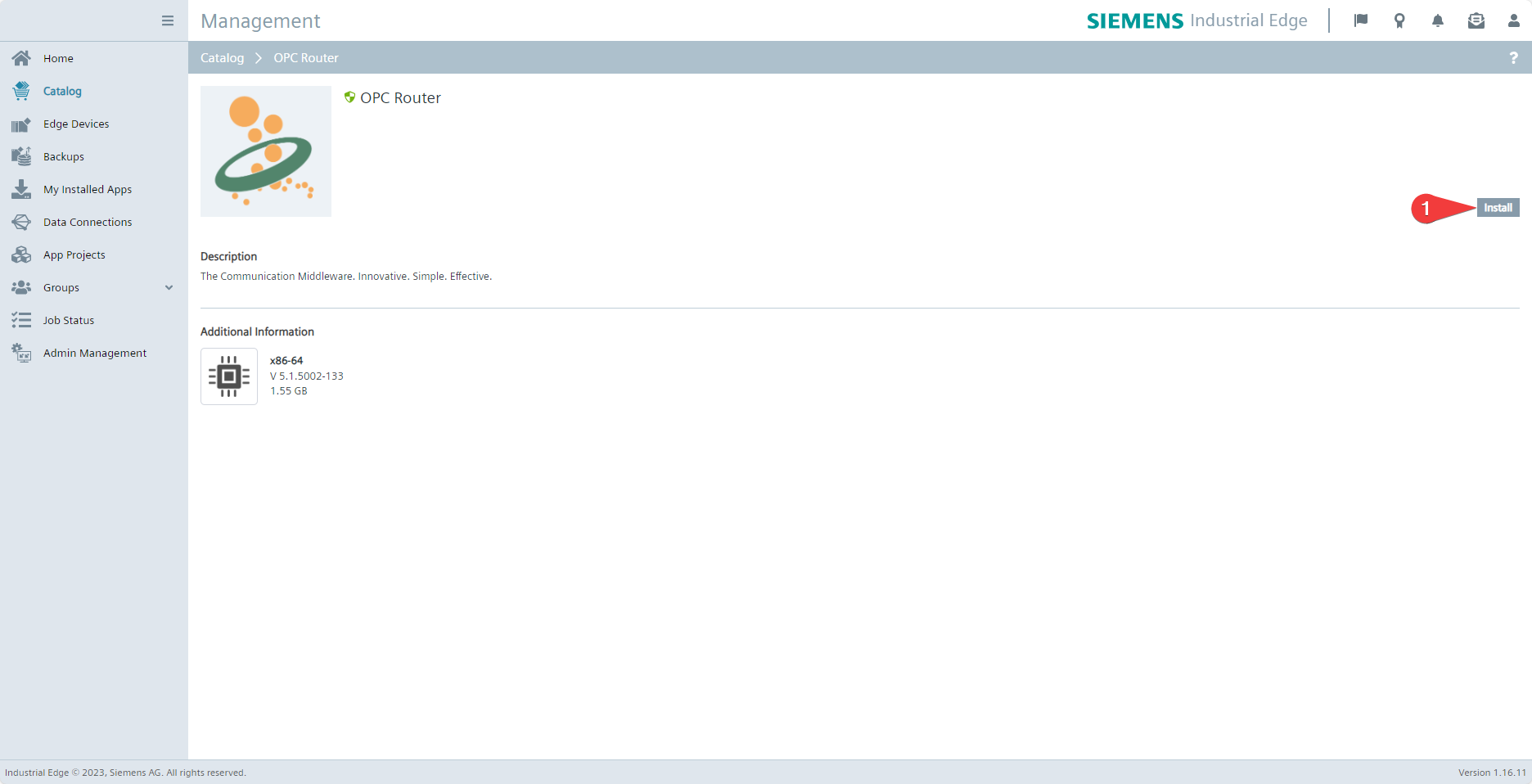 Click Install (1) to install the OPC Router on a device.
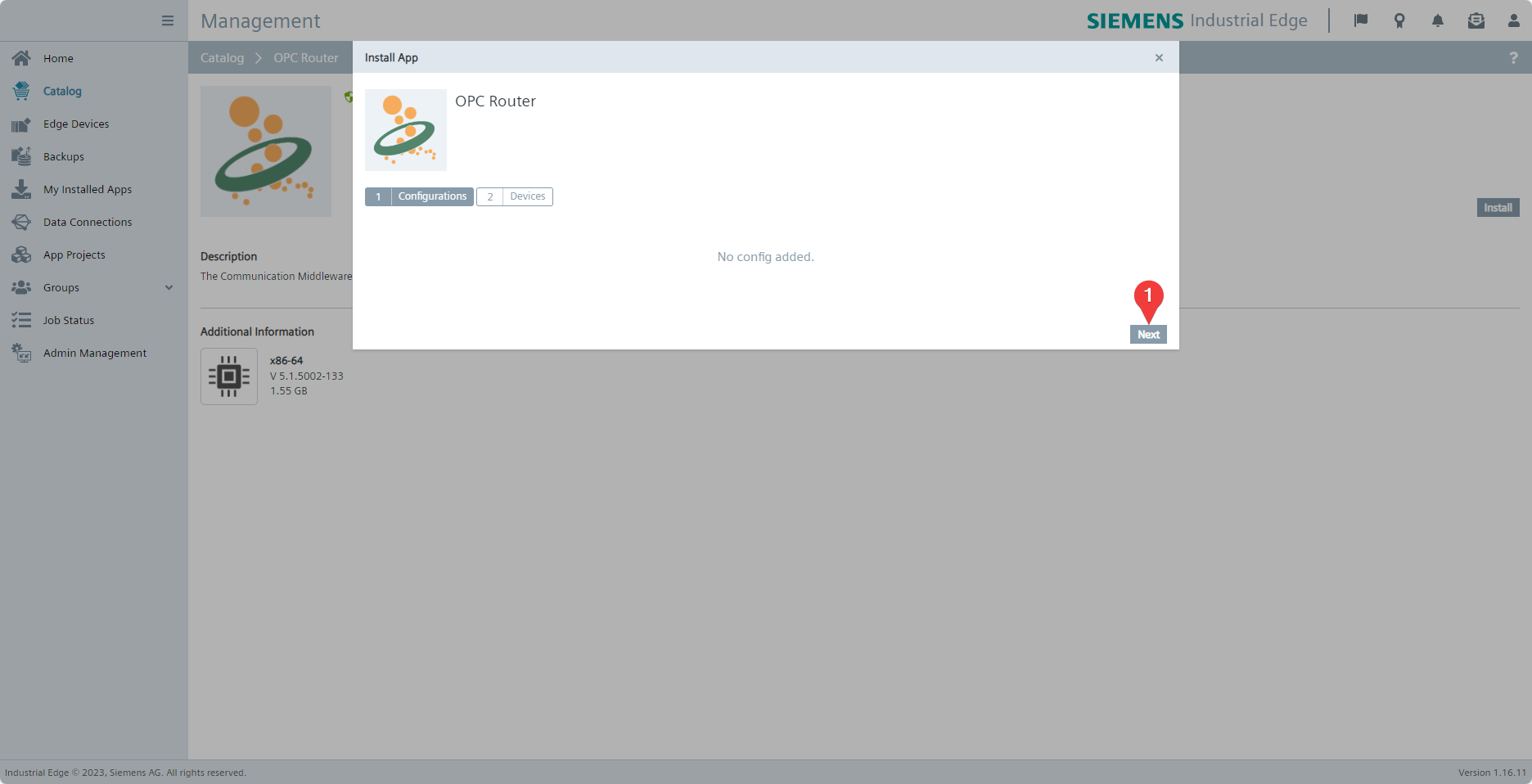 The OPC Router application for Siemens Industrial Edge does not have any alternative configurations, so click Next (1).
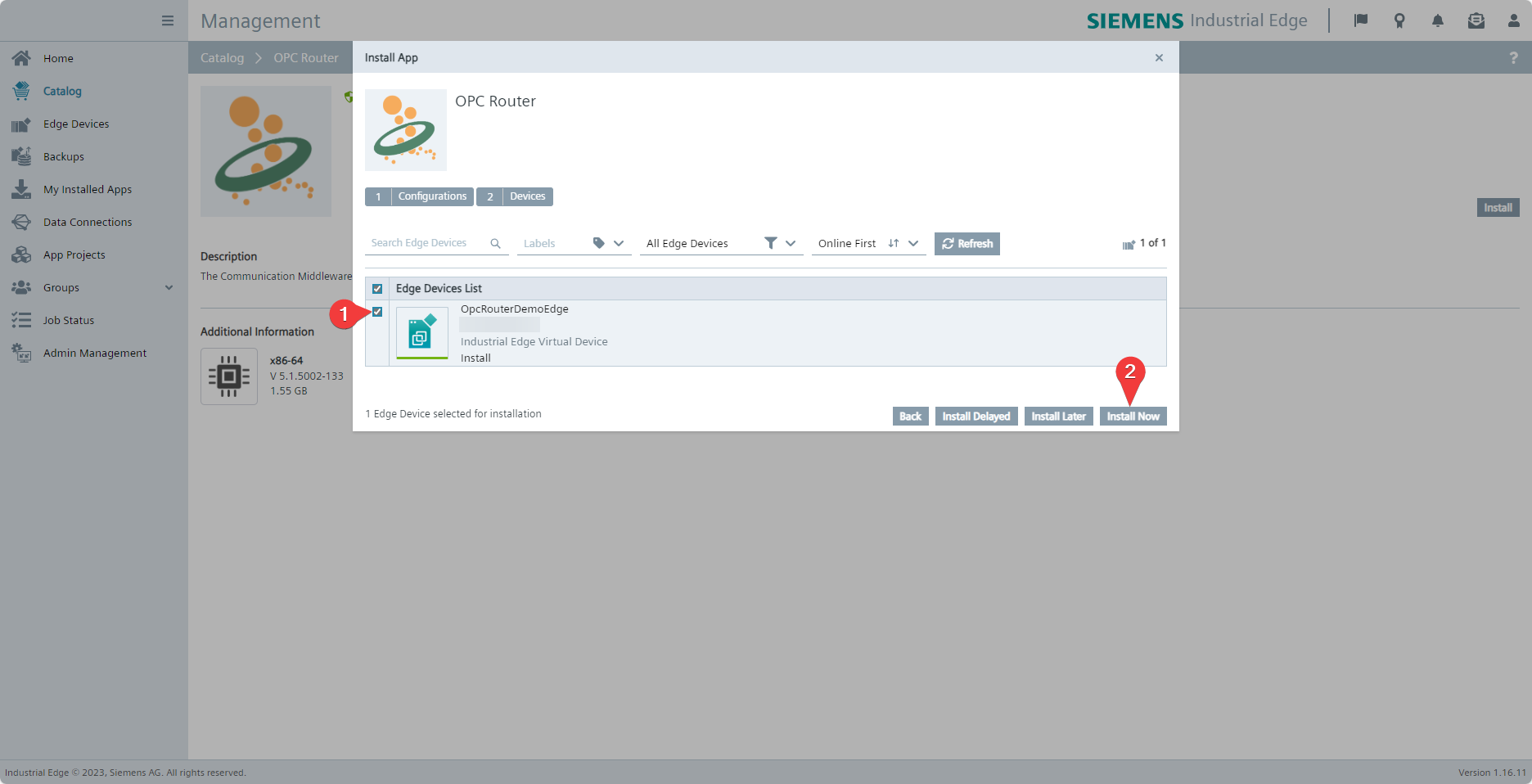 Now select the device(s) on which you want to install the OPC Router (1). Then click Install Now (2) or one of the other installation options.
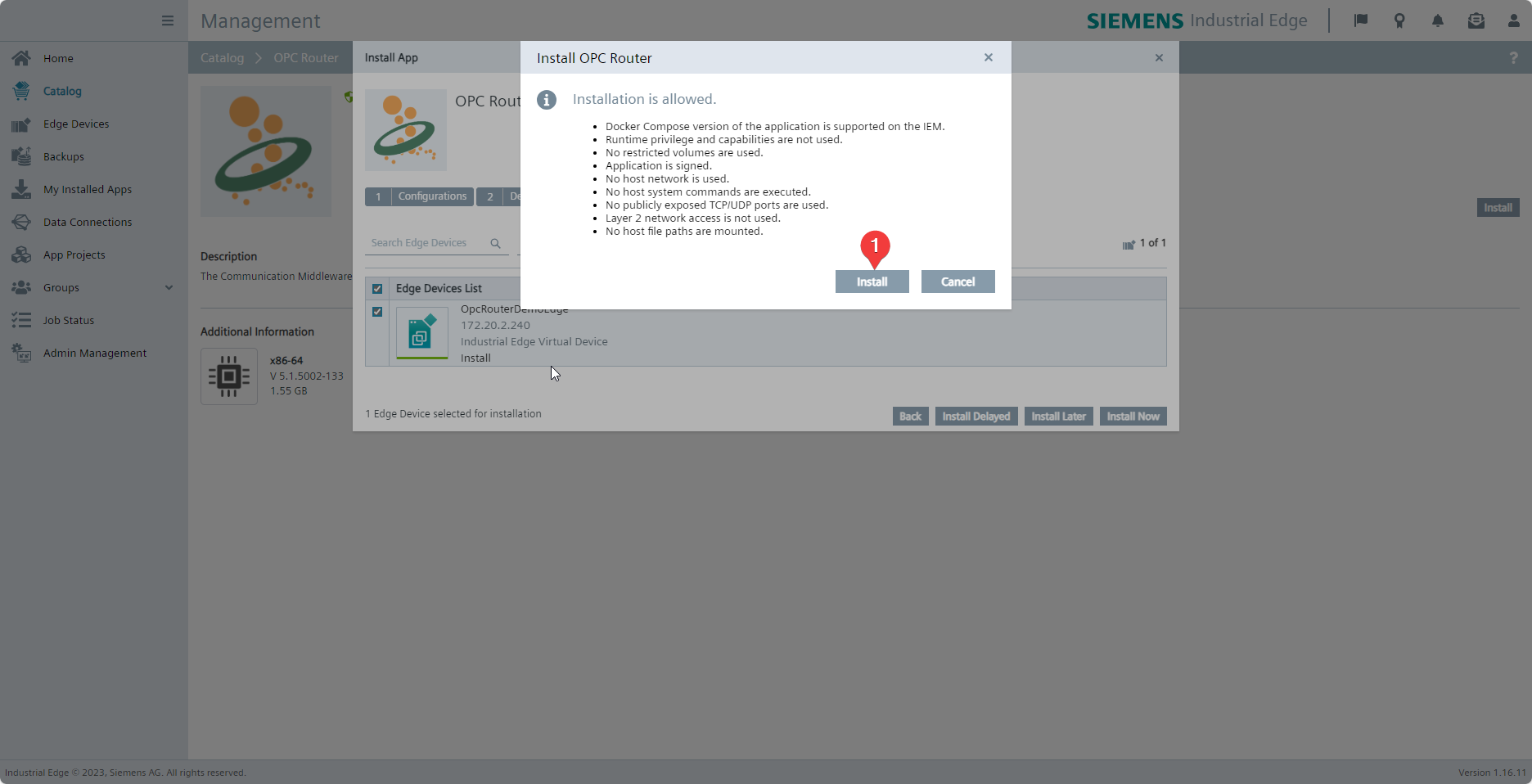 If the device meets the relevant requirements, you can now start the installation by clicking Install (1).
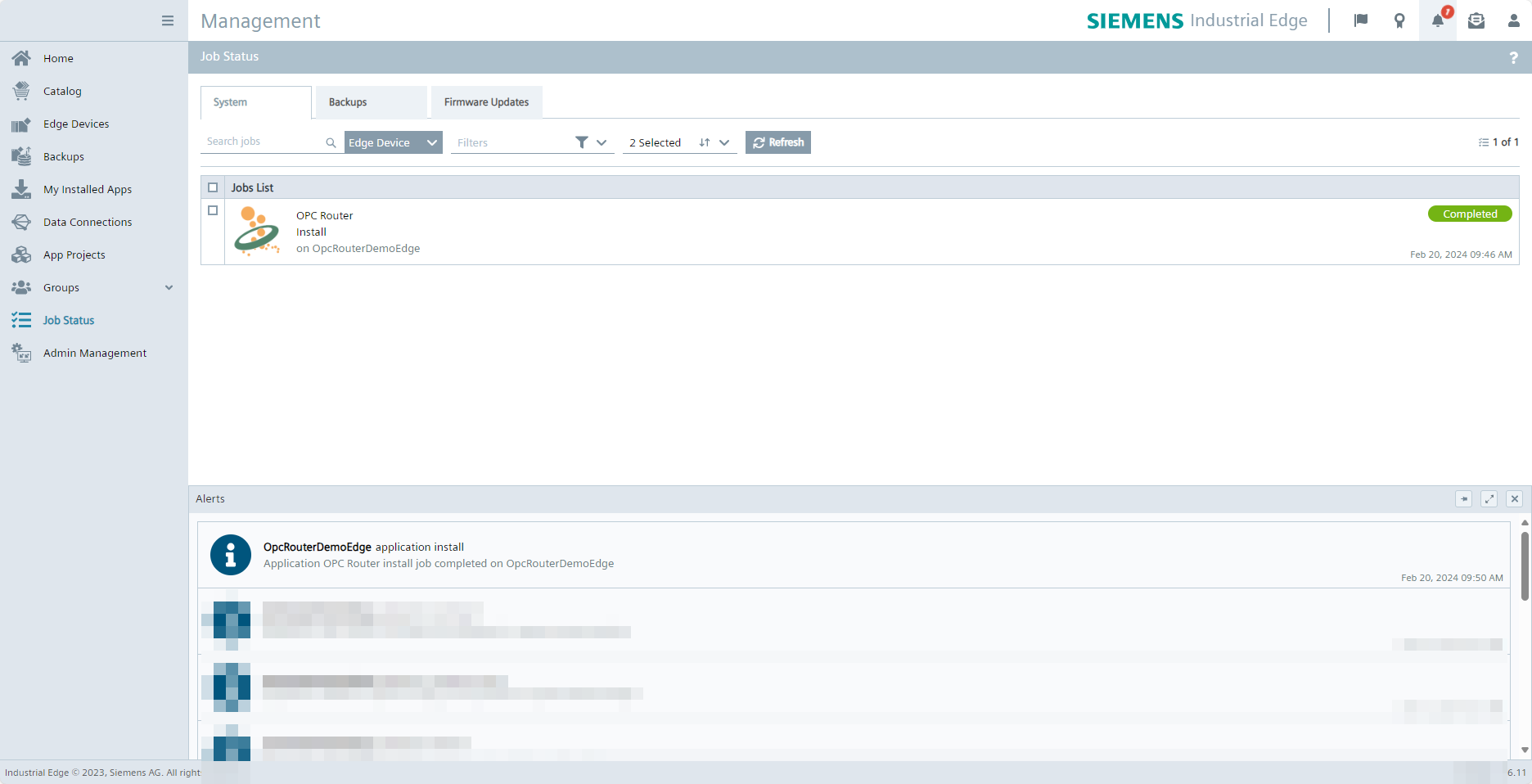 The job list shows the current status of the installation process. Once it is complete, a notification will also appear.
When you uninstall the OPC Router from a device, all data stored in volumes, as well as the project configuration and licensing, will be lost. However, when you update the OPC Router version, the data will remain intact.
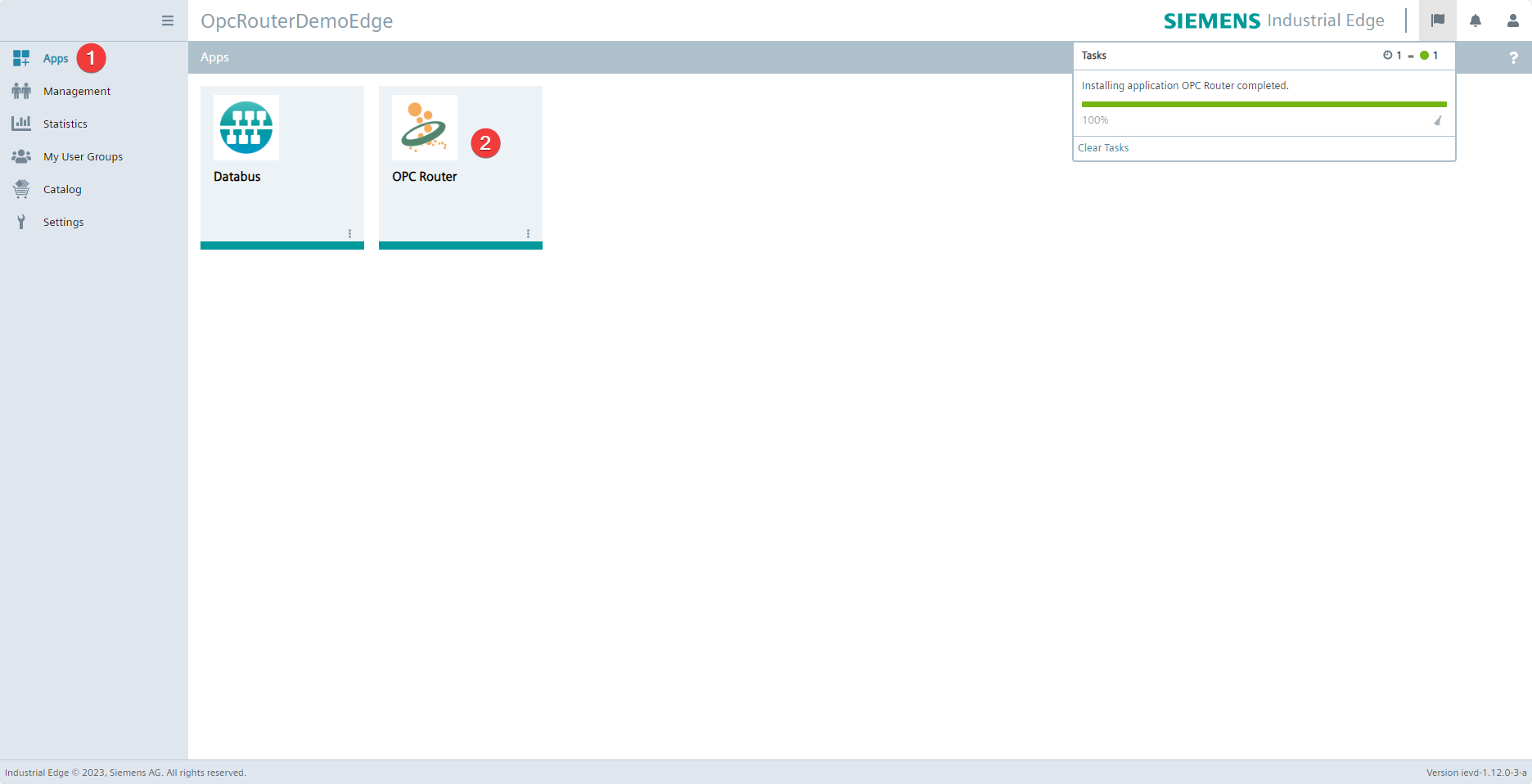 Now connect to the web interface of the device on which you have installed the OPC Router. The OPC Router (2) should now be listed under Apps (1). Click on it to open the OPC Router management. From here, you can operate the OPC Router as usual and, for example, license it.
Connecting the Industrial Edge Databus
The Industrial Edge Databus is the standard application developed by Siemens for data exchange between different applications within the Industrial Edge ecosystem. The Industrial Edge Databus can be easily connected to the OPC Router as an MQTT plug-in instance, enabling mutual data exchange.
The following section assumes that an Industrial Edge Databus is installed on the same device and that the Industrial Edge Databus Configurator is installed in the same management environment as the OPC Router.
Initial configuration of the Industrial Edge Databus
This chapter can be skipped if the Databus already has a topic and associated users with publish and subscribe permissions to which the OPC Router can be connected.
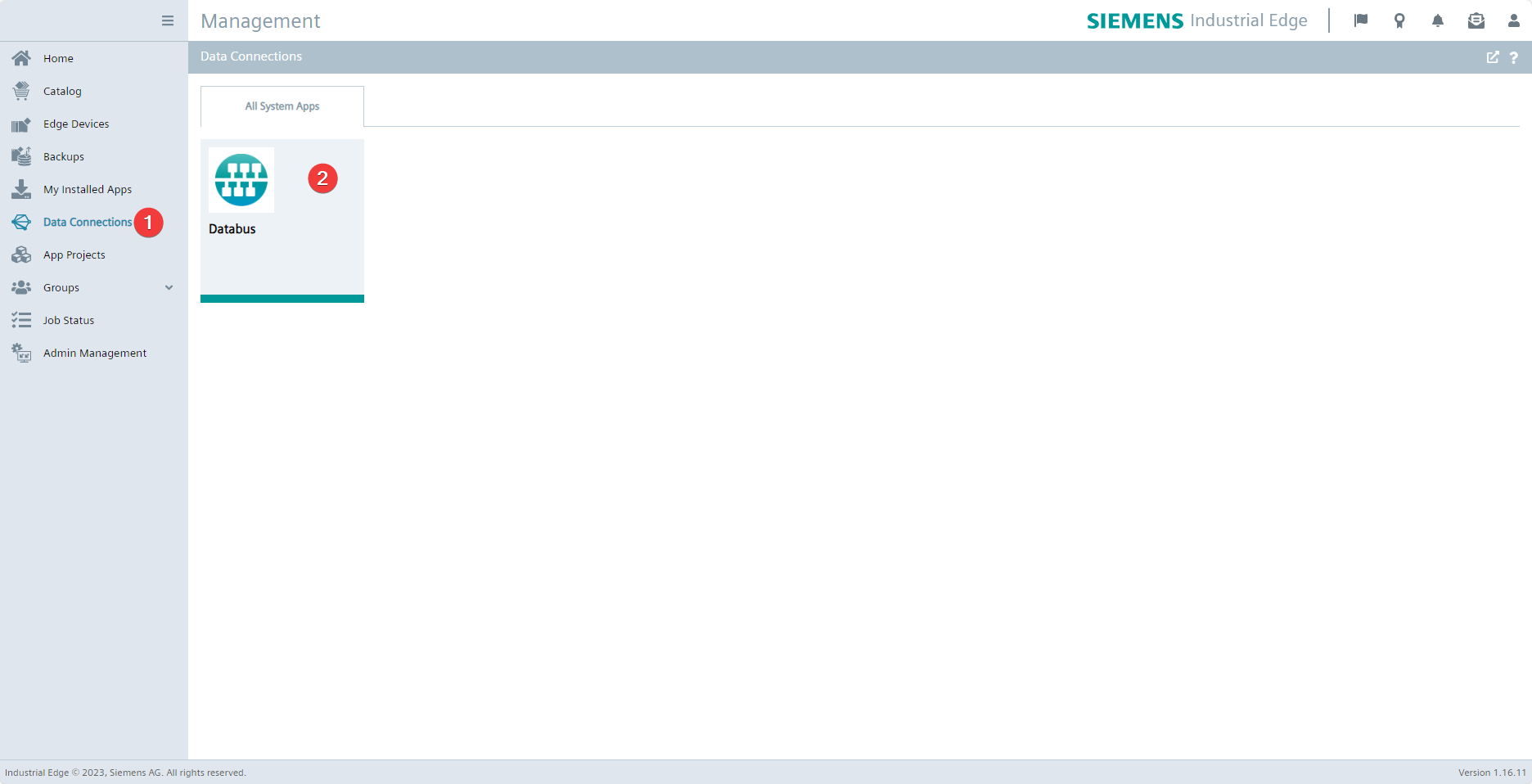 Select the Databus (2) under the Data Connections (1) menu item.
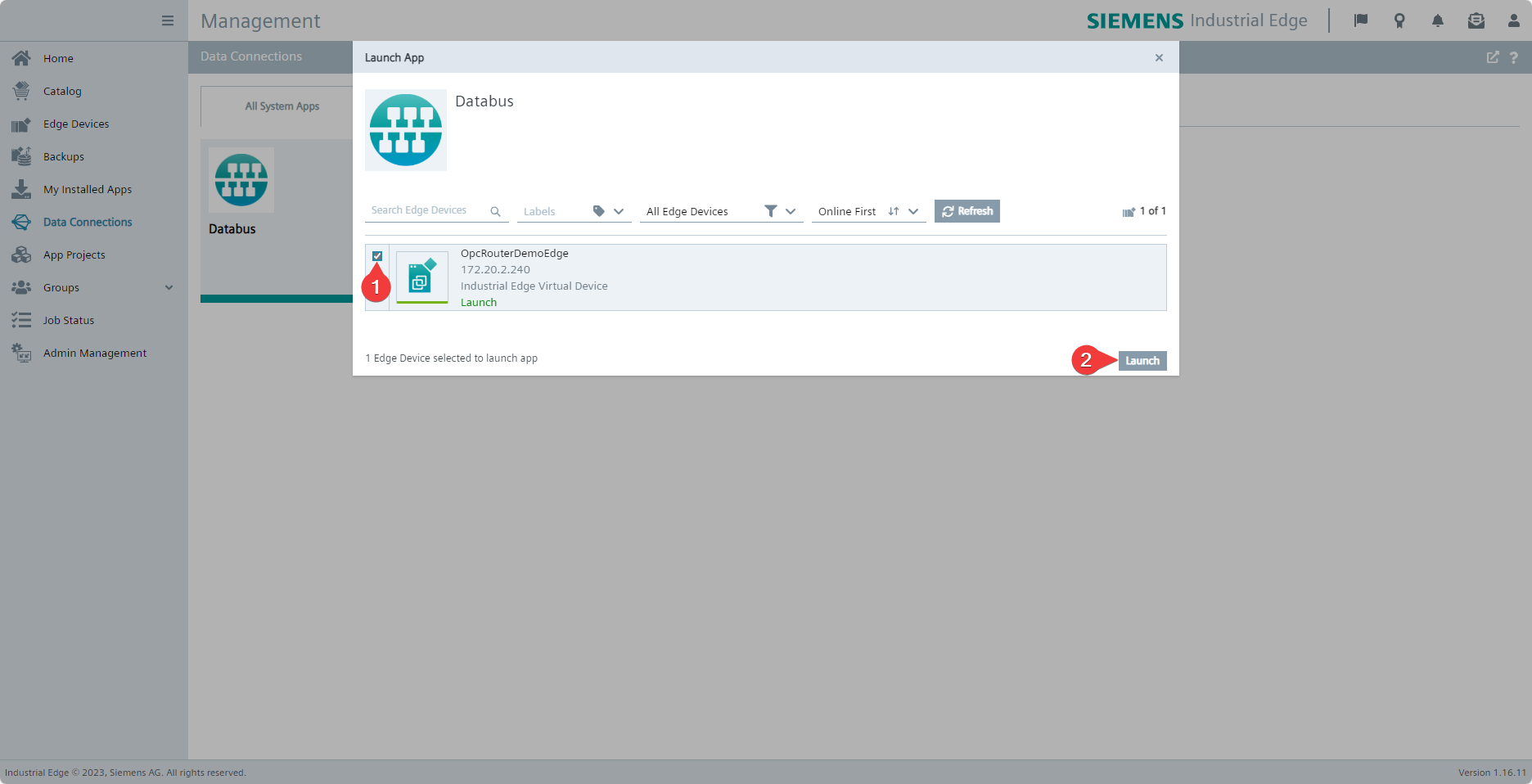 Select the device (1) on which the OPC Router is located and click Launch (2) to start the configurator for the Industrial Edge Databus.
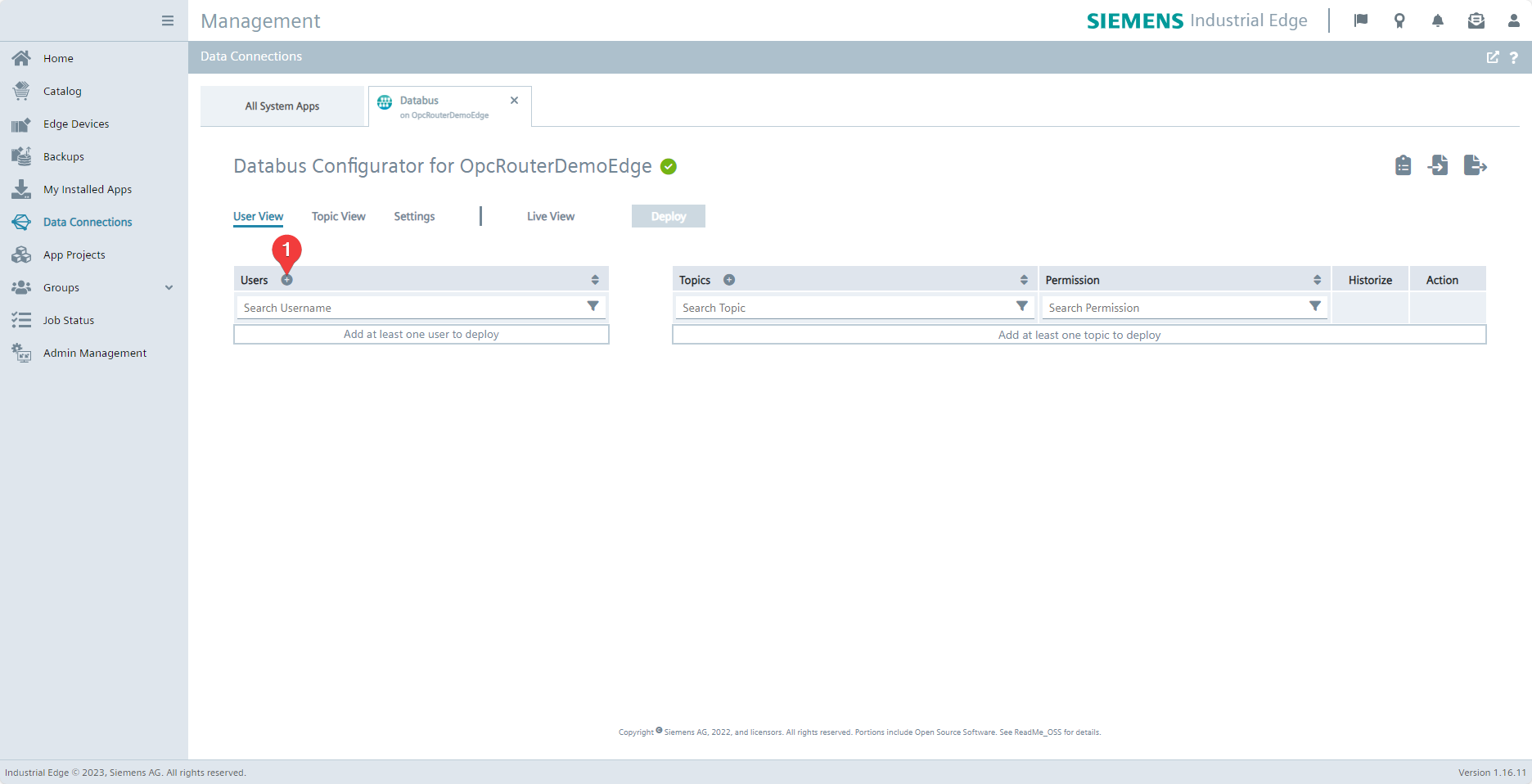 Create a new user by clicking on the plus symbol (1).
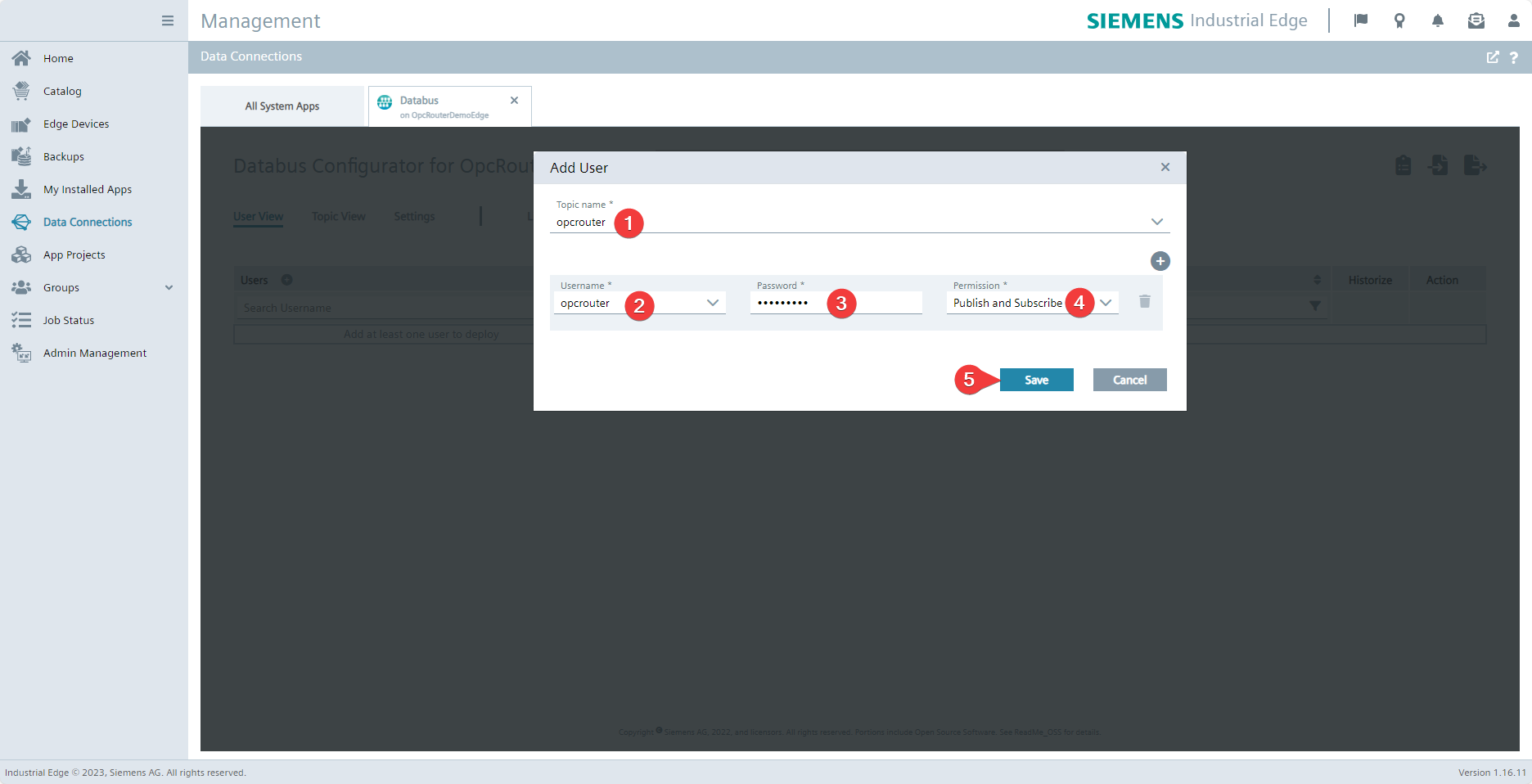 Enter the Topic name (1), Username (2), and Password (3). For demonstration purposes, opcrouter is used as the topic and username for the following examples. Select Publish and Subscribe (4) for the permission. Confirm your entries by clicking Save (5).
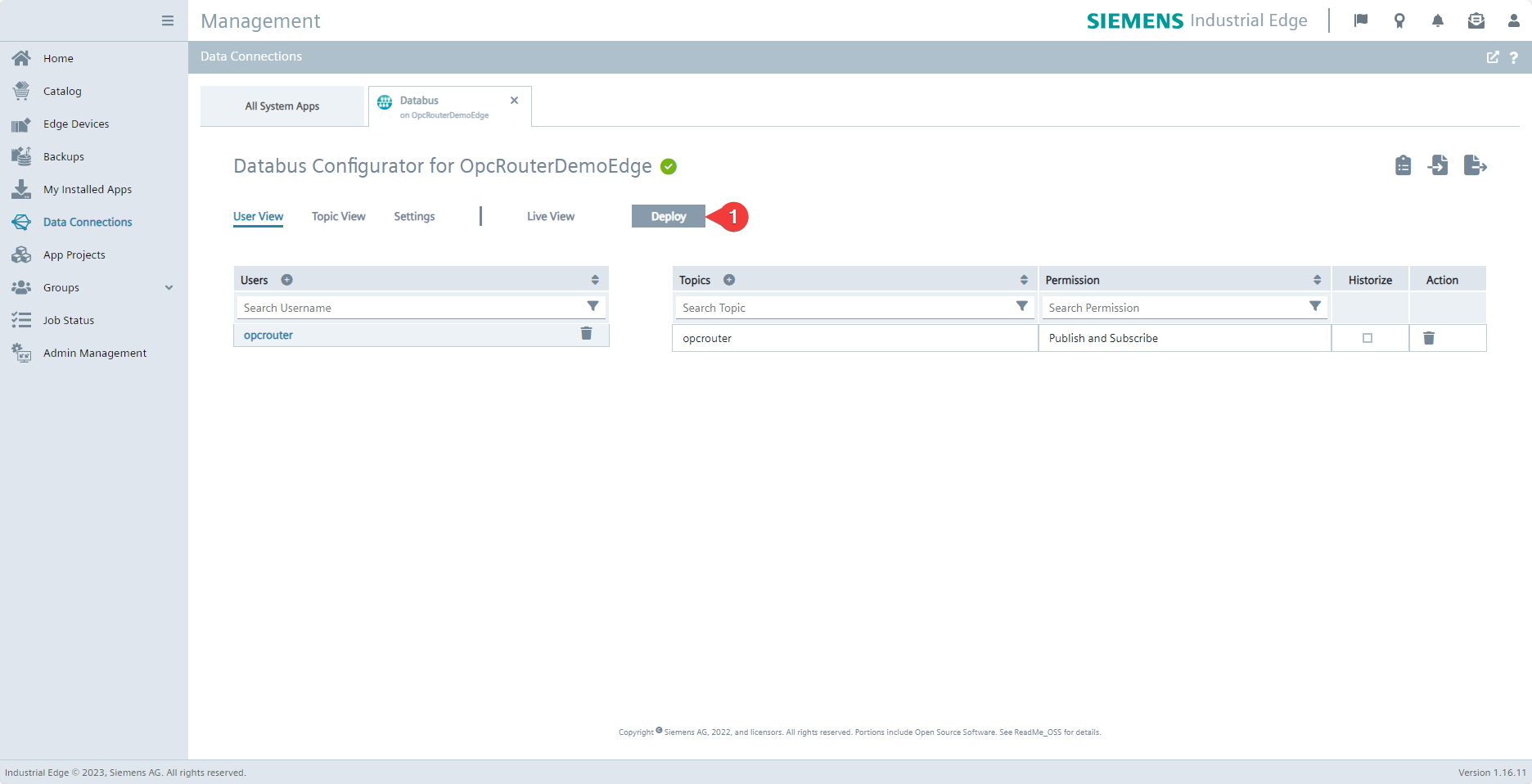 Now apply your configuration by clicking Deploy (1).
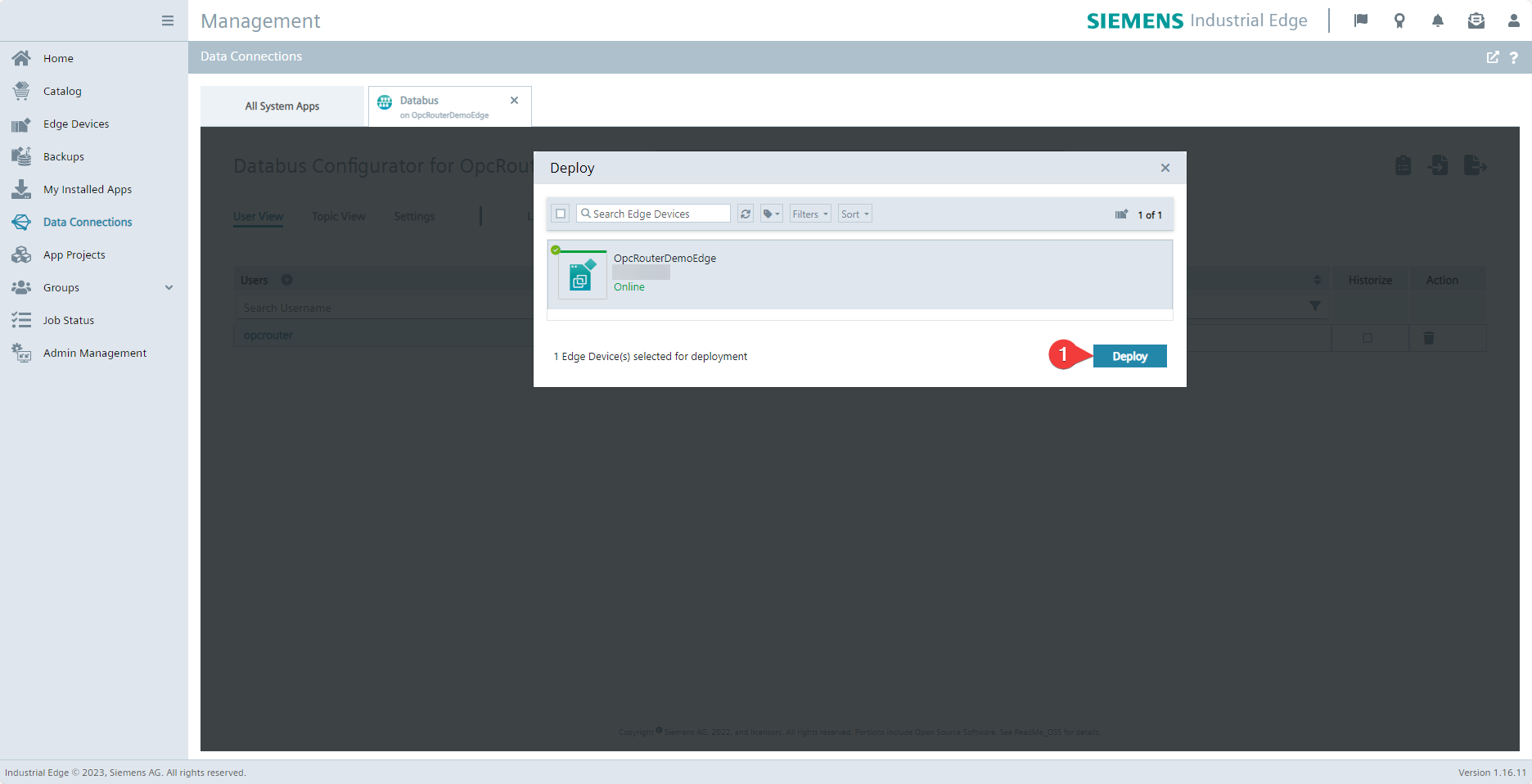 Confirm the device to which the configuration is to be applied by clicking Deploy (1) and wait until the process is complete.
Connecting OPC Router to Databus
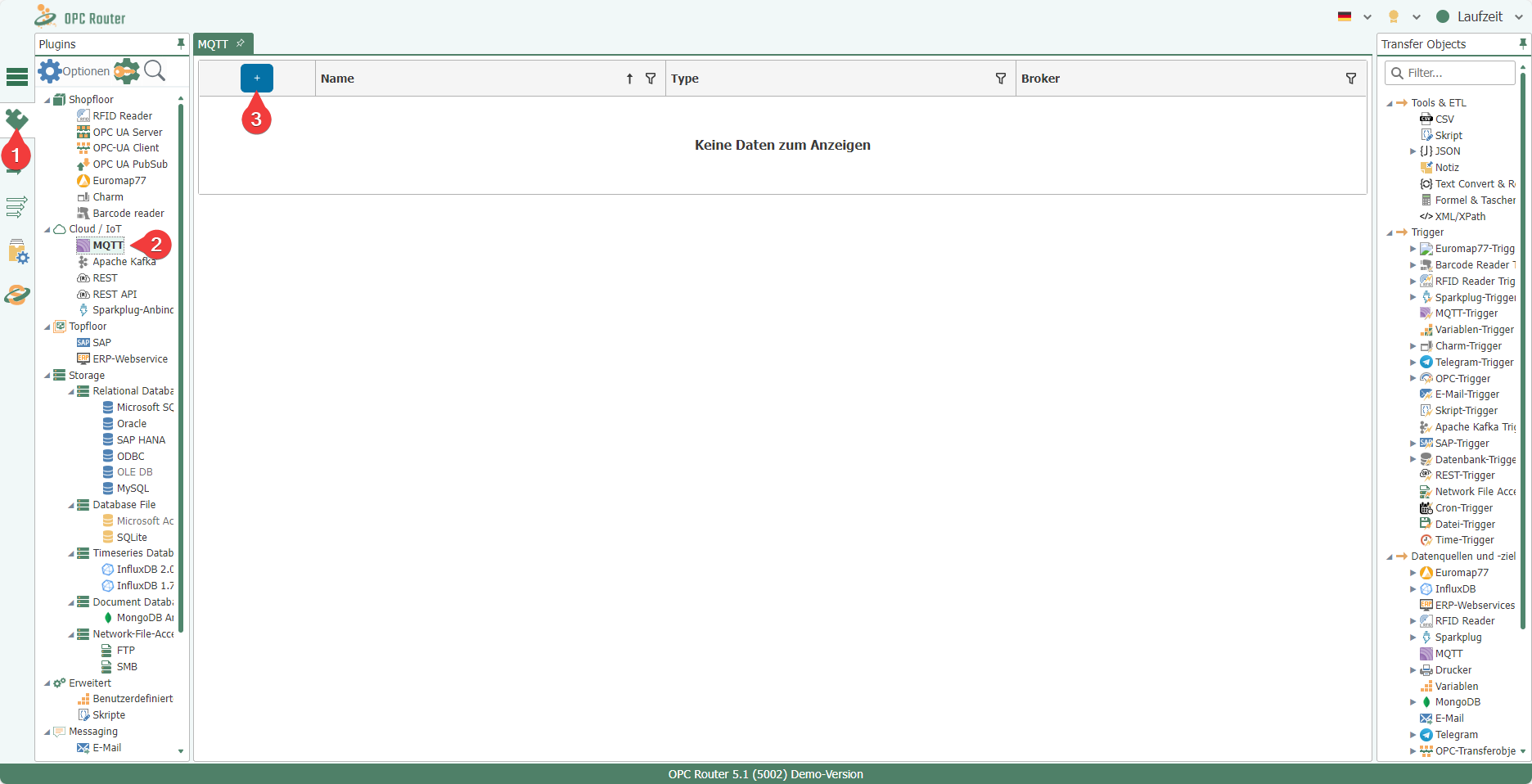 In the OPC Router Management of the device, select the MQTT plug-in (2) under the Plug-ins (1) menu item and create a new instance of this plug-in (3).
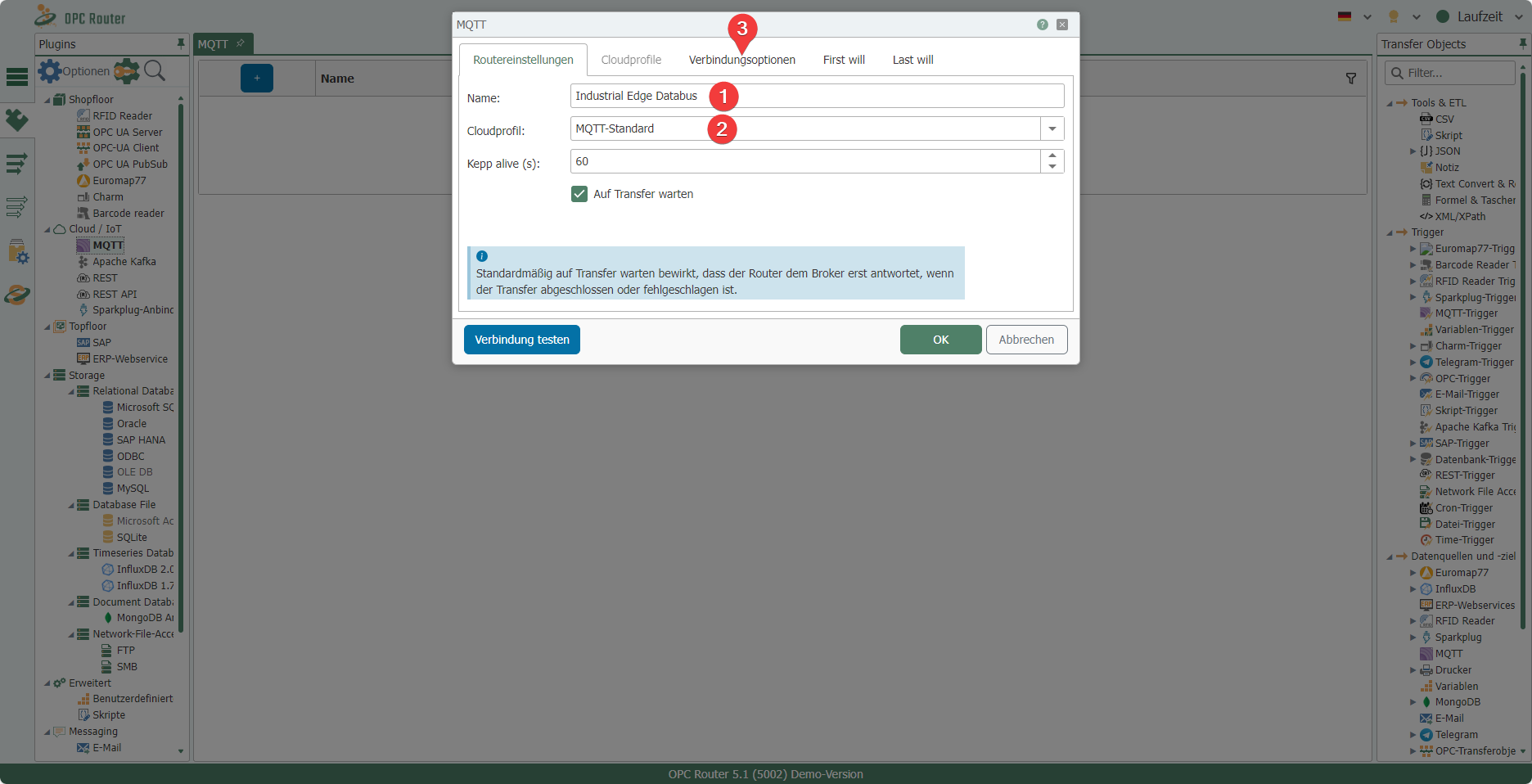 Give the instance a name of your choice (1) and make sure that MQTT Standard (2) is selected as the cloud profile. Then navigate to the Connection Options (3) tab.
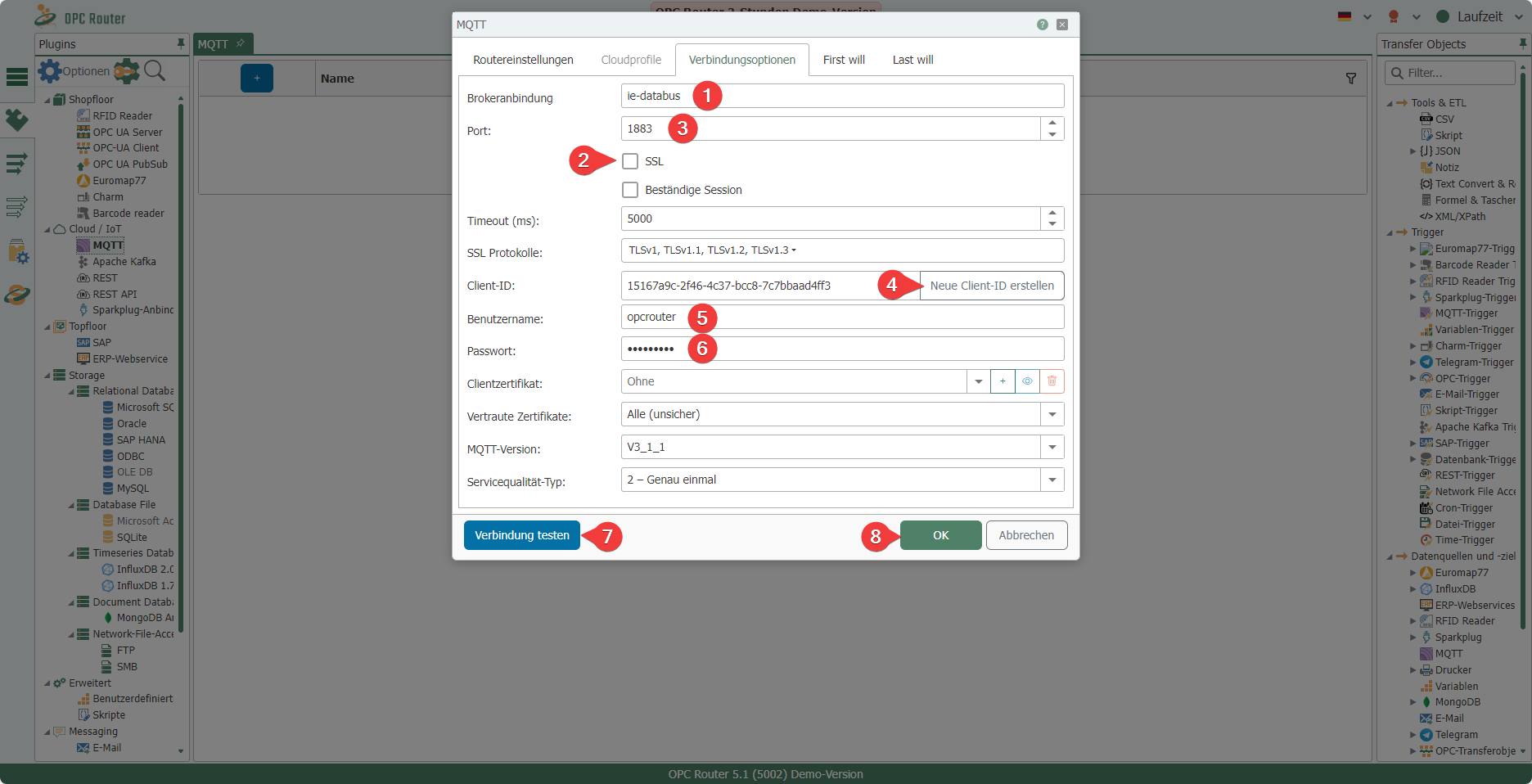 Enter ie-databus (1) as the broker connection and disable SSL (2). This should automatically set the correct port 1883 (3) – make sure that this is the case. Create a new client ID by clicking Create new client ID (4) and enter Username (5) and Password (6). If the connection test (7) is successful, confirm your entries by clicking OK (8), otherwise check your entries for deviations from the settings selected above.
You can now use the MQTT transfer object to send data to topics for which the user has permissions and use the MQTT trigger to receive data on topics.