DCOM configuration
Instructions for DCOM configuration.
Please note that the configuration must be carried out for the "OPCEnum" object and for every required OPC server! You need administrator rights on the OPC computer.
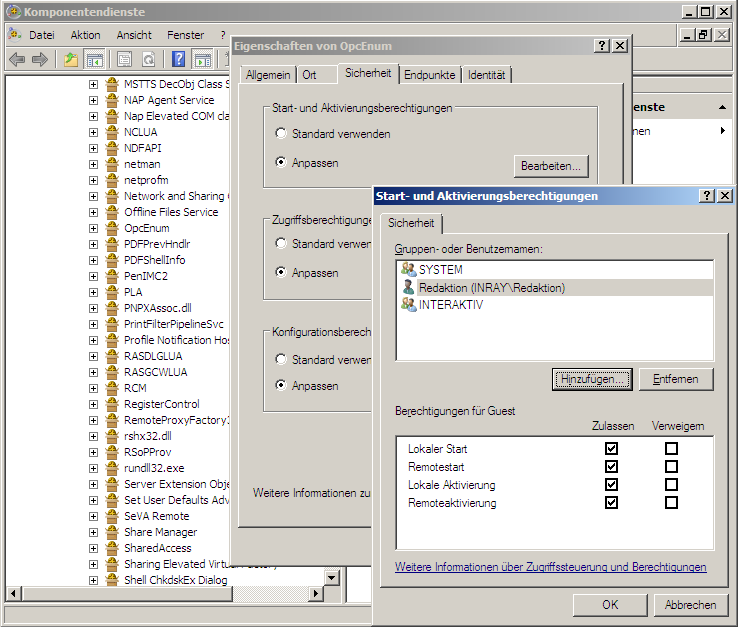
Open Component Services on the OPC computer via "Start – Run - dcomcnfg".
In the console root, navigate to "Component Services - Computers - My Computer – DCOM Configuration".
Open the "OPCEnum" component (right mouse button – Properties).
Set the following properties:
Tab: General
| Name | Configuration |
|---|---|
| Authentication Level | Connect |
Tab: Security
| Name | Configuration |
|---|---|
| Start and activation permissions | Customize – "Edit": In the "Start Permission" dialog box, add the domain user you set up earlier. All four permissions should be allowed. |
| Access permissions | Customize – "Edit": In the "Access Permission" dialog box, add the domain user you set up earlier. Both rights should be allowed. |
| Configuration permissions | Customize – "Edit": Add the previously set up domain user in the "Change Configuration Permission" dialog box. Both rights should be allowed. |
Confirm with "OK."
Set the properties accordingly for each OPC server. You will find KEPServerEX in the list under "Kepware Communications Server."
Check whether DCOM is enabled in the properties of the workstation (Component Services – Computer – Workstation, right mouse button – Properties) on the "Default Properties" tab.
In the same place on the "COM Security" tab, make sure that your user has all rights in both points under "Limits," especially "Remote Access" and "Remote Activation."
Close the Component Services.