DCOM configuration
Instructions for DCOM configuration.
Please note that the configuration must be carried out for the "OPCEnum" object and for every required OPC server! You need administrator rights on the OPC computer.
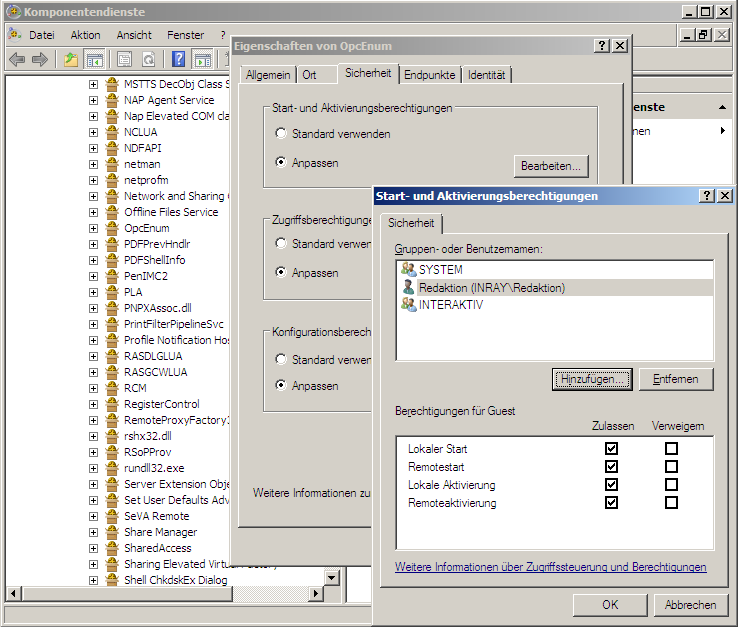
Open Component Services on the OPC computer via "Start – Run - dcomcnfg".
In the console root, navigate to "Component Services - Computers - My Computer – DCOM Configuration".
Open the "OPCEnum" component (right mouse button – Properties).
Set the following properties:
Tab: General
| Name | Configuration |
|---|---|
| Authentication Level | Connect |
Tab: Security
| Name | configuration |
|---|---|
| Start and Activation Permissions | Customize – “Edit”: In the “Launch Permission” dialog box, add the domain user you set up earlier. All four permissions should be granted. |
| Access Permissions | Customize – “Edit”: In the “Access Permission” dialog box, add the domain user you set up earlier. Both permissions should be granted. |
| Configuration Permissions | Customize – “Edit”: In the “Change Configuration Permission” dialog box, add the domain user you set up earlier. Both permissions should be granted. |
Confirm by clicking “OK”.”
Set the properties accordingly for each OPC server. You will find KEPServerEX in the list under "Kepware Communications Server."
Check whether DCOM is enabled in the workstation properties (Component Services – Computers – Workstation, right-click – Properties) on the “Default Properties” tab.
In the same location, on the “COM Security” tab, ensure that under “Edit Limits”,” your user has all rights for both entries, especially “Remote Access” and “Remote Activation”.”
Close the Component Services.