Plug-in
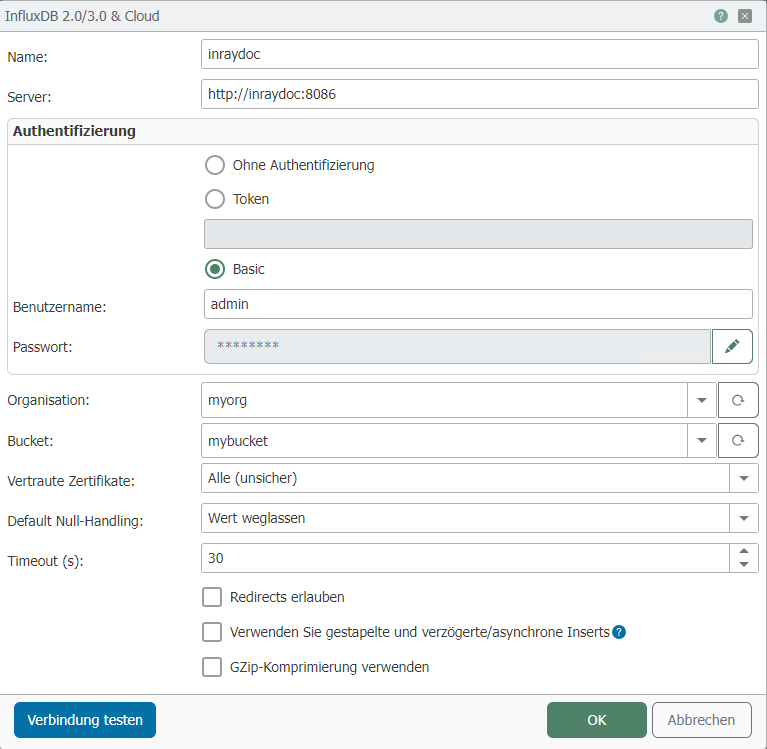 The following properties can be configured:
| Property | Description |
|---|---|
| Name | Any name under which this Influx configuration appears in the connection project. Choose a name that is unique to you during the connection project. |
| Host | URL to InfluxDB including http(s):// and the port number. |
Authentication
- Ohne Authentifizierung
- Token
- Basic
This setting can be used if the database does not require authentication.
A token must be inserted here, which can be generated in the InfluxDB web interface.
| Property | Description |
|---|---|
| Username | Name of the user for InfluxDB |
| Password | Password for the specified user |
| Property | Description |
|---|---|
| Organization | Organization that InfluxDB should be used for. |
| Bucket | Bucket in which the data should be stored. |
| Trusted certificates | Selection of which certificates should be trusted.
|
| Default null handling | Omit value: |
| Timeout | Timeout in seconds for the connection to the database. |
| Allow redirects | If this option is enabled, requests may be redirected. |
| Use stacked and delayed/asynchronous inserts | If this option is enabled, the values are written to the database in batches, which can significantly improve performance. Note: Please read the section Notes on using batched writing before using this option. |
| Use GZip compression | If this option is enabled, GZip compression is used for the data. Compression saves storage space. |
Notes on using batched writing
When batch writing is used, there is no way to determine which connection triggered an error. Therefore, InfluxDB plug-ins that use batch writing always remain green in connections, even if errors occur during inserts.
If errors occur during inserts with batch writing, they are logged. It is simply not possible to assign the errors to specific connections.
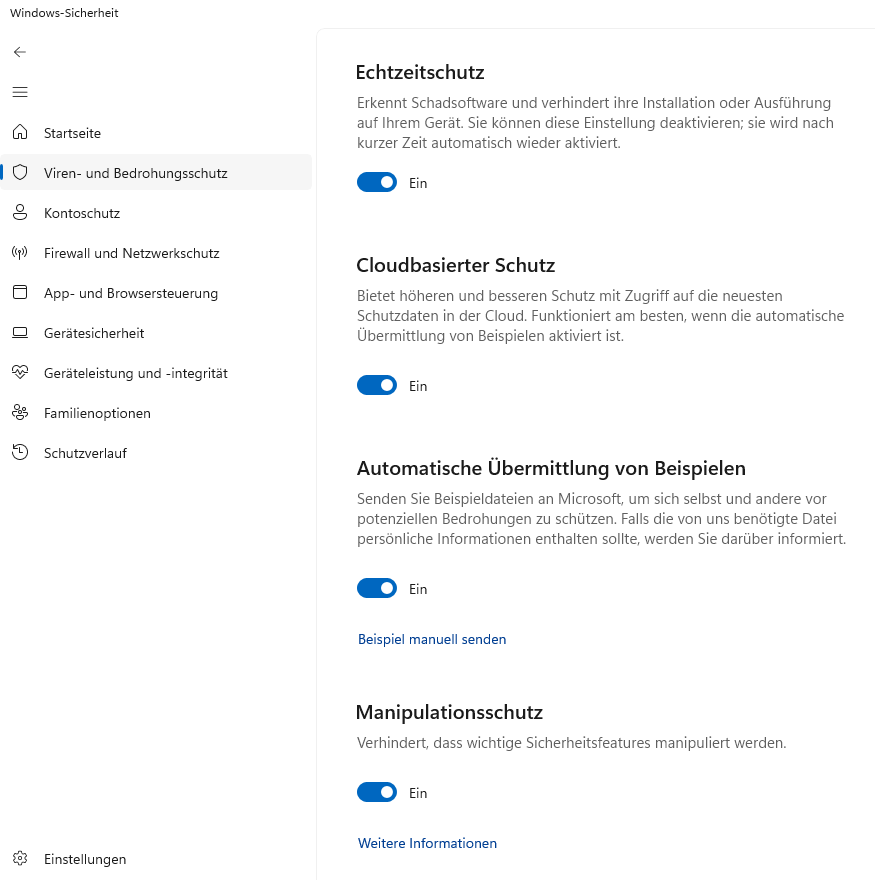
Windows Defender can cause very high RAM consumption. To avoid this, the following options should be disabled in Windows Defender.
- Real-time protection
- Cloud-based protection
- Automatic sample submission
- Tamper protection
To do this, open the "Windows Security" application. In the "Virus & threat protection" section, click on the "Manage settings" button located under "Virus & threat protection settings". Here you can disable the relevant functions.