Plugin
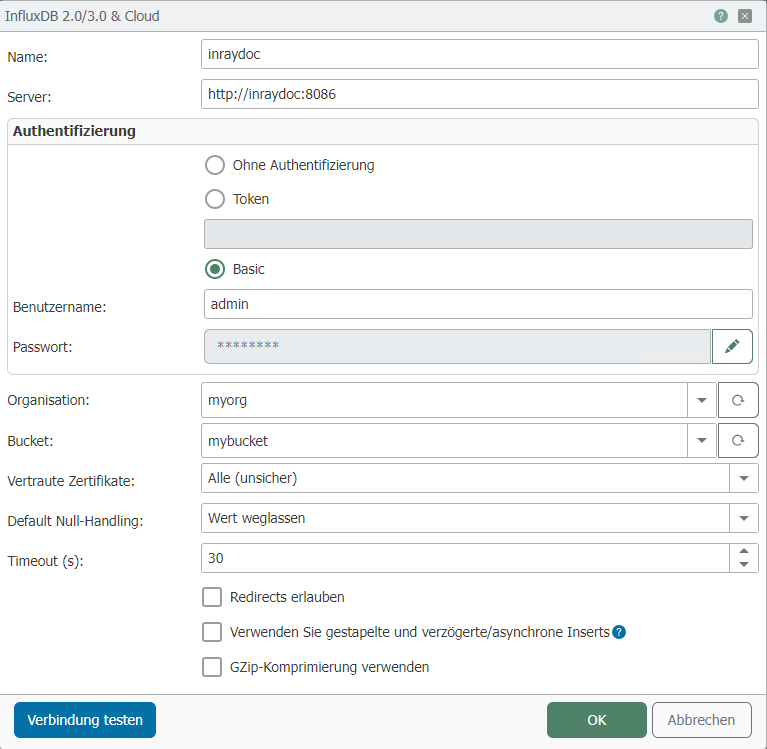
The following properties can be configured:
| Property | Description |
|---|---|
| Name | Any name under which this Influx configuration appears in the Flow project. Choose a name that is unique to you during Flow project setup. |
| Host | URL to InfluxDB, including http(s):// and the port number. |
Authentication
- Ohne Authentifizierung
- Token
- Basic
This setting can be used if the database does not require authentication.
A token must be entered here, which can be generated in the InfluxDB web interface.
| Property | Description |
|---|---|
| Username | Name of the user for InfluxDB |
| Password | Password for the specified user |
| Property | Description |
|---|---|
| Organization | Organization for which InfluxDB is to be used. |
| Bucket | Bucket in which the data is to be stored. |
| Trusted Certificates | Selection of which certificates to trust.
|
| Default Null Handling | Omit value: |
| Timeout | Timeout in seconds for the connection to the database. |
| Allow Redirects | If this option is enabled, requests may be redirected. |
| Use batch and delayed/asynchronous inserts | If this option is enabled, values are written to the database in batches, which can significantly improve performance. Note: Please read the section Notes on Using Batch Writing before using this option. |
| Use GZip compression | When this option is enabled, GZip compression is used for the data. Compression saves storage space. |
Notes on Using Batch Writing
When batch writing is used, there is no way to determine which flow triggered an error. Therefore, InfluxDB plug-ins that use batch writing in flows always remain green, even if errors occur during inserts.
If errors occur during inserts with batch writing, they are logged. It is simply not possible to assign the errors to specific flows.
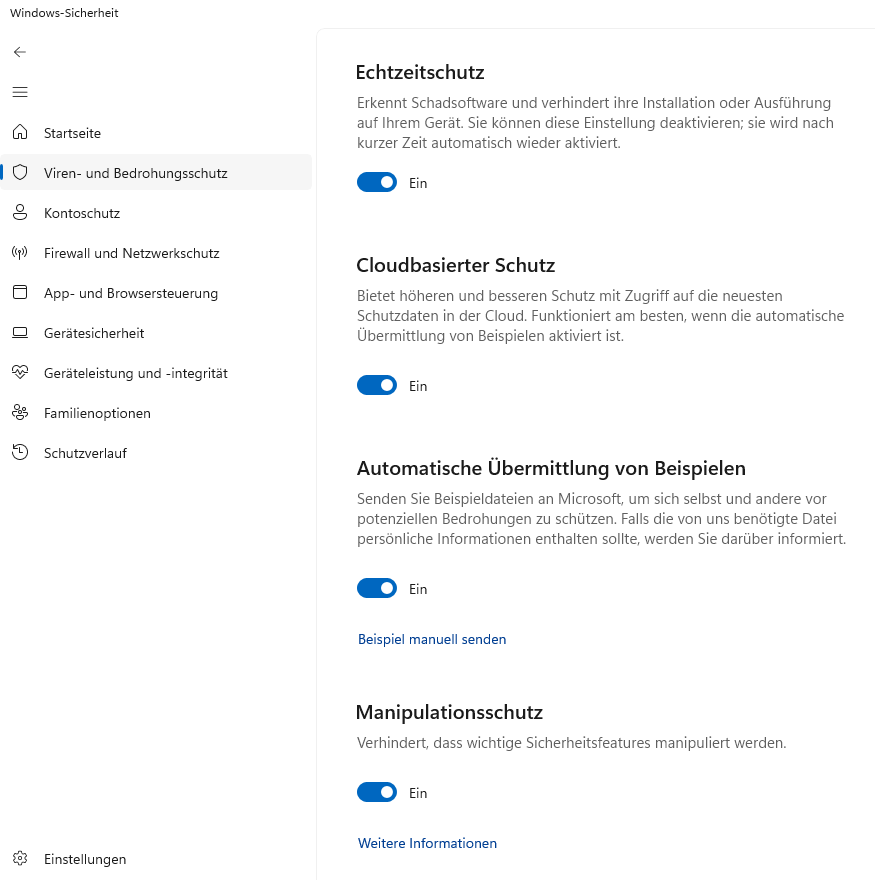
Windows Defender can cause very high RAM usage. To prevent this, the following options should be disabled in Windows Defender.
- Real-time protection
- Cloud-based protection
- Automatic submission of samples
- Tamper protection
To do this, open the “Windows Security” application. In the “Virus & threat protection” section, click the “Manage settings” button located under “Virus & threat protection settings”. Here you can disable the corresponding features.