The Email plugin allows you to configure outgoing mail servers for sending messages from the OPC Router. The actual sending logic is handled later in the Email Transfer Object within a connection.
The receipt of emails is set up separately via the Email Trigger. This ensures that sending and trigger activation remain clearly separated from a technical standpoint.
If you only want to send emails, you generally only need the Email Plug-in and an Email Transfer Object. You only need the email trigger if incoming emails are to trigger a connection.
If there is a firewall between OPC Router and the mail server, open the required ports for the connection.
Scope of Application
- The Email Plug-in configures the SMTP server for sending.
- The Email Transfer Object creates and sends emails within a connection.
- The Email Trigger monitors a mailbox within a connection and triggers data transfer when emails arrive.
Configuration
- Open the Email section in the Plug-ins.
- Click Plus to create a new mail server, or open an existing entry.
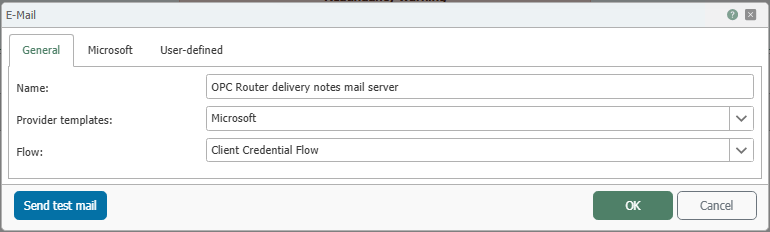
- Configure the mail server as described in the Plug-in Configuration.
Send a Test Email
- Verify the settings by clicking Send Test Email. To do this, enter a recipient address and start the test send.
- In the test dialog, check the recipient address, suggested sender address, and the log field. If there are any errors, you will see further details about the sending attempt there.
- Save the configuration by clicking OK.

The test email is sent in the language set in the management interface.
After saving, the configured mail server is available as a delivery destination in the connection configuration.