Email Trigger
The Email Trigger monitors a mailbox and triggers transfers when new emails arrive. Emails in MIME format are also processed.
This makes the trigger the receiving end of the email plugin, while the Email Transfer Object is responsible for sending.
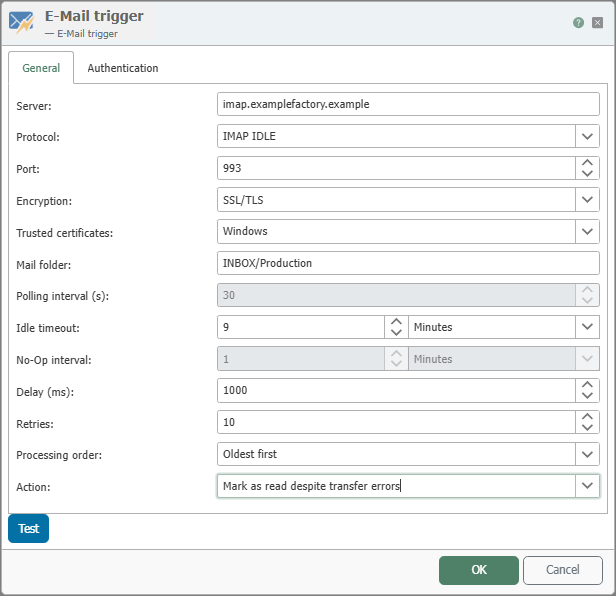
"General" Tab
| Property | Description |
|---|---|
| Server | Address of the mail server from which emails are retrieved. |
| Protocol | Retrieval protocol supported by the mail server for receiving email, such as IMAP or IMAP Idle. The selection determines which time options are active in the dialog. |
| Port | Network port of the mail server for the selected protocol. |
| Encryption | Specifies whether and how the connection is encrypted. Available options are Automatic, SSL/TLS, STARTTLS, STARTTLS (Optional), and None. |
| Trusted Certificates | Specifies which certificates are trusted for the TLS connection. - Router: accepts certificates stored in the OPC Router as trusted. - Windows: uses the trusted certificates from the Windows certificate store. - All (unsafe): also accepts certificates that have not been explicitly marked as trusted. |
| Mail Folder | Folder in the mailbox that the trigger monitors, e.g., the Inbox or a user-defined subfolder. |
| Polling Interval (s) | Time interval in seconds during which the system checks for new emails. This property is disabled for IMAP Idle. |
| Idle Timeout | Keeps the connection open for the specified period. If an email arrives during this time, the idle state ends immediately. This feature must be supported by the mail server. This property is disabled for IMAP. |
| No-Op Interval | Time interval for idle checks when no new emails have been found. This property is disabled for IMAP Idle. |
| Delay (ms) | Additional wait time before the next action following a successful trigger. |
| Retry Count | Number of retry attempts before the transfer is terminated with an error. |
| Processing Order | Determines the order in which emails from the monitored folder are processed, for example Oldest First. |
| Action | Determines how processed emails are handled after the trigger is fired, for example, whether they are marked as read and, if necessary, archived or deleted. |
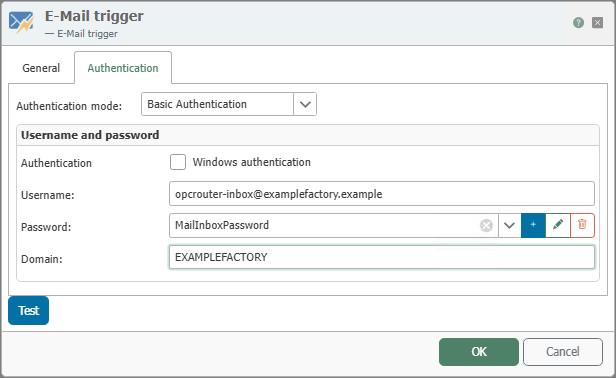
“Login” Tab
| Property | Description |
|---|---|
| Authentication Type | Determines the method used by the trigger to authenticate with the mail server. In the dialog shown, Basic Authentication is selected. |
| Use Windows credentials | Uses the user context of the OPC Router service instead of explicitly entered credentials. |
| Username | Username of the mail account for logging in to the mail server. |
| Password | Reference to the secret used for the mail account password. Secrets can be created, edited, or removed using the buttons next to the field. |
| Domain | Windows domain for authentication, if the user belongs to a domain environment. |
If you encounter problems receiving email, first check the protocol, port, encryption, and the authentication method used.
Login Types
The content of the Login tab changes depending on the selected login type. The following examples show the respective dialog variants.
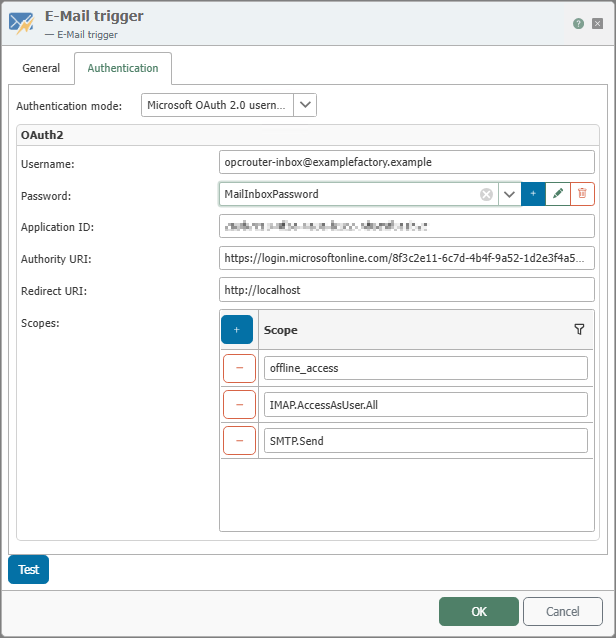
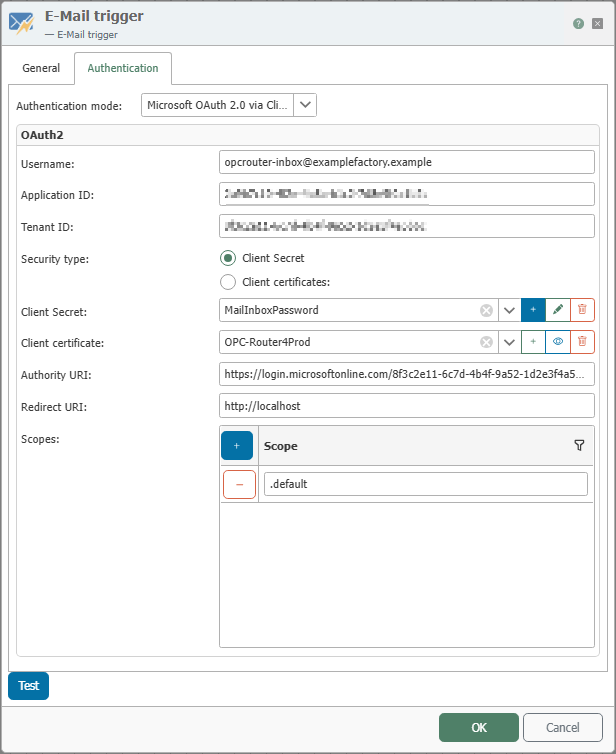
For OAuth-based login types, the following applies: The Authority URI is the address of the identity provider’s login or client endpoint. It determines which provider and, if applicable, which client the authentication takes place with.
The Redirect URI is the redirect address registered with the identity provider for the client. It must match the address stored there so that the authorization process can be completed correctly. For non-interactive methods such as Client Credentials, it is often required only for configuration purposes.
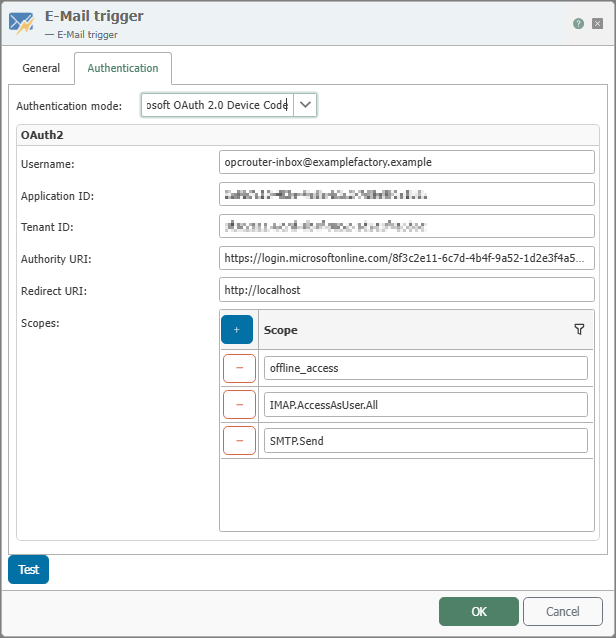
The Scopes determine which permissions are requested with the access token. Use only the permissions required for retrieving or sending email, and ensure that these have been approved in the app registration. In Microsoft 365, a .default scope is often used for Client Credentials, while for user-specific methods such as Device Code or ROPC, individual permissions such as IMAP.AccessAsUser.All, SMTP.Send, or offline_access are common.
Basic Authentication
With Basic Authentication, the trigger authenticates using a username, password, and optional Windows domain.
Microsoft OAuth 2.0 via Client Credentials Flow
This option is suitable for technical accounts or app registrations without interactive user login. In addition to the username, Application ID, and Tenant ID, you configure the security type, a client secret or client certificate, as well as the Authority URI, Redirect URI, and scopes.
Microsoft OAuth 2.0 Device Code
This option is suitable for scenarios where login occurs via a separate device code process. In the dialog, configure the username, application ID, tenant ID, authority URI, redirect URI, and the required scopes.
Microsoft OAuth 2.0 Username and Password (ROPC)
With ROPC, the username and password are used directly to retrieve the token. Additionally, you configure the Application ID, Authority URI, Redirect URI, and the required scopes.