Snowflake Data Change Trigger
The Snowflake Data Change Trigger monitors a table in the Snowflake AI Data Cloud and triggers a transfer when changes occur. On the “General” tab, you specify the data source and table and select the columns to monitor. On the “Filter” tab, you can further specify when a transfer should be triggered—for example, only when a column has a specific value.
note
For the Snowflake Data Change Trigger to work, the monitored table must have a primary key.
Dialog Overview
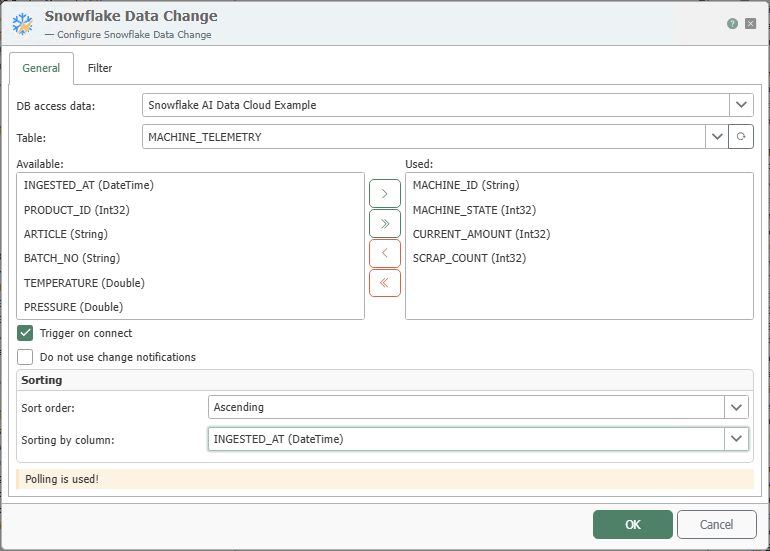
General Properties
| Term | Explanation |
|---|---|
| Data Source | All Snowflake connections created in the Plug-ins section are available for selection here. If the desired connection does not yet exist, you can make it available in the Plug-ins section as the “Snowflake AI Data Cloud” plug-in. |
| Table | Table being monitored for changes. |
| Available | All available columns of the selected table that have not yet been selected in the “Used” section. |
| Used | The monitored columns. Use the arrow buttons between “Available” and “Used” or double-click to add or remove columns. |
| Trigger on DB Connection | If this option is selected, a transfer is triggered as soon as the router establishes a connection to the database. |
| Do Not Use Change Notifications | If this option is selected, the polling interval configured in the plug-in is used for queries instead of change notifications. |
| Sort Order | Order in which modified records are processed: “None,” ascending, or descending. |
| Sort by Column | Column by which the records are sorted. |
Filters
The structure and operation of the Filter tab are described in detail under Filters and Filter Groups. For the trigger, the filter values are entered as fixed values.