Database transfer object
Databases are available to you both as sources and as targets. The required database must be configured as a plug-in instance. Create a DB transfer object within the connection as described.
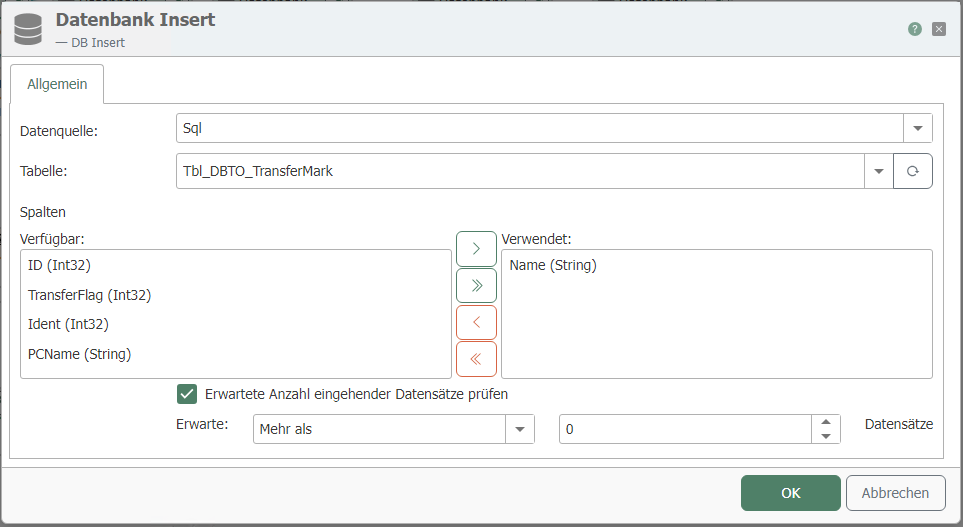
After double-clicking on the transfer object, set the following properties:
| Property | Description |
|---|---|
| DB connection | The configured instances of the DB plug-in are available here. |
| Type | Select: Queries one or more data records (from a table or view). You must define filter and sort criteria accordingly. The transfer object thus serves as the data source. Insert: During data transfer, a new data record is inserted into the table. The transfer object thus acts as the transfer target. In the case of a database insert, incomplete arrays are filled in. Example: If a single entry from a timestamp and several entries from an array are to be read into a database, the timestamp can be used for the individual variables of the array. The timestamp is therefore automatically used multiple times until all variables have been read. Therefore, the following applies: During an insert, the highest InsertCount is always determined. Entries that have a smaller count are then extended by a factor of X so that the values in the table are filled in. Also selectable for views. Update: During data transfer, one (or more) existing records in the table are updated. You must define a filter accordingly. The transfer object thus acts as the transfer destination. Can also be selected for views. Delete: The data transfer deletes one or more records from the table. You must define a corresponding filter. Also selectable for views. Stored procedure: Triggers a stored procedure as soon as the trigger condition is met. You can use input parameters and return values as targets or sources here. |
Important: If "Stored Procedure" is selected as the type, the OPC Router immediately calls the procedure once with default parameters (String = NULL; Int = 0, etc.) to read the structure of the result set. A rollback occurs. The procedure must therefore be transaction-safe and must not return any errors during the default call.
Tab: General (all types)
| Property | Description |
|---|---|
| Table | Table on which the selected operation is performed, or name of the stored procedure. Note: The specified table must have a primary key. Tables without a primary key are not supported. |
| Available columns/Columns used | (Insert, Update, Query) Available columns: Columns (data fields) that exist in the table but have not yet been used. Used columns: Columns (data fields) that are displayed as elements (items) of the transfer object and are therefore available for transfers. This distinction primarily serves to provide clarity in the project planning area—for example, if only one column out of 30 is required for the connection. Move the columns by double-clicking on the column name or using the "<" and ">" buttons (after selecting the column). "<<" and ">>" move all columns. Use the "Up" and "Down" buttons to sort the columns used. This also serves to improve clarity in the display. Stored procedure: Here you will find the input parameters and return values in the lists. |
Tab: Filter (queries, update, delete)
| Property | Description |
|---|---|
| Filter | Displays filters and filter groups graphically. The SQL statement is constructed from this tree at runtime. The values for the filters are generated dynamically at runtime. You can define fixed filter values using variables (see below). Use the buttons to add individual filter criteria ("Filter") and grouped filter criteria ("Filter Group"). "Delete" deletes the selected criterion. An explanation of the various filter operators can be found here. |
| Edit filter/filter group | The possible entries change depending on which element is selected under "Filter." Link: Defines the operators AND and OR between the filters/filter groups. Column: Column to be filtered Comparison operator for value comparison |
| Preview | Preview of the SQL statement, e.g., WHERE (TIMESTAMP >_ ?) AND (VALUE = ?) . In the example, all records would be selected whose timestamp field is greater than a specified timestamp (= newer than date/time) and whose value field is equal to a specified value. You can define the values for the filters dynamically at runtime (e.g., values from OPC items or other tables) or define a variable at design time (which you could then change at runtime). |
In the project planning interface, you can see the filter criteria as elements. Drag connection arrows from any other transfer objects to the filter criteria to fill them. Relative values can also be used for timestamp filters ("-1d" for the previous day's date, for example).
Tab: Query (Queries)
| Property | Description |
|---|---|
| Sort order | Ascending or descending. |
| Sort by column | Column by which the query result is sorted. |
| Do not change records | (only possible for queries from tables) No changes are made to the transferred data records. |
| Mark records after transfer | (only possible for queries from tables) In a corresponding column of the source table, "1" is entered for each transferred data record and "2" for an incorrect transfer. Note: A simple primary key on the numeric column "ID" is required for this in the relevant table. |
| Column for marking | (only possible for queries from tables) Column in which the marker for the successful or faulty data transfer is entered. The column should be automatically filled with "0" as the default value. |
| Marking values | The values to be written in the marking column can be specified here. The marking values must be unique. |
| Count failed transfers | Counts the failed transfers. Note: Under "Error column," select the column in which the number of failed transfers is to be counted up. |
| Delete records after successful transfer | (only possible for queries from tables) Of course, transferred records can also be deleted from the table. Caution: The records will be irrevocably deleted from the source table. |
| Cancel transfer (if query result is empty) | Cancels the data transfer if the query result is empty. |
| Trigger read error (if query result is empty) | Cancels the data transfer if the query result is empty and triggers the error log (in the router status and the log file). |
| Return empty data record | Returns an empty data record if the query result is empty. |
| Limit number of data records to: | Only transfers the number of data records specified here. The sorting must be set accordingly. Example: Only the latest data record is to be transferred from a query result. The sorting must be set to a field with a "timestamp" in descending order, and the number of data records must be limited to "1." |
Note: If set to "Update" type, the transfer object provides the number of updated rows (as the data source).
Check expected number of incoming records
Enable this option to check the data to be used for the insert for correct size. For example, if you receive an array of data, you can define here how many records the array must have at a minimum, maximum, or exactly for the insert to be performed.
Always select with filter
Only use SQL Select in conjunction with filters (WHERE clause) to avoid loading the entire table into memory. In conjunction with transfer flags, you can filter by <transferflag> <> 1, for example.
Mark transferred data records
Mark transferred data records. Provide columns in your tables in which OPC Router can mark transferred data records ("transfer flag" not transferred, transferred, transfer error). The transfer flag columns should be assigned the default value "0" and should not be allowed to accept NULL values so that correct assignment to the three statuses is always guaranteed.
Index transfer flag
To improve performance, the transfer flag column should be indexed as follows:
- If the OPC Router is to filter by transfer flag
= 0:
    CREATE NONCLUSTERED INDEX [IX_TransferTable_Transferflag] ON [dbo].[TransferTable]
    (
      [Transferflag] ASC
    )
    WHERE ([Transferflag]=(0))
    GO
- If the OPC Router is to filter by transfer flag
<> 1:
    CREATE NONCLUSTERED INDEX [IX_TransferTable_Transferflag] ON [dbo].[TransferTable]
    (
      [Transferflag] ASC
    )
    WHERE ([Transferflag]<>(1))
    GO
Sort Select results
Sort the table in ascending order by the transfer flag. This ensures that the non-transferred records are transferred first; failed individual transfers are only retried at the end of the transfer. To optimize performance, you can filter by the transfer flag column (transfer flag = 0 or = 2). A correspondingly filtered index can be created in the database for this purpose.