DB Select
The DB Select transfer object retrieves one or more records from a table or database view. The transfer object thus serves as a data source.
Dialog Overview
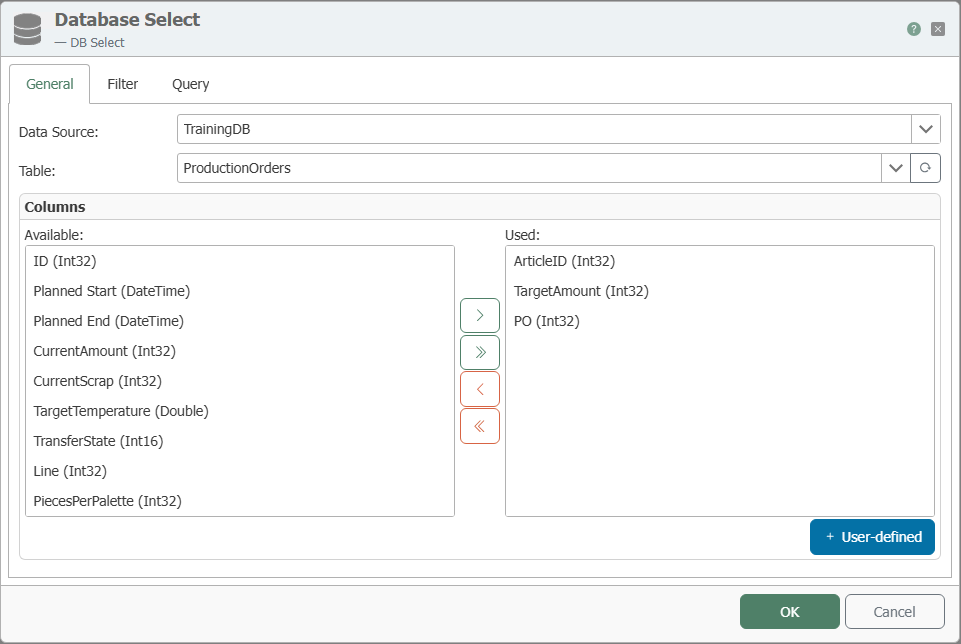
General Properties
| Property | Description |
|---|---|
| DB Connection | All relational database connections created in the Plug-ins area are available for selection here. If your desired database connection is not listed, you can create it in the Plug-ins area as Microsoft SQL Server, Oracle, SAP HANA, ODBC, OLE DB, MySQL, or PostgreSQL. |
| Table | Table or database view from which data is read. |
| Available Columns | Columns present in the table that have not yet been used. |
| Used Columns | Columns that are displayed as elements of the transfer object and are therefore available for the query. |
The distinction between available and used columns serves to provide clarity in the design area. Move columns by double-clicking the column name or using the <, >, <<, and >> buttons. Use the Up and Down buttons to sort the used columns.
Filters
The filters are configured graphically. The OPC Router generates the corresponding database query at runtime based on this configuration. The values for the filters can be filled dynamically at runtime or defined using variables during the design phase.
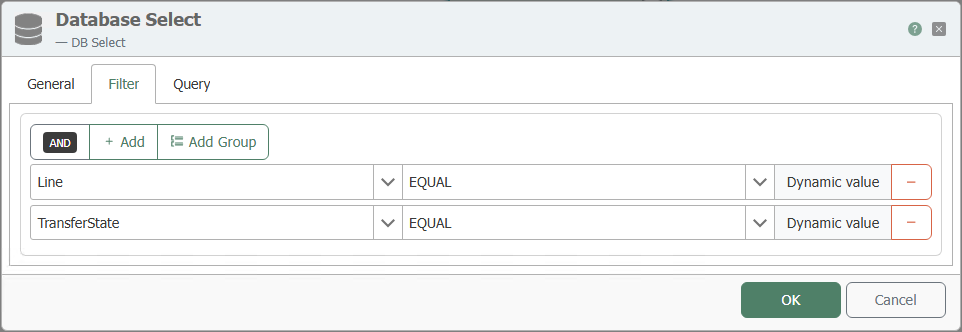
| Property | Description |
|---|---|
| Filter | Displays filters and filter groups graphically. |
| Link | Defines the AND and OR operators between filters and filter groups. |
| Column | Column used for filtering. |
| Comparison Operator | Operator for comparing values. |
| Preview | Displays the resulting query as an SQL statement, for example WHERE (TIMESTAMP > ?) AND (VALUE = ?). |
In the configuration interface, you see the filter criteria as elements. Drag connection arrows from any other transfer objects to the filter criteria to populate them. For timestamp filters, relative values can also be used, for example -1d for the previous day’s date.
An explanation of the various filter operators can be found here.
Query
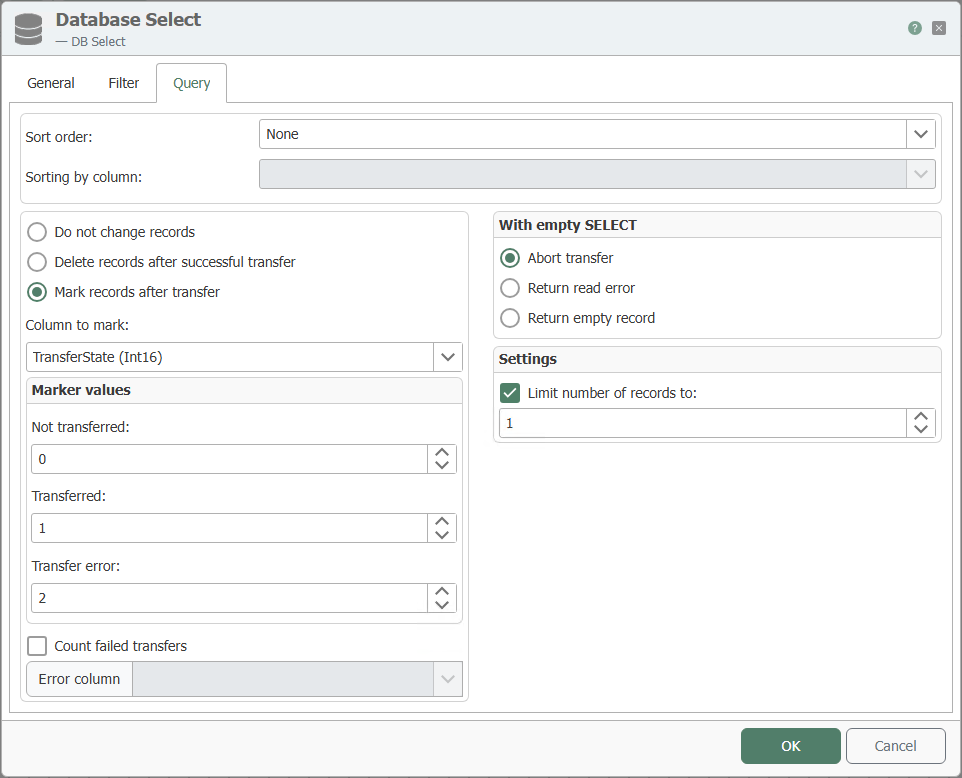
| Property | Description |
|---|---|
| Sort Order | Ascending or descending. |
| Sort by Column | Column by which the query result is sorted. |
| Do Not Modify Records | Only available for queries from tables. The transferred records are not modified. |
| Mark records after transfer | Only available for queries from tables. In a corresponding column of the source table, 1 is entered for each successfully transferred record and 2 for a failed transfer. |
| Column to mark | Only available for queries from tables. Column in which the marker for a successful or failed data transfer is entered. |
| Marker values | Values entered into the marker column. The marker values must be unique. |
| Count failed transfers | Counts the failed transfers. |
| Delete records after successful transfer | Only available for queries from tables. Transferred records can also be deleted from the table. |
| Abort transfer (if query result is empty) | Aborts the data transfer if the query result is empty. |
| Trigger read error (if query result is empty) | Aborts the data transfer if the query result is empty and triggers error logging. |
| Return empty record | Returns an empty record if the query result is empty. |
| Limit number of records to | Transfers only the number of records specified here. Sorting must be set accordingly. |
For Mark records after transfer, a simple primary key on the numeric ID column is required in the relevant table.
If you use Count failed transfers, select the column in which the number of failed transfers is to be counted under Error column.
If you enable Delete records after successful transfer, the records in the source table will be permanently deleted.
Notes
Use DB Select only in conjunction with filters to prevent the entire table from being loaded into memory. For example, when using transfer flags, filter by <transferflag> <> 1.
Mark transferred records using a dedicated transfer flag column. You can find the technical details on this in the Transfer Status Trigger as well as under Examples and Concepts.
To optimize performance, you can filter by the transfer flag column, for example Transferflag = 0 or Transferflag = 2.