SAP RFC Transfer Object Example
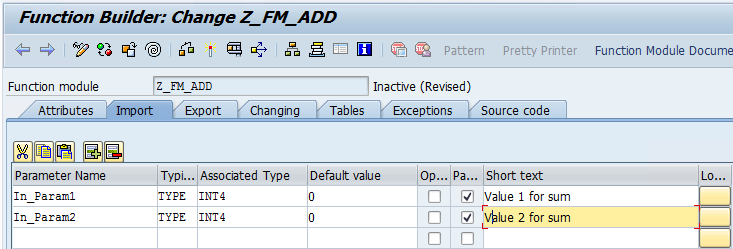
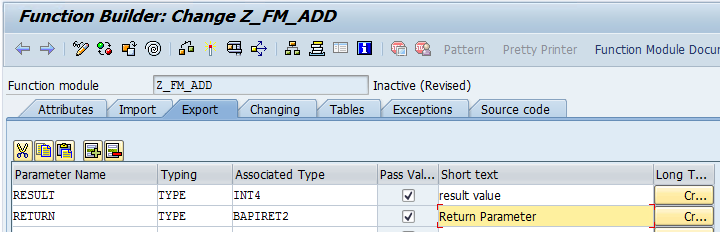
This example demonstrates how to call an RFC function module using an SAP RFC transfer object. The function module Z_FM_ADD is used as an example; its import, export, and source code are shown in the following figures.
Function Module in the SAP® System
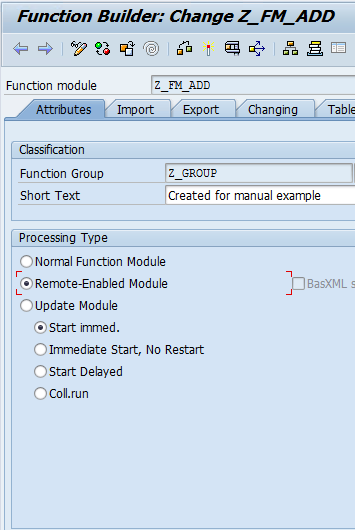
In the general properties, select the "Remote callable" option so that this function module can be called by third-party systems, such as the OPC Router. Otherwise, this function module can only be called within the current SAP system.
Import
Export
Source Code
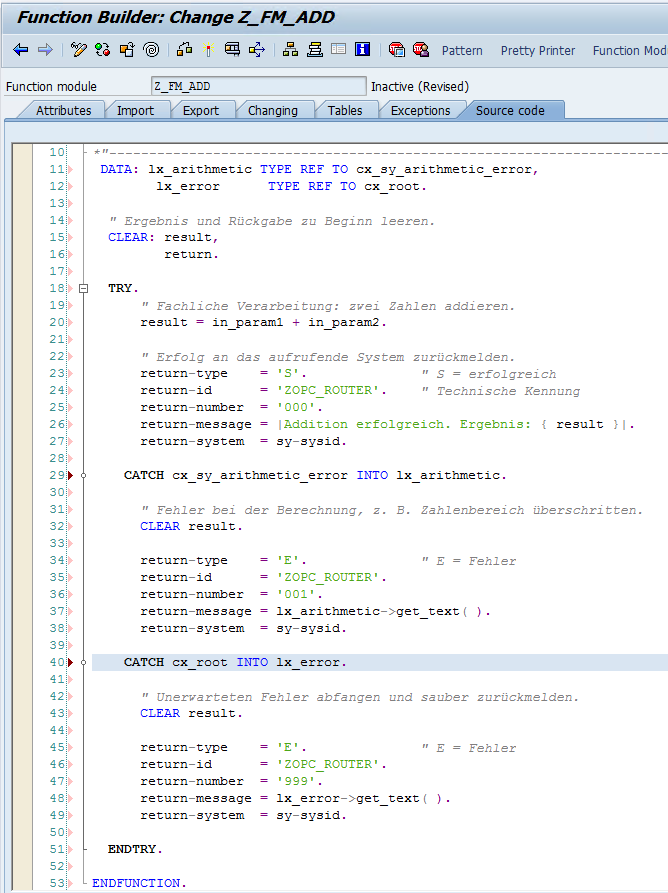
The function module must then be saved, checked, and activated (Save, Check, and Activate in the Function Builder, transaction SE37). Only an active function module marked as remote-capable can be called via RFC from the OPC Router.
Create a Transfer Object
In the OPC Router, select the SAP-RFC transfer object for a new connection.
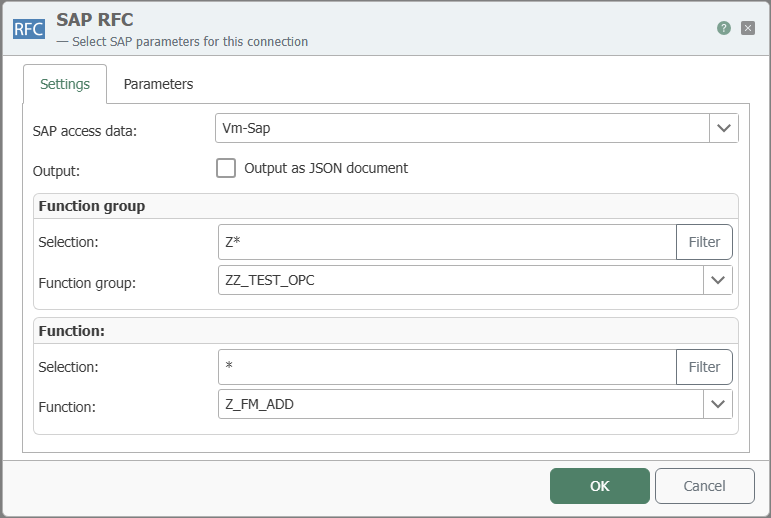
In this example, the function module Z_FM_ADD is located in the function group ZZ_TEST_OPC. A connection named Vm-Sap was created in the SAP® plug-in to access it.
Double-click to open the SAP-RFC transfer object and perform the following steps on the “Settings” tab:
- Select
Vm-Sapin the “SAP Connection” field. - In the “Function Group” section, click “Filter” in the “Search Filter” field to load the function groups.
- Select
ZZ_TEST_OPCin the “Function Group” field. - In the “Function” section, click “Filter” in the “Search Filter” field to load the functions.
- Select
Z_FM_ADDin the “Function” field.
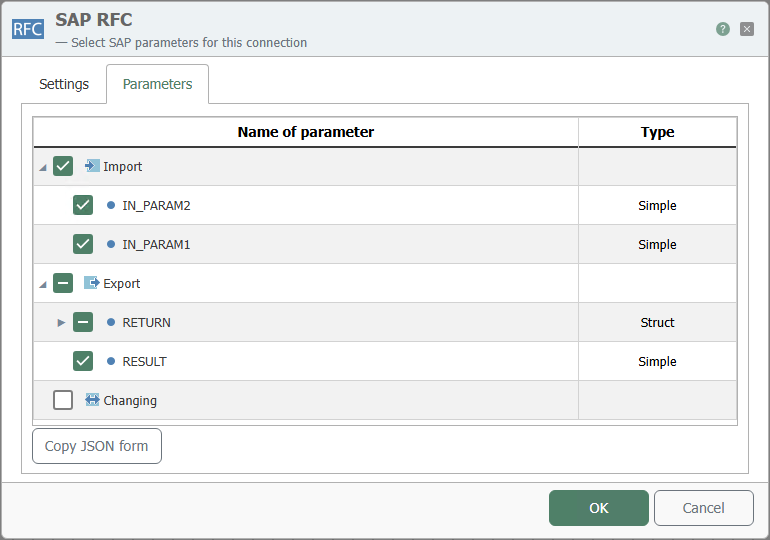
On the “Parameters” tab, select the imports and exports.
After confirming with “OK,” the SAP RFC transfer object looks as follows:
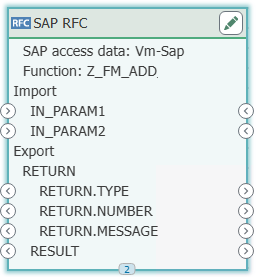
Configure the Connection
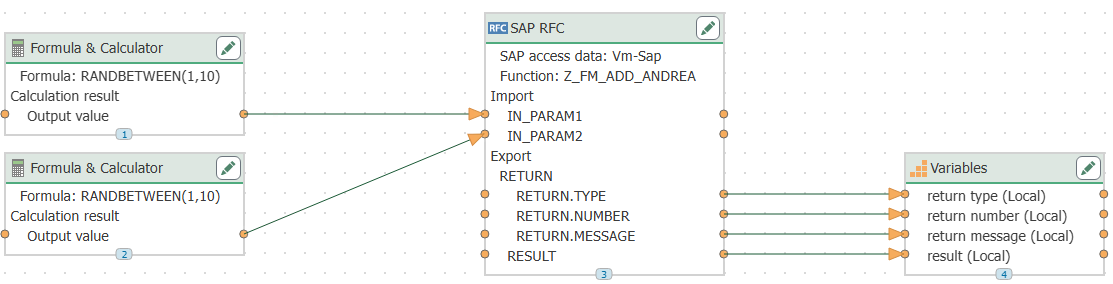
As shown in the following figure, In_Param1 and In_Param2 are set to constants, and RESULT is assigned to a variable.
Deploy the change
Next, click “Deploy the change” at the top of the page and confirm again by clicking “Deploy the change” in the “Publish” section.

Trigger the connection and check the result
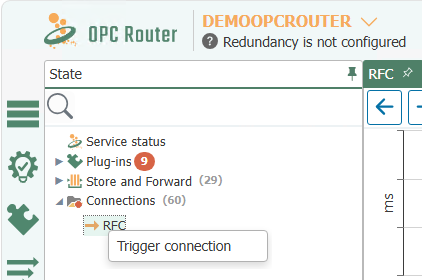
Next, trigger the connection in the Status Indicator by right-clicking on your connection and selecting “Trigger Connection.”
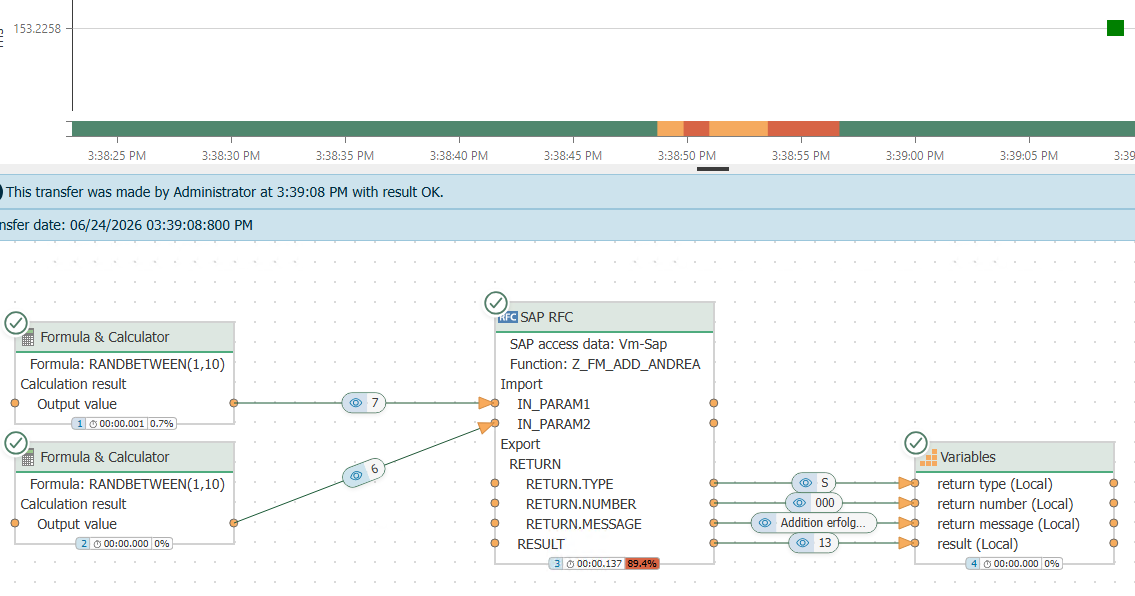
As expected, the value of RESULT is equal to the sum of In_Param1 and In_Param2.