SAP RFC Transfer Object Example
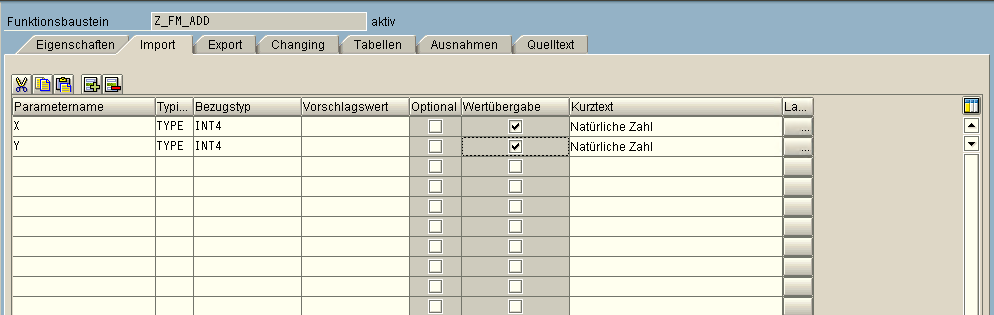
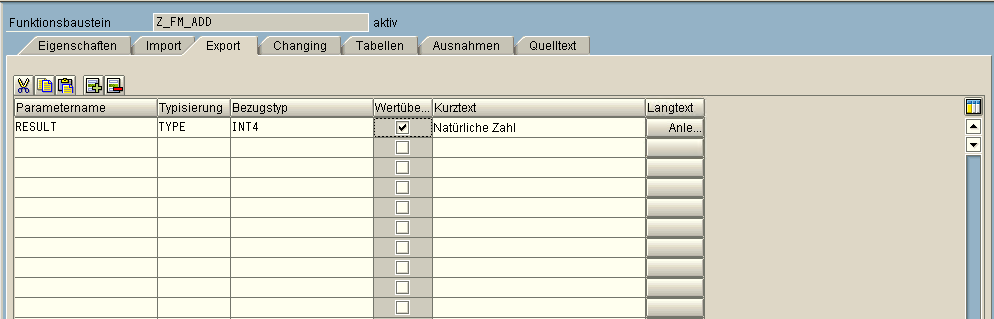
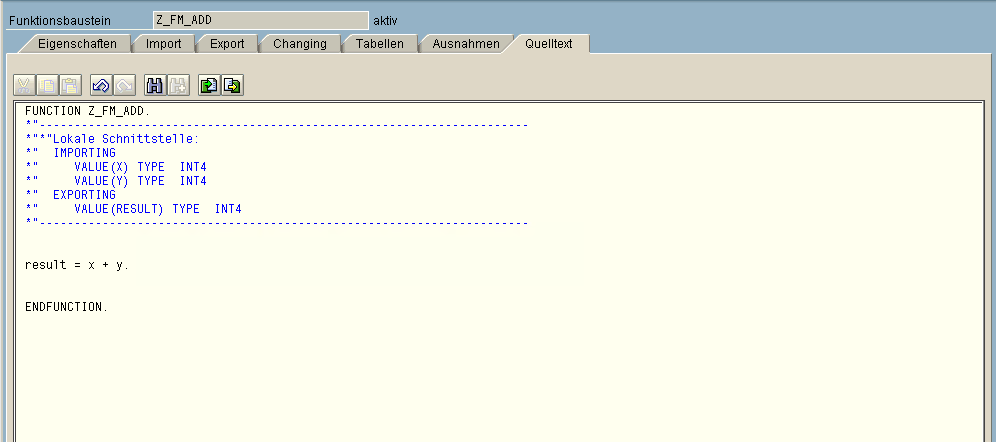
For example, we have a function module named Z_FM_ADD, whose import, export, and source code are shown in the following figure.
Import:
Export:
Source code:
In the OPC Router, select Transferobject SAP-RFC for a new connection.

In this example, the module function Z_FM_ADD is located in the function group ZZ_TEST_OPC, and a connection named SAP_TEST has been created in the SAP plugin to access it.
Double-click to open the SAP-RFC transfer object and perform the following steps on the "Settings" tab:
- Select SAP_TEST in the "SAP connection" field.
- In the "Function group" area, click the "Filter" button in the "Search filter" field to load the function groups.
- Select ZZ_TEST_OPC in the "Function Group" field.
- In the "Function" area, click the "Filter" button in the "Search Filter" field to load the functions.
- Select Z_FM_ADD in the "Function" field.
-e4ec9caefcec528e3d672bacbde8d7ae.png)
Select imports and exports on the "Parameters" tab.
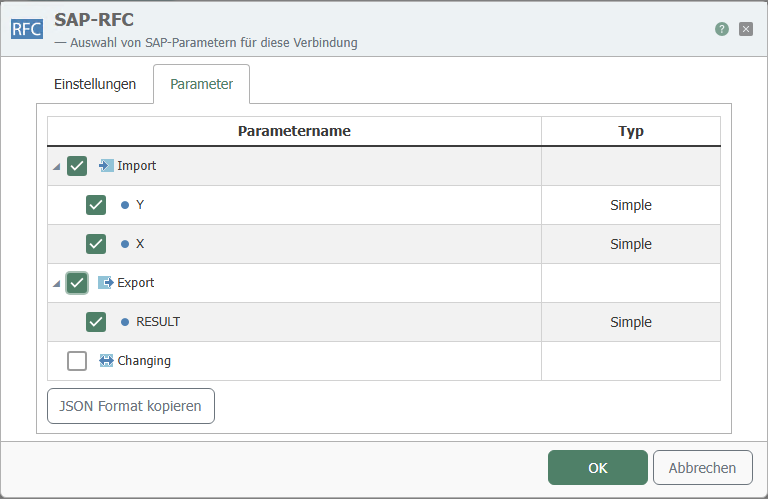
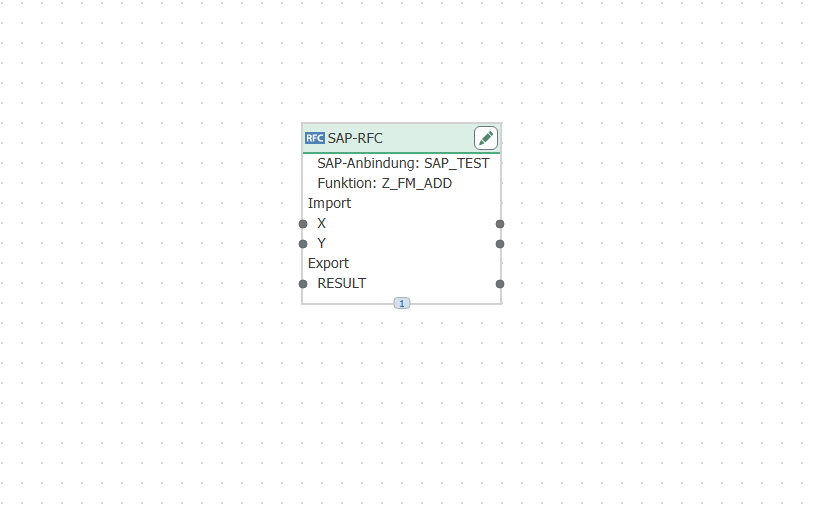
After clicking "OK," the transfer object SAP-RFC will look as follows:
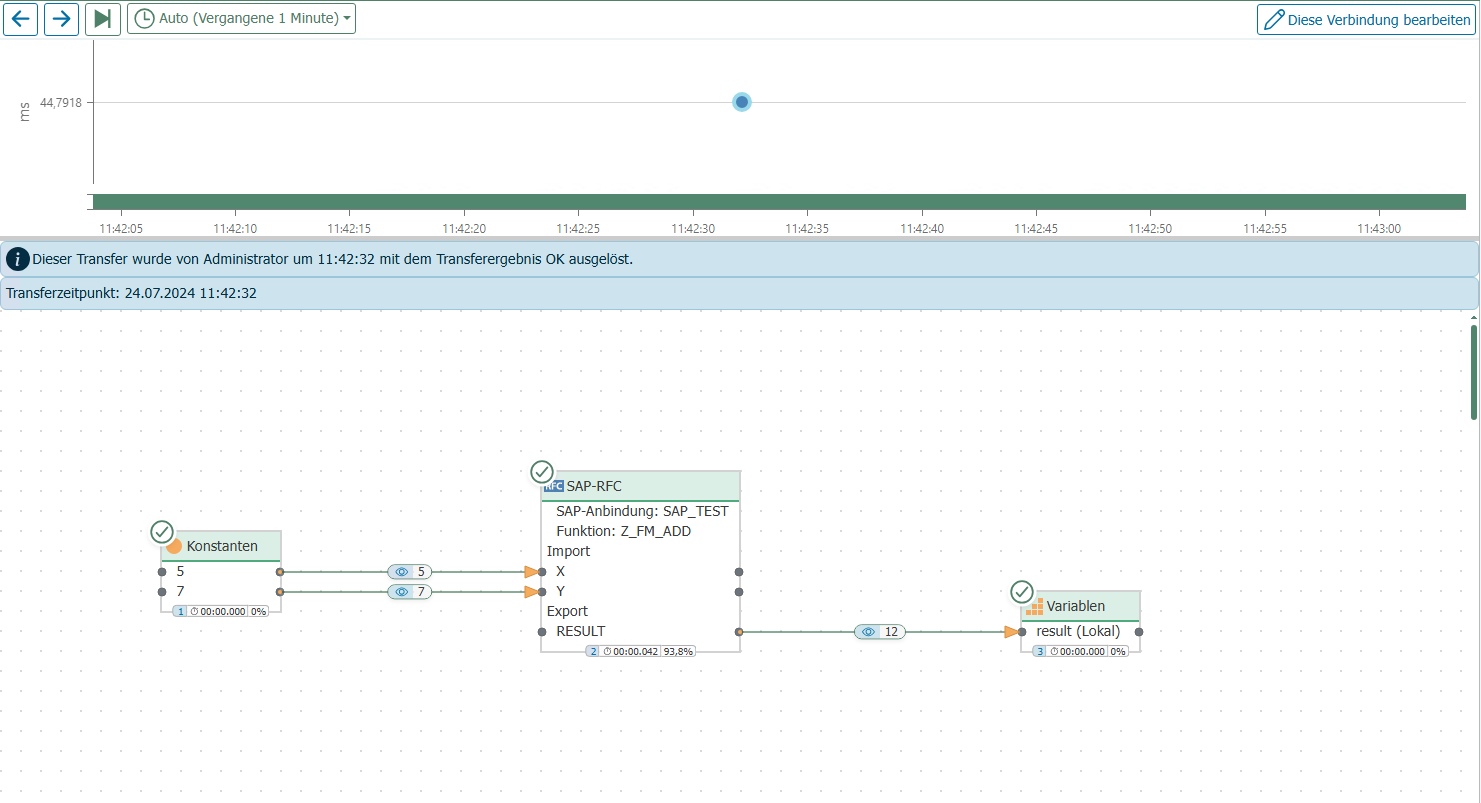
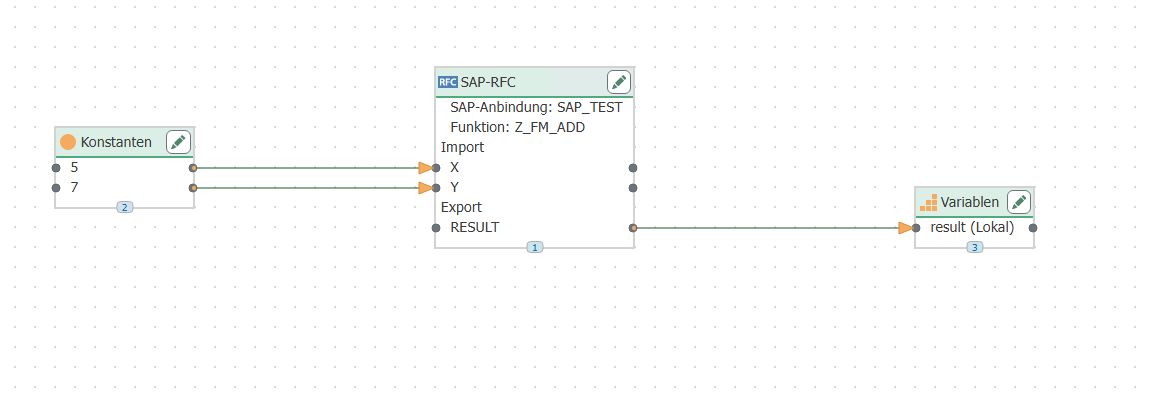
As shown in the image below, we set "X" and "Y" to constants and enter "RESULT" in a variable.
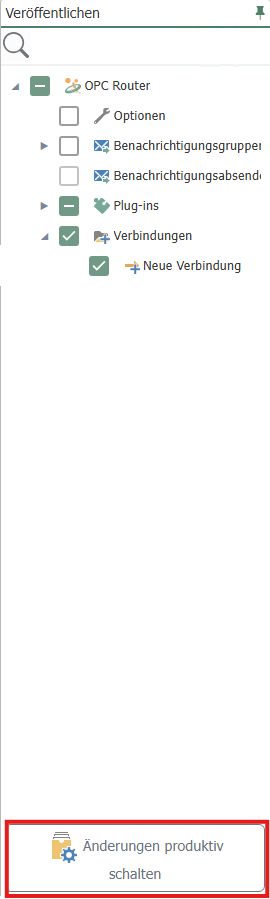
Then click "Activate change" at the top of the page.

And click on "Activate change" again in the "Publish" area.
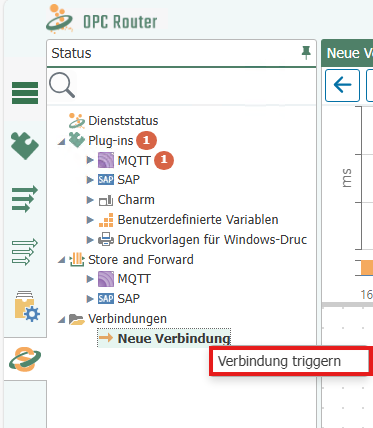
Then, in the status display, trigger the connection by right-clicking on your connection and then clicking on "Trigger connection."
Finally, as expected, the value of "RESULT" is equal to the sum of "X" and "Y."