Importing an OPC Router Project
In OPC Router 5, open the "Import Project" function via the menu item under "Settings."
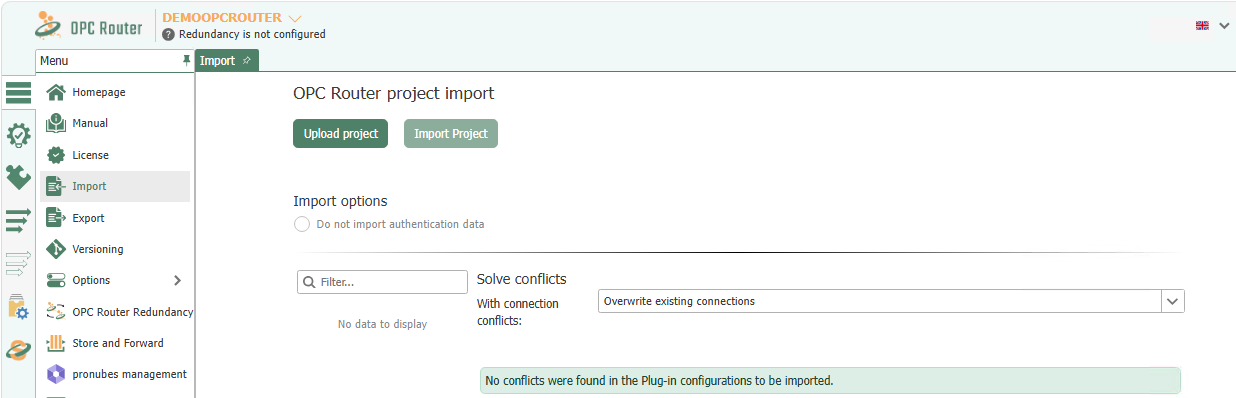
First, use Upload Project to upload the file you want to import. If necessary, adjust the import options and then start the import by clicking Import Project.
If conflicts arise with plug-in configurations or flows, resolve them in the displayed sections. For conflicts, you can choose between global options and individual decisions for each entry:
- Select “Keep exitisting set of access data” if you want to use the application you are currently using.
- Select “Rename imported set of access data” if you want to keep your existing connection and retain the imported connection in parallel. To do this, select a name until the red circle with the cross disappears.
- Select “Replace existing set of access data” if you want your existing connection to be replaced by the imported connection.
For flows with the same name, choose between “Overwrite existing Flows”,” “Keep existing Flows”,” and “Rename imported Flows”; when renaming, the imported flows are assigned a sequential number. “Keep existing Flows” is not possible if an existing template is missing a template variable that the template of the same name included in the import contains; the import aborts with the message “Data cannot be imported without overwriting due to differences in the template instances.” Repeat the import using “Overwrite existing Flows” or create the missing template variables beforehand.
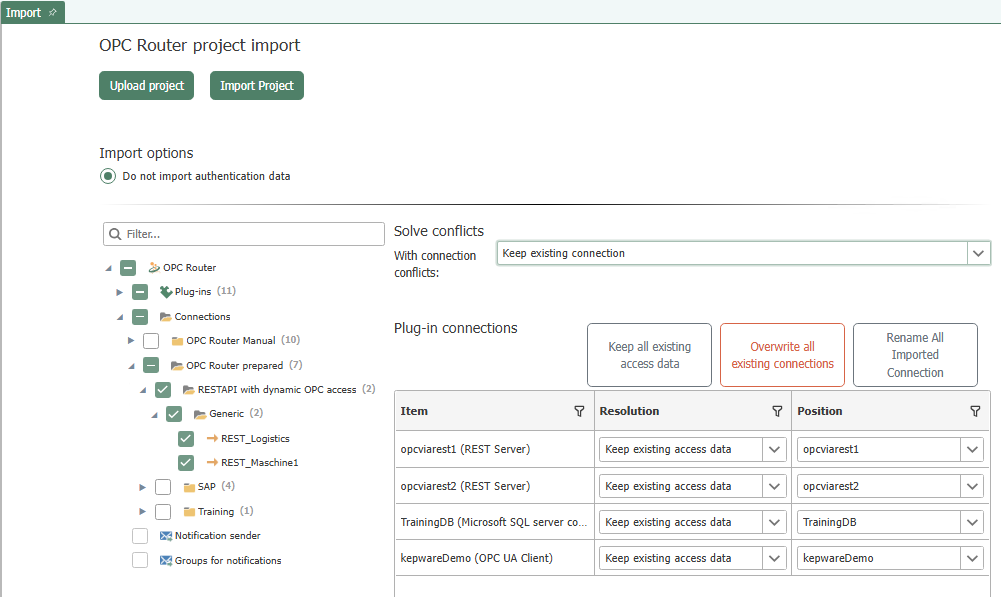
Confirm your selection by clicking “OK”."
Open the project file from Windows Explorer:
Double-clicking a .rpefile opens Web Management in your default browser directly on this page, with the file already loaded. The “Importieren” option in the file’s context menu performs the same action. The import process does not run automatically: You must resolve any conflicts that appear as described above and start the import by clicking “Import Project.” If you are not yet logged in, the login process will take you back to this page with the same file.
Available starting with Version 5.7 MR 01 and only on Windows installations: The Windows installer sets up the file association, file icon, and context menu entry, and removes them upon uninstallation. These features are not available in container mode.
Double-clicking opens the already running Web Management; the OPC Router reads the port from the installation, so a different port will work without any adjustments. If the associated Windows service is not running, the OPC Router reports the address as unreachable and specifies the service.
The file transfer is valid only once and for a maximum of ten minutes. Once loaded, it is no longer available: Reloading the page will indicate that the transferred file is no longer available—in which case, select it again via Upload project. The same 256 MB size limit applies as for uploading.