Store and Forward
Store and Forward temporarily stores data when it cannot be transmitted due to an error—for example, because a destination system is temporarily unavailable. As soon as transmission is possible again, the cached data is resent. This ensures that no data is lost during brief interruptions.
Store and Forward is enabled in two places: globally for the OPC Router, and additionally in each flow that is to use the feature.
Global Activation
Under the “Tools > Settings” menu item, you’ll find the “Store and Forward” button. Set the slider at the top to “ON” to enable Store and Forward globally.
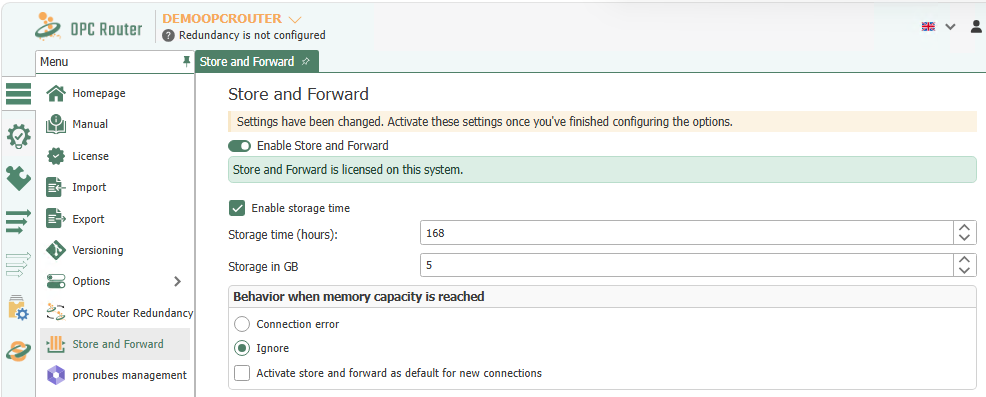
Store and Forward must also be enabled in each flow that is intended to use this feature. The global setting only enables Store and Forward in general; you must decide on a per-flow basis which flows will actually use caching—since caching isn’t always useful for every flow. For new flows, this can be preset using the “Automatically enable Store and Forward for newly created Flows” option.
Settings
| Property | Description |
|---|---|
| Enable Retention Time | Specifies, in hours, the maximum length of time the router retains the recorded values. After this time has elapsed, values that are too old are discarded if the plug-in has not returned from the error state by then. |
| Storage Capacity | Maximum storage capacity that the OPC Router allocates to cached values. Specified in gigabytes. |
| Behavior When Storage Capacity Is Reached |
|
| Automatically enable Store and Forward for newly created flows | Select this option if you want the Store and Forward option to be automatically enabled for newly created flows. |
Enabling in Flows and Templates
You can specify whether a flow uses Store and Forward via the “Store and Forward” property in the settings of the respective flow or template—see Settings for Flows and Templates. Alternatively, you can enable or disable Store and Forward directly via the context menu (right-click) on the flow. If the feature is enabled in a template, it applies to all flows created from it.
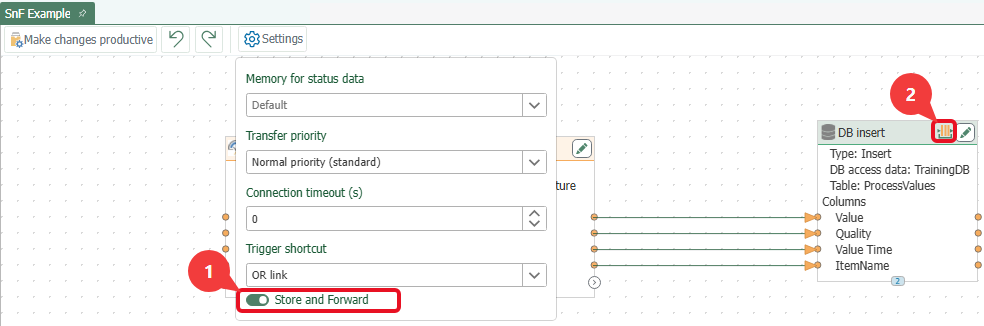
If the Store and Forward toggle (1) is enabled, the Store and Forward icon (2) appears on the flow’s supported transfer objects.
How It Works
Store and Forward temporarily stores data in the OPC Router’s database if it could not be transferred due to an error.
It is important to note that Store and Forward only caches data if the error occurs in a transfer object for which Store and Forward is available, such as the DB Insert transfer object. The availability of Store and Forward for a transfer object can be identified by the Store and Forward icon, which appears in the transfer object after Store and Forward has been enabled.

Store and Forward is primarily intended to serve as a buffer for data that cannot be transferred due to a plug-in error. Such errors are triggered, for example, by connection losses that can result from a system crash or scheduled maintenance.
Once the plug-in is no longer in an error state, the system attempts to transmit the cached data. This catch-up transmission runs in parallel with ongoing live transmissions; therefore, the backlogged and current values are not necessarily transmitted in their original order (FIFO). The individual data records arrive complete and correct. To ensure they can be uniquely identified despite the transmission order, each data record should include a value or recording timestamp.
If the transmission fails, it will not be attempted again after a few attempts. The inability to transmit cached data usually occurs when the data is invalid, such as an invalid data record.
When Store and Forward Should Not Be Used
Store and Forward is useful when every single value must be received in full—even if there is a delay. However, if only the current value matters, this function should not be used:
- Only the current value matters: After the connection is reestablished, Store and Forward delivers the cached values. If data is intended to always reflect the current state—such as a measured value on a visualization or an OPC tag—this would result in outdated values being written with a delay. Store and Forward should not be enabled in this case.
- Real-time requirement: Store and Forward buffers data and delivers it only after the disruption has been resolved. If a value must be guaranteed to arrive immediately, this function is not suitable.
- Unsupported Transfer Objects: Store and Forward can only be enabled for transfer objects that support the function (indicated by the Store and Forward icon). It is not available for any other transfer objects.
Status of Cached Data
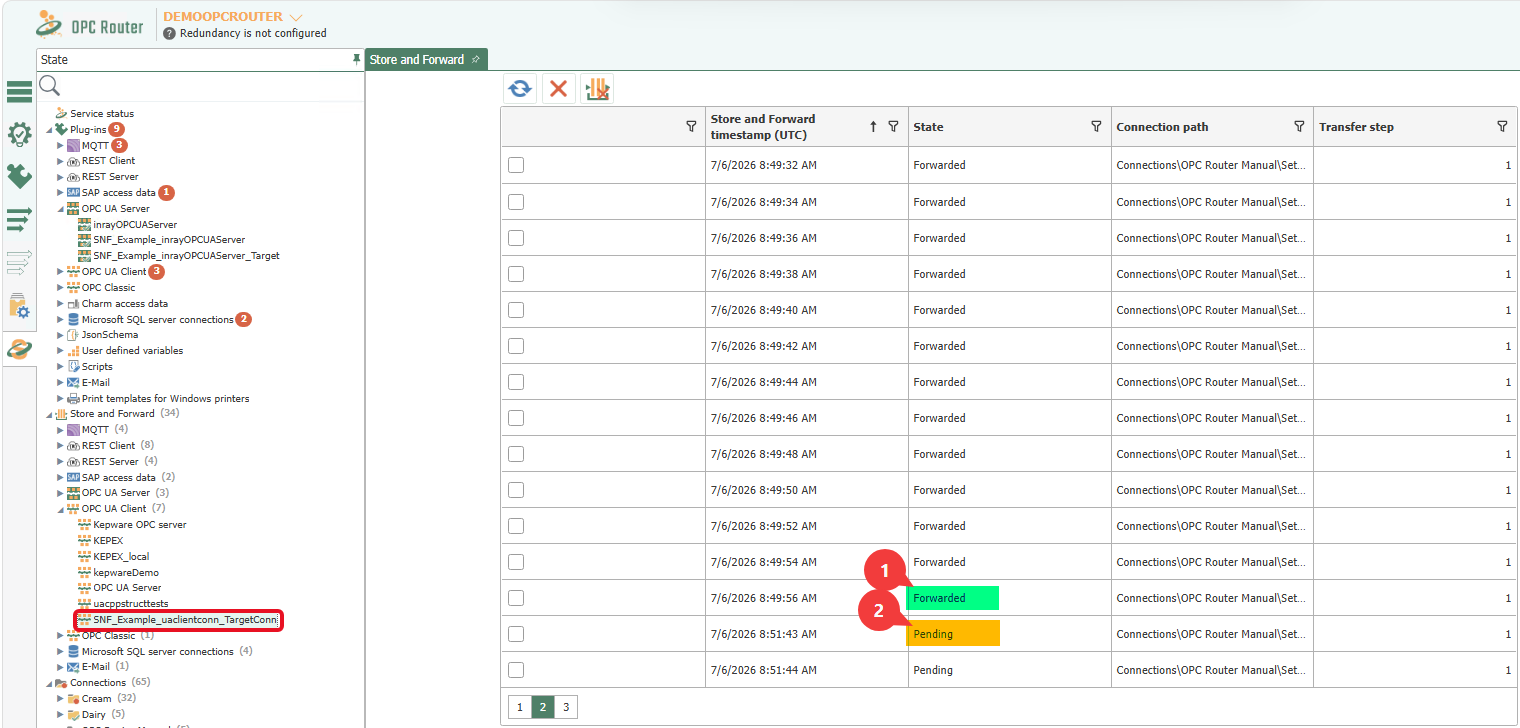
You can view the status of cached data in the status view. In addition to plug-ins and flows, the status view also includes the “Store and Forward” section. In this tree, you can click on a plug-in to see whether data is currently cached for that plug-in. Data that has already been transferred is also displayed in the overview. Each data record is assigned a status; the German interface displays these status values unchanged in English: “Forwarded” for data records that have already been successfully transferred (marked with 1 in the example) and “Pending” for cached data records that are still pending (2).
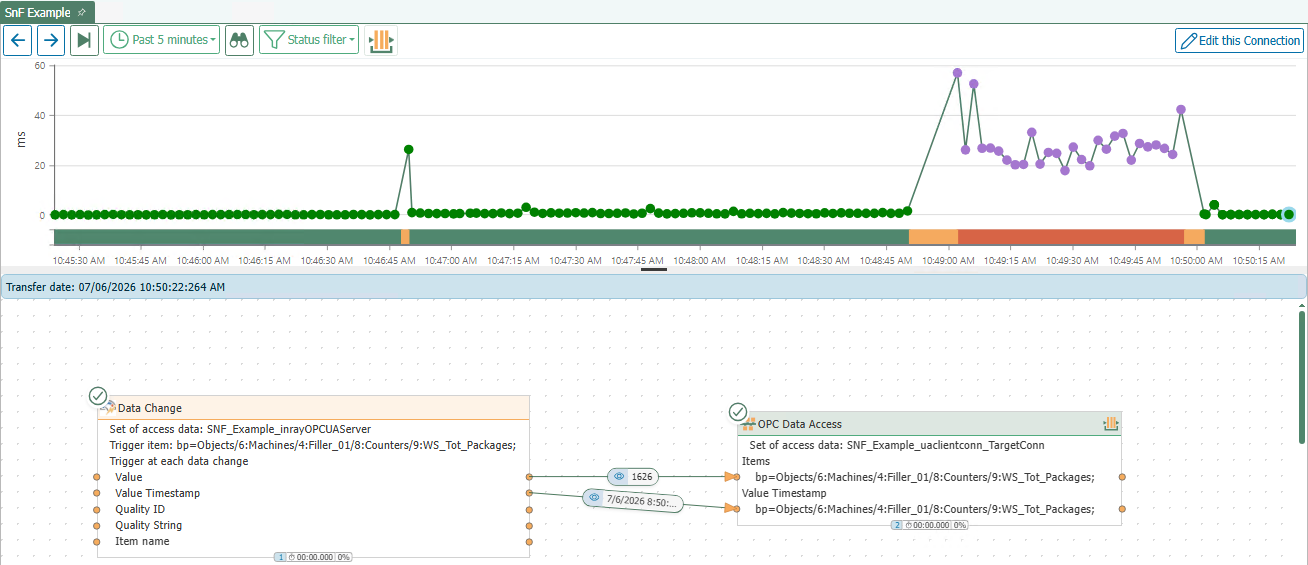
Store and Forward is also visible in the Flow Status: Transfers that run via Store and Forward are displayed as purple transfer points, distinguishing them from the other transfer points. A purple dot appears as soon as the transfer is complete and the data is cached—regardless of whether it has already been forwarded at that point. The Store-and-Forward status view described above shows whether a cached data record has already been forwarded or is still pending.
Typical Example
The OPC Router reads production values from a controller and writes them to a central SQL database via the DB Insert transfer object. If the database server is temporarily restarted or undergoing maintenance, it is unavailable to the OPC Router and the database plug-in enters an error state.
When Store and Forward is enabled, the DB Insert operations are temporarily cached locally during this time. As soon as the database server is accessible again, the OPC Router transfers the buffered data records—the values accumulated during the outage are not lost.
Sample Project for Import
The complete sample project is available for download as store_and_forward_example.rpe.
The global Store-and-Forward setting is not included in the project export. Therefore, before testing, first enable Store and Forward globally via “Tools > Settings” (see Global Activation ).
The project is designed as a standalone test and contains two connections and two flows:
Connections
- OPC UA Server
SNF_Example_inrayOPCUAServer– directly integrated source and target server. - OPC UA Client
SNF_Example_uaclientconn_TargetConn– target connection for the test flow (endpointopc.tcp://DEMOOPCROUTER:49423).
"SnF Example" Flow (Example Flow)
Data Changetrigger on the itemWS_Tot_Packages(via the OPC UA server).- The
OPC Data Accesstransfer object (Write) writes the value and timestamp back toWS_Tot_Packagesvia the OPC UA client. - Store and Forward is enabled for this flow.
"Helper" Flow (Data Generator)
Crontrigger that fires every two seconds.OPC Data Accesstransfer object (read) readsWS_Tot_Packagesfrom the OPC UA server.Formula & Calculatorfunction block with the formulaIF(Counter < 10000, Counter+1, 0).- The
OPC Data Accesstransfer object (Write) writes the incremented value back toWS_Tot_Packages.
The Helper flow continuously increments WS_Tot_Packages, thereby generating the value changes that the Test flow transmits. To trigger Store and Forward, change the port in the OPC UA client SNF_Example_uaclientconn_TargetConn (Quickstart tab, Endpoint field) to an unreachable value and put the change into production. After resetting the port and putting the change back into production, the cached values will be transferred.