Create Instances
An instance allows you to create a specific connection from a template. This is the right approach if you only want to create a few connections or enter the values directly in the dialog.
If you want to create many instances at once, use Create Instances from File instead. For automated runtime scenarios, use Create Dynamic Instances.
Create a Single Instance
- In the “Templates” or “Connections” snap-in, select the drop-down button
 .
. - Select “Create Single Instance...”.
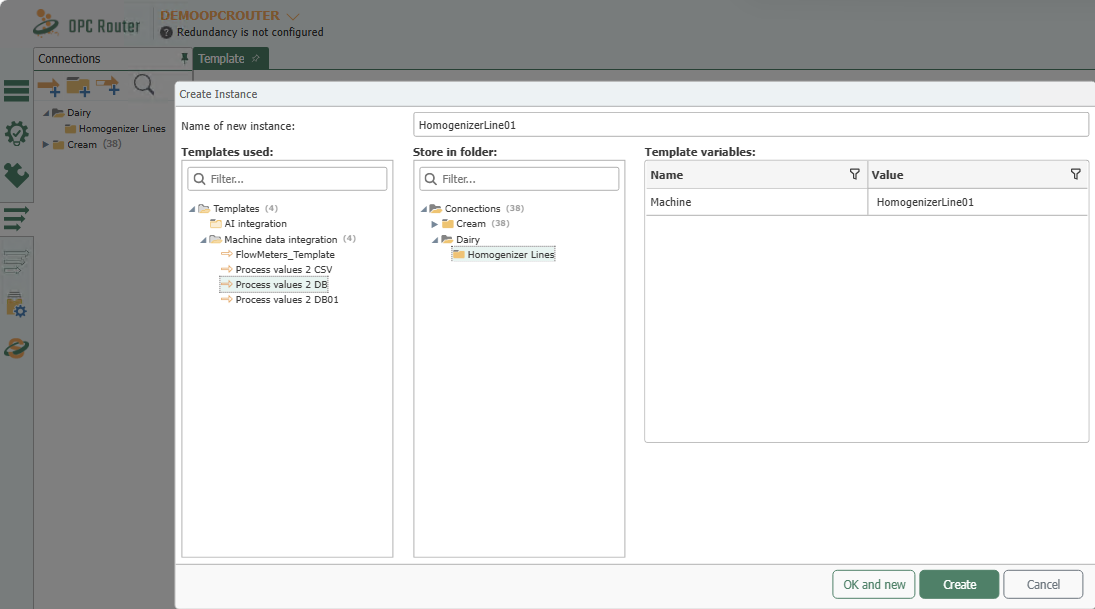
- Enter a name for the connection, for example, “HomogenizerLine01”.
- Select the desired template.
- Select the desired location.
- Enter the values for the template variables.
In this example, we enter HomogenizerLine01 for the template variable. Do not change the content or structure of the connection itself in this dialog; you are only applying the values for the template variable(s).
- Confirm by clicking “Create” or select “OK and New” to create the next instance immediately.
- Repeat the process for additional values, for example, for Homogenizer 2, 3, 4, and 5.
- Put the instances into production.
Making Changes to Instances Afterward
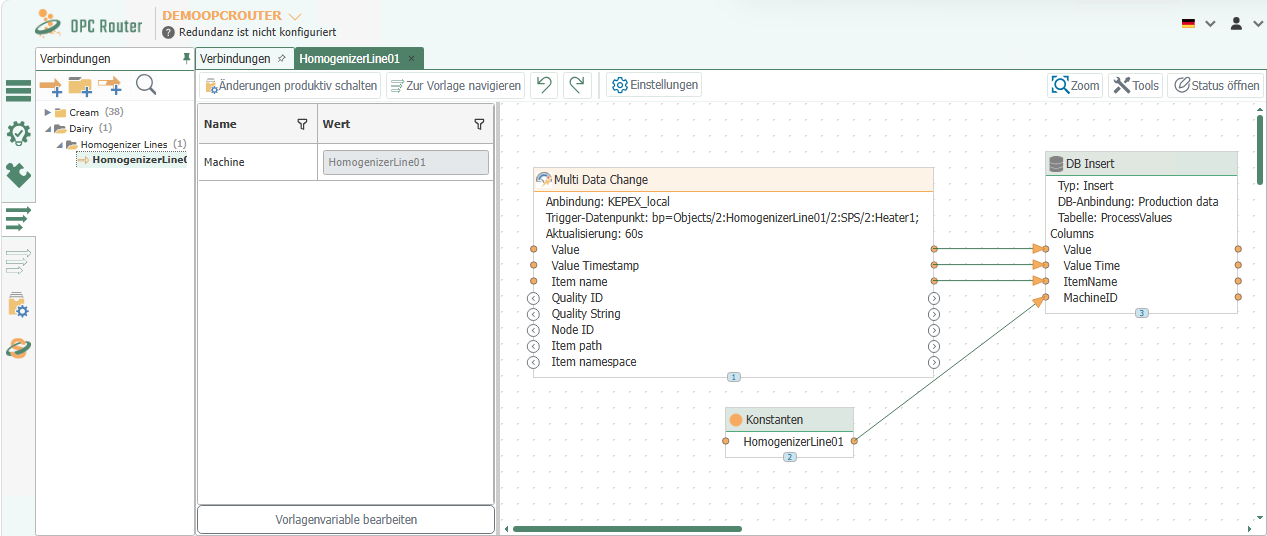
You can use the “Edit Template Variable” button to adjust the values of the template variables later.
For template variables with relative time values (e.g., intervals in a time trigger), the time unit must be specified (ms, s, m, h, d, month, year)
If you modify the template at a later time, the instances will be updated. These instances must then also be put back into production.
If a template is already selected and you choose “New Instance,” you will immediately see the template and its associated template variables.