Quick Start 2: Writing Values to a Database
This second Quick Start builds on the first flow and uses only built-in tools: Instead of an external system, an SQLite database serves as the destination—a single file, not a server. One flow generates a moving measurement value every 10 seconds and writes it using the DB Log Table transfer object to a table that the OPC Router creates itself; a second flow reads the most recent value back into a variable, and a third flow regularly cleans up the data so that the file does not grow indefinitely.
An SQLite file located next to the OPC Router is ideal for testing—no server, no login required. This setup is not intended for production use: In a production environment, process data belongs in a proper database server, such as PostgreSQL, Microsoft SQL Server, or MySQL/MariaDB; the Best Practice Databases section explains what matters in this context.
Preparation: the SQLite connection
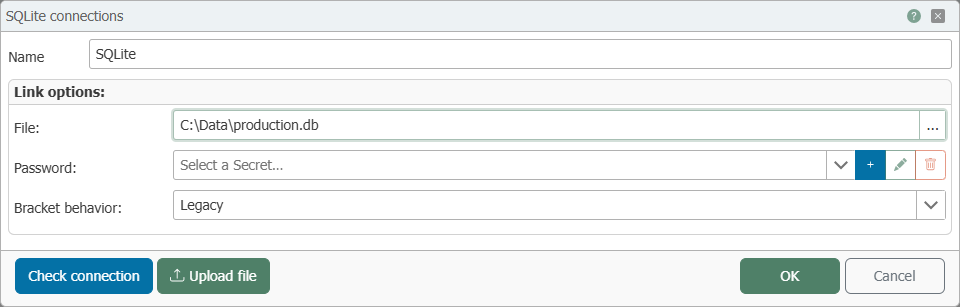
- In the “Plug-ins” section, under “Storage” → “File-Based Databases,” create an SQLite connection: Name “
SQLite,” and specify a file path where the OPC Router is permitted to write—for example, “C:\Data\produktion.db” on Windows, or “/data/db/quickstart.db” in a Docker container. - Verify the settings at “Check connection” and confirm by clicking “OK”.
In the Docker container, the data path /data belongs to the root user, but the services run under their own user accounts—the OPC Router cannot write directly to /data. Therefore, create a service-specific subdirectory once; the OPC Router will then create the database file in it itself:
docker exec <container> sh -c 'mkdir -p /data/db && chown opcrouter:opcrouter /data/db'
The background information can be found in the SQLite plug-in documentation.
Also—as in the first quick start guide—create a global variable LetzteTemperatur of type Float64; it will store the retrieved value at the end.
1. The Write Flow: Generate and Store the Measurement Value
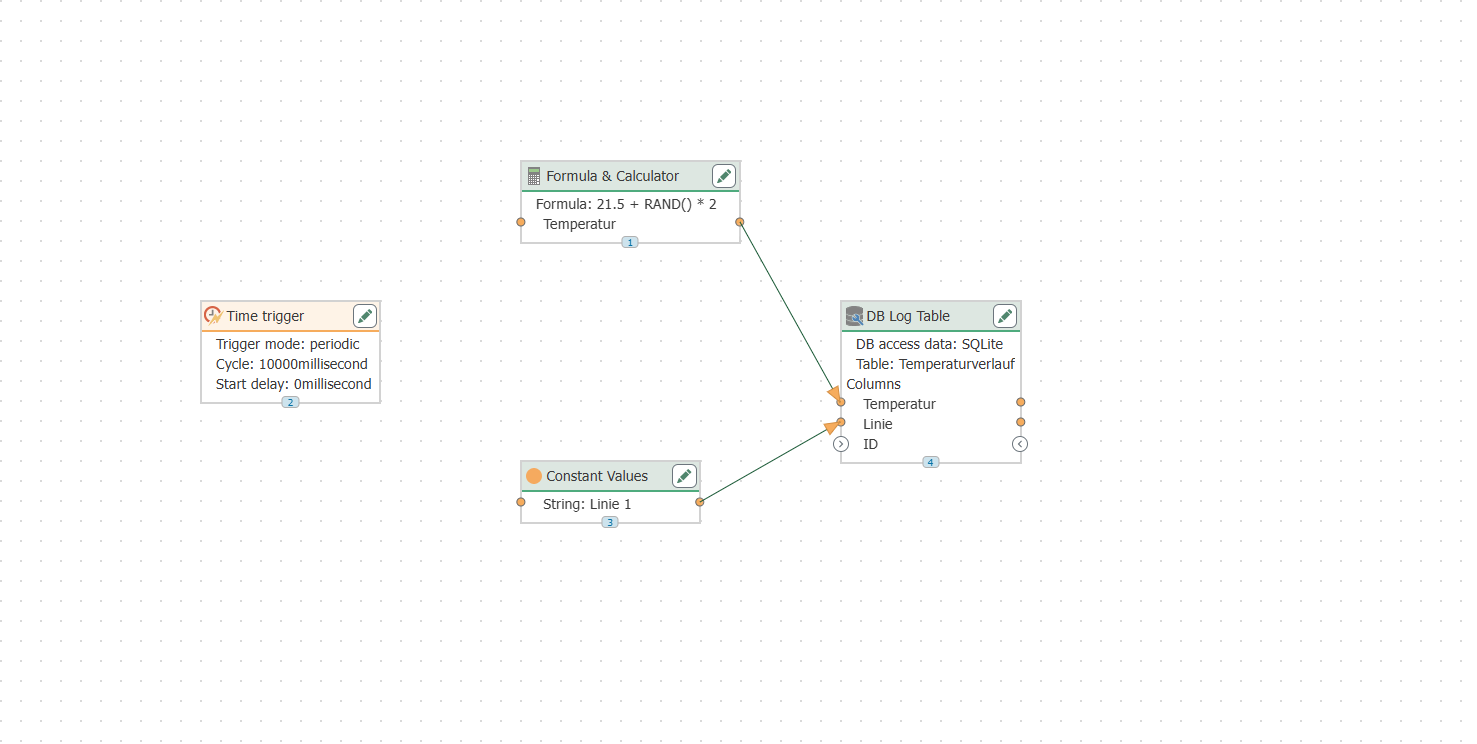
Create a flow named “Temperatur aufzeichnen” and configure four objects:
- Time Trigger – cyclic transfer, 10-second interval.
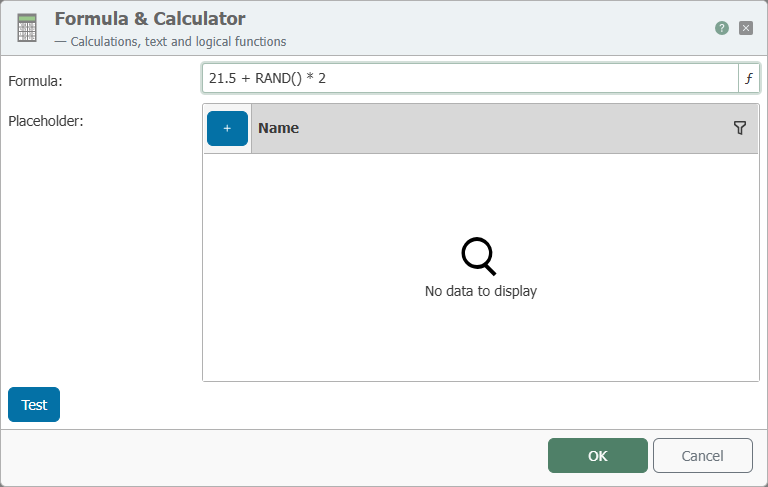
- Formula & Calculator from “Tools & ETL” – as the formula
21.5 + RAND() * 2: It returns a value between 21.5 and 23.5 with each transfer, just as a real sensor would. Set up the result as an output namedTemperatur. - Constants – a value
Linie 1of typeString, so that each row includes its source. - DB Log Table from the “Database” group—use the connection
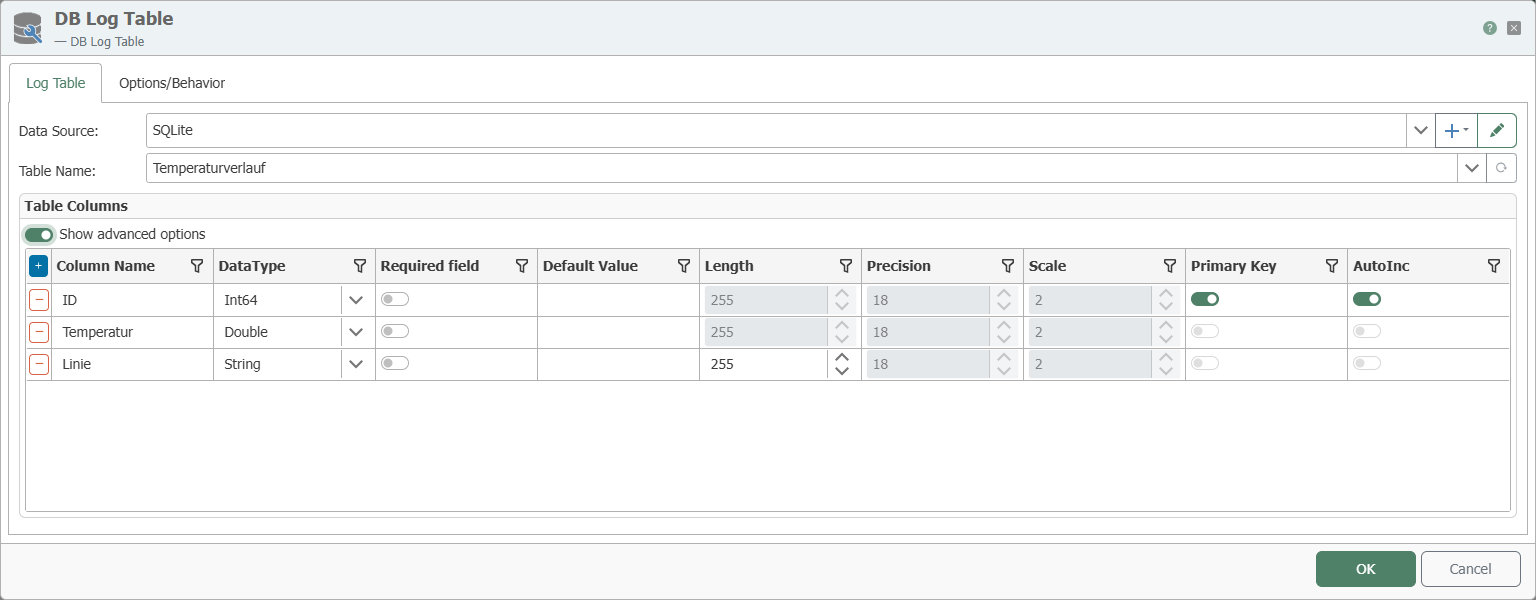
SQLite, set the table name toTemperaturverlauf, and in the table columns:
| Column | Data Type | Special Feature |
|---|---|---|
| ID | Int64 | Primary key with auto-increment (under “Show Advanced Options”) |
| Temperature | Double | |
| Line | String |
Use an Item Link to establish a connection between the calculator result Temperatur and the column Temperatur and the constant Linie 1 with the column Linie. The column ID remains unlinked—it increments automatically.
The ID column is worth including right from the start: The second flow uses it to immediately read the latest data record, and once created, a primary key cannot be added to an existing SQLite table later on—the schema synchronization cannot add such a column to an existing table; only a new table can have it.
2. The Read Flow: Retrieving the Latest Value
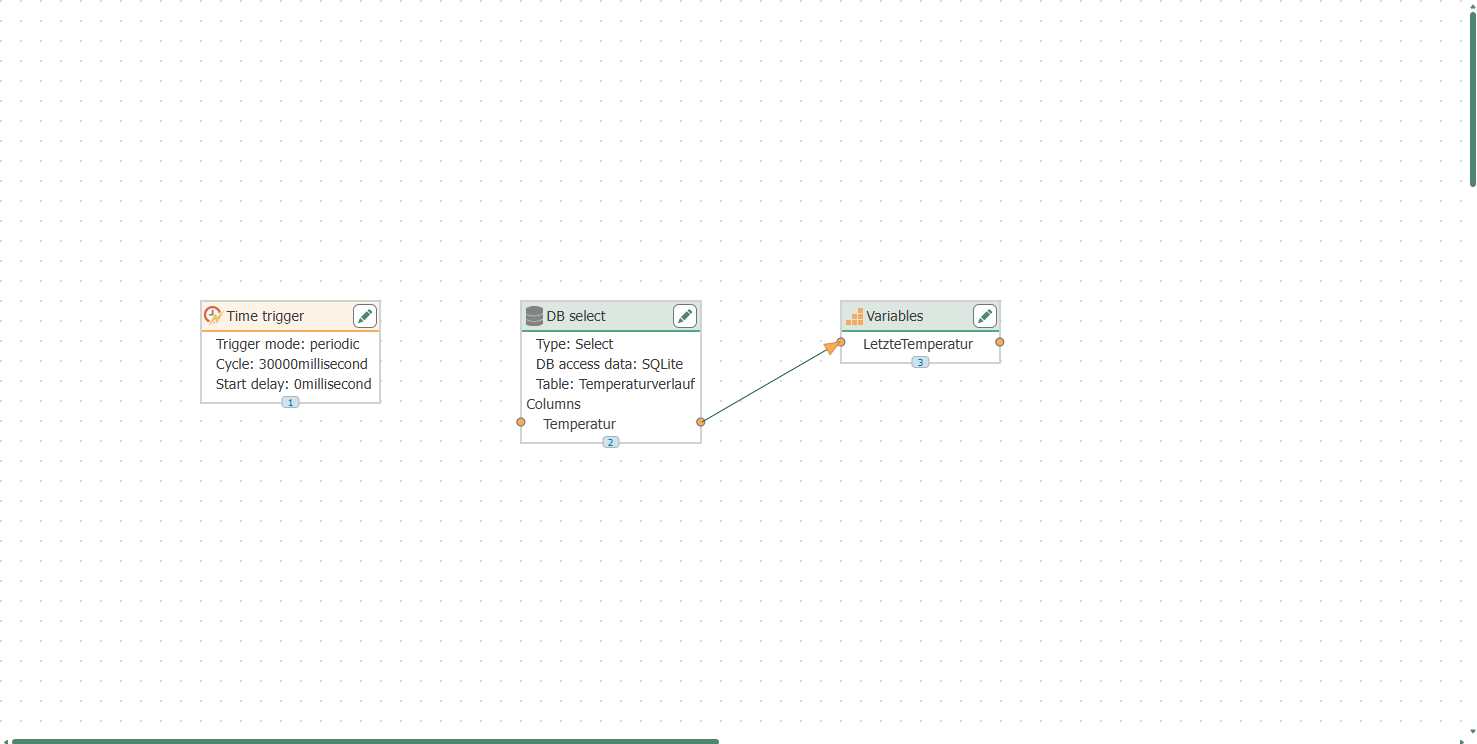
Create a second flow called "Letzte Temperatur lesen":
- Time Trigger – Interval 30 seconds.
- DB Select from the group “Database” – connection “
SQLite”, table “Temperaturverlauf”, column “Temperatur”, sorted in descending order by “ID”, limit 1: This returns exactly the most recent record. - Variable Transfer Object – the variable
LetzteTemperatur.
Make a connection between the Select output Temperatur and the variable.
3. The Cleanup Flow: Deleting Old Values
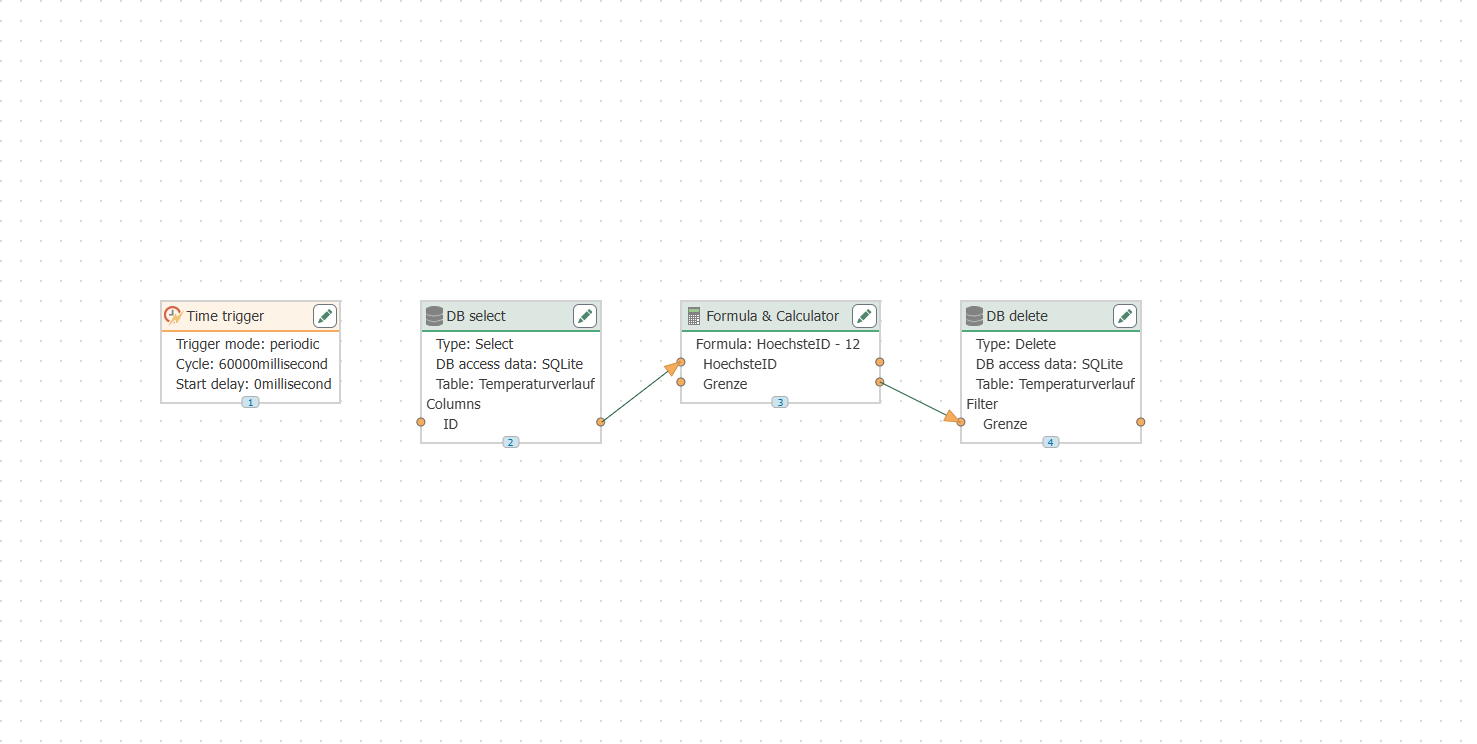
A flow that writes data every 10 seconds but never deletes anything will cause the file to grow indefinitely. Therefore, every log flow needs a counterpart that removes old data. Create a third flow named “Alte Werte löschen”:
- Time Trigger – Interval 60 seconds.
- **DB Select – Connection
SQLite, TableTemperaturverlauf, ColumnID, sorted in descending order, Limit 1: This returns the highest ID assigned so far. - Formula & Calculator – a placeholder
HoechsteIDas the input and the formulaHoechsteID - 12; the result is namedGrenze. - DB Delete from the group “Database” – connection
SQLite, tableTemperaturverlauf, and on the tab “Filter” a condition: ColumnID, comparisonSMALLER OR EQUAL. As soon as the threshold value is linked from the flow, the condition displays it asDynamischer Wert.
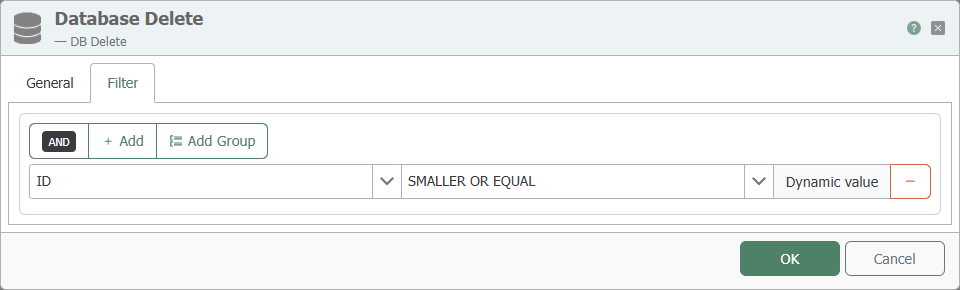
Use an Item Link to establish a connection between the Select result ID and the placeholder HoechsteID and between the Calculator result Grenze and the filter input. This way, the flow always retains the twelve most recent rows—which is just right for viewing in the Quick Start. In a real-world setup, the limit would be significantly larger (“keep the last 100,000”) or based on a time period using a timestamp column.
4. Publish
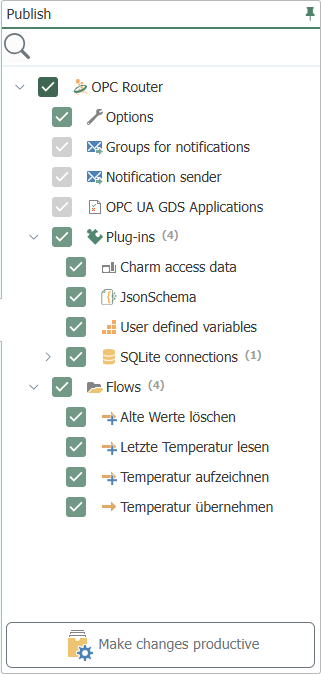
In the “Publish” view, check the root node—it includes all pending changes: the SQLite connection, the new variable, and the three new flows—and click “Make changes productive”."
5. Watch as data is generated
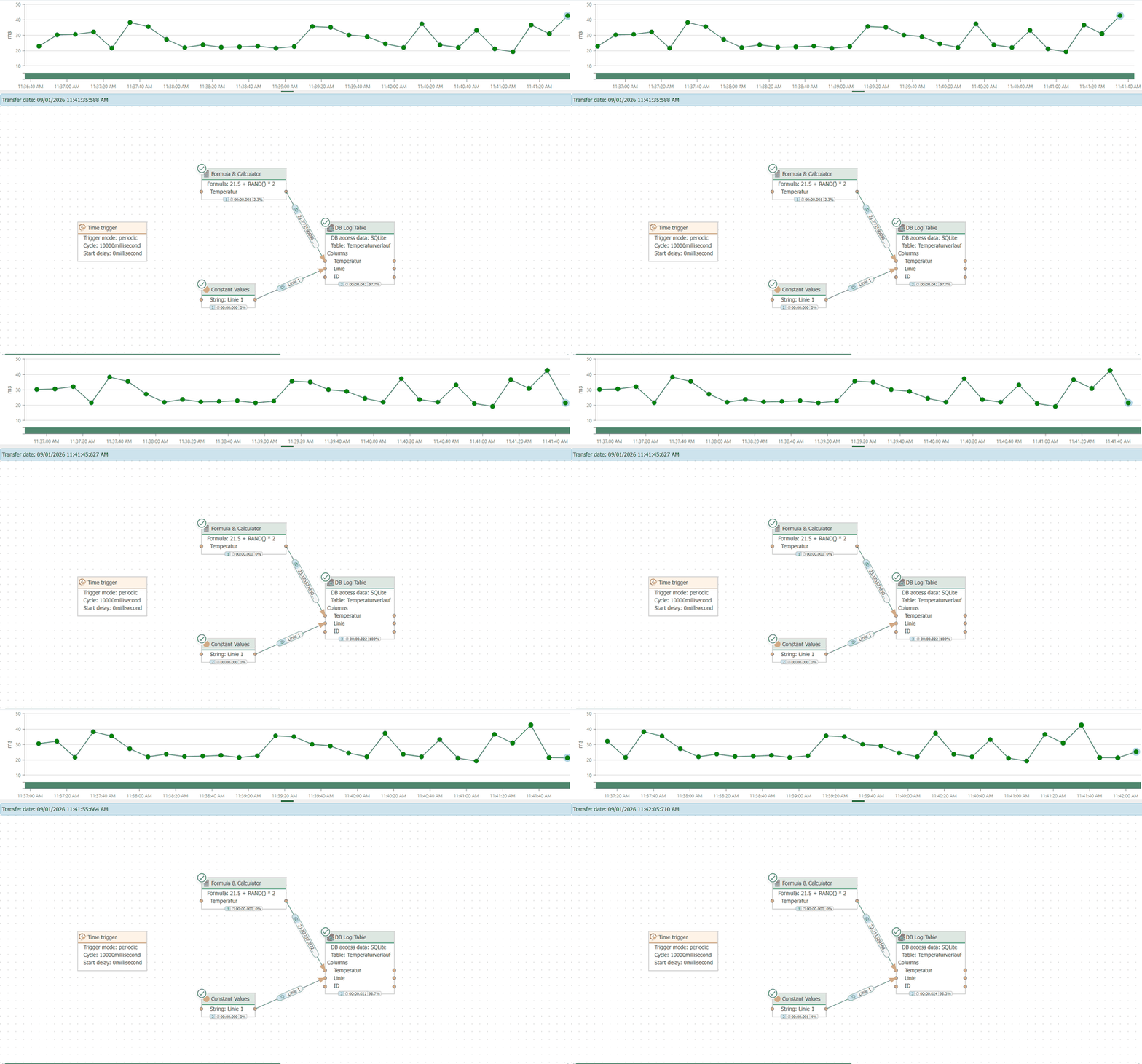
In the status area, the “Temperatur aufzeichnen” flow shows how a new transfer point appears on the timeline every 10 seconds and how the value just written is sent via the connection to the DB Log Table:
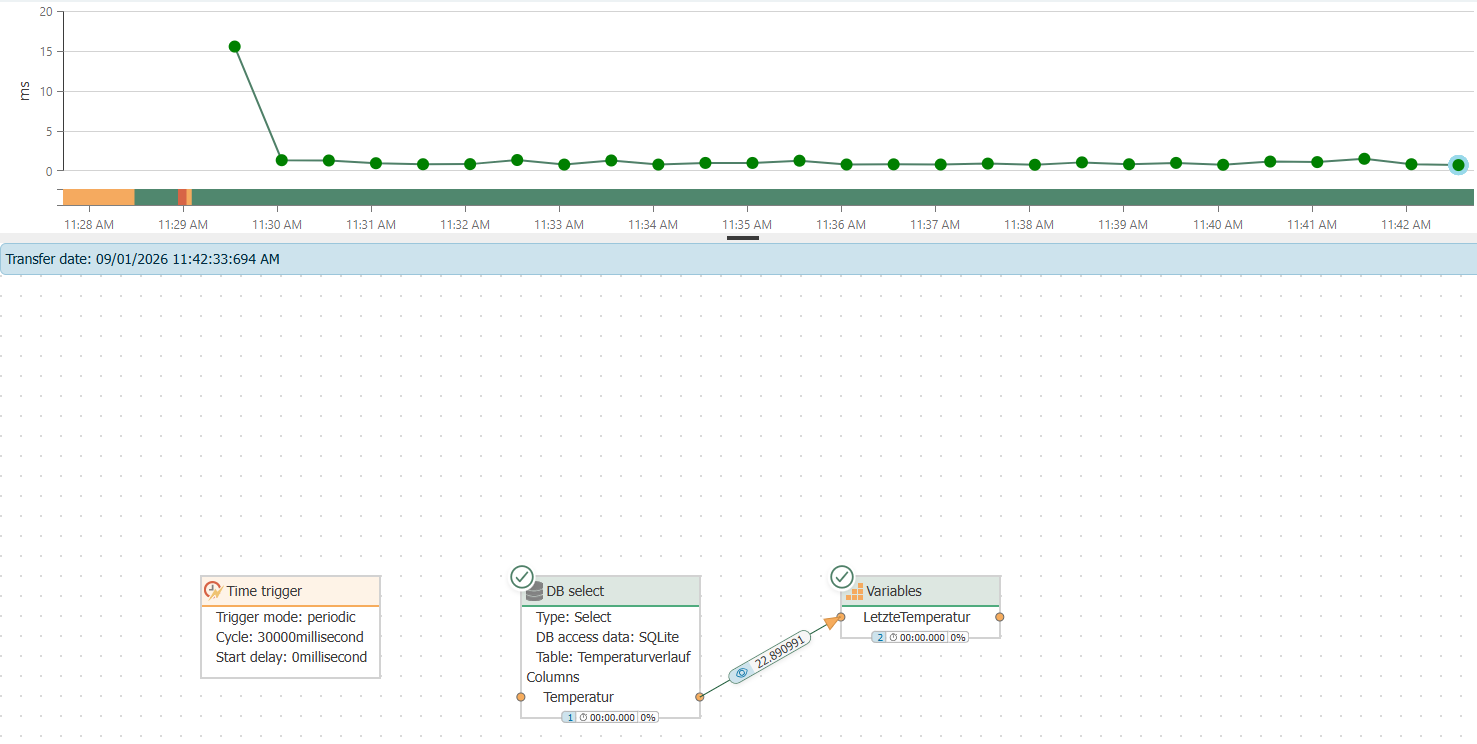
In the “Letzte Temperatur lesen” flow, the variable object contains the most recently read measurement value:
Meanwhile, the table itself fills up row by row—with moving values, a source column, and an incrementing ID. The table itself shows that the cleanup flow is also working: The number of rows fluctuates around the set limit, while the smallest ID increments every minute. This completes the cycle: create, store, read back, clean up.
Read more
- DB Log Table – all options for the transfer object that maintains its own table.
- DB Select – filtering, sorting, and transfer flags during reading.
- DB Delete – Deletion with filters: the counterpart that keeps log tables small.
- Formulas & Calculator – Performing calculations with placeholders from the flow.
- Best Practices for Databases – SELECT statements with filters, transfer flags, and indexes when things get serious.