Calculator Transfer Object
You can use all available (numeric) values as inputs for calculations. You can then use the results as a data source for further transfers. Create a calculator transfer object within the flow as described.
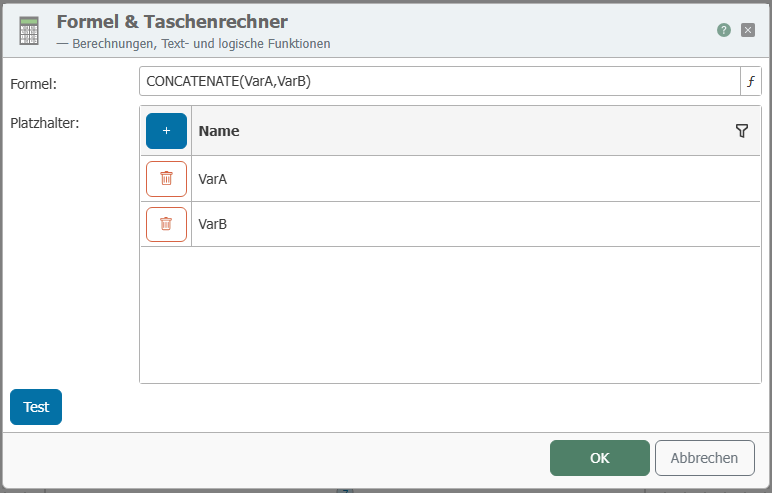
After double-clicking the transfer object, configure the following properties:
- Use the “New” button to add as many placeholders as your formula requires. You can later populate these placeholders with values from OPC items, database tables, variables, etc.
- Build the formula.
- The placeholders are simply entered or applied by double-clicking.
- Use standard mathematical symbols for operations (
+-*/()). - Functions apply to the immediately following placeholder; otherwise, please use parentheses (e.g.,
sqrt(A+B)= square root of the sum of A and B). - Rounding functions: Use the “Round up” or “Round down” button (rounds up/down to whole numbers)
- Concatenate function = concatenate strings: The values must be enclosed in quotes (“ ”) in the formula, e.g., CONCATENATE("A","B").
- Additional functions via the “Advanced” button.
- Use the “Test” button to open another dialog box. Enter values for the placeholders here and check the formula.
- If everything is correct, confirm both dialog boxes by clicking “OK”.”
The calculator transfer object is now available to you in the flow. Connect variables, OPC items, database fields, etc., to the placeholders and use the result as a data source.