Variables
Using the Variables plug-in, you can define any number of variables with a name, type, and initial value. At runtime, you can write values to the variables and read them back out. In addition, several system variables are available that you can use in your engineering configuration.
Variables are ideal for fixed values that are needed repeatedly but are not stored in a database, or for temporarily storing values that cannot or should not be stored in a database. In complex projects, variables can also be used to make values available across multiple flows.
Open the plug-in from the “Advanced” category under the “Plug-ins” menu by double-clicking on “Variables”.”
List of Variables
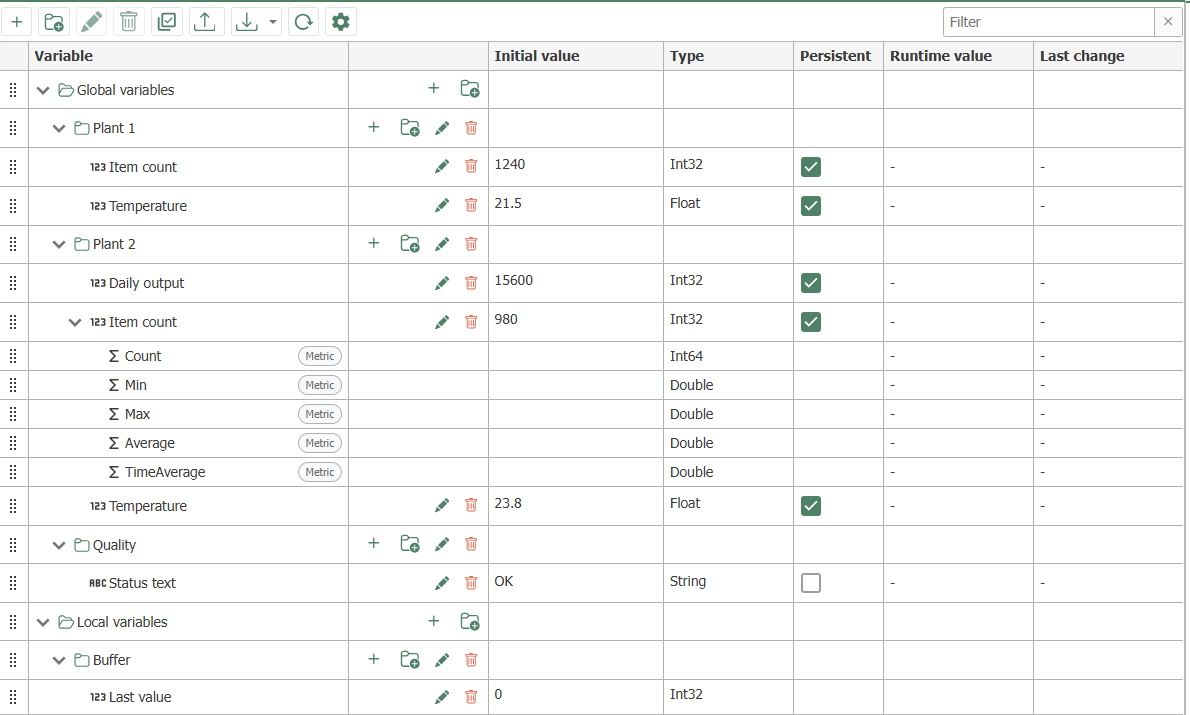
All variables are displayed in a tree view with the two base folders “Global variables” and “Local variables”:
- Global Variables: The variable’s value is identical in all flows where the variable is used.
- Local Variables: The variable is declared individually in each flow. Each value assignment applies only within the respective flow.
Within the base folders, variables can be organized into folders. You can create folders using the toolbar (“New folder”) or via the actions available on a folder row; you can move variables and folders to other folders using drag-and-drop. When you rename or delete a folder, the variables it contains are moved or deleted along with it.
The toolbar also offers:
| Function | Description |
|---|---|
| New / Edit / Delete | Create a variable, edit the selected variable (or double-click), or delete it. Deleting a folder removes the entire subtree. |
| Multiple Selection | Enables a checkbox column to select and delete multiple variables at once. |
| Import / Export | Export variables as an XLSX file (all, global only, or local only); import from XLSX/CSV. The scope is specified in the file itself. |
| Refresh runtime values | Reads the current runtime values of the variables. |
| Filter | Filters the tree view by name. |
In the list, you can make common changes directly in the row without opening the edit dialog: The initial value and type are directly editable, and “Persist” can be toggled directly. The columns “Runtime value” and “Last change” show the current runtime value and the time of the last value change for global variables.
Creating and Editing Variables
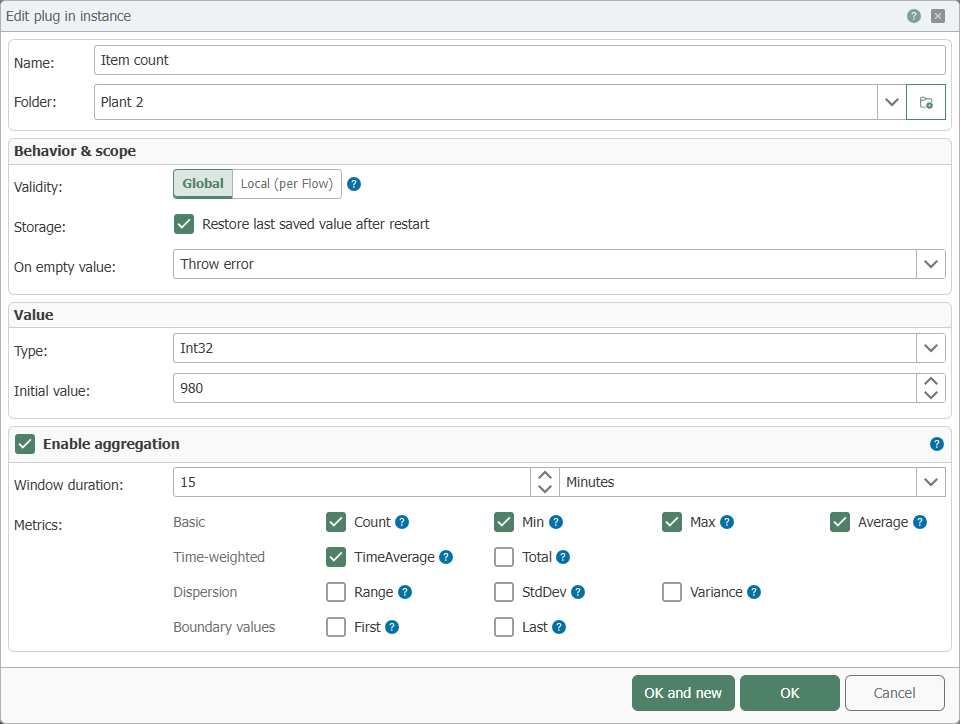
Select “New” or double-click an existing entry and configure the settings in the dialog:
| Property | Description |
|---|---|
| Name | Name of the variable; appears in the project configuration. The full name must be unique across global and local variables; see naming conventions. |
| Folder | Folder in which the variable is stored. Use the tree view to select an existing folder or create a new subfolder directly. |
| Scope | Toggle between “Global” and “Local”. The values of local variables are only available in the flows in which they are used. Changing an existing variable applies to all of its uses. |
| Persistence | If enabled, the variable’s last value is restored after the OPC router restarts; every value change is saved to the database for this purpose. If disabled, the set initial value is loaded. Persistence is not available for local variables and secrets. |
| On empty value | Behavior when an empty value is received during a write operation: “Throw error”, “Ignore value”, or “Accept value”. |
| Type | Select the appropriate data type so that the value can be interpreted unambiguously—e.g., to distinguish a 1 as a number from a 1 as a Boolean value. A type-less option is also available; in this case, the variable can be assigned any value. Array types are also available. |
| Initial Value | Initial value of the variable, with a type-appropriate input field (e.g., checkbox for Boolean values, date picker for timestamps). For array types, you maintain the elements in a list of values. In flow configuration, you can read and change the value. The value DB-NULL outputs NULL values in the transfer object. |
Use “OK and new” to save the variable and immediately create the next one in the same folder.
Naming Conventions
The full name of a variable is its path, including the folders, e.g., Linie1/Temperatur; the scope is not part of the name. When saving, the Edit dialog therefore checks the name against all variables in the project, both global and local:
- The full name must be unique. The system is not case-sensitive;
Testandtestare considered the same name. - Folders and variables must not share the same name. If a variable named
Testexists, a folder namedTestcannot be created, and therefore no variable can be created underTest/…. Conversely, a variable namedTestcannot be created as long as the folderTestexists.
Both rules apply across scopes. A local variable named Test therefore prevents the creation of variables in a global folder named Test. In this case, rename the variable or the folder.
Secrets
The Secret String type is available for passwords, API keys, and similar secret values. The value is set exclusively via a password dialog, stored in encrypted form, and displayed only as masked text in the variable list, transfer monitoring, and status. The plaintext is used only at the destination of a transfer—for example, in an HTTP header of a REST call.
This type works both ways: Even a plaintext value written to a Secret String variable becomes a secret at the connection’s destination—the connection line and status display it masked. Conversely, the runtime refuses to write a secret value to a variable with persistence, because the value would be stored there in plain text; use an Secret String variable instead, or disable persistence.
The extent of the masking is determined by the processing transfer object: The [ (IF) transfer object ](../unterablaeufe/condition_transfer_object.md) keeps the value masked and outputs only the result of the condition, whereas the formula and calculator transfer objects use it for the calculation and output it as plain text in the result. A comprehensive example can be found at Connection with Bearer Token .
Aggregation
For global, persistent variables, you can enable aggregation in the Edit dialog: The runtime then calculates “Window duration” based on the written values for each time window. The available options are:
| Metric | Description |
|---|---|
| Count | Number of written values in the window (including repeated values). |
| Min | Smallest value in the window. |
| Max | Largest value in the window. |
| Average | Arithmetic mean of the written values. |
| TimeAverage | Time-weighted average: Values are weighted by their holding time. |
| Total | Time integral over the window (value times seconds). |
| Range | Range: Max minus Min. |
| StdDev | Sample standard deviation of the values. |
| Variance | Sample variance of the values. |
| First | First value written to the window. |
| Last | Last value written to the window. |
With the exception of Count, all metrics require a numeric data type; boolean values count as 0 and 1. For all other types—such as strings, timestamps, arrays, or untyped variables—only Count is available.
Each activated metric appears as its own global, persistent variable below the source variable (naming scheme Variablenname.Kennzahl, e.g., Temperatur.Average) and is marked in the list with the suffix “Metric”. Metric variables are written by the runtime and can be used as sources in flows just like other variables. Changes to the aggregation configuration take effect after the system goes live and the runtime restarts.
Note on Projects from Older Versions
Folders are represented by the character / in the variable name. In older versions, / could be used as a regular character in the name: Such variables remain unchanged as flat variables during an update or when importing older project files—so an old variable like A/B does not become a folder A with a variable B. Only when you assign a folder to such a variable in the Edit dialog does it become part of the folder structure.