Providing Simulated Production Data via REST Triggers
This example shows how a small RESTful web service with Bearer token authentication can be provided within the OPC Router itself. The web service provides simulated production data for a machine. The values are generated within the flow using formula and calculator transfer objects.
Target Configuration
The example consists of two separate flows within the same REST server plug-in. These two workflows are created one after the other and then put into production:
- A flow with a REST trigger of the
POSTmethod provides a token endpoint. - A second flow with a REST trigger of the
GETmethod delivers the actual production data.
The typical process is as follows:
- A client calls the endpoint for the token request via
POST. - The OPC Router verifies
client_idandclient_secret. - The OPC Router returns a bearer token as a JSON response.
- The client then calls the data endpoint via
GETand passes the bearer token in theAuthorizationheader. - The OPC Router checks the header and returns the simulated production data.
Initial Situation
For this example, we assume a single machine, PRESS-01. The data endpoint is intended to provide the following values, for example:
- current count
- scrap quantity
- OEE value
- machine status
- timestamp of the last update
In this example, the values do not come from a third-party system but are generated in the OPC Router using formula and calculator transfer objects. This keeps the example self-contained and allows it to be understood without an additional data source.
Example Calls
Token Query
POST http://localhost:50117/api/auth/token
Content-Type: application/json

{
  "client_id": "demo-client",
  "client_secret": "demo-secret"
}
A possible response looks like this:
{
  "access_token": "opcrouter-demo-token",
  "token_type": "Bearer",
  "expires_in": 3600
}
Value Query
GET http://localhost:50117/api/production-data
Authorization: Bearer opcrouter-demo-token
Accept: application/json
A possible response looks like this:
{
  "machine_id": "PRESS-01",
  "quantity": 524,
  "scrap": 11,
  "oee": 0.82,
  "state": "Production",
  "timestamp": "2026-05-11T14:30:00Z"
}
Setup in the OPC Router
REST Server Plug-in
First, create a REST server plug-in that exposes both endpoints. For example, use the route prefix api.
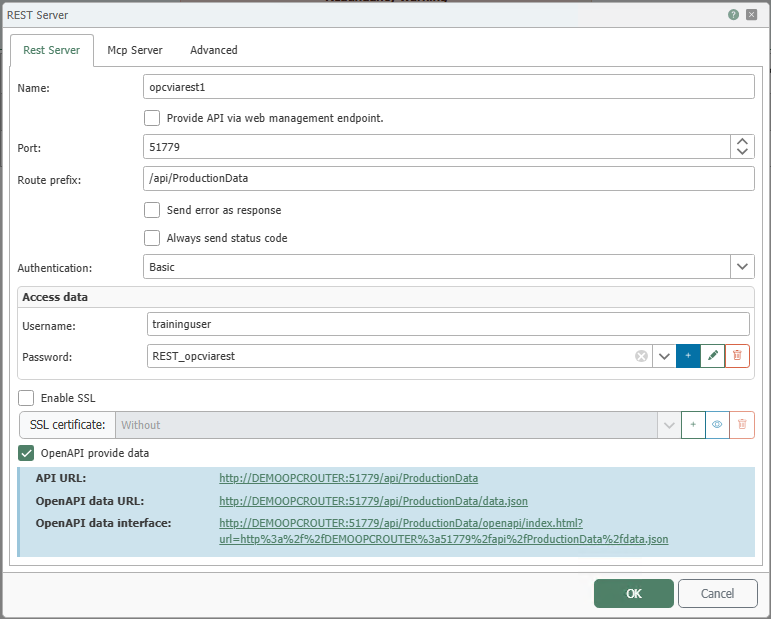
The basic functionality of the REST server and the REST trigger is described in the respective reference pages.
REST Trigger for the Token Query
Design your first standalone flow using a REST trigger for the token query.
- Use
auth/tokenas the endpoint, for example. - Select
POSTas the HTTP method. - Select
application/jsonas the response format. - Create a request parameter for the request body.
- Create a response parameter for the response body.
Then read the request body using a JSON-read transfer object and extract at least the client_id and client_secret fields.
Then, use a formula and calculator transfer object to verify that the two values match the expected demo credentials, such as demo-client and demo-secret.
In real-world engineering, the expected credentials should not be included in the comparison expression itself, but rather in variables of type Secret String, and the comparison should be placed in an [ (IF) transfer object ](../../../additional_functions/unterablaeufe/condition_transfer_object.md): It keeps the value masked, while the formula and calculator transfer objects use it for the calculation and output it as plain text in the result.
If the values are valid, use a JSON write transfer object to generate the token response. For a self-contained example, a fixed token value such as opcrouter-demo-token is sufficient.
A possible JSON structure for the response is:
{
  "access_token": "opcrouter-demo-token",
  "token_type": "Bearer",
  "expires_in": 3600
}
Connect the generated JSON content to the response body of the REST trigger.
Then deploy this flow to production before testing or deploying the second flow.
REST Trigger for the Value Query
Next, configure a second, standalone flow with a REST trigger for the actual data query.
- Use
production-dataas the endpoint, for example. - Select
GETas the HTTP method. - Select
application/jsonas the response format. - Create a request parameter of type
HTTP Header. - Use
Authorizationas the header name. - Create a response parameter for the response body.
Then check the header’s content against the expected value Bearer opcrouter-demo-token. In real engineering, this expected value should also be stored in a variable of type Secret String.
Next, generate the production data using formula and calculator transfer objects. For a simple demo scenario, you can use constant or slightly varied values, for example:
quantity = 524scrap = 11oee = 0.82state = Production
Then, use a JSON Write transfer object to combine these values into a JSON response and connect the result to the response body of the REST trigger.
One possible JSON structure is:
{
  "machine_id": "PRESS-01",
  "quantity": 524,
  "scrap": 11,
  "oee": 0.82,
  "state": "Production",
  "timestamp": "2026-05-11T14:30:00Z"
}
Next, deploy this second flow to production.
Recommended Project Structure
For a well-organized demo project, the following structure is recommended:
- Flow “Token Query” with a REST trigger, JSON read, formula and calculator transfer objects, and a JSON write transfer object.
- Flow
Produktionsdatenwith a REST trigger, formula and calculator transfer objects for value generation, and a JSON write transfer object. - Optionally, one or more variables if intermediate results are to be stored separately or reused.
Deploying to Production
Since this example consists of two separate flows, both flows must be explicitly put into production after flow configuration. A general description of this process can be found on the Create Flow page. The section on the pop-up menu there also describes the “Make Flow productive” button.
For this example, the following sequence is recommended:
- Create the flow “Token Query” and put it into production.
- Test the token endpoint using
POST. - Create the flow
Produktionsdatenand put it into production. - Test the data endpoint using
GETwith a Bearer token.
Notes for a Complete Example Project
This example is particularly well-suited for later deployment as an .rpe file because it does not require any external infrastructure. The entire process can be demonstrated within the OPC Router itself:
- Request a token via
POST. - Retrieve the Bearer token from the response.
- Retrieve production data using
GET.
This makes the scenario well-suited as a self-contained demo project for the Examples and Concepts section.
Sample Project for Import
The complete sample project is available as rest_bearer_token_and_production_data_example.rpe.
The project file contains the two REST trigger flows described here, as well as the two flows from the Connection with Bearer Token example.
Import this project file into the OPC Router to fully understand the example and test it right away.