CSV
The “Comma Separated Values” (CSV) data format is a veteran of data formatting. Nevertheless, it is still in use today because this pragmatic way of formatting data records in text form remains easy to process and compatible with many systems. The legacy systems that have been in operation for many years and feature CSV interfaces alone make it necessary to be able to import and export data via CSV.
The format itself is independent of how data is stored in files, although in most applications, CSV data is exchanged via files.
The OPC Router’s built-in CSV transfer object is capable of processing and generating a wide variety of CSV dialects. Using the various plug-ins, CSV data can be sent to and from a wide variety of sources. The OPC Router’s file objects can be used to read and write CSV data.
You can find a detailed video on this topic here in our tutorial stream.
The CSV transfer object
CSV transfer objects can read, evaluate, and output CSV strings. They can write data to defined cells or read data from them. No plug-in configuration is necessary; you can configure the transfer object directly within the flow as described.
After double-clicking the transfer object, configure the following properties:
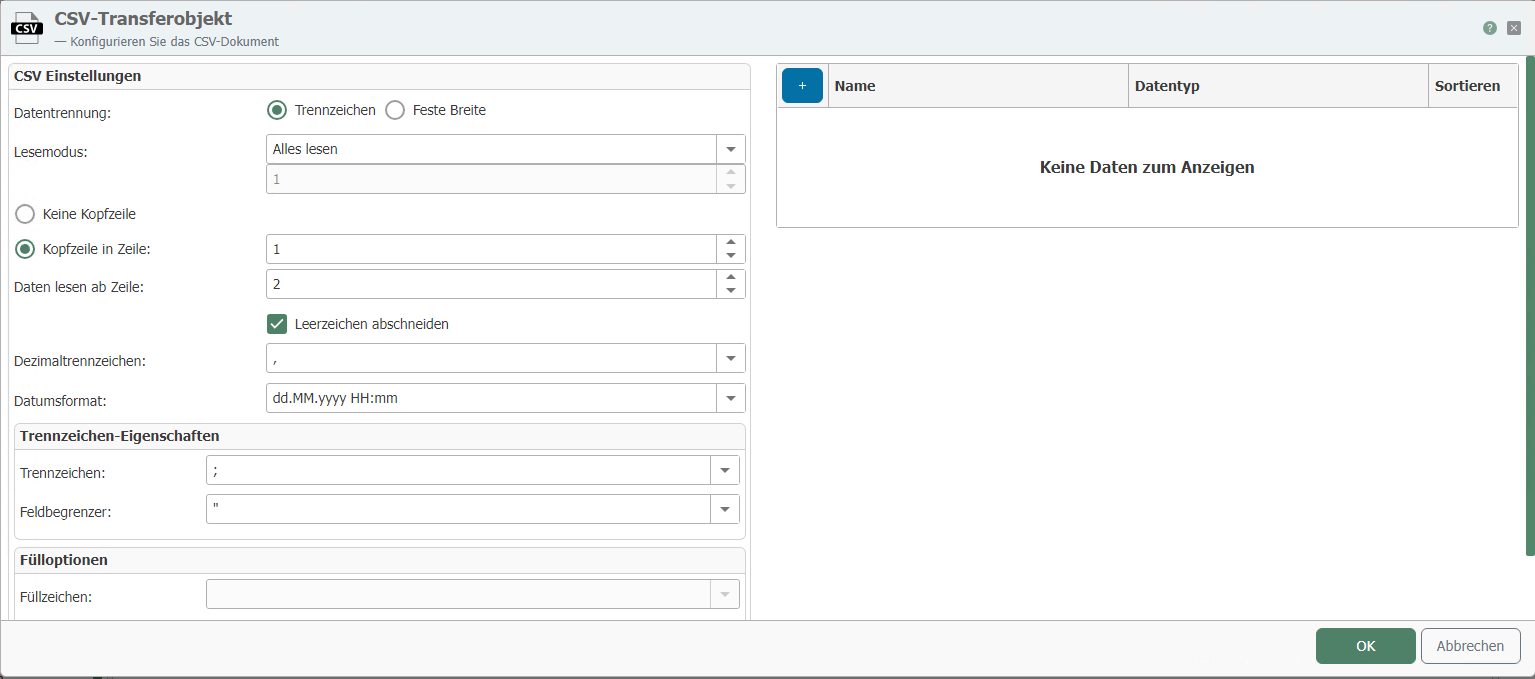
The CSV transfer object works only with CSV strings, not with CSV files. If you want to read and write CSV files, use the File Read and File Write transfer objects as well.
| Property | Description |
|---|---|
| Data Delimiter | Delimiter-separated, if the data in the CSV document is separated by a delimiter (e.g., semicolon). Fixed width, if the field length is defined. If this option is selected, the field lengths can be defined in the table on the right. |
| Read Mode | Specify which part of the CSV string you want to read. Read All: The entire CSV file is read. Read First: Specify the rows to be read. Selects the first rows of the document. Read Last: Specify the rows to be read. Selects the last rows of the document. |
| Header Row | Select whether the file has a header row. If a header row is present, select the row in which it appears. The names used in the header row must also be used as column names. |
| Read data starting from row | Specify the row from which the actual data should be read. Normally, you should enter the row number of the header + 1 here. |
| Decimal separator | Specify which decimal separator is used in the CSV string. |
| Date format | Specify the date format used in the CSV string. |
| Delimiter | Specify the delimiter used to separate fields in the CSV string. (Only for delimiter-separated documents) |
| Field Delimiter | Specify the character used as the field delimiter. Text between two field delimiters is always combined, even if a separator appears within it. (Only for separator-delimited documents) |
| Padding character | Fields that do not reach the full specified length will be padded with this character. (Only for fixed-width documents) |
| Pad method | Specify whether the padding characters should be placed to the left or right of the actual content. (Only for fixed-width documents) |
On the right half of the CSV transfer object, you can define the data fields contained in the CSV string.
The names of the data fields must match the names in the header. Not all columns present in the header need to be used. For CSV strings that use fixed-width formatting, the correct field lengths must be entered. At runtime, you can retrieve or write individual values here using Item Links. Using the Data Type option, you can define the format in which the individual data should be output.
Further Information
What is CSV? Learn about the use of this file format in industry—find out more in our Knowledge Base