Azure IoT Edge Marketplace
Installing the OPC Router on an edge device offers many advantages. Using an edge computer conserves resources and also allows the OPC Router to be deployed in a Docker container.

Install OPC Router on an edge computer
After setup, you can install the OPC Router as a module. To do so, select the IoT Hub and click “IoT Edge” under “Device Management” in the navigation bar on the left. Under the “IoT Edge Devices” tab, select the appropriate device.
On the new page, click “Configure Modules.”
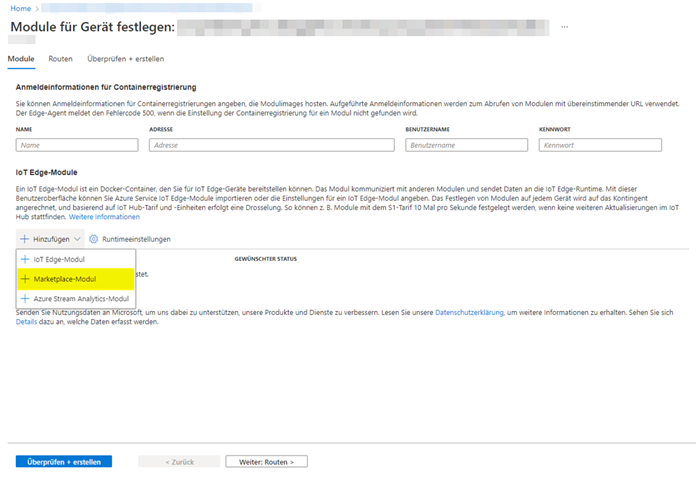
On the next page, click “Add”. Select “Marketplace module” from the drop-down menu.
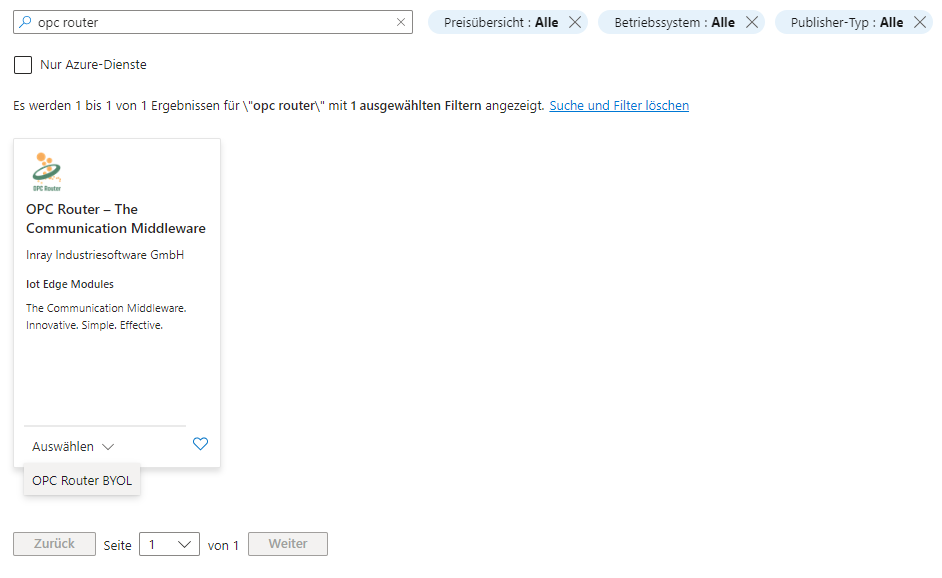
In the search field, enter “OPC Router”,” click “Select,” and then click “OPC Router BYOL.”
The OPC Router has been installed on the device and is now listed among the modules.
However, additional configuration is required.
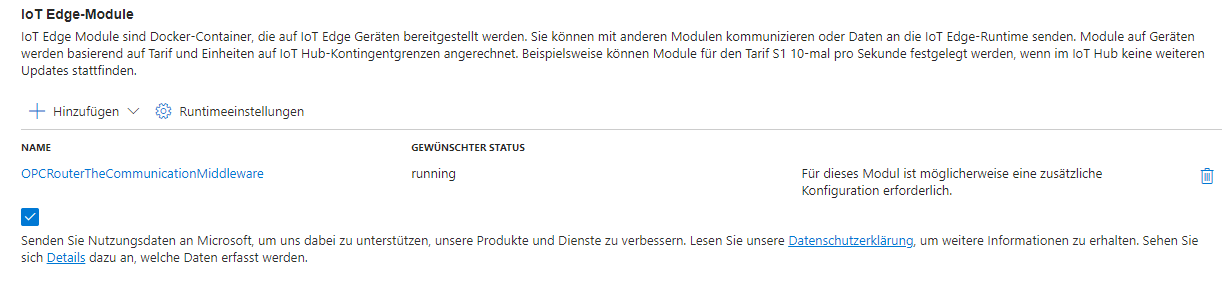
Click “OPCRouterTheCommunicationMiddleware”
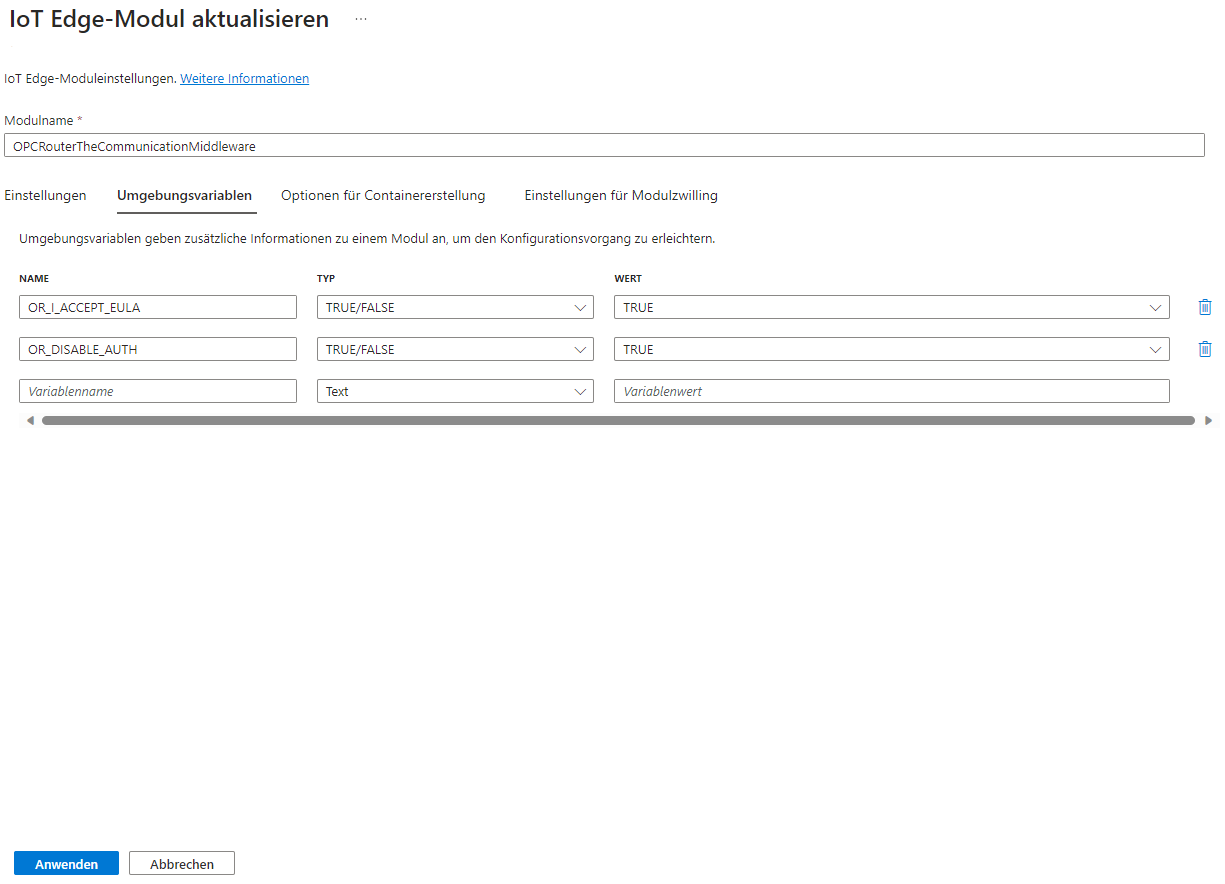
Go to “Environment Variables” and enter “TRUE/FALSE” in the “OR_I_ACCEPT_EULA” field under “Type” and “True” in the “Value” field if you agree to the EULA.
Add the two variables “INITIAL_USERNAME” and “INITIAL_PASSWORD” in the same way, and select “Text” for “Type” in each case. With these values, the OPC Router creates the login account for Web Management when it starts up for the first time.
Click “Apply”.”
Do not set the OR_DISABLE_AUTH variable here. It completely disables login to Web Management—anyone who can reach the device on the network will then have full access to the project and settings. This is not a viable option for an edge device in production. If necessary, use it only temporarily in an isolated test network and remove it afterward.
Next, go to “Container Creation Options.” There, under “HostPort,” specify which port on the device the container will be accessible through. The OPC Router’s web management interface listens on port 8080 within the container; map this to an available port on the device—for example, 8080.
In the same section, add the two mount paths for the image so that project data and log files are preserved when the module is redeployed:
/data– Projects, plug-in configurations, settings, and license activation/var/log/opcrouter– Log files
Without these bindings, all data is stored exclusively in the container and is lost as soon as the module is redeployed. The Mount Paths page describes which data is located in which path.
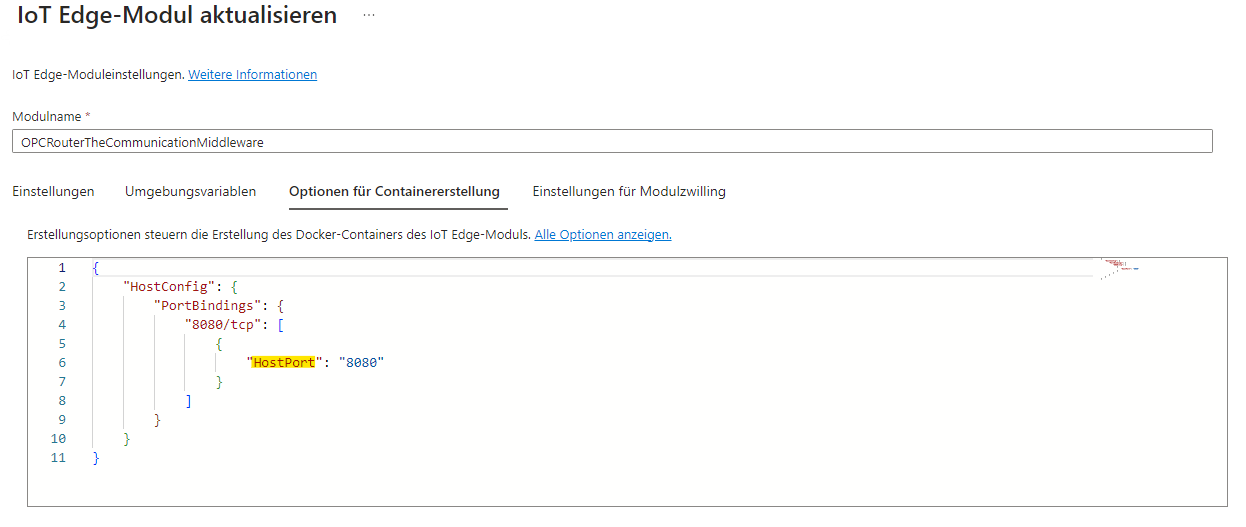
Click on “Apply”.
Enter the “Device IP Address:HostPort” into your browser and log in to Web Management using the username and password you set earlier.