Transfer Status Trigger
The Transfer Status Trigger initiates a transfer when a value in the monitored table is marked as not yet transferred.
Once the transfer is complete, the record is marked as transferred or as failed. Failed transfers can optionally be retried any number of times using an additional counter.
For the transfer status trigger to work, the monitored table must have a primary key.
Composite primary keys are not supported.
Trigger behavior

The diagram shows the flow via the marker column including failure and retry.
Interaction with the Database
The section on sequence diagrams explains how to read this diagram.
The transfer status trigger is the only database trigger that not only reads but also writes back data. It retrieves the records whose “Mark” column is set to “Not transferred,” passes them to the transfer process, and, once the transfer is complete, enters the result into the same column. The trigger handles this write operation itself; you do not need to configure an additional transfer object for this purpose. The following diagram illustrates this closed loop from the query to the marking and thus complements the grid diagram in the “Trigger Behavior” section.
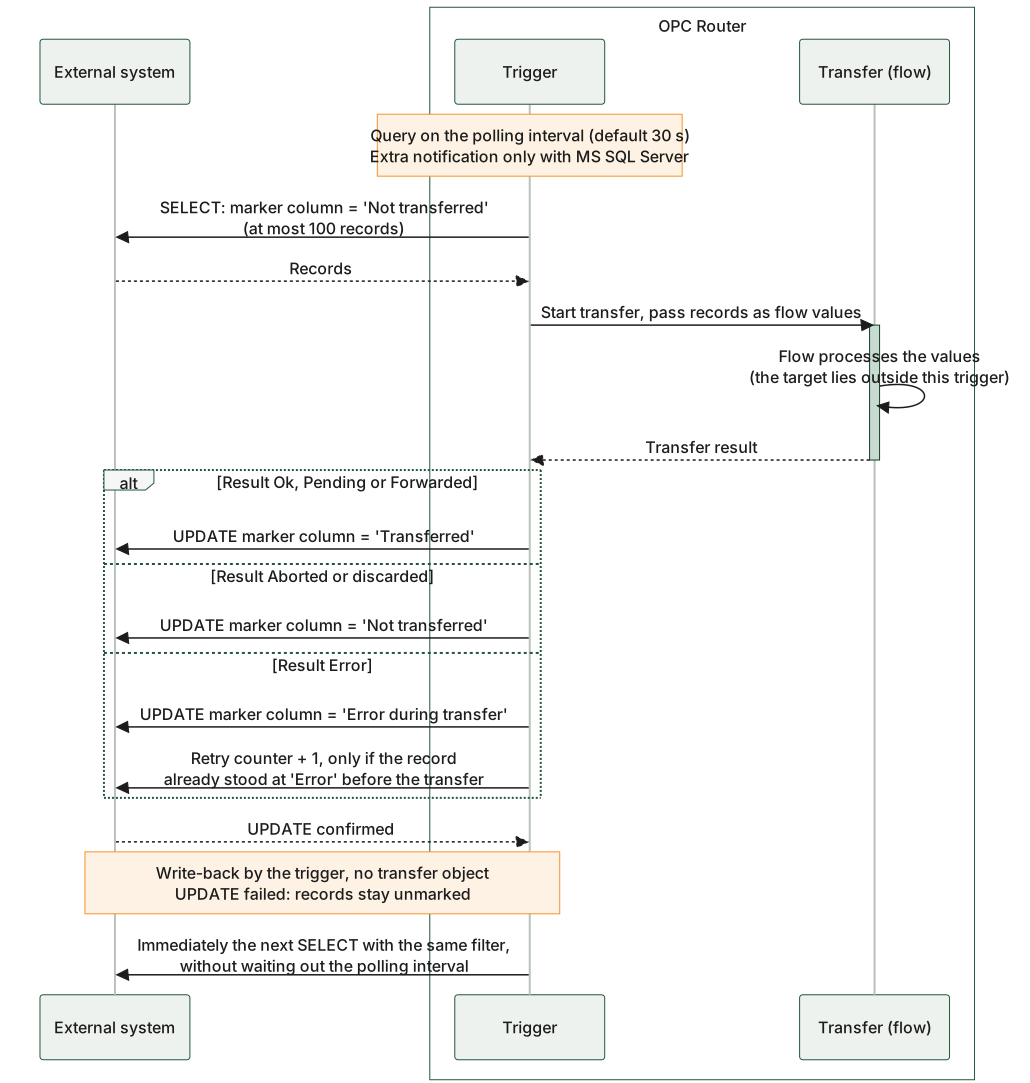
The diagram shows the closed loop: The query filter and the value that the trigger writes after the transfer both apply to the same column. Only the write operation removes the records from the query set, and only then does the trigger process the next batch. The retry counter increases only if the record was already marked as faulty before the transfer; its value is therefore one less than the number of failed attempts. In addition to the polling interval, only the MS SQL Server notifies the trigger about new records; Snowflake never does this—there, only the polling interval is used. If the UPDATE fails, the records remain unmarked and are read again during the next query.
Query the marking column, transfer the read records, and write the result back to the same column; only then does the next batch follow.
Dialog Overview
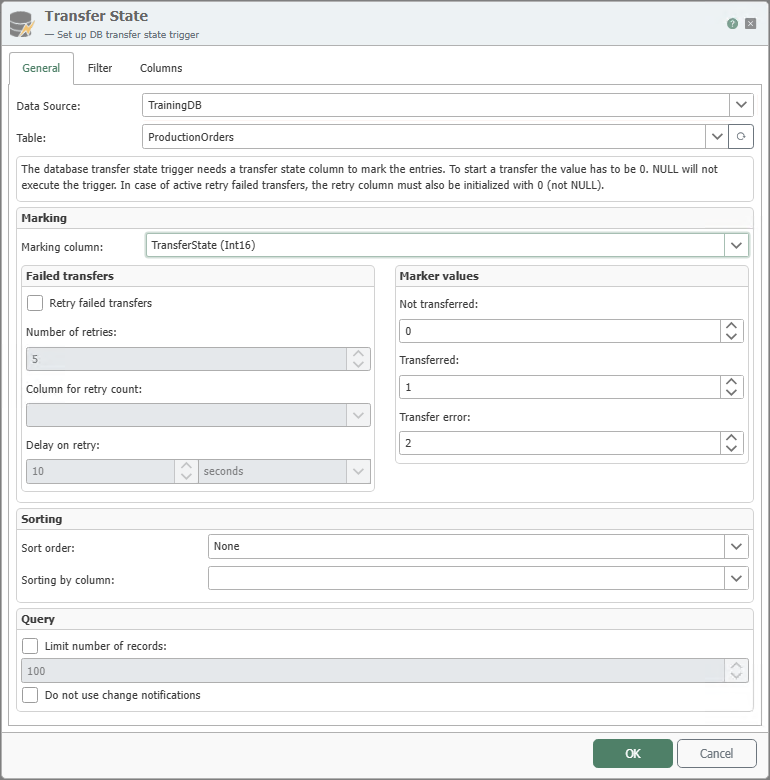
General Properties
"General" Tab
| Property | Description |
|---|---|
| Data Source | Database plug-in instance to be used. |
| Table | Table to be monitored. |
| Flag Column | Column in the table where the transfer status is stored. The column must be initialized with |
| Flag Values | Here you can define custom values for the various transfer statuses. |
| Retry Failed Transfers | If this option is enabled, failed transfers are retried as many times as specified. |
| Number of Retry Attempts | Specifies how many times failed transfers should be retried. |
| Retry Column | Column in which the retries are incremented. Note: The column must be initialized with |
| Repeat delay | The amount of time to wait before retrying a transfer. |
| Sort order | Here you can set how the values should be sorted. If “None” is selected, no sorting takes place. |
| Sorting Column | The column by which the data should be sorted. |
| Limit Number of Records to | If this option is enabled, you can set the maximum number of records that can be transferred at one time. |
| Do not use change notifications | If this option is enabled, the polling interval specified in the plug-in is used for querying, even for databases that support change notifications. |
Filters
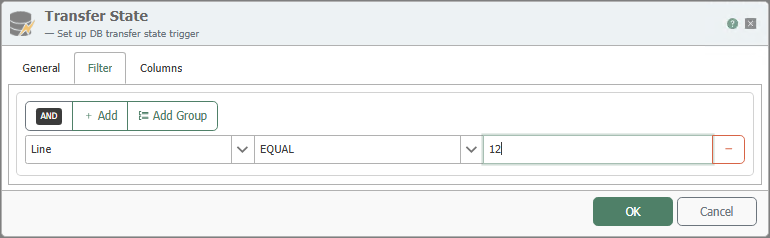
Here, filters and filter groups can be created and configured graphically. The OPC Router then generates the appropriate filter condition at runtime. Unlike in DB Select, the filter values are entered as fixed values here.
Use the “Add” button to add filter criteria and the “Add Group” button to add filter groups. The button with the minus sign deletes the respective filter or filter group.
Notes on Filter Logic
A filter consists of three elements:
- Column: The column to which the filter applies.
- Filter Operator: The operator determines how the filter value is used to filter the records.
- Filter Value: The value used to filter the records.
For an explanation of the various filter operators, see Database Filter Operators.
Combining with AND and OR
Clicking on the text “AND” or “OR” changes the group type to the other one.
ANDmeans that all conditions in the group must be met for the group as a whole to be true.ORmeans that one condition in the group must be met for the group as a whole to be true.
Columns
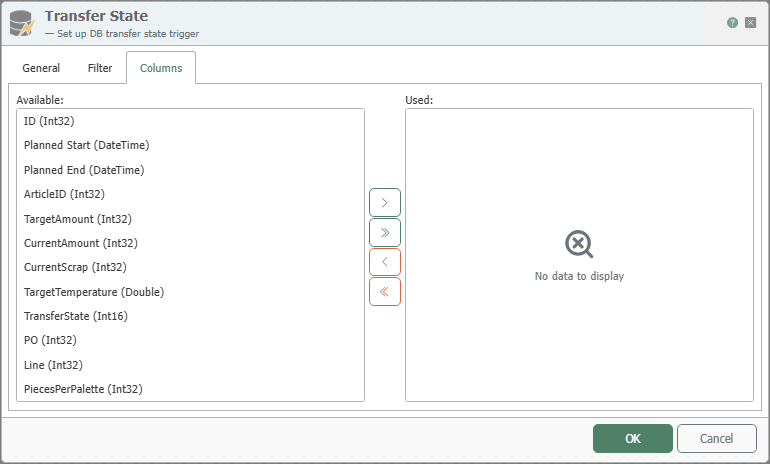
Here, you can select the columns whose values are to be used in the flow. Columns can be selected or removed from the list of available and used columns either by double-clicking or by using the buttons “<,” “>,” “<<,” and “>>.”