Metrics Export
The OPC Router continuously collects runtime metrics and can export them to external monitoring systems such as Grafana, Prometheus, or InfluxDB. A subset of the metrics can be viewed directly in the Service Dashboard.
Exporting metrics via OTLP or InfluxDB requires an active Enterprise+ license. For more information on license assignment and other Enterprise+ features, see License Levels. Some system-wide metrics (CPU, memory, drives) are recorded internally regardless of this and displayed in the Service Dashboard.
Configuration
You can find the settings in the menu under Options → Monitoring and Diagnostics, in the Telemetry and Log Export Settings section. This same page also consolidates the log output and internal metric logging; the cards Zentrale Metriksammlung über OTLP and Zentrale Metriksammlung über InfluxDB are responsible for the export. The “Zentrale Log-Erfassung über OTLP” dashboard exports logs instead of metrics and is not described here.
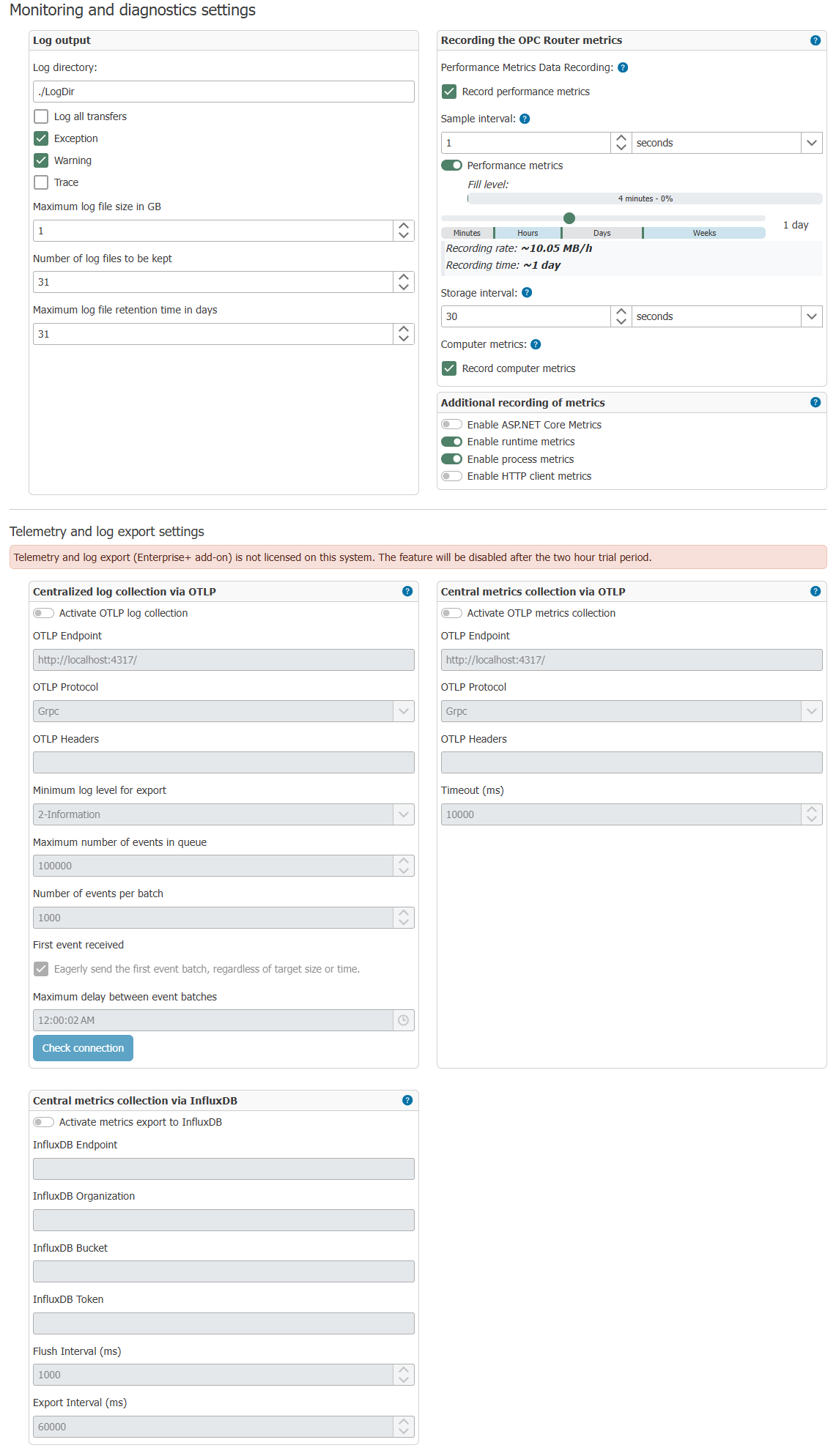
OTLP
| Property | Description |
|---|---|
| Enable OTLP Metrics Collection | Enables OTLP export |
| OTLP Endpoint | Destination address of the OTLP collector, e.g., http://localhost:4317 |
| OTLP Protocol | Transport protocol: gRPC (default) or HTTP/Protobuf |
| OTLP Headers | Optional HTTP headers, e.g., for authentication (Authorization: Bearer ...) |
| Timeout (ms) | Time limit for transmission to the collector (default: 10,000 ms) |
InfluxDB
| Property | Description |
|---|---|
| Enable metric export to InfluxDB | Enables InfluxDB export |
| InfluxDB endpoint | URL of the InfluxDB instance, e.g., http://localhost:8086 |
| InfluxDB Organization | InfluxDB organization |
| InfluxDB Bucket | Target bucket |
| InfluxDB Token | API token for authentication |
| Flush Interval (ms) | How often collected metrics are written (default: 1,000 ms) |
| Export Interval (ms) | Measurement Interval (default: 60,000 ms) |
The InfluxDB token and the OTLP headers are stored directly in the fields; they cannot be selected from the central secrets repository. Therefore, assign a token that has only write permissions for the bucket being used.
System Instrumentation
The switches are located on the same page in the map at Zusätzliche Erfassung von Metriken.
| Property | Description | Default |
|---|---|---|
| Enable runtime metrics | Runtime metrics for the .NET runtime (GC, thread pool, ...) | Enabled |
| Enable process metrics | Process metrics (CPU time, memory) | Enabled |
| Enable ASP.NET Core metrics | HTTP server metrics | Disabled |
| Enable HTTP client metrics | Metrics for outgoing HTTP requests | Disabled |
How to Read the Metrics
When analyzing the metrics, not only the metric name but also the metric type is important:
| Type | Meaning | Typical Use |
|---|---|---|
| Gauge | Snapshot of a current state | Current load, queue size, status |
| Counter | Monotonically increasing counter | Number of errors, successful executions, connection attempts |
| Histogram | Distribution of measured values | Latences, processing times, message sizes |
Many metrics are also exported with attributes, such as the flow name. This allows the same metric to be analyzed separately for each flow, plug-in, or target system.
Individual metrics are often only meaningful when combined. For example, an increasing queue depth is only problematic if worker utilization remains high or processing times increase at the same time.
Cardinality: Time Series per Metric
Each attribute combination of a metric—also known as a tag combination in monitoring systems—forms its own time series. Storage is reserved for these time series as soon as metric collection begins—even without an active export, since the service dashboard uses the same collection.
By default, a maximum of 128 time series are tracked individually for each metric. The collection aggregates all additional attribute combinations into a single overflow point. The values in this overflow point can no longer be analyzed by attribute.
If a system—for example, due to a very large number of flows, triggers, or plug-in instances—generates more than 128 attribute combinations for a metric, increase the limit using the environment variable OR_METRICS_CARDINALITY_LIMIT. A higher limit increases the memory requirements per service process. The change takes effect after the services are restarted. See Environment Variables for Metrics.
Value mapping for status metrics
Some status metrics are exported as numeric values. Therefore, a fixed value table should be used for dashboards and alerts.
inray.service.escalation_level
Describes the global health status of the OPC router.
| Value | Meaning | Practical Interpretation |
|---|---|---|
-2 | Undefined | Status cannot yet be determined |
-1 | Initializing | Service is still initializing internal components |
0 | EscalationLevel0 | Normal operation |
1 | EscalationLevel1 | Good, highly repetitive transfer values are partially discarded |
2 | EscalationLevel2 | Good transfer values are discarded |
3 | EscalationLevel3 | Transfer values are completely discarded |
4 | EscalationLevel4 | Messages with normal priority are discarded |
inray.connections.state
Describes the current state of a flow.
| Value | Meaning | Practical Interpretation |
|---|---|---|
-1 | Null | No valid flow state yet |
0 | StartUp | Flow is starting |
1 | Validate | Flow is being validated |
2 | Ready | Flow is ready for operation |
3 | TriggerCheckError | Error during trigger check |
4 | TriggerStatusError | Error in trigger status |
5 | TriggerConfigError | Error in trigger configuration |
6 | PlugInError | Error in a participating plug-in |
7 | NoLicense | License is missing or invalid |
8 | ShutDown | Flow is being terminated or has been shut down |
9 | StandBy | Flow is inactive but exists |
inray.connections.execution.state
Describes the result of the last executed flow.
| Value | Meaning | Practical Interpretation |
|---|---|---|
0 | None | No execution yet or no result available |
1 | Ok | Last execution successful |
2 | Aborted | Execution was aborted |
3 | Error | Execution ended with an error |
4 | Pending | Execution is still pending |
5 | Forwarded | Execution was forwarded |
6 | Discarded | Execution was discarded |
inray.connections.trigger.state and inray.connections.trigger.async.status
Describes the state of a flow’s trigger.
| Value | Meaning | Practical Interpretation |
|---|---|---|
0 | None | No valid trigger status available yet |
1 | Ok | Trigger is functioning properly |
2 | StatusError | Trigger reports a status error |
3 | CheckError | Trigger check failed |
4 | ConfigError | Trigger is configured incorrectly |
inray.plugins.instance.status
Describes the status of a plugin instance.
| Value | Meaning | Practical Interpretation |
|---|---|---|
0 | Uninitialized | The plugin has not yet been initialized |
1 | Initializing | The plugin is starting up or initializing resources |
2 | Ok | The plugin is working properly |
3 | Warning | The plug-in is running but is reporting warnings |
4 | Error | The plug-in is malfunctioning |
5 | Stopped | The plug-in has been stopped |
6 | NoLicense | Plug-in cannot run due to a missing license |
inray.opcua.connection_manager.state
Describes the connection status of the OPC UA Connection Manager.
| Value | Meaning | Practical Interpretation |
|---|---|---|
0 | Disconnected | No active connection to the OPC UA server |
1 | Connected | Connection established |
2 | InvalidConfig | Connection cannot be established due to an invalid configuration |
Available Metrics
All metrics have the prefix inray. and can be enriched with attributes (dimensions) such as the flow name or the plug-in type.
. Plugin-specific metrics are exported only if the respective plug-in is licensed and active. Which metrics are actually provided depends on the configuration and runtime state of the OPC router.
Service & System
General status metrics for the OPC Router service and the host system.
Useful for:
- Monitoring the overall health of the service
- Detecting CPU, memory, or disk space bottlenecks
- Issuing alerts for critical operating conditions
These include, among others, the following metrics:
| Metric | Type | Unit | Description |
|---|---|---|---|
inray.service.escalation_level | Gauge | - | Global health status of the OPC router; the numerical values should be interpreted using the value table above |
inray.service.used_memory_bytes | Gauge | Bytes | Memory usage of the process |
inray.system.processor_usage | Gauge | % | CPU utilization of the host system |
inray.system.memory_usage | Gauge | % | Host system memory usage |
inray.system.free_memory_bytes | Gauge | Bytes | Available memory |
inray.drives.{Drive}.free_bytes | Gauge | Bytes | Free disk space per drive |
inray.drives.{Drive}.total_bytes | Gauge | Bytes | Total size per drive |
Transfer Manager
Metrics for the OPC Router’s internal processing scheduler. These values form the basis of the Service Dashboard.
Useful for:
- Identifying bottlenecks in the processing path
- Assessing whether enough worker threads are available
- Analyzing whether increasing latencies are caused by load or by individual slow transfers
Recalculate the “System Load” display
The “System load” display in the service status is based directly on these two metrics:
- Regular:
inray.transfer_manager.default_prio_average_workload - High Prio:
inray.transfer_manager.high_prio_average_workload
The calculation is performed in three steps:
- For each worker thread, a workload sample is generated per measurement interval:
load_sample = activeMs / (activeMs + idleMs)
Here, activeMs is the time during which the thread is actually processing transfers, and idleMs is the time during which the thread is waiting.
- The OPC Router stores the average of the last up to 10 samples for each worker thread:
load_thread = (load_sample_1 + load_sample_2 + ... + load_sample_n) / n
where n <= 10.
- For the selected time period, the dashboard reads all stored values for the respective metric and calculates the arithmetic mean from them:
load_dashboard = (load_thread_1 + load_thread_2 + ... + load_thread_m) / m
The gauge is then displayed as a percentage:
Display in % = load_dashboard * 100
Example:
- A dashboard value of
0.37corresponds to a displayed system load of37 %. - A dashboard value of
0.85corresponds to85%and indicates a high, sustained load. - If no values are available for the selected time period, the gauge displays N/A.
Important for interpretation:
- The gauge does not show the host’s CPU utilization, but rather the utilization of the transfer workers over time.
- The gauge displays an averaged trend, not the current value of a single thread.
- For Regular, the values for normal and low priority are used; for High Prio, the values for high-priority workers are used.
These include, among others, the following metrics:
| Metric | Type | Unit | Description |
|---|---|---|---|
inray.transfer_manager.queue_depth | Gauge | Items | Number of transfer executions currently waiting across all priorities; a persistently rising value indicates a backlog |
inray.transfer_manager.queue_depth.high_priority | Gauge | Items | Currently waiting high-priority executions; should ideally remain low |
inray.transfer_manager.queue_depth.normal_priority | Gauge | Items | Currently pending normal-priority transfers |
inray.transfer_manager.queue_depth.low_priority | Gauge | Items | Currently pending low-priority transfers |
inray.transfer_manager.busy_worker_threads | Gauge | Threads | Busy worker threads |
inray.transfer_manager.ready_worker_threads | Gauge | Threads | Ready worker threads |
inray.transfer_manager.worker_thread_utilization | Gauge | % | Total utilization of all workers; Consistently high values combined with a growing queue indicate capacity limits |
inray.transfer_manager.utilization.high_priority | Gauge | % | Percentage of processing time for high-priority transfers |
inray.transfer_manager.utilization.normal_priority | Gauge | % | Percentage of processing time for normal-priority transfers |
inray.transfer_manager.utilization.low_priority | Gauge | % | Percentage of processing time spent on low-priority transfers |
inray.transfer_manager.average_triggers_per_second | Gauge | Items/s | Average input rate to the Transfer Manager |
inray.transfer_manager.average_processing_time_per_item | Gauge | ms | Average processing time per processed item |
inray.transfer_manager.trigger_transfer_delay | Histogram | ms | Time between trigger event and actual processing; important for latency analysis |
inray.transfer_manager.tags_executed | Histogram | Tags | Number of tags processed per transfer; helps determine why a transfer is taking longer |
inray.transfer_manager.default_prio_average_workload | Gauge | - | Backpressure for normal and low priority; the higher the value, the more work could not be taken on immediately |
inray.transfer_manager.high_prio_average_workload | Gauge | - | Backpressure for high priority |
Typical interpretation:
queue_depthincreases,worker_thread_utilizationremains high: The router is continuously processing at its limit.average_processing_time_per_itemincreases, andtags_executedalso increases: The transfers are becoming more complex, not just more numerous.high_prio_average_workloadincreases even though the normal queue is low: High-priority flows require targeted analysis.
Flows
Metrics per configured flow, dimensioned by the flow name.
Useful for:
- Identifying faulty or slow individual flows
- Comparing individual flows in Grafana or InfluxDB
- Triggering alerts for status changes or rising error rates
These include, among others, the following metrics:
| Metric | Type | Unit | Description |
|---|---|---|---|
inray.connections.execution.count | Counter | - | Total number of executions |
inray.connections.execution.success.count | Counter | - | Successful executions |
inray.connections.execution.error.count | Counter | - | Failed executions |
inray.connections.execution.duration | Histogram | ms | Execution duration |
inray.connections.execution.type.duration | Histogram | µs | Execution duration by result type, for example Ok, Error, or Aborted |
inray.connections.state | Gauge | - | Current flow status; the numerical values should be interpreted using the value table above |
inray.connections.execution.state | Gauge | - | Result of the last execution; useful for single-stat panels or status lights |
inray.connections.total.ok.count | Gauge | - | Flows in the OK state |
inray.connections.total.error.count | Gauge | - | Flows in an error state |
inray.connections.total.deactivated.count | Gauge | - | Deactivated flows |
Typical interpretation:
execution.error.countincreases whileexecution.countalso increases: The flow is running but generating errors.execution.durationincreases without an increased trigger load: The cause lies more in the processing or the target system than in the trigger.connections.state = 7: The flow is not experiencing a technical issue but is blocked due to licensing restrictions.
Triggers
Metrics for asynchronous triggers, dimensioned by flow name.
Useful for:
- Analyzing overflowing or undersized trigger queues
- Assessing whether triggers are being generated faster than they are processed
- Distinguishing between configuration errors and runtime bottlenecks
These include, among others, the following metrics:
| Metric | Type | Unit | Description |
|---|---|---|---|
inray.connections.trigger.async.status | Gauge | - | Status of the asynchronous trigger; the numerical values should be interpreted using the value table above |
inray.connections.trigger.async.queued_events | Gauge | - | Currently queued trigger events that have not yet been processed |
inray.connections.trigger.async.queue_limit | Gauge | - | Configured maximum size of the trigger queue |
inray.connections.trigger.async.enqueue.count | Counter | - | Total number of events enqueued |
inray.connections.trigger.async.dequeue.count | Counter | - | Total processed events |
inray.connections.trigger.async.dequeue.dropped_timeout | Counter | - | Dropped events (timeout) |
inray.connections.trigger.async.queued_per_second_avg | Gauge | Events/s | Average Inbound Rate |
inray.connections.trigger.async.dequeued_per_second_avg | Gauge | Events/s | Average processing rate |
inray.connections.trigger.async.dropped_per_second_avg | Gauge | Events/s | Average drop rate |
Typical interpretation:
queued_eventsis approachingqueue_limit: The queue is too small or processing is too slow.queued_per_second_avgis consistently higher thandequeued_per_second_avg: A backlog is building up.dequeue.dropped_timeoutis increasing: The flow cannot process trigger events in a timely manner.
OPC UA
OPC UA connection management metrics, dimensioned by the server address.
Useful for:
- Monitoring the stability of OPC UA connections
- Identifying configuration issues or unstable sessions
- Evaluating read and subscription behavior
These include, among others, the following metrics:
| Metric | Type | Unit | Description |
|---|---|---|---|
inray.opcua.connection_manager.state | Gauge | - | Connection status of the OPC UA manager; the numerical values should be interpreted using the value table above |
inray.opcua.connection_manager.connection_established_successful.count | Counter | - | Successful connection establishment attempts |
inray.opcua.connection_manager.connection_established_failed.count | Counter | - | Failed connection attempts |
inray.opcua.connection_manager.keep_alive_failed.count | Counter | - | Keep-alive errors |
inray.opcua.connection_manager.watchdog_cycle_duration | Histogram | ms | Duration of the watchdog cycle |
inray.opcua.group.item_count | Gauge | - | Number of subscribed items per group |
Plug-ins
Metrics for the plug-in system as well as plug-in-specific metrics for individual plug-in types. These metrics are only available if the respective plug-in is active and licensed.
General Plug-in Metrics
| Metric | Type | Unit | Description |
|---|---|---|---|
inray.plugins.instance.count | Gauge | - | Number of active plugin instances |
inray.plugins.instance.status | Gauge | - | Status of a plugin instance; the numerical values should be interpreted using the value table above |
inray.plugins.execution.count | Counter | - | Total number of plugin executions |
inray.plugins.execution.time.histogram | Histogram | ms | Execution time per plugin instance |
inray.plugins.total.ok.count | Gauge | - | Plugins in the OK state |
inray.plugins.total.error.count | Gauge | - | Plug-ins in an error state |
inray.plugins.total.warning.count | Gauge | - | Plug-ins with warnings |
MQTT Plug-in
| Metric | Type | Unit | Description |
|---|---|---|---|
inray.mqtt.connections.active | Gauge | - | Active MQTT connections |
inray.mqtt.connect.attempt | Counter | - | Connection attempts |
inray.mqtt.connect.ok | Counter | - | Successful connections |
inray.mqtt.connect.fail | Counter | - | Failed connections |
inray.mqtt.publish.ok | Counter | - | Successfully published messages |
inray.mqtt.publish.fail | Counter | - | Failed publications |
inray.mqtt.publish.latency.ms | Histogram | ms | Publish latency |
inray.mqtt.payload.bytes | Histogram | Bytes | Message size |
.NET Runtime & Process
If system instrumentation is enabled, the OPC Router also exports standard metrics from the .NET runtime and the operating system process (enabled by default). These include, among other things, garbage collector statistics, thread pool utilization, and process CPU time.