Certificate Management via OPC UA GDS
Use the “Certificates > Certificates via OPC UA GDS” menu to establish a connection between the OPC Router and a Global Discovery Server (GDS).
A Global Discovery Server is a central service in your corporate network that manages the certificates for all OPC UA applications in one place. Instead of importing certificates individually on each OPC Router installation and updating them manually every time a change is made, you register the OPC Router with the GDS just once. After that, the OPC Router automatically retrieves the latest certificates from the GDS—even if your company replaces, renews, or revokes certificates.
: An Enterprise license is required to use this feature.
Your Benefits at a Glance
- Certificates are managed centrally within the company, not individually on each installation.
- The OPC Router regularly checks for changes and applies them automatically. The retrieval interval either adjusts automatically to the GDS or is set manually—ranging from one minute to 24 hours.
- If a certificate expires, it is automatically renewed—without the need to manually adjust any connections.
- If the GDS is temporarily unavailable, the OPC Router simply continues to operate using the most recently retrieved certificates.
Overview of GDS Applications
On the overview page, you can see all configured GDS connections, including their names, current registration status, and configured update interval. Using the buttons, you can create new connections as well as edit, duplicate, or delete existing ones.

: If you delete a GDS application, the certificates it retrieved will also be removed from the OPC Router. Connections that use these certificates must then be manually updated.
Set Up a Connection
When you create or edit a GDS application, a dialog box opens with three tabs: Connection, Application, and Certificates.
On the Connection tab, you specify how the OPC Router connects to the GDS server and under what name this OPC Router installation should log in there.
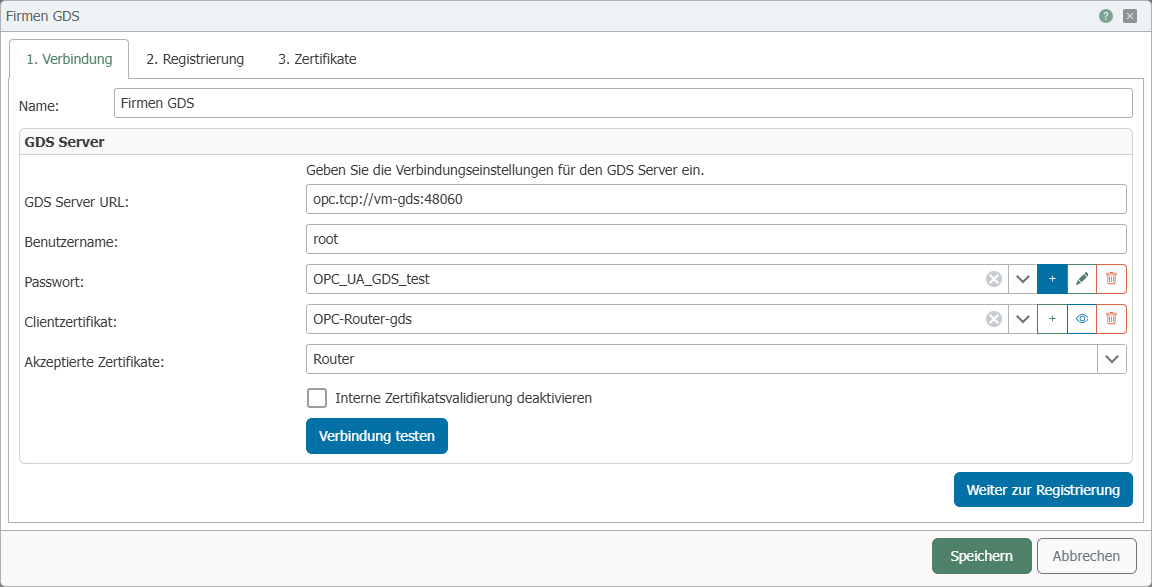
Settings – GDS Server
| Property | Description |
|---|---|
| Name | A name of your choice for this connection. It is used only for display purposes in the OPC Router. |
| GDS Server URL | The address of the GDS server, e.g., opc.tcp://servername:48060. You can obtain this address from the person responsible for the GDS at your company. |
| Username / Password | The login credentials for the GDS server. The password is securely stored as a secret. |
| Client certificate | The certificate used by the OPC Router to authenticate itself with the GDS. Select a certificate with a private key from the Certificate Manager . |
| Accepted Certificates | Specifies which server certificates the OPC Router trusts for this connection:
|
| Disable internal certificate validation | When enabled, the OPC Router does not verify the GDS server’s certificate. This setting is intended only for test environments and should remain disabled during live operation. |
Settings – Automatic Retrieval
Specifies how often the OPC Router retrieves the certificates, trust lists, and blacklists for this application from the GDS during operation.
| Property | Description |
|---|---|
| Automatically adjust interval to the GDS | If enabled (default), the retrieval starts every 5 minutes and then follows the update interval reported by the GDS for its trusted lists—visible in the Certificates tab in the Update Interval column. If the GDS does not report one, the interval remains at 5 minutes. |
| Update Interval | Fixed retrieval interval between 1 minute and 24 hours. Can only be set if automatic adjustment is disabled. |
: If a certificate request is awaiting approval by the GDS administrator, the OPC Router checks at least every 5 minutes, regardless of the set interval, to ensure the request is processed promptly. A newly deployed or modified application is fetched immediately.
Settings – Register Application
The OPC Router uses this information to identify itself to the GDS. The fields are automatically populated with appropriate values when created and generally do not need to be changed.
| Property | Description |
|---|---|
| Application URI | Unique identifier for this OPC Router installation. Each installation registered with the GDS requires its own identifier. |
| Application Name | Display name under which this installation appears on the GDS. |
| Product URI | Identifier of the product (OPC Router). Can generally remain unchanged. |
| Application Type | Specifies whether the application logs in as a client, server, or both. For the OPC Router, “Client” is the usual choice. |
| Discovery URLs | Relevant only for the “Server” application type: the addresses at which the application can be reached. Enter one address per line. |
Use the Test Connection button to check whether the OPC Router can reach the GDS server. If the OPC Router does not yet recognize the GDS server’s certificate, you will be asked whether you want to trust it. The connection will not be established until you accept the certificate.
Click Save to apply your entries; click Cancel to discard all changes—including any registration performed in the dialog box.
Register Application
In the Application tab, you can register the OPC Router with the GDS and view the current registration status at any time. The application information is imported from the Connection tab.
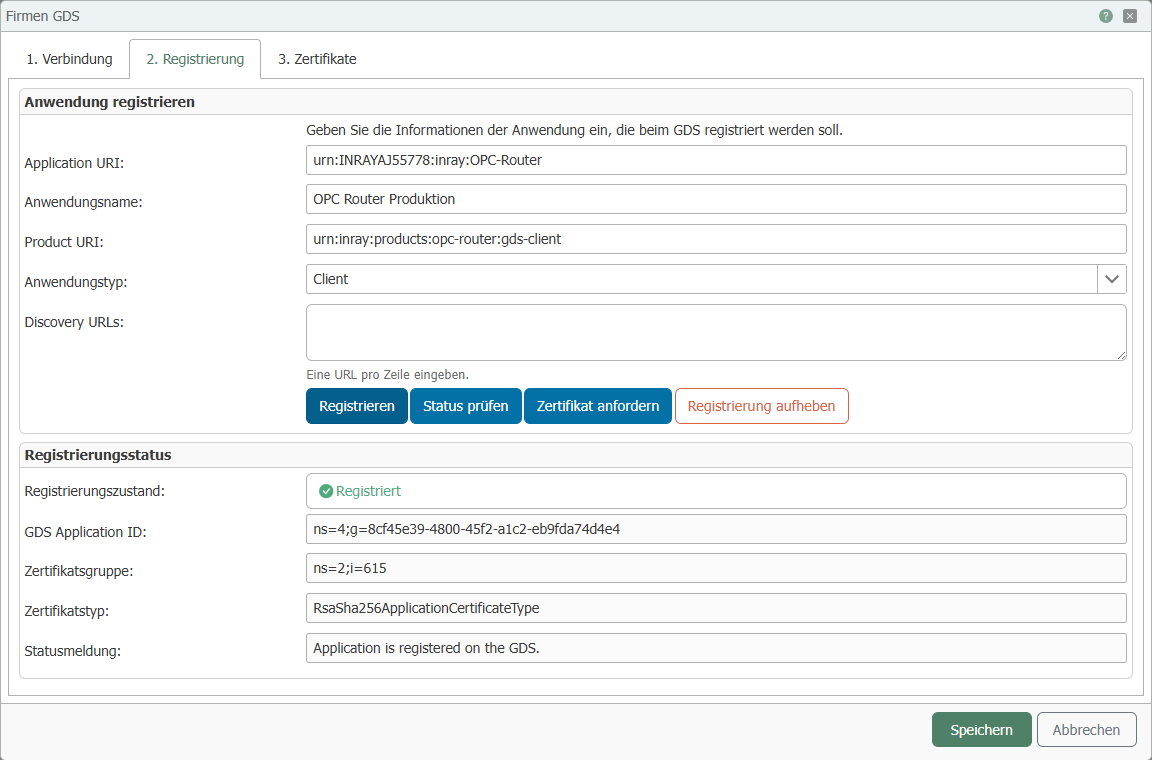
The following buttons are available:
Check Status: Queries the GDS to determine whether and how this installation is registered there, and updates the display.
Register: Registers the OPC Router with the GDS. After successful registration, the application receives a GDS Application ID and the registration status changes to “Registered.” Depending on the GDS server, registration may initially require approval from an administrator—in which case the status will be “Pending.”
Request Certificate: Asks the GDS to issue a signed certificate for this installation. The new certificate is automatically adopted as a client certificate. If the request must first be approved by an administrator, the dialog displays the pending request; click the Complete Request button to retrieve the certificate later. The private (secret) key is always generated locally within the OPC Router and never leaves it.
Unregister: Unregisters the OPC Router with the GDS and removes the cached certificates for this connection.
The registration status can take the following values:
| Status | Meaning |
|---|---|
| Not registered | The application is not yet known to the GDS. |
| Registered | The application is registered with the GDS and receives certificates. |
| Pending | The registration is awaiting approval by the GDS administrator. |
| Conflict error | A different entry with the same ID already exists on the GDS. Check the information on the Connection tab. |
| Unknown | The status could not be determined, e.g., because the GDS was unreachable. |
If the status remains “Pending” for an extended period, check the permissions of the user you specified in the Connection tab. Some GDS servers—including the OPC Foundation’s reference GDS—do not report a missing authorization during registration. The OPC Router cannot distinguish this from a pending authorization and continues to wait.
View Certificates
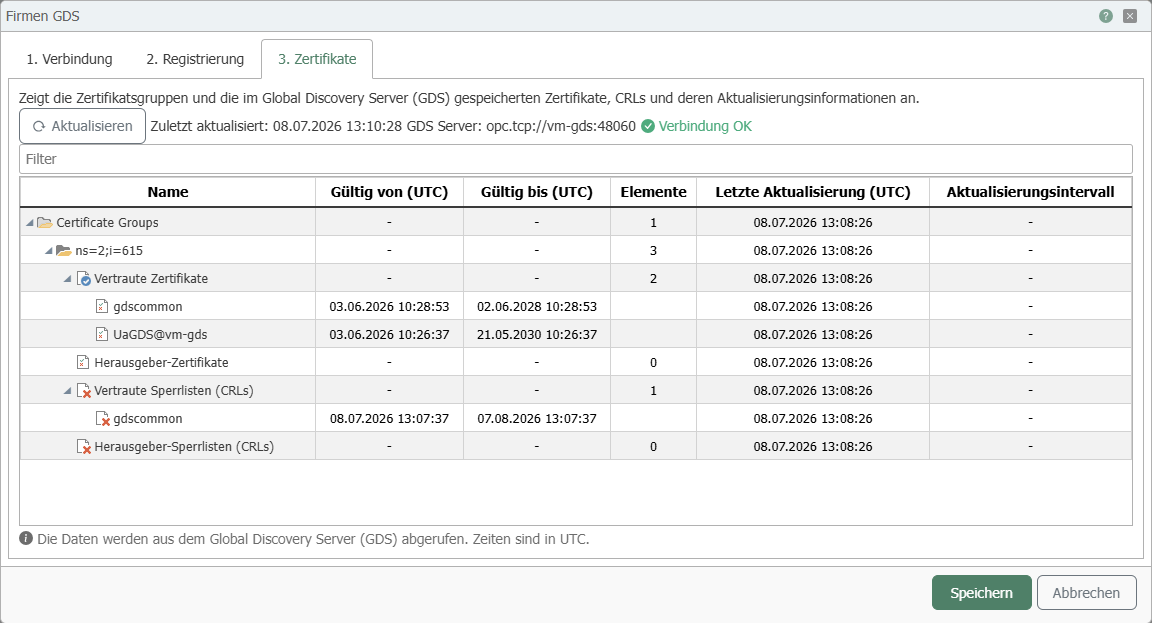
In the Certificates tab, you can see which certificates the GDS provides for this application. The display is organized by certificate groups and shows trusted certificates, issuer certificates, and certificate revocation lists (CRLs)—which are lists of revoked certificates. The validity period and last update are displayed for each entry.
Click the Refresh button to retrieve the latest information from the GDS. All times are in UTC (Coordinated Universal Time).
Step-by-Step Guide to Setting Up the Connection
- Create a new GDS application on the overview page.
- In the Connection tab, enter the GDS server URL and login credentials, and select a client certificate. Verify the information using Test Connection.
- Switch to the Application tab and click Register. If necessary, wait for approval from the GDS administrator.
- Click Request Certificate so that the GDS issues a signed certificate for this installation.
- Close the dialog by clicking Save.
From now on, the OPC Router automatically keeps the certificates up to date: At the configured update interval, it synchronizes them with the GDS, applies changes, and automatically renews expiring certificates. The certificates obtained from the GDS are then available in the certificate selection lists of the plug-ins—you can identify them by the name of the GDS application. To enable the runtime to use the certificates, switch your configuration to production mode as usual.
: The automatic synchronization does not affect plug-ins that are already running. If the GDS renews or removes a certificate, running plug-ins are not restarted: Their connections continue to use the certificate with which they were established. The new certificate is not used until the next time the plug-in is started.
GDS Applications in Redundant Mode
When project synchronization is enabled, the OPC Router also performs the transfer of the GDS applications between the redundancy partners. This requires that both partners have the same version .
When the synchronization target is Configuration, the synchronization is additive: Existing GDS applications on the target system are not deleted. When the target is runtime, the state of the source system is adopted.