Generate instances as a series
If the instances of a template follow a pattern—Anlage_01 through Anlage_20, the number in the OPC address, three aggregates in rotation—you do not need to write the values of the template variables to a file: The “Generate series” dialog box populates the table from “Create multiple instances” according to rules that you define for each variable. The instances are then created as usual via “Create instances”.”
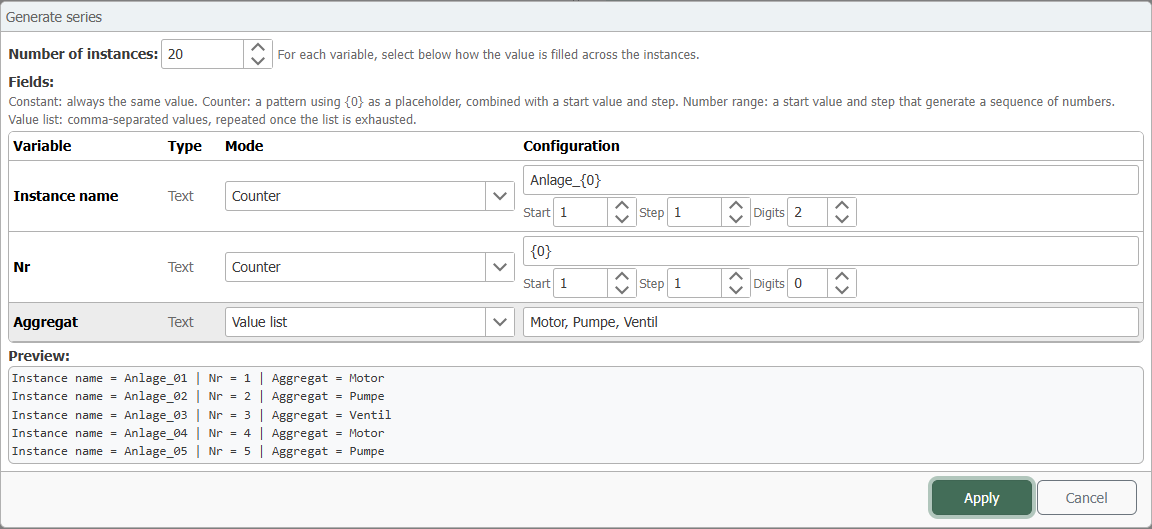
Generate a Series
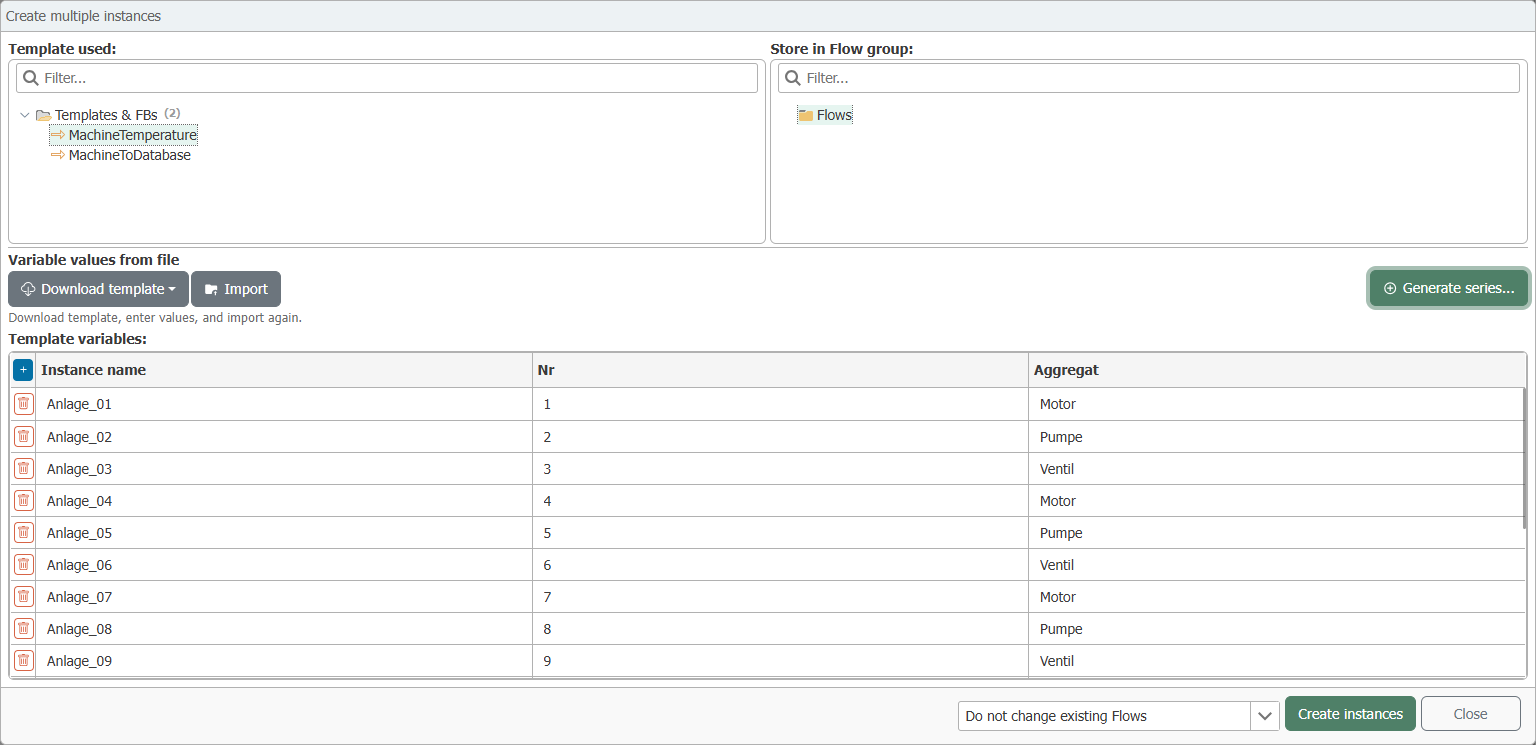
- As described at Create Instances from File , open the dialog “Create multiple instances” and select the template.
- Select “Create multiple instances based on patterns, number ranges, or value lists”. The button is located above the table and, as long as the table is empty, also within it.
- Under “Number of Instances,” enter how many instances you want to create. The default is 10; the maximum is 10,000.
- Specify the mode for the instance name and each template variable (see below) and fill in the corresponding fields.
- Check the preview: It shows the first five instances as they would be created.
- Select “Apply” (Create Instances). The rows appear in the table at “Create multiple instances”; there you can still change individual values before the instances are created.
The Four Modes
| Mode | What it does | Fields |
|---|---|---|
| Constant | All instances receive the same value. | Value |
| Counter | A pattern with the placeholder {0}, which is replaced by a sequential number for each instance. | Pattern, “Start”, “Step”, “Digits” |
| Number Range | A number that increases by the step size for each instance. | “Start”, “Step” |
| Value List | A comma-separated list; if it is shorter than the series, it starts over from the beginning. | Values |
For the counter, the value of the nth instance is calculated as Start + (n − 1) · Schritt; “Digits” pads the number with zeros on the left. The pattern must contain {0}; otherwise, the counter will be missing from the result.
The available modes depend on the variable type:
| Variable | Modes |
|---|---|
| Instance name | Counter, constant, list of values |
| Number (integer or fractional) | Constant, range of numbers, list of values |
| Yes/No, date/time, time span | Constant, list of values |
| Text and plugin references | Constant, counter, list of values |
For time ranges, the same notations apply as when importing from a file, such as 500ms or 2m—see Time Specifications in Template Variables .
Example
A typical example is a composite OPC address: the plant number and aggregate are specified as template variables in the trigger item, such as SPS.Anlage{Nr}.{Aggregat}.Temperatur (for information on how to assign a variable to a field, see Create Template ). Twenty plants with alternating aggregates:
| Variable | Mode | Configuration | results in |
|---|---|---|---|
| Instance name | Counter | Pattern Anlage_{0}, “Start” 1, “Step” 1, “Digits” 2 | Plant_01 … Attachment_20 |
| No. | Counter | Sample {0}, “Start” 1, “Step” 1 | 1 … 20 |
| Unit | Value List | Motor, Pumpe, Ventil | Motor, pump, valve, motor, … – the list restarts from the beginning after the third entry |
The first instance therefore reads SPS.Anlage1.Motor.Temperatur, and the second reads SPS.Anlage2.Pumpe.Temperatur. If all three aggregates of every system are to be connected, create three series—one for each aggregate as a constant.
The dialog generates values, not flows. Only “Create instances” in the “Create multiple instances” dialog creates the instances—and as applies there: If you change the template later, all instances will be updated accordingly.