Read the latest data record
To read a current record from a database table, sort the table in descending order by the timestamp field and transfer only one record. The database must be polled at the required interval using a time trigger. In this variant, the current record is transferred each time the function is called. To transfer only a new record, continue reading in the next chapter.
You can, of course, set optional filter criteria, for example, if the table contains multiple measurement series.
Variant 1: Timestamp Sorting Without Filters
Required Fields/Columns:
| Name | Description |
|---|---|
| <zeitstempel> | Timestamp of type Date/Time, used for sorting |
| <werte> | Column(s) containing the relevant values |
Configure a DB transfer object with the following properties:
| Name | Configuration |
|---|---|
| Data Source | _<Ihre Datenbankanbindung aus dem Plug-ins-Bereich> _ |
| Type | Select |
Tab: General
| Name | Configuration |
|---|---|
| Table | _<Tabelle, die Ihre Daten enthält> _ |
| Columns | Move all required value columns from “Available” to “Used”. |
Tab: Filter
| Name | Configuration |
|---|---|
| Filter | No additional filters in this variant |
Tab: Query
| Name | Configuration |
|---|---|
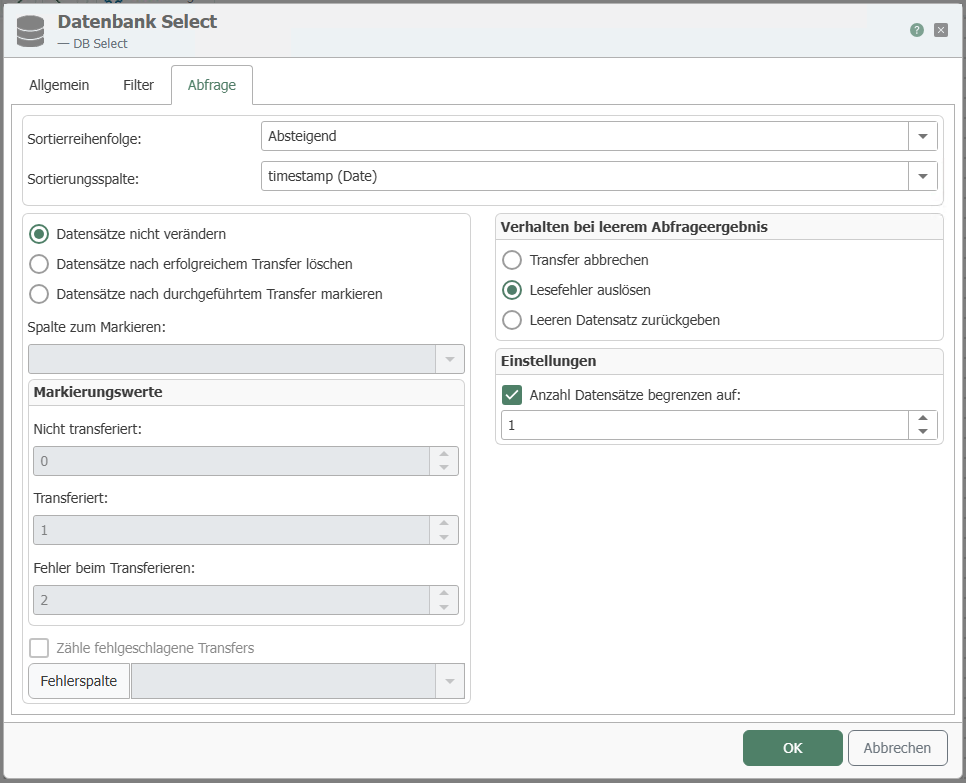
| Sort Order | Descending – this places the most recent record at the top. |
| Sort Column | _<Zeitstempel-Spalte> _ |
| “Do not change records” | Selected. The data record is transferred again with each call; the source table remains unchanged. |
| “Limit number of records to” | Enabled, value 1 – only the topmost and thus most recent data record is transferred. |
| “With empty SELECT” | As needed: “Abort transfer”, “Return read error”, or “Return empty record”. |
Exactly one of the three options for handling the transferred records is always selected, as is one of the three options under “With empty SELECT”.” All properties of the tab are described at DB Select Transfer Object.
Your transfer object appears in the flow as shown in the following figure. In this example, the "Value" column was used as the value column. It is now available as a data source. You cannot see the sorting in the Flow configuration:

Configure a time trigger with the required interval, e.g., 10 seconds. Then, every ten seconds, the latest data record from the table will be transferred, regardless of whether it has already been transferred or not.
Variant 2: Timestamp Sorting with an Additional Filter
In this variant, the table contains multiple measurement series, each defined by a ConfigID. An additional filter must be configured.
Required Fields/Columns:
| Name | Description |
|---|---|
| <zeitstempel> | Timestamp of type Date/Time, used for sorting |
| ConfigID | ID of the measurement series |
| <werte> | Column(s) containing the relevant values |
Configure a DB transfer object with the following properties:
| Name | Configuration |
|---|---|
| Data Source | _<Ihre Datenbankanbindung aus dem Plug-ins-Bereich> _ |
| Type | Select |
Tab: General
| Name | Configuration |
|---|---|
| Table | _<Tabelle, die Ihre Daten enthält> _ |
| Columns | Move all required value columns from “Available” to “Used”. |
Tab: Filter
| Name | Configuration |
|---|---|
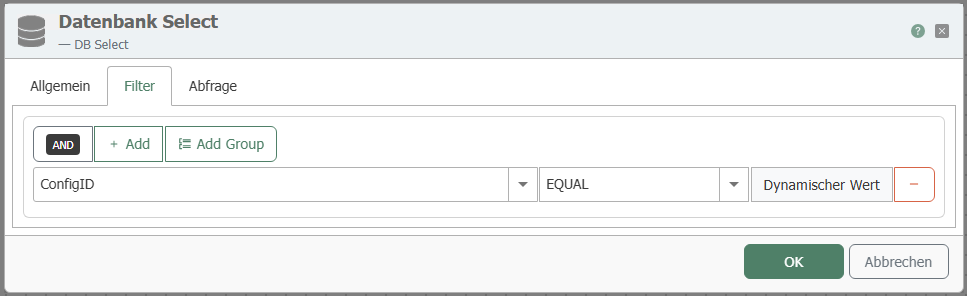
| Filter | “Add filter” creates a new filter. |
| Edit filter/filter group | Column: ConfigID Comparison operator: EQUAL |
| Preview | This should now read: WHERE (ConfigID = ?) |
Tab: Query
| Name | Configuration |
|---|---|
| Sort Order | Descending – this places the most recent record at the top. |
| Sort Column | _<Zeitstempel-Spalte> _ |
| “Do not change records” | Selected. The data record is transferred again with each call; the source table remains unchanged. |
| “Limit number of records to” | Enabled, value 1 – only the topmost and thus most recent data record is transferred. |
| “With empty SELECT” | As needed: “Abort transfer”, “Return read error”, or “Return empty record”. |
Your transfer object looks like the one shown in the figure. The DB transfer object with a filter requires a two-step transfer: The first step (blue arrowhead) defines the filter, and the second (green) retrieves the value.
Fill the filter with a value:
- Create a constant object and enter the desired ConfigID there.
- Establish a connection between the constant and the ConfigID filter element of the DB transfer object using an Item Link.
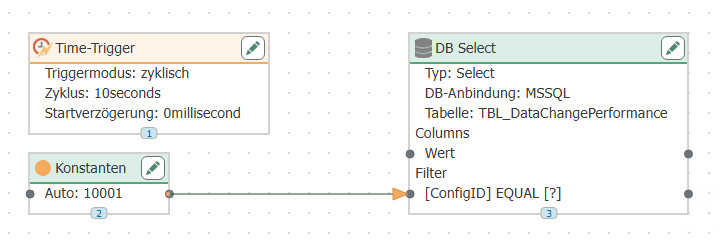
Configure a time trigger with the required interval, e.g., 10 seconds. Then, every ten seconds, the latest data record from the table will be transferred, regardless of whether it has already been transferred or not.
Option 3: Timestamp Sorting with an Additional Filter from a Template
Option 2 can also be configured as a “” flow template: . Create one instance for each series of measured values.
- Do not configure a flow; instead, configure a flow template with the same settings for the DB transfer object as in Variant 2.
- In the constant object from Variant 2, do not enter the value; instead, enter the template variable
{ConfigID}. - Configure the time trigger as in Variant 2.
- Create an instance for each measured value series from the template and enter the value for the ConfigID.
The template contains the time trigger, the constant object with the template variable, and the DB transfer object with the filter:
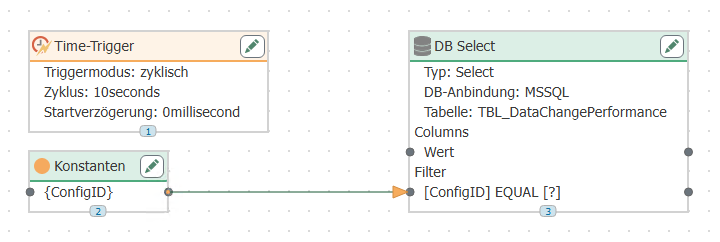
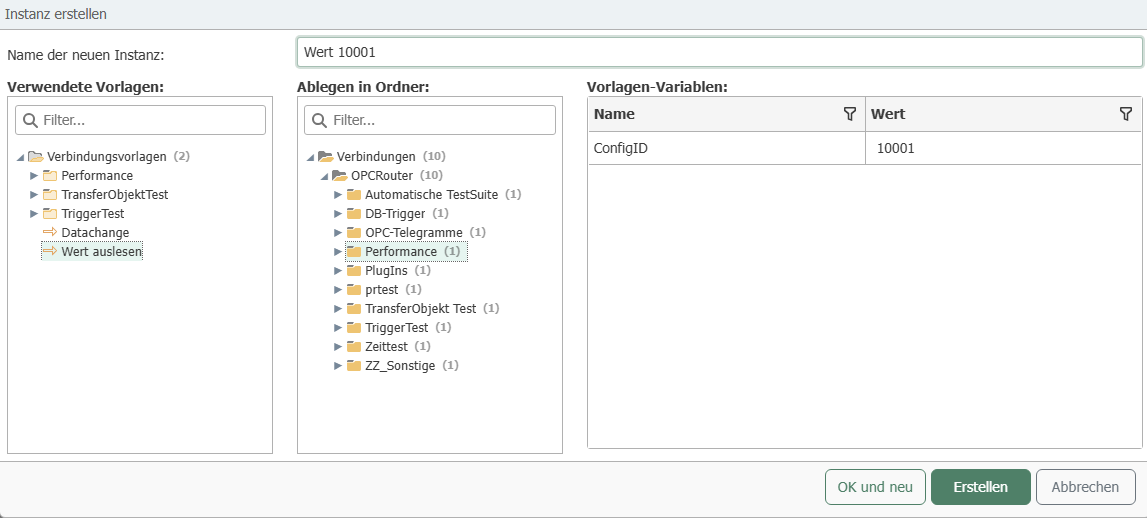
When creating an instance, assign a name to it, select the destination folder, and populate the template variable ConfigID with the value of the measurement series:
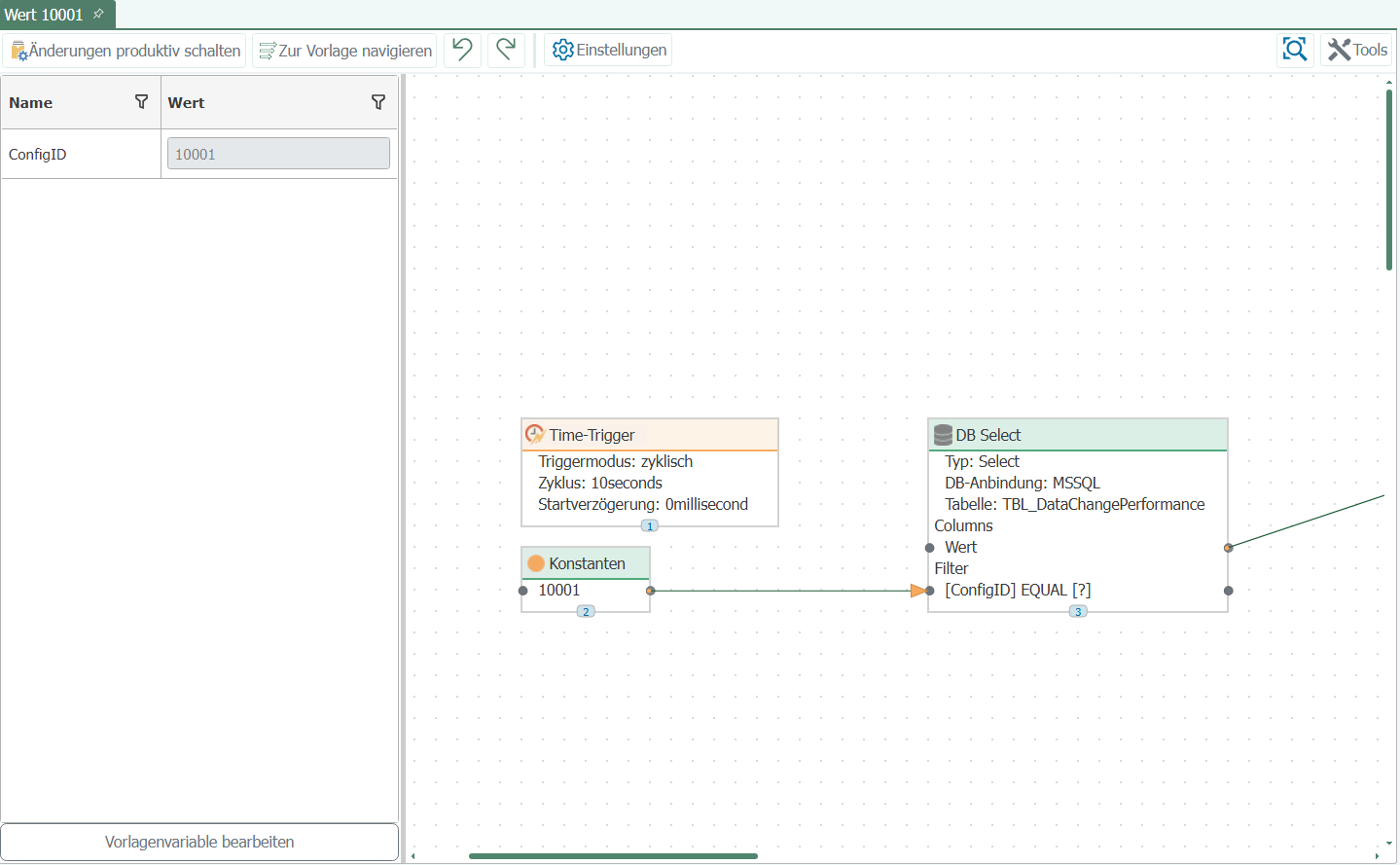
In the completed instance, the specific value is stored in the constant object; to the left of it, you can see the instance’s template variables:
Complete the flow
The data source has been configured up to this point. Three steps remain to make the flow operational:
- Connect the data destination. Use Item Links to connect the elements of the DB transfer object to the transfer object of your target system. The available target systems and the properties of their transfer objects are described in the chapter for each respective plug-in: all plug-ins from A to Z .
- Go live. In the “” view, select “Publish” , select the changes, and click “Make changes productive”.” Until then, the runtime continues to operate using the most recently published version.
- Check the result. The “” status display shows whether the flow is running. In the “ Flow Status” , you can view each individual transfer and the transferred values.